Basic Fixes
- Check for Software Updates: Make sure your iPhone is running the latest software version. Navigate to Settings > General > Software Update. If there is an update available, download and install it.
- Force Restart Your iPhone: Press and quickly release the volume up button, then the volume down button. Finally, press and hold the side button until you see the Apple logo.
- Check for Storage Space: If your iPhone is low on storage, you might be able to take a screenshot, but it won’t appear in the Photos app. Go to Settings > General > iPhone Storage and delete unnecessary files or apps.
- Screenshots Won’t Work in Certain Apps: Some apps, such as banking or payment apps, have security features that disable screenshots. If you’re trying to take a screenshot in one of these applications, it won’t work.
Fix 1: Take Screenshots the Right Way
It seems obvious, but sometimes we forget the basics. To take iPhone screenshots correctly, remember these tips:
- Press and hold the side button and then immediately press the volume up button.
- If you hold the buttons too long, the slide to power off screen will appear. So press and release them quickly.
- Also, check the physical buttons. If either of them is stuck or not responding, you can’t take screenshots.
Fix 2: Enable the Assistive Touch Feature
If your physical buttons are not working, you can use the Assistive Touch feature. This feature creates a virtual button that performs various functions, including taking screenshots.
To enable Assistive Touch, follow these steps:
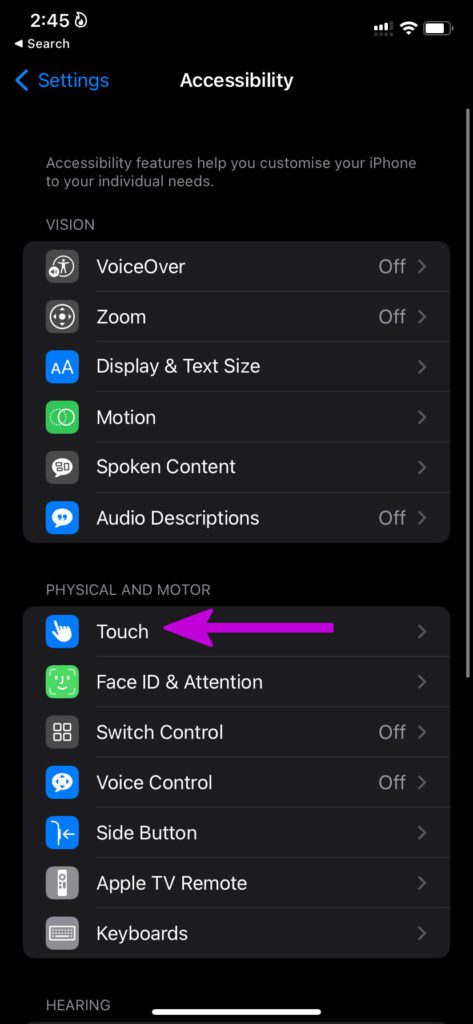
Step 1: Navigate to Settings > Accessibility > Touch > Assistive Touch.
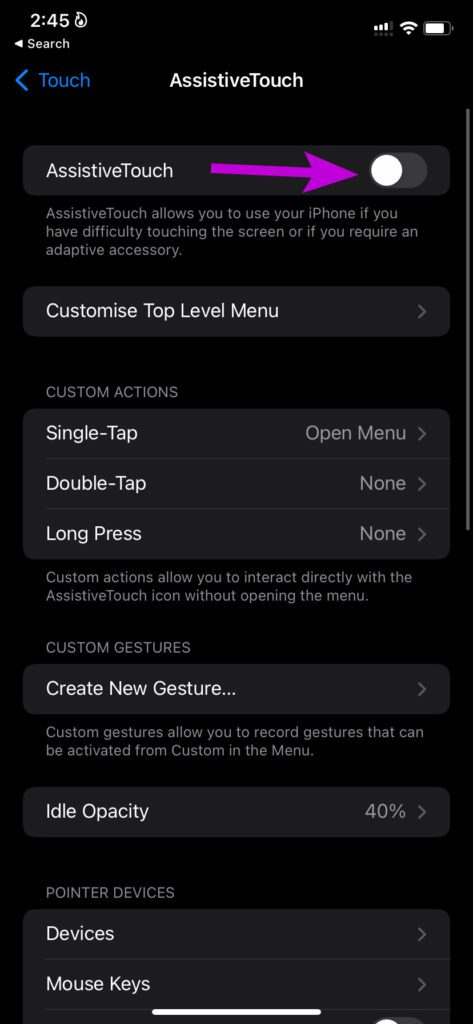
Step 2: Turn on Assistive Touch. Now, you’ll see a small white circle floating on your screen.


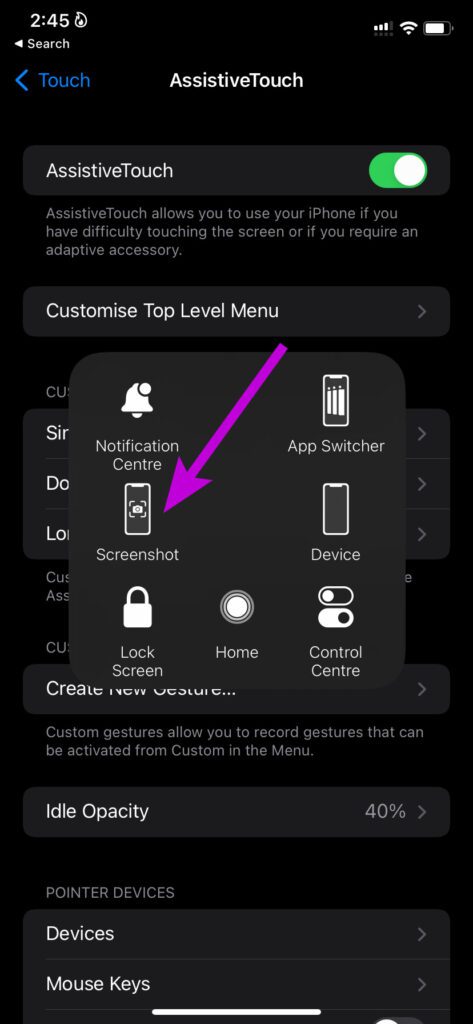
Step 3: Tap it and select Device > More > Screenshot to take a screenshot.
Fix 3: Use the Back Tap to Take Screenshots
If you don’t like physical buttons or Assistive Touch, try Back Tap. This feature takes screenshots when you double or triple-tap on the back.
Step 1: Navigate to Settings > Accessibility > Touch > Back Tap.
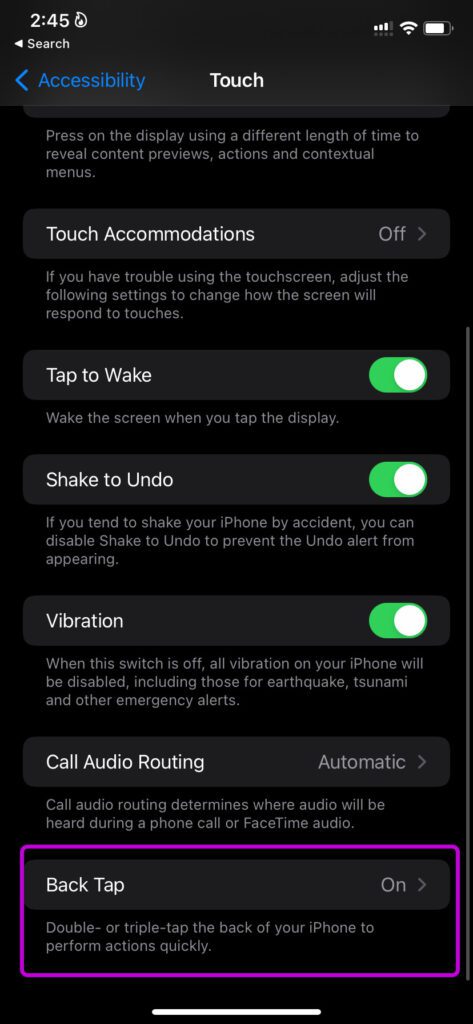
Step 2: Select Double Tap or Triple Tap and choose the Screenshot option.


Now, when you tap on the back of your iPhone, it takes a screenshot.
Was this helpful?
Last updated on 30 August, 2024
Read Next
 4 Ways to Fix Windows Not Taking Screenshots
Fix 1: Close Interfering Apps We often install multiple screenshot software, each taking over the Print screen shortcuts.
4 Ways to Fix Windows Not Taking Screenshots
Fix 1: Close Interfering Apps We often install multiple screenshot software, each taking over the Print screen shortcuts.
 3 Ways to Fix Unable to Capture Screenshots on Android
Why Certain Apps Don’t Allow You to Take Screenshots on Android Some Android apps may prevent you from taking screenshots for security reasons.
3 Ways to Fix Unable to Capture Screenshots on Android
Why Certain Apps Don’t Allow You to Take Screenshots on Android Some Android apps may prevent you from taking screenshots for security reasons.
 Best Ways to Capture Scrolling Screenshots on macOS
When you want to capture an entire webpage, document, or any content that extends beyond the visible screen, a scrolling screenshot is the best route.
Best Ways to Capture Scrolling Screenshots on macOS
When you want to capture an entire webpage, document, or any content that extends beyond the visible screen, a scrolling screenshot is the best route.
 4 Ways to Take Screenshots on Android TV
Method 1: Using Your Android TV Remote On the screen that you want to capture, press and hold the power and volume down buttons together of your remote.
4 Ways to Take Screenshots on Android TV
Method 1: Using Your Android TV Remote On the screen that you want to capture, press and hold the power and volume down buttons together of your remote.
 5 Ways to Take Screenshots Without Power Button on Android
Method 1: Use Gestures You can use Gestures to capture a screenshot - on Xiaomi devices, go to Settings > Additional Settings > Gestures > enable the Slide 3 fingers
5 Ways to Take Screenshots Without Power Button on Android
Method 1: Use Gestures You can use Gestures to capture a screenshot - on Xiaomi devices, go to Settings > Additional Settings > Gestures > enable the Slide 3 fingers
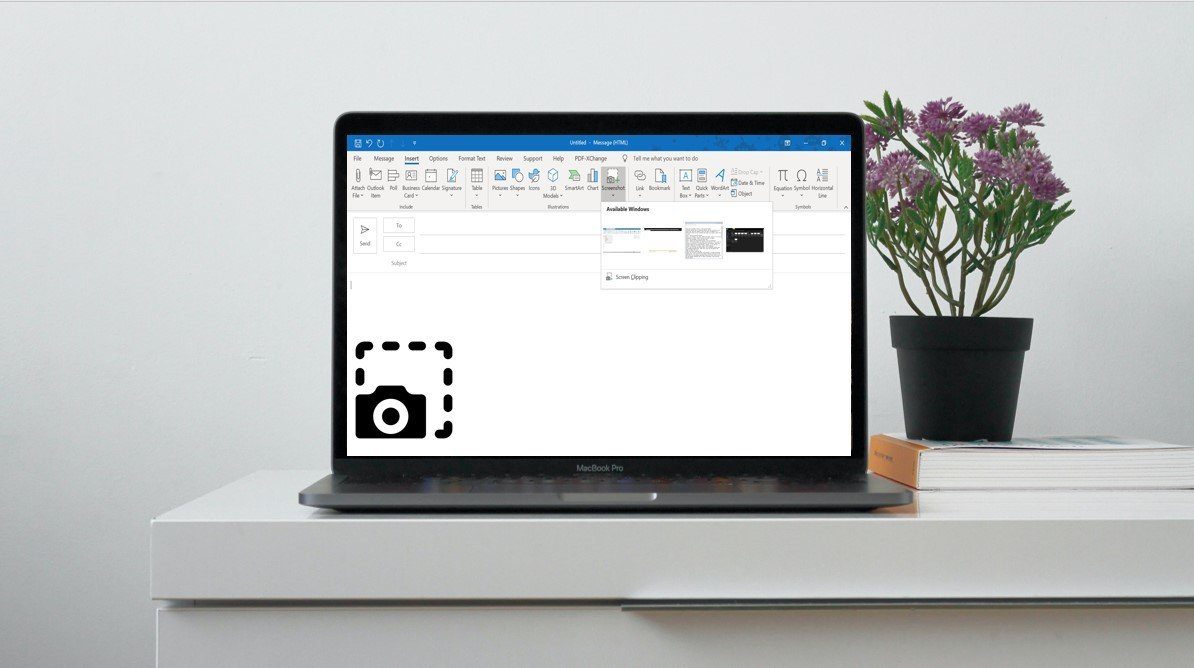 Top 3 Ways to Insert Screenshots in Microsoft Outlook
Screenshots can be very helpful when passing certain information over messages or social media.
Top 3 Ways to Insert Screenshots in Microsoft Outlook
Screenshots can be very helpful when passing certain information over messages or social media.
 3 Ways to Take Scrolling Screenshots in Windows 11
Method 1: Using Microsoft Edge Microsoft Edge offers a handy Web Capture tool to snap and annotate screenshots.
3 Ways to Take Scrolling Screenshots in Windows 11
Method 1: Using Microsoft Edge Microsoft Edge offers a handy Web Capture tool to snap and annotate screenshots.
 2 Tools to Automatically Take Screenshots on Windows PC
Just think for a moment.
2 Tools to Automatically Take Screenshots on Windows PC
Just think for a moment.
The article above may contain affiliate links which help support Guiding Tech. The content remains unbiased and authentic and will never affect our editorial integrity.