Basic Fixes
- Check file compatibility: The file type of your presentation should be compatible with PowerPoint that supports PPTX, PPSX or ODP.
- Force quit and relaunch PowerPoint: This will give the app a fresh start. Click the Apple logo > Force Quit > PowerPoint > Force Quit.
- Update or reinstall PowerPoint: Installing the latest version will remove any bugs or glitches from the app.
Fix 1: Ensure Fonts Are Compatible Across Platforms
Let’s say you have used some font styles for your presentation. You must ensure they are compatible with Mac and Windows. This helps you use the same file on different operating systems.
Fix 2: Remove Powerpoint Preference Files
A Microsoft PowerPoint preference file is created that saves all your app preferences and settings. To fix this problem, relocate the preference file temporarily by following these steps.
Step 1: Launch the Finder app > select Go > click on Go to Folder.
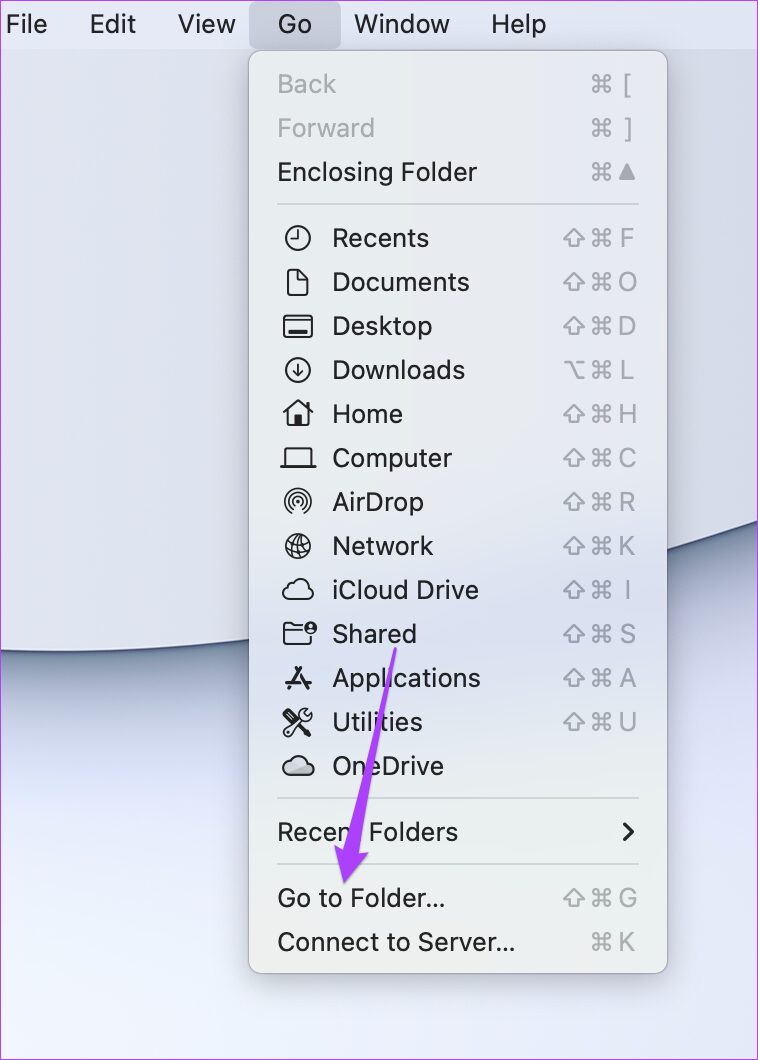
Step 2: In the search box, type ~/Library and press Return. Click the first result.

Step 3: Select the Containers folder from the list. Once you open the folder, type com.microsoft.PowerPoint.plist in the search box and press Return.

Step 4: Select the file and drag it to the Recycle Bin.

Fix 3: Run First Aid in Disk Utility
If your Mac is experiencing storage errors after you’ve removed several apps, you can fix those errors using Disk Utility. These errors might be causing issues with the PowerPoint app, and they can also affect your Mac’s overall performance. Follow these steps.
Step 1: Open Disk Utility and click on First Aid in the Disk Utility window.
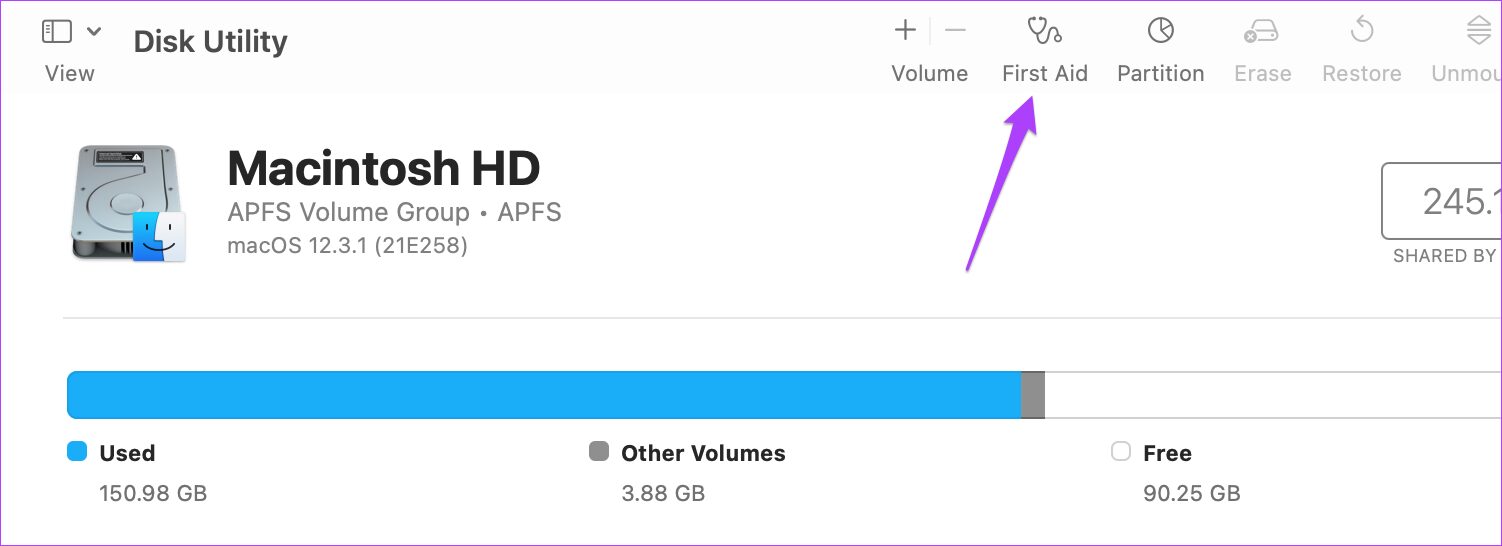
Step 2: Click on Run to launch First Aid.

Step 3: Click on Continue to confirm your action.
After Disk Utility finishes running First Aid, relaunch the PowerPoint app.
Tip: Learn how to extract images from a PowerPoint presentation
Fix 4: Create and Switch to a New User Account
If none of the options work on your Mac, create a new user account temporarily. Switching to a new user account is also a good option to fix PowerPoint not opening on your Mac. Follow these steps.
Step 1: Open System Settings > User and Groups.
Step 2: Click on Add User > enter your Mac password to confirm this action.

Step 3: Enter all the details and click on Create Account.
Step 4: Click the Info icon next to the user account name.
Step 5: Enable the toggle for Allow guests to log in to this computer and click Ok.

Step 6: Close the tab and click the Apple logo again. Log out from the current user account and sign in with the newly created account.
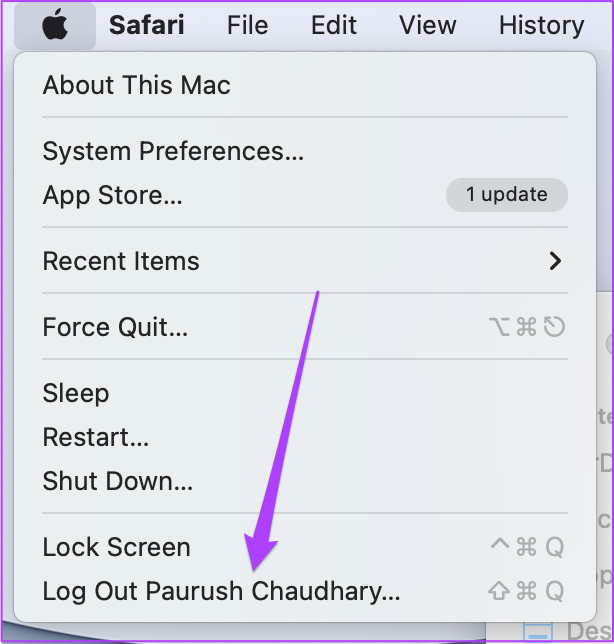
Once you sign in, relaunch the PowerPoint app.
Tip: You can also refer to our post if PowerPoint is not saving on your Mac.
Alternative: Use Google Slides to Open PowerPoint Files
If none of the solutions work, switch to Google Slides to access your PowerPoint files. Open Google Slides > sign in to your account > click on File > Open > choose your PowerPoint file.

Was this helpful?
Last updated on 31 July, 2024
Read Next
 2 Ways to Fix Microsoft PowerPoint Not Saving on Mac
Basic Fixes Check your internet connection: If you use any cloud storage services, you must have an active internet connection to sync the latest changes in your PowerPoint file.
2 Ways to Fix Microsoft PowerPoint Not Saving on Mac
Basic Fixes Check your internet connection: If you use any cloud storage services, you must have an active internet connection to sync the latest changes in your PowerPoint file.
 Top 9 Ways to Fix Microsoft Teams Not Opening on Mac
While Microsoft Teams is jam-packed with useful features, the software puts a huge question mark over the overall reliability.
Top 9 Ways to Fix Microsoft Teams Not Opening on Mac
While Microsoft Teams is jam-packed with useful features, the software puts a huge question mark over the overall reliability.
 5 Ways to Fix Microsoft Excel Not Opening on Mac
Basic Fixes Check your Microsoft subscription: Visit your Microsoft 365 account and check your subscription status.
5 Ways to Fix Microsoft Excel Not Opening on Mac
Basic Fixes Check your Microsoft subscription: Visit your Microsoft 365 account and check your subscription status.
 Top 6 Ways to Fix Microsoft PowerPoint Not Responding on Windows 11
Microsoft PowerPoint is a popular application for creating visually appealing slideshows business meetings, educational presentations, or conferences.
Top 6 Ways to Fix Microsoft PowerPoint Not Responding on Windows 11
Microsoft PowerPoint is a popular application for creating visually appealing slideshows business meetings, educational presentations, or conferences.
 6 Ways to Fix Microsoft PowerPoint Not Saving Files on Windows
Fix 1: Ensure the File Is Not Opened Elsewhere Having a PowerPoint file open in multiple apps can prevent you from editing it.
6 Ways to Fix Microsoft PowerPoint Not Saving Files on Windows
Fix 1: Ensure the File Is Not Opened Elsewhere Having a PowerPoint file open in multiple apps can prevent you from editing it.
 Top 3 Ways to Add Icons to a Microsoft PowerPoint Presentation
You can Microsoft PowerPoint more interesting and intuitive by using icons instead of just text.
Top 3 Ways to Add Icons to a Microsoft PowerPoint Presentation
You can Microsoft PowerPoint more interesting and intuitive by using icons instead of just text.
 2 Ways to Fix Google Chrome Not Opening on Mac
Preliminary Fixes Make Google Chrome open at startup: Open System Preferences > select Users & Groups > slide to Login Items > select + icon > select Google Chrome >
2 Ways to Fix Google Chrome Not Opening on Mac
Preliminary Fixes Make Google Chrome open at startup: Open System Preferences > select Users & Groups > slide to Login Items > select + icon > select Google Chrome >
 3 Ways to Stop Mac From Opening Links in Safari
Method 1: Change the Default Browser on Your Mac Your Mac comes with Safari as the default browser.
3 Ways to Stop Mac From Opening Links in Safari
Method 1: Change the Default Browser on Your Mac Your Mac comes with Safari as the default browser.
The article above may contain affiliate links which help support Guiding Tech. The content remains unbiased and authentic and will never affect our editorial integrity.