1. Instagram – Straightforward Tilt Shift Integration
Yes — yours, mine, and everybody’s favorite app — Instagram — has a Tilt Shift option. The feature was first introduced in 2012 and has been a hit with users ever since.
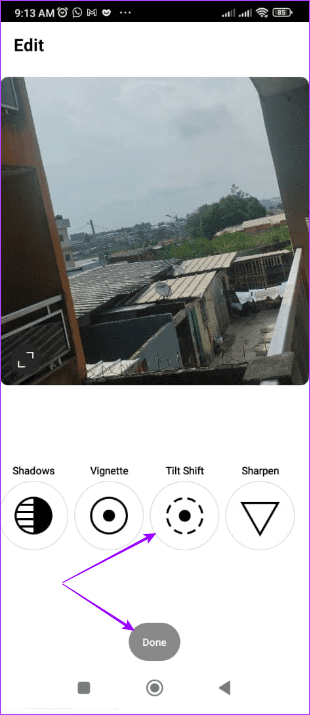

Using the feature is easy since you only need to choose any existing photo or snap a new one, and under Edit you should see the Tilt Shift option.
Pros
- Offers the most direct Tilt Shift feature
- Totally free to use
- Great photo editing features
Cons
- It might be resource-intensive, especially on older phones
Price: Free
2. Snapseed – Tilt Shift With Lens Blur Feature
Snapseed has a Lens Blur option that is equivalent to Tilt Shift. Launch the app and tap the large ‘+’ icon to select any image. Click on the Tools button to reveal the many options available. Scroll down to find the Lens Blur setting.


Here, you can choose what needs to be the focus and how much blur you want on other parts of the image.
Pros
- Easy-to-use lens blur (Tilt Shift) feature
- Multiple options for photo editing
- Non-destructive editing
Cons
- Limited compared to pro tools
- The saving options may be confusing
Price: Free
3. Pixlr – Tilt Shift With Blur, Mask, and Adjustment
While Pixlr does not have a dedicated Tilf Shift feature, it has a combination of features that may be used to achieve the same results. The most common alternatives are the Blur, Mask, or Adjustment tools. To use this feature, click to select a photo, click the Options icon, then click Blur. Now, you may set it as you please.


Blur allows you to focus on a composition’s specific part. You can control the transition area, composition, placement, and rotation effect with it.
Pros
- Free and accessible tool
- Multiple editing options
- Cross-platform capability
Cons
- No dedicated Tilf Shift feature
- Potential quality loss
Price: Free
4. Camera360 – Robust Editing Options With Blur for Tilt Shift
Camera360 is a powerful photo editing app that is free but has some in-app purchases. For this post, we are good with the free version. To access the Tilt Shift feature, select your desired photo, click the Edit option, and select Blur. You may now make changes as you desire.
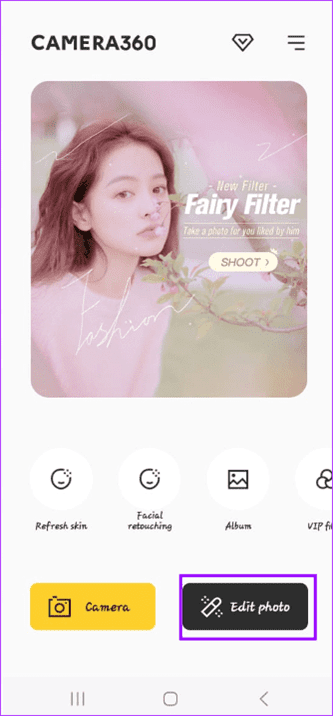

To switch between linear and round, click on the Blur button again. You should now see the familiar circle and tap it again to see the linear option.
Pros
- Multiple fun and creative features
- Easy to use
- Multiple free editing options
Cons
- More edit features are available with in-app purchases
- No direct Tilt Shift feature
Price: Free, Offers In-App Purchases
Was this helpful?
Last updated on 29 May, 2024
Read Next
 4 Fixes for Night Shift Not Working on iPhone and Mac
Basic Fix Update software version: Update the software version on your iPhone or Mac to fix bugs causing the issue.
4 Fixes for Night Shift Not Working on iPhone and Mac
Basic Fix Update software version: Update the software version on your iPhone or Mac to fix bugs causing the issue.
 6 Best Insta360 X3 Accessories to Create Amazing Videos
The Insta360 X3 is one of the best 360-degree cameras on the market right now.
6 Best Insta360 X3 Accessories to Create Amazing Videos
The Insta360 X3 is one of the best 360-degree cameras on the market right now.
 5 Best Gallery Apps With Hide Photos Option for Android
Many times, we want to hide some sensitive photos and videos from our phones.
5 Best Gallery Apps With Hide Photos Option for Android
Many times, we want to hide some sensitive photos and videos from our phones.
 5 Ways to Fix Google Photos App Not Showing All Photos
Basic Fixes Check your network connection - Ensure your phone is connected to a good internet connection.
5 Ways to Fix Google Photos App Not Showing All Photos
Basic Fixes Check your network connection - Ensure your phone is connected to a good internet connection.
 How to Upload Photos to Google Photos on Android, iPhone, PC
How to Upload Photos on Google Photos From Mobile There are two ways to add pictures to Google Photos from Android or iOS devices.
How to Upload Photos to Google Photos on Android, iPhone, PC
How to Upload Photos on Google Photos From Mobile There are two ways to add pictures to Google Photos from Android or iOS devices.
 How to Delete Photos From iPhone But Not From Google Photos
How to Delete Photos from iPhone But Keep Them in Google Photos Open Google Photos, swipe up the photo you want to delete, and select Delete from Device.
How to Delete Photos From iPhone But Not From Google Photos
How to Delete Photos from iPhone But Keep Them in Google Photos Open Google Photos, swipe up the photo you want to delete, and select Delete from Device.
 Google Drive vs Google Photos: Which Is Best for Storing Photos
Google Drive vs Google Photos Comparison Key Differences Feature Google Drive Google PhotosFile Types All types Photos, Videos, GIFsOrganization Folders & Subfolders AlbumsPhoto Quality Original Original, High (compressed), Express (compressed)Storage
Google Drive vs Google Photos: Which Is Best for Storing Photos
Google Drive vs Google Photos Comparison Key Differences Feature Google Drive Google PhotosFile Types All types Photos, Videos, GIFsOrganization Folders & Subfolders AlbumsPhoto Quality Original Original, High (compressed), Express (compressed)Storage
 3 Fixes for iMessage Photos Not Showing in Photos App
Basic Fixes Force quit and relaunch Messages app: You can force quit and relaunch the Messages app to give it a fresh start on your iPhone.
3 Fixes for iMessage Photos Not Showing in Photos App
Basic Fixes Force quit and relaunch Messages app: You can force quit and relaunch the Messages app to give it a fresh start on your iPhone.
The article above may contain affiliate links which help support Guiding Tech. The content remains unbiased and authentic and will never affect our editorial integrity.