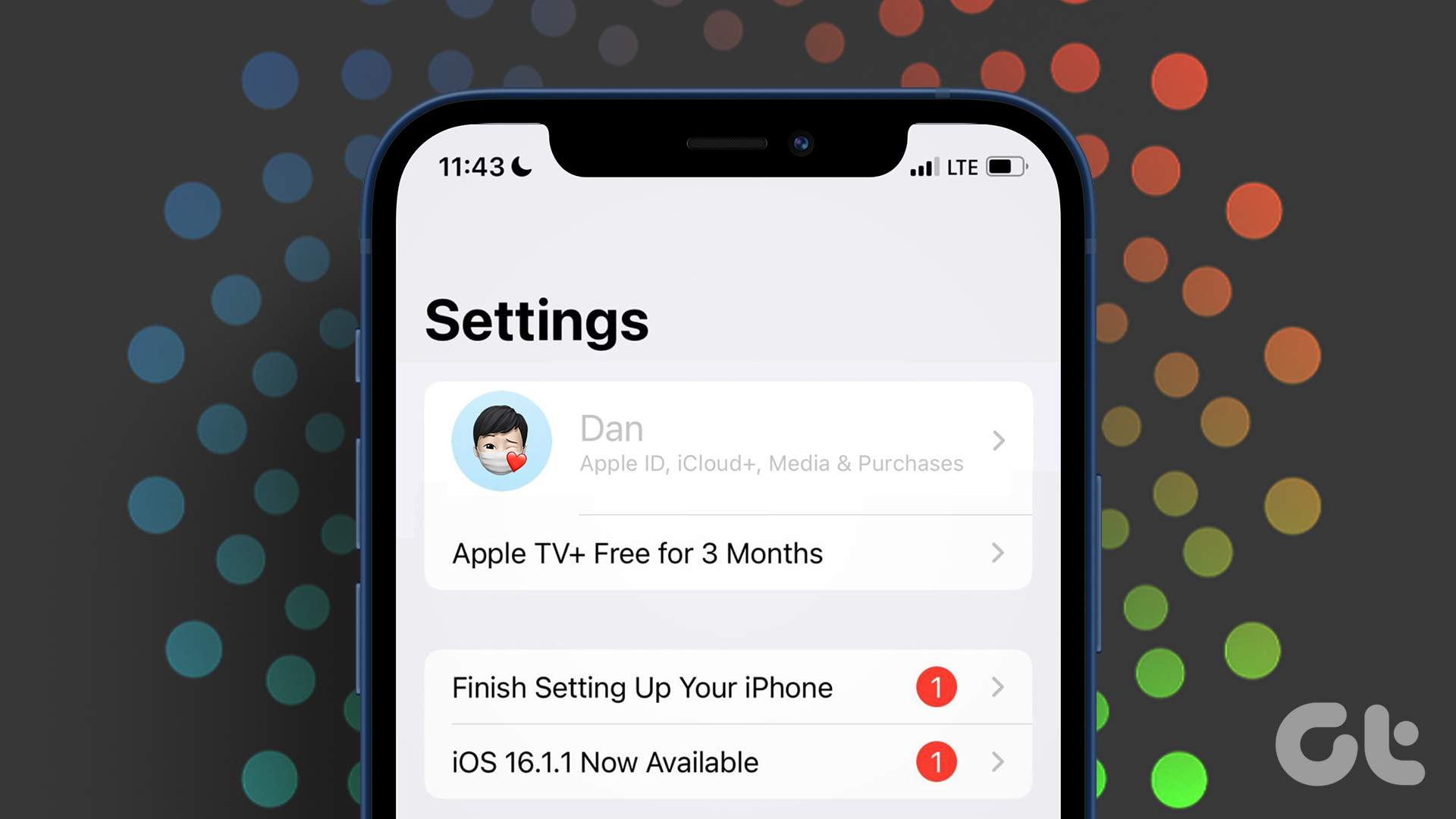
Basic Fixes
- Remove configuration profile: Configuration profiles define settings for using iPhones with corporate or school networks or accounts. Go to Settings > General > VPN and Device Management > delete a configuration profile.
- Update Carrier Settings: Some mobile operators don’t allow you to change the Date and Time on your iPhone. If this is the case, go to Settings > General > About > install an update.
- Update iOS: This will remove all the bugs in the current software version causing the issue.
Fix 1: Turn Off Screen Time Sharing
Screen Time on your iPhone gives you a breakdown of how long you have used the installed apps. You can also share the Screen Time of your iPhone with your other Apple devices. You can turn off this feature to check if the problem gets solved.
Step 1: Open Settings > Screen Time > disable Share Across Devices.


Step 2: Go back to General and select Date and Time to check if the problem is solved.
Fix 2: Disable Screen Time
The Screen Time feature may be preventing you from changing the Date and Time settings on your iPhone. This happens if you have set a Screen Time Passcode. You can temporarily disable Screen Time and try using Set Automatically for Date and Time.
Open Settings > Screen Time > turn off Screen Time > go back to General > tap on Date and Time to check if the problem is solved.

3. Check Location Privacy Settings
Location Services on your iPhone help set the Time Zone, track the location of family members, and more. The Time Zone calibration on your iPhone depends on your current location. So, check if setting the Time Zone is allowed on your iPhone by the Location Services.
Open Settings > Privacy and Security > Location Services > System Services > turn off Setting Time Zone.


Fix 4: Reset All Settings
If you still can’t change the date and time, you can try to reset all the settings of your iPhone, including Location Services, network settings, and more. Refer to our post to learn how to reset your iPhone.
Was this helpful?
Last updated on 19 July, 2024
Read Next
 2 Fixes for Apple ID Grayed Out on iPhone
Basic Fixes Switch from mobile data to Wi-Fi: This will provide much faster internet speeds on your iPhone and stable connectivity to your Apple account.
2 Fixes for Apple ID Grayed Out on iPhone
Basic Fixes Switch from mobile data to Wi-Fi: This will provide much faster internet speeds on your iPhone and stable connectivity to your Apple account.
 3 Ways to Change Date Created, Date Modified, and Other Attributes on Windows
Potential Risks and Considerations of Modifying File Attributes Manually changing the creation and modification date of any file on Windows can be useful for better organizing your files, making them
3 Ways to Change Date Created, Date Modified, and Other Attributes on Windows
Potential Risks and Considerations of Modifying File Attributes Manually changing the creation and modification date of any file on Windows can be useful for better organizing your files, making them
 3 Fixes When the Windows 11 Screen Saver Settings Is Greyed Out
Fix 1: Delete the ScreenSaveActive Registry Key If screen saver options are greyed out in Windows, incorrect registry edits are likely causing the issue.
3 Fixes When the Windows 11 Screen Saver Settings Is Greyed Out
Fix 1: Delete the ScreenSaveActive Registry Key If screen saver options are greyed out in Windows, incorrect registry edits are likely causing the issue.
 How to Fix Wi-Fi Greyed Out on iPhone
https://youtu.be/E66FRW2dtuM Basic Fixes Restart iPhone - Sometimes all it needs to fix an issue like Wi-Fi greyed-out is to restart your iPhone.
How to Fix Wi-Fi Greyed Out on iPhone
https://youtu.be/E66FRW2dtuM Basic Fixes Restart iPhone - Sometimes all it needs to fix an issue like Wi-Fi greyed-out is to restart your iPhone.
 4 Ways to Fix Wi-Fi Grayed Out on Android
Basic Fixes Restart your phone: Sometimes, a simple reboot fixes connectivity issues on Android phones.
4 Ways to Fix Wi-Fi Grayed Out on Android
Basic Fixes Restart your phone: Sometimes, a simple reboot fixes connectivity issues on Android phones.
 7 Ways to Fix Wi-Fi Greyed Out on Mac
Let's check the solutions to fix the Wi-Fi greyed out issue on your Mac. Fix 1: Restart Mac and Enable Wi-Fi Restarting your Mac is an effective way to fix
7 Ways to Fix Wi-Fi Greyed Out on Mac
Let's check the solutions to fix the Wi-Fi greyed out issue on your Mac. Fix 1: Restart Mac and Enable Wi-Fi Restarting your Mac is an effective way to fix
 How to Fix Display Resolution Greyed out on Windows 11
Basic Fixes: Restart the computer: Rebooting is effective because minor bugs may trigger the problem, and a reboot often kills the problematic services or processes.
How to Fix Display Resolution Greyed out on Windows 11
Basic Fixes: Restart the computer: Rebooting is effective because minor bugs may trigger the problem, and a reboot often kills the problematic services or processes.
 2 Fixes for Bluetooth Device Not Connecting Automatically on iPhone
Basic Fixes Reconnect device: Open the Settings app, go to Bluetooth, select your device, and tap on Forget.
2 Fixes for Bluetooth Device Not Connecting Automatically on iPhone
Basic Fixes Reconnect device: Open the Settings app, go to Bluetooth, select your device, and tap on Forget.
The article above may contain affiliate links which help support Guiding Tech. The content remains unbiased and authentic and will never affect our editorial integrity.