Basic Fixes
- Check if the audio is muted: The Fire TV 4K remote has a dedicated Mute button to disable audio. And you might have pressed it previously to avoid disturbing anyone around you
- Disconnect Bluetooth and change volume using Alexa: You can disconnect and reconnect your Bluetooth devices and then try changing the volume levels using Alexa voice commands.
- Force quit and relaunch the app: This step helps resolve most issues like this one.
- Update YouTube app and Fire OS: Install the latest version of the app and the Firestick OS.
Fix 1: Check Volume Increment Settings
When you ask Alexa to increase or decrease volume, the volume levels change by five by default. But you can also change the Volume Increments for your Fire TV Stick 4K and see if that solves the problem with the YouTube app. This is for when you wish to control volume levels using Alexa.
Step 1: Go to Settings on the right side and select Equipment Control.
Step 2: Select Manage Equipment and select TV.

Step 3: Select Volume Increments. Then, use the Skip Forward or Skip Backward buttons on your Fire TV remote to change the Volume Increment levels.

Fix 2: Turn off Volume Leveller
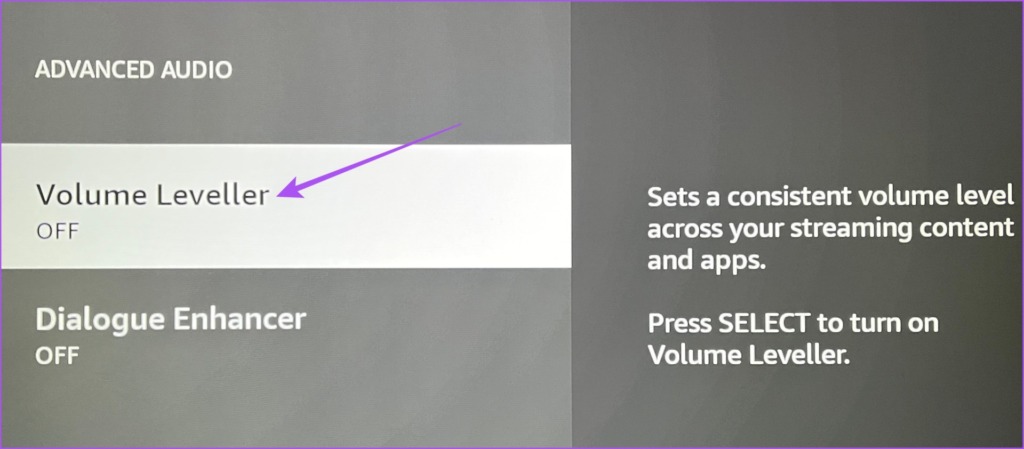
As the name suggests, Volume Leveller helps set a consistent volume level for all your streaming content and apps. However, it may restrict the YouTube app’s volume increase. Here’s how to check and disable the feature.
Step 1: Go to Settings and select Display and Audio.
Step 2: Select Audio and go to Advanced Audio.

Step 3: If you enabled the Volume Leveller, select the feature to disable it.
Now, open the YouTube app and check if this helped fix the problem.
Fix 3: Reset Fire TV OS
If you continue to face the same issue, you can follow this method. This will remove all apps and preferences, and you must set up your Fire TV Stick from scratch.
Go to Settings > My Fire TV > Reset to Factory Defaults.

Tip: Learn more methods to reset your Fire TV Stick.
Was this helpful?
Last updated on 01 July, 2024
Read Next
 3 Ways to Fix YouTube TV Not Working on Amazon Fire TV Stick
Basic Fixes Check the YouTube server status: Visit Downdetector to check an active YouTube TV server outage.
3 Ways to Fix YouTube TV Not Working on Amazon Fire TV Stick
Basic Fixes Check the YouTube server status: Visit Downdetector to check an active YouTube TV server outage.
 3 Ways to Fix Apple TV App Not Working on Amazon Fire TV Stick
Basic Fixes Force quit and relaunch Apple TV app: This will give the app a fresh start on your Firestick.
3 Ways to Fix Apple TV App Not Working on Amazon Fire TV Stick
Basic Fixes Force quit and relaunch Apple TV app: This will give the app a fresh start on your Firestick.
 How to Fix Sound Not Working on Fire Stick
Basic Fixes Unmute your TV and turn up the volume: Press the Mute button on your TV remote to unmute its volume.
How to Fix Sound Not Working on Fire Stick
Basic Fixes Unmute your TV and turn up the volume: Press the Mute button on your TV remote to unmute its volume.
 3 Ways to Fix Amazon Fire TV Stick Keeps Restarting
Basic Fixes Use official accessories: If you aren't using the original accessories with your Firestick, you might use an incompatible USB cable or adapter.
3 Ways to Fix Amazon Fire TV Stick Keeps Restarting
Basic Fixes Use official accessories: If you aren't using the original accessories with your Firestick, you might use an incompatible USB cable or adapter.
 3 Ways to Fix Fire TV Stick Stuck on Amazon Logo Screen
Basic Fixes Use the official accessories: Your Fire TV Stick comes with official accessories that help ensure your device gets sufficient power and can work properly.
3 Ways to Fix Fire TV Stick Stuck on Amazon Logo Screen
Basic Fixes Use the official accessories: Your Fire TV Stick comes with official accessories that help ensure your device gets sufficient power and can work properly.
 How to Fix Netflix Not Working on Amazon Fire TV Stick
Basic Fixes Check Netflix server status: You can visit DownDetector to see if the Netflix servers are working for your area.
How to Fix Netflix Not Working on Amazon Fire TV Stick
Basic Fixes Check Netflix server status: You can visit DownDetector to see if the Netflix servers are working for your area.
 Amazon Fire TV Stick Audio Out of Sync? Here’s How to Fix It
Basic Fixes Check Bluetooth device battery levels: In addition to battery levels, you should also check if you have low-latency Bluetooth earphones.
Amazon Fire TV Stick Audio Out of Sync? Here’s How to Fix It
Basic Fixes Check Bluetooth device battery levels: In addition to battery levels, you should also check if you have low-latency Bluetooth earphones.
 5 Ways to Fix Amazon Silk Browser Not Working on Fire TV Stick
Basic Fixes Check your network connection: Open Fire OS settings via the Gear icon at the top right.
5 Ways to Fix Amazon Silk Browser Not Working on Fire TV Stick
Basic Fixes Check your network connection: Open Fire OS settings via the Gear icon at the top right.
The article above may contain affiliate links which help support Guiding Tech. The content remains unbiased and authentic and will never affect our editorial integrity.