Basic Fixes
- Check if WhatsApp is down: Go to DownDetector and check the status of WhatsApp servers.
- Update WhatsApp app: Install the latest version of the app for a bug-free experience.
Fix 1: Check Microphone Permissions for WhatsApp
The microphone on your Windows 11 computer also needs permission to be used for WhatsApp. To solve this problem, start by checking whether microphone use is enabled for WhatsApp. Here’s how to do it.
Step 1: Open Settings and click on Privacy and Security.
Step 2: Scroll down and click on Microphone under App permissions from the right pane.

Step 3: Scroll down to find and turn on the toggle for WhatsApp to give it microphone access.

Alternatively, here’s how to check microphone permission for WhatsApp.
Step 1: Open Settings and click on Apps.
Step 2: Click on Installed Apps on the top-right side.

Step 3: Scroll down, click on the three dots next to WhatsApp, and click on Advanced Options. Then, check if the Microphone is enabled.

Fix 2: Run Windows Store App Troubleshooter
You can run the Windows App Troubleshooter, a repair tool for your Windows 11 PC, to check and fix issues with WhatsApp. Do note that Windows 11 Insider Build 25169 or higher will show Microsoft Store apps troubleshooter as Windows Store Apps.
Step 1: Open System Settings and click on Troubleshoot.
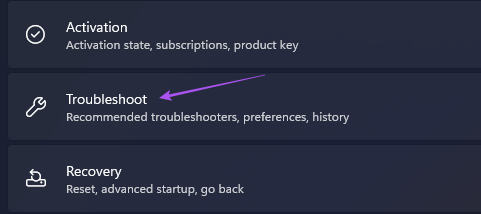
Step 2: Click on Other troubleshooters.

Step 3: Scroll down and click on Run next to Windows Store Apps.

Step 4: Follow the on-screen instructions to finish the troubleshooting process.
Fix 3: Update Microphone Drivers
If the microphone is still not working for WhatsApp, check and update the microphone drivers. Windows Updates also fetches fresh drivers for the Audio components in your computer. However, you can manually check to ensure that the current Audio Drivers are not missing the latest updates.
Step 1: Open Device Manager > click on Audio inputs and outputs.
Step 2: Right-click on your microphone name > select Update driver.

Step 3: Follow the on-screen instructions to update the Audio Drivers.
Fix 4: Run SFC Scan
The Windows System File Checker (SFC) scan is a tool you can use on Command Prompt that detects any corrupted files on your PC. Once detected, it attempts to repair and restore the file. You can use it if you encounter problems while using your Windows PC. Refer to our post to learn how to run SFC Scan on Windows 11.
Was this helpful?
Last updated on 19 July, 2024
Read Next
 5 Best Fixes for Microsoft Teams Microphone Not Working on Windows 10
More businesses and organizations now use Microsoft Teams to manage their teams working from office or remotely.
5 Best Fixes for Microsoft Teams Microphone Not Working on Windows 10
More businesses and organizations now use Microsoft Teams to manage their teams working from office or remotely.
 6 Fixes for Zoom Microphone Not Working on Windows 11/10
Basic Fixes You Should Try Restart the Zoom app and Windows PC.
6 Fixes for Zoom Microphone Not Working on Windows 11/10
Basic Fixes You Should Try Restart the Zoom app and Windows PC.
 8 Fixes for Microphone Not Working in Xbox Game Bar on Windows 11
Basic Fixes Reconnect the external microphone: Plug out the external connected microphone, wait a few seconds, and reconnect it.
8 Fixes for Microphone Not Working in Xbox Game Bar on Windows 11
Basic Fixes Reconnect the external microphone: Plug out the external connected microphone, wait a few seconds, and reconnect it.
 Top 8 Ways to Fix WhatsApp Microphone Not Working on iPhone and Android
Thanks to group calls, the ability to share and create call links, and desktop support, WhatsApp voice and video calls are gaining traction among users.
Top 8 Ways to Fix WhatsApp Microphone Not Working on iPhone and Android
Thanks to group calls, the ability to share and create call links, and desktop support, WhatsApp voice and video calls are gaining traction among users.
 5 Best Fixes for Microsoft Teams Microphone Not Working on Mac
There are quite a few things the best video calling apps have in common, and one of the popular ones is the microphone-related problem.
5 Best Fixes for Microsoft Teams Microphone Not Working on Mac
There are quite a few things the best video calling apps have in common, and one of the popular ones is the microphone-related problem.
 2 Fixes for Microphone Not Working on Android
Basic Fixes Clean your Microphone grille: The dust and debris inside the microphone can cause it to malfunction.
2 Fixes for Microphone Not Working on Android
Basic Fixes Clean your Microphone grille: The dust and debris inside the microphone can cause it to malfunction.
 3 Fixes for External Microphone Not Working on Mac
Quick Fixes Check USB Port: The USB port of your Mac used for connecting the external mic might be faulty.
3 Fixes for External Microphone Not Working on Mac
Quick Fixes Check USB Port: The USB port of your Mac used for connecting the external mic might be faulty.
 7 Ways to Fix Microphone Not Working Issue on Windows 11
Try Basic Fixes Check the microphone connection: If you’re using an external microphone on your PC, check its physical connection to see if it's connected properly.
7 Ways to Fix Microphone Not Working Issue on Windows 11
Try Basic Fixes Check the microphone connection: If you’re using an external microphone on your PC, check its physical connection to see if it's connected properly.
The article above may contain affiliate links which help support Guiding Tech. The content remains unbiased and authentic and will never affect our editorial integrity.