

Basic Fixes
- Check internet speed: You need at least 15 MBps of internet speed on your Wireless network to work with your Fire TV Stick 4K for streaming content in Ultra HD resolution.
- Check your streaming plan: You might have subscribed to a plan which only allows Full HD 1080p video resolution.
- Check for HDCP 2.2 support on your TV: To stream content in 4K HDR, you should check whether your Fire TV Stick 4K is connected to your TV or Monitor via an HDMI port that is HDCP 2.2 compliant.
- Update streaming apps and Fire OS: Installing the latest version of both will improve your experience.
Fix 1: Check Resolution Settings on Your Fire TV Stick 4K
After confirming your internet speed and streaming plan preference, you should check the resolution settings on your Fire TV Stick 4K. When you plug in the Fire TV Stick 4K during setup, it automatically selects a resolution best suited for your TV, monitor, or projector. For example, the content might stream at a lower 1080p 60Hz despite your device supporting 4K 30Hz playback. Let us first show how you can check your device playback support using Fire TV Stick 4K.
Step 1: On the home screen of your Fire TV Stick 4K, go to Settings in the right corner.
Step 2: Select Display and Audio.
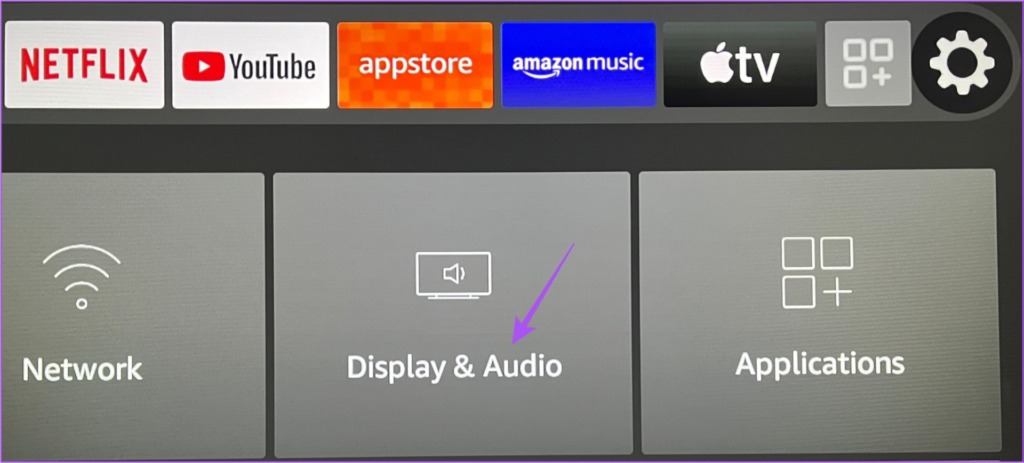
Step 3: Select Display > Audio and Video Diagnostics.
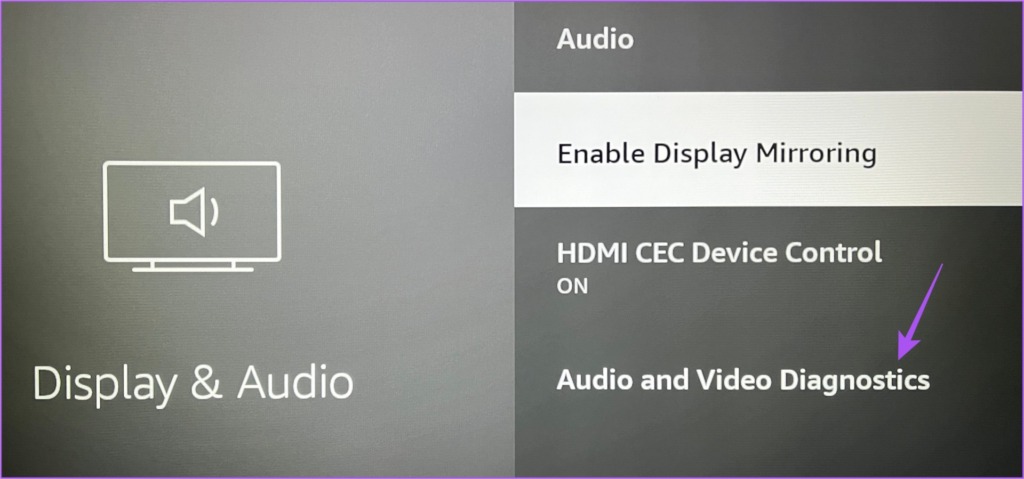
The audio and video capabilities of your TV, Monitor, or Projector will be visible on your screen.

After checking the playback specifications, you can change the resolution settings.
Step 4: Go back and then select Display from the list of options.
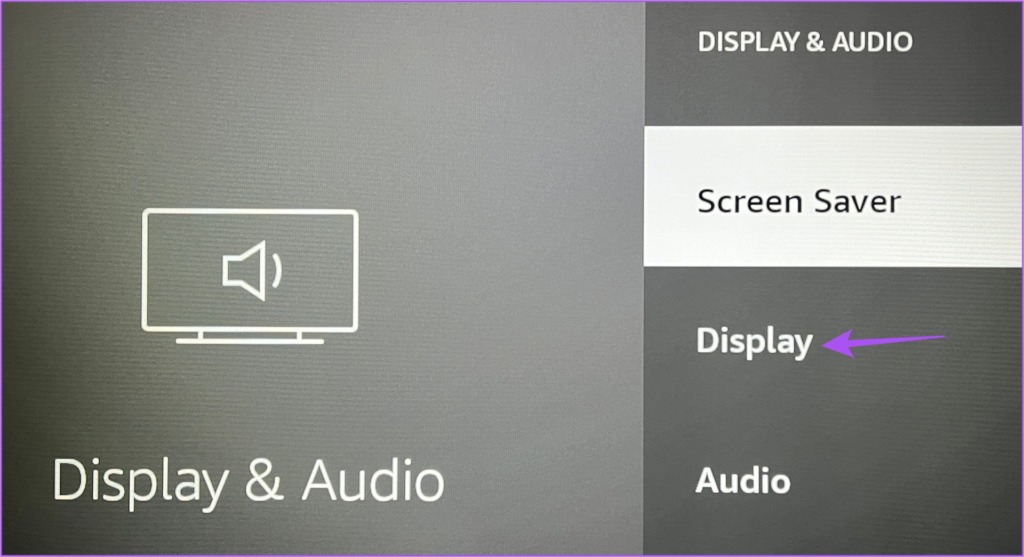
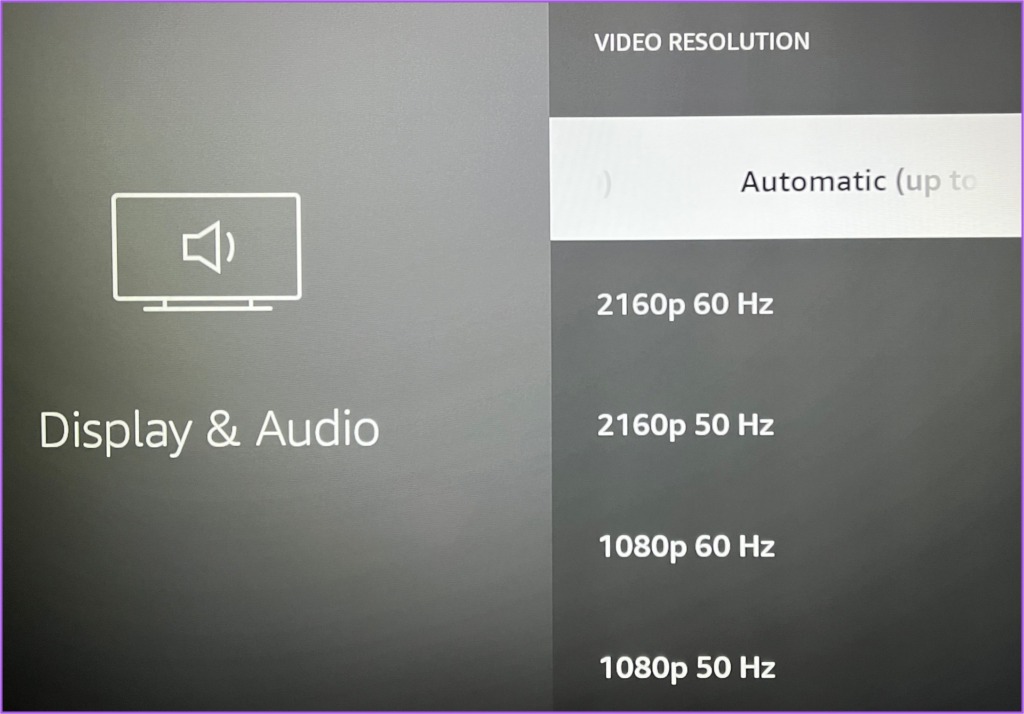
Step 5: Select Video Resolution.
Step 6: If your resolution is set to Automatic, select the best compatible resolution and refresh rate from the list of options for your TV, monitor, or projector.
Fix 2: Check Streaming Resolution Using Developer Tools
If you ever notice a drop in the video quality while watching content on your Fire TV Stick 4K, check the video resolution first.
Step 1: On the home screen of your Fire TV Stick 4K, go to appstore.
Step 2: Search for Developer Tools Menu Shortcut for Fire TV.
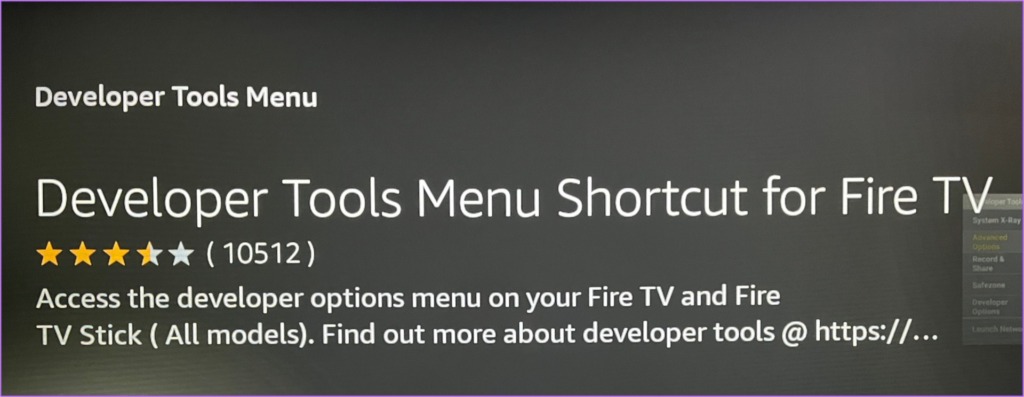
Step 3: Download and then install the app on your Fire TV Stick 4K. Then, launch the app.
Step 4: Under the Developer Tools Menu, select Advanced Options.
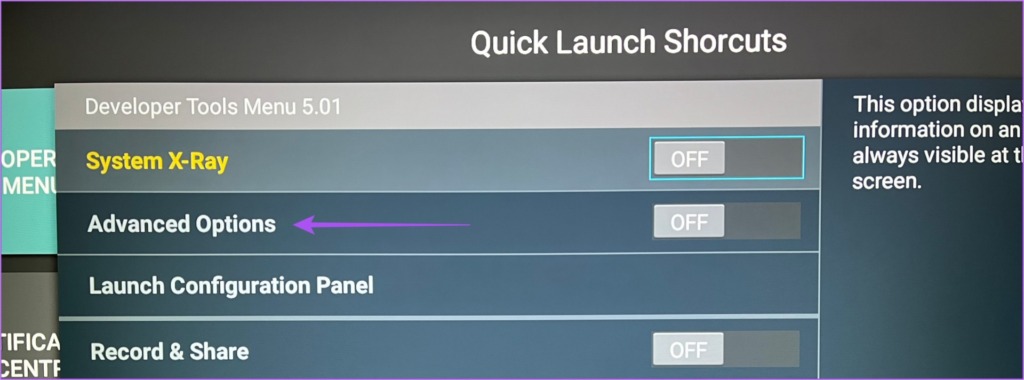
Step 5: Select the toggle to enable the feature.

Step 6: Select Launch Configuration Panel.
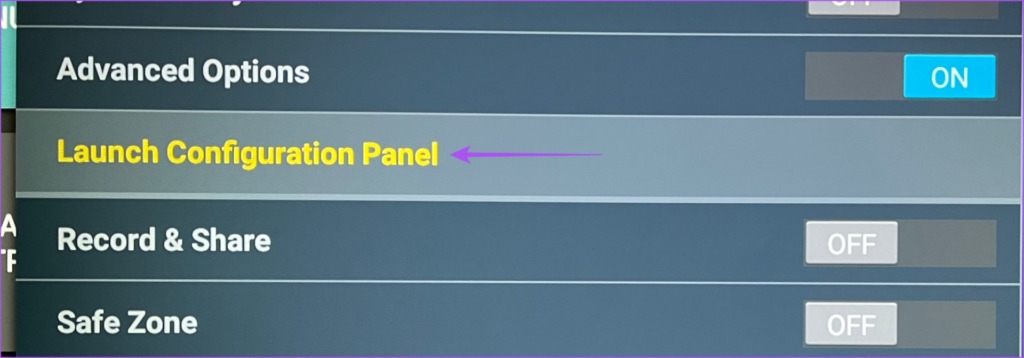
Step 7: Scroll down to the bottom and then enable Audio Focus Stack.

Step 8: Exit the app and then open any streaming app of your choice.
Step 9: Start watching any content on the app to enable the Multimedia Information panel.

You will be able to see the streaming resolution on the app.
Fix 3: Reset Fire TV Stick 4K
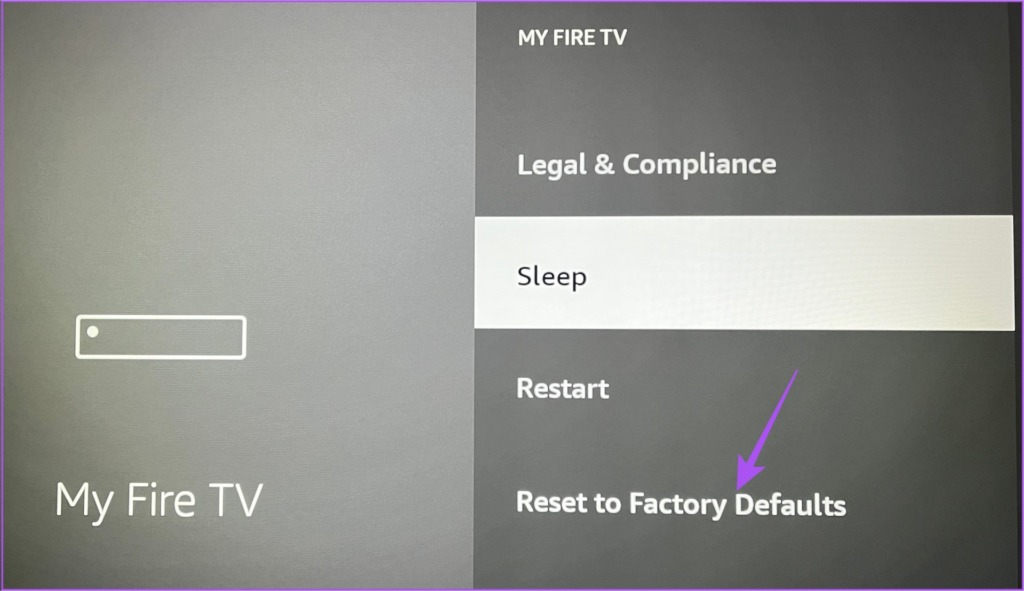
If none of the solutions work for you, reset your Fire TV Stick 4K and then set it up from scratch.
Open Settings > My Fire TV > Reset to Factory Defaults.
Besides, you may check our post to fix the Fire TV Stick 4K remote not working when it doesn’t respond or work as intended.
Was this helpful?
Last updated on 05 July, 2024
2 Comments
Leave a Reply
Read Next
 3 Fixes for Alexa Not Responding to Voice Commands on Amazon Fire TV Stick 4K
Basic Fixes Bring the remote closer: According to the instruction manual for the Amazon Fire TV Stick 4K, the distance between the Fire TV remote and Fire TV Stick 4K
3 Fixes for Alexa Not Responding to Voice Commands on Amazon Fire TV Stick 4K
Basic Fixes Bring the remote closer: According to the instruction manual for the Amazon Fire TV Stick 4K, the distance between the Fire TV remote and Fire TV Stick 4K
 3 Fixes for Amazon Fire TV Stick 4K Not Recognizing USB Drive
Basic Fixes Avoid using largely sized USB drives: You need to avoid using USB drives that are larger than 128GB in size.
3 Fixes for Amazon Fire TV Stick 4K Not Recognizing USB Drive
Basic Fixes Avoid using largely sized USB drives: You need to avoid using USB drives that are larger than 128GB in size.
 3 Fixes for Dolby Vision Not Working on Amazon Fire TV Stick 4K
Basic Fixes Use HDMI 2.1 cable: This cable supports higher frame rates, improved bandwidth, and eARC (Audio Return Channel).
3 Fixes for Dolby Vision Not Working on Amazon Fire TV Stick 4K
Basic Fixes Use HDMI 2.1 cable: This cable supports higher frame rates, improved bandwidth, and eARC (Audio Return Channel).
 4 Fixes for Amazon Fire TV Stick Keeps Buffering Issue
Basic Fixes Downgrade streaming quality: You can start by reducing the streaming quality of whichever platform you are facing issues with.
4 Fixes for Amazon Fire TV Stick Keeps Buffering Issue
Basic Fixes Downgrade streaming quality: You can start by reducing the streaming quality of whichever platform you are facing issues with.
 How to Fix Netflix Not Working on Amazon Fire TV Stick
Basic Fixes Check Netflix server status: You can visit DownDetector to see if the Netflix servers are working for your area.
How to Fix Netflix Not Working on Amazon Fire TV Stick
Basic Fixes Check Netflix server status: You can visit DownDetector to see if the Netflix servers are working for your area.
 5 Ways to Reset Amazon Fire TV Stick to Factory Settings
Method 1: Using Physical Remote For this method, the remote must be paired to your Fire TV Stick.
5 Ways to Reset Amazon Fire TV Stick to Factory Settings
Method 1: Using Physical Remote For this method, the remote must be paired to your Fire TV Stick.
 5 Ways to Fix Amazon Silk Browser Not Working on Fire TV Stick
Basic Fixes Check your network connection: Open Fire OS settings via the Gear icon at the top right.
5 Ways to Fix Amazon Silk Browser Not Working on Fire TV Stick
Basic Fixes Check your network connection: Open Fire OS settings via the Gear icon at the top right.
 3 Ways to Fix YouTube TV Not Working on Amazon Fire TV Stick
Basic Fixes Check the YouTube server status: Visit Downdetector to check an active YouTube TV server outage.
3 Ways to Fix YouTube TV Not Working on Amazon Fire TV Stick
Basic Fixes Check the YouTube server status: Visit Downdetector to check an active YouTube TV server outage.
The article above may contain affiliate links which help support Guiding Tech. The content remains unbiased and authentic and will never affect our editorial integrity.
Updated more bugs 4k updated
Updated more bugs 4k updated slow oping all app’s my net 100mbps