

Basic Fixes:
- Check if the song/album has animated cover art: Since the animated cover art is a recent addition, it is currently unavailable for all titles streaming on Apple Music. So, check if the feature is available for the selected track/album before starting.
- Restart the Apple Music app: By force closing an app, you close all app functions and prevent it from running in the background. Then, once the app reopens, all app functions restart, resolving any minor glitch or bug. This can also help solve Apple Music issues on your iPhone.
- Check for iOS Update: Since the Apple Music animated cover art feature is unique to iOS 17, you must update your device accordingly. So, check and ensure your iPhone has the latest iOS updates installed.
- Reinstall the Apple Music app: If you’re still facing issues using the animated cover art feature in Apple Music, you can uninstall and reinstall the Apple Music app. This will help deleting all app settings and installing a fresh copy, fixing most app issues.
Fix 1: Ensure Animated Art Is Enabled in Apple Music
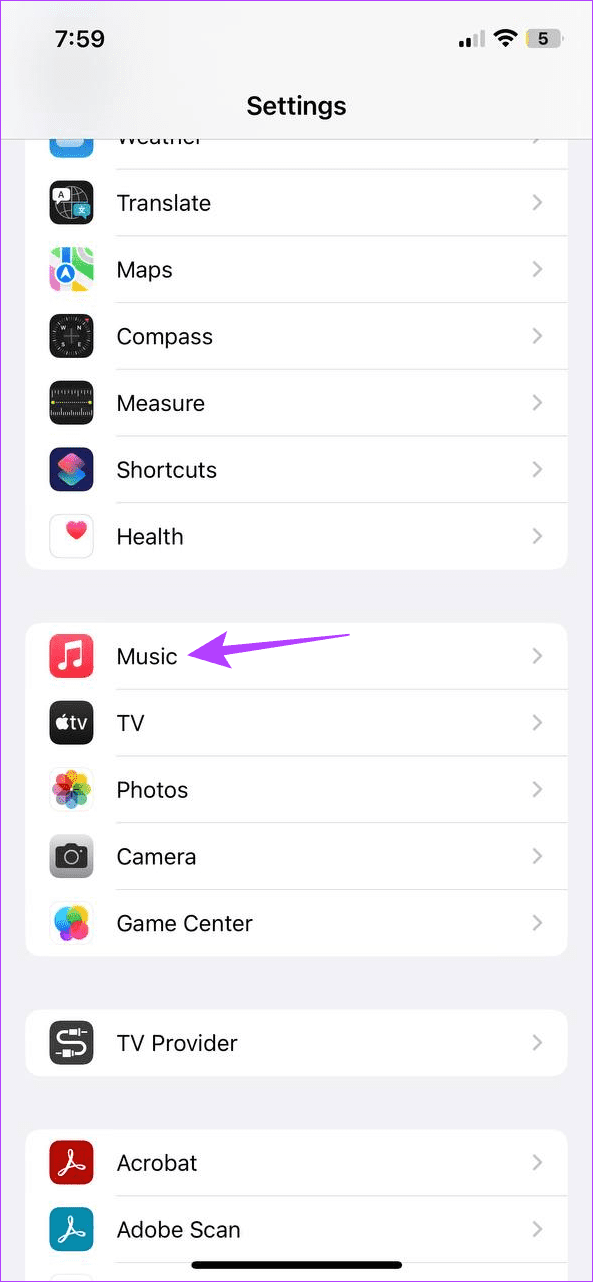
While the animated cover art feature comes enabled by default in Apple Music, you can disable it if you want to. In this case, you can open the settings menu and check if Apple Music animated cover art is enabled. Here’s how to do it.
Step 1: Open Settings and tap on Music. Tap on Animated Art and select On.


Fix 2: Disable Low Power Mode
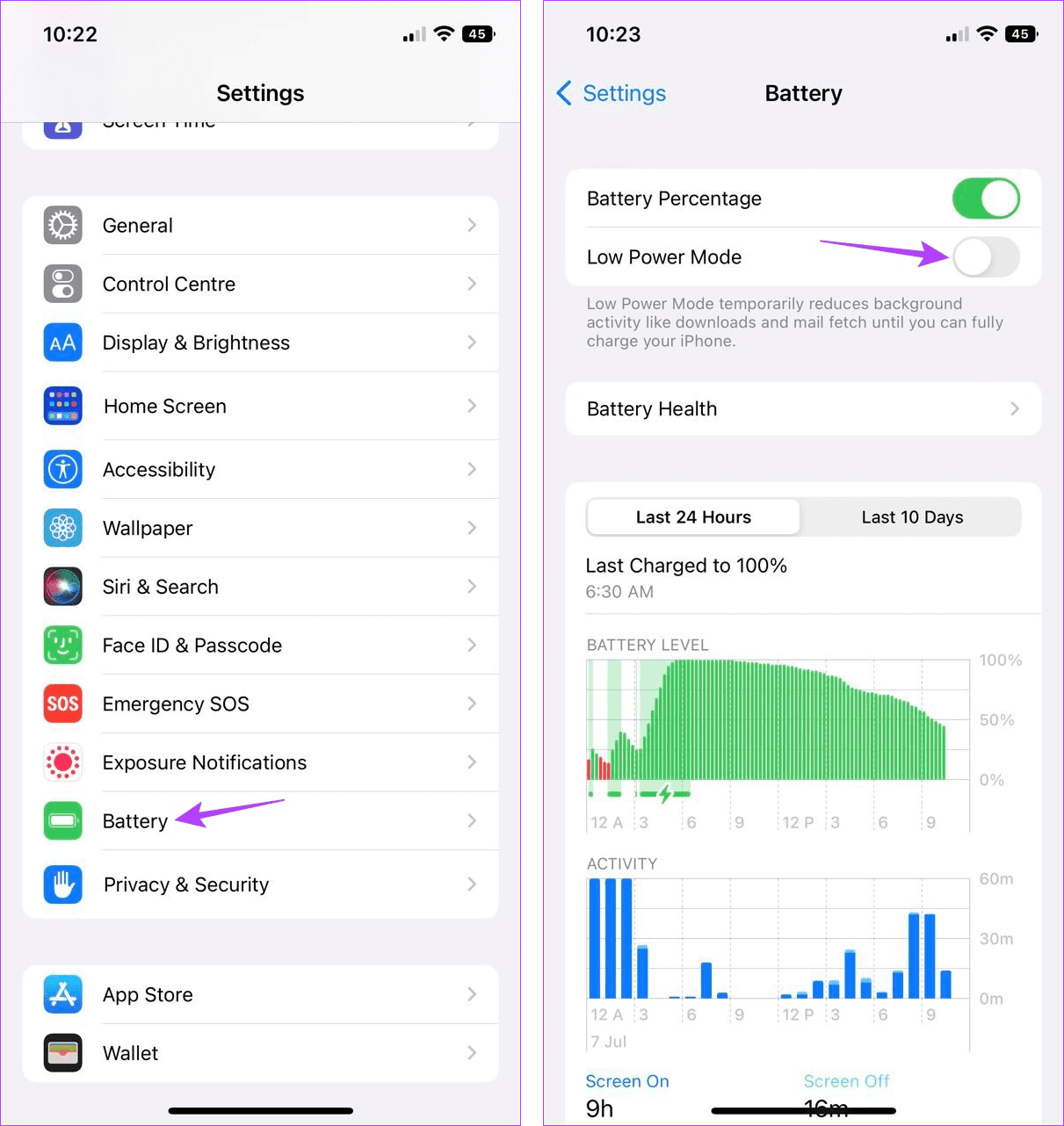
Low Power Mode saves battery life at the cost of throttling certain app functions, like the animated cover art feature. So, if animated cover art suddenly stops working, it is worth checking if Low Power Mode is enabled on your iPhone. Follow the below steps to do it.
Step 1: Open Settings and tap on Battery. Disable the Low Power Mode toggle.
Fix 3: Turn off Reduce Motion
Once enabled, Reduce Motion prevents apps from using effects, animations, transitions, etc., to make the user experience cleaner and easier. However, this can indirectly cause animated cover art to stop working in Apple Music. When this happens, you can disable Reduce Motion on your iPhone. Here’s how.
Step 1: Open Settings and tap on Accessibility.
Step 2: Tap on Motion and turn the Reduce Motion toggle off.


Fix 4: Enable Background App Refresh
Enabling Background App Refresh ensures your iPhone apps keep refreshing in the background for all the latest information. This means if you’ve turned off Background App Refresh on your device, it can prevent the Apple Music animated cover art feature from working properly. Follow the below steps to do it.
Step 1: Open Settings and tap on General. Tap on Background App Refresh.

Step 2: Again, tap on Background App Refresh. Select Wi-Fi & Mobile Data.

Fix 5: Turn off Increase Contrast in Accessibility Settings
Certain iPhone settings, like Increase Contrast, might interfere with Apple Music, causing it not to work properly. So, you can turn the setting off. However, once done, your device can no longer increase the contrast for the app’s foreground and background colors. Here’s how to do it.
Step 1: Open Settings → Accessibility. Tap on Display & Text Size.
Step 2: Turn off the Increase Contrast toggle.


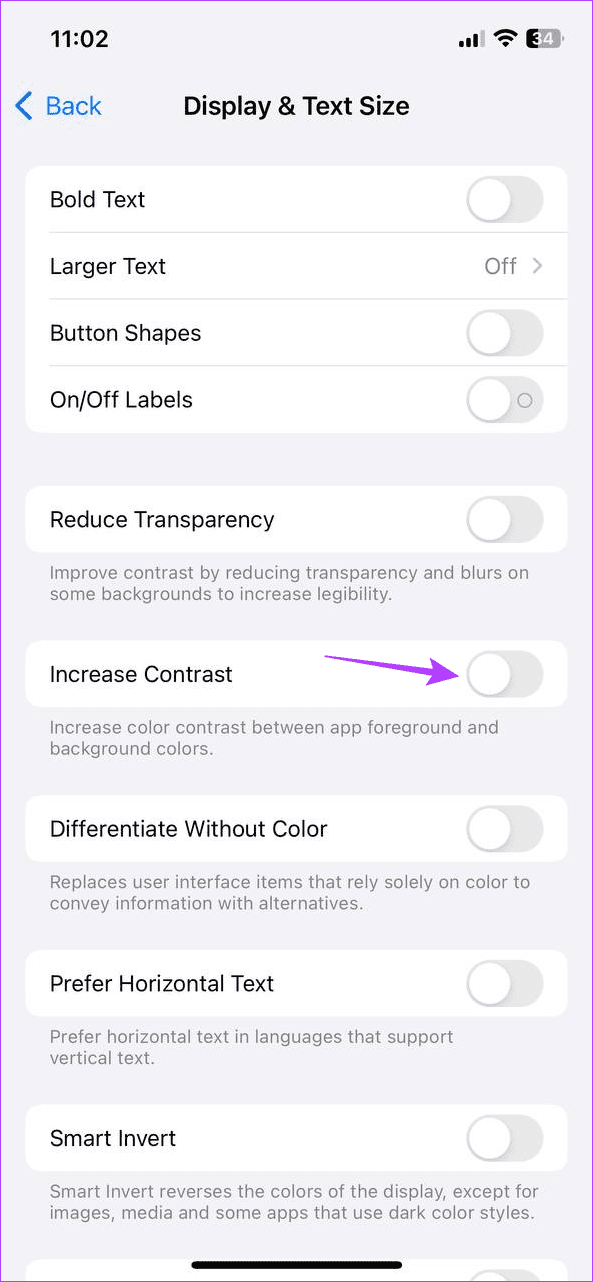
This will set the contrast levels on your iPhone back to normal. Now, restart the Apple Music app and try using the animated cover art feature to check if it’s working as expected.
Was this helpful?
Last updated on 05 July, 2024
Read Next
 How to Change YouTube Music Playlist Cover
Change Playlist Cover on Mobile The YouTube Music mobile app lets you change the playlist cover by picking it up from the first track in your playlist.
How to Change YouTube Music Playlist Cover
Change Playlist Cover on Mobile The YouTube Music mobile app lets you change the playlist cover by picking it up from the first track in your playlist.
 4 Fixes for Spotify Album Art Not Showing on iPhone
Basic Fixes Check Album Art of songs downloaded from web: If you have downloaded songs from other websites, check whether the files have album art in them.
4 Fixes for Spotify Album Art Not Showing on iPhone
Basic Fixes Check Album Art of songs downloaded from web: If you have downloaded songs from other websites, check whether the files have album art in them.
 Top 7 Ways to Fix Siri Not Playing Music from Apple Music
Siri not recognizing your voice and not playing music from Apple Music can lead to an undesirable experience.
Top 7 Ways to Fix Siri Not Playing Music from Apple Music
Siri not recognizing your voice and not playing music from Apple Music can lead to an undesirable experience.
 11 Best Animated Watch Faces for Samsung Galaxy Watch
Watch faces enhance the look of any smartwatch.
11 Best Animated Watch Faces for Samsung Galaxy Watch
Watch faces enhance the look of any smartwatch.
 How to Create Animated GIFs in Paint 3D
Using Paint 3D you can either convert a normal image to a GIF or create your text images in the GIF format.
How to Create Animated GIFs in Paint 3D
Using Paint 3D you can either convert a normal image to a GIF or create your text images in the GIF format.
 How to Use Animated Reactions in Zoom
Enable and Use Animated Reactions in Zoom on Desktop To start using Animated Reactions during Zoom calls, you must enable the feature in the Zoom app on your computer.
How to Use Animated Reactions in Zoom
Enable and Use Animated Reactions in Zoom on Desktop To start using Animated Reactions during Zoom calls, you must enable the feature in the Zoom app on your computer.
 How to Add Downloaded Music to Apple Music Library
If you download songs on your iPhone and use the Files app to listen to them, you are doing it wrong.
How to Add Downloaded Music to Apple Music Library
If you download songs on your iPhone and use the Files app to listen to them, you are doing it wrong.
 3 Ways to Transfer Playlists From YouTube Music to Apple Music
There are three services you can use to perform the transfer based on your preferences.
3 Ways to Transfer Playlists From YouTube Music to Apple Music
There are three services you can use to perform the transfer based on your preferences.
The article above may contain affiliate links which help support Guiding Tech. The content remains unbiased and authentic and will never affect our editorial integrity.

