Basic Fixes
- Restart device: Restart your Android device to fix temporary bugs and glitches.
- Check alert slider: Check if you have turned on the slider on the side of your phone to enable silent mode.
- Check if volume buttons are jammed: Check if your volume buttons are jammed, and if it automatically reduces the ringer volume. You will need to get your phone serviced.
- Remove case: Check if your case is automatically pressing the volume down button and enabling silent mode.
Fix 1: Disable Silent Mode
Here’s how you can manually disable silent mode.
Click the volume up button, tap on the three-dots icon, and switch to the ringer mode.
Alternatively, go to Settings > Sound & Vibration and increase the ring volume.


Also Read: Do Not Disturb vs. Silent vs. Airplane Mode on Android: Know the difference.
Fix 2: Turn Off Do Not Disturb
You will not receive sounds for notifications if DND is enabled.
Go to Settings > Sound & vibration > Do Not Disturb and select Turn off now.


Fix 3: Disable Schedules in Do Not Disturb
If you have enabled a schedule for Do Not Disturb, it will automatically turn on during the set times.
Go to Settings > Sound & Vibration > Do Not Disturb > Schedules and turn off the schedules.


Fix 4: Disable Flip to Shh Gesture
The Flip to Shh gestue automatically enables DND when you flip your phone and place it on a flat surface.
Open Settings > System > Gestures > Flip to Shh and turn it off.


Also Read: How to fix Do Not Disturb turning on itself on Android.
Fix 5: Reset Device
When none of the above methods work, factory reset your Android phone. Doing this will fix any misconfiguration causing the problem.
However, this will reset all the preferences and settings on your device and remove any saved Bluetooth devices, Wi-Fi passwords, and so on.
Go to Settings > Back up and reset > Reset Phone and reset all the settings.


Was this helpful?
Last updated on 30 July, 2024
Read Next
 6 Ways to Fix iPhone Automatically Goes to Silent Mode
Basic Fixes: Check sound settings: First, check the ringer and alert volume on your iPhone.
6 Ways to Fix iPhone Automatically Goes to Silent Mode
Basic Fixes: Check sound settings: First, check the ringer and alert volume on your iPhone.
 7 Ways to Fix Volume Level Automatically Goes Up or Down in Windows 11
Fix 1: Run the Audio Troubleshooter Microsoft offers several troubleshooters to help you identify and resolve common system-related issues on Windows.
7 Ways to Fix Volume Level Automatically Goes Up or Down in Windows 11
Fix 1: Run the Audio Troubleshooter Microsoft offers several troubleshooters to help you identify and resolve common system-related issues on Windows.
 5 Ways to Fix Android Phone Screen Goes Black During a Call
Before you begin, try restarting your Android device and update it to the latest available software version.
5 Ways to Fix Android Phone Screen Goes Black During a Call
Before you begin, try restarting your Android device and update it to the latest available software version.
 5 Ways to Find Your Android When it’s in Silent Mode
Method 1: Use the Find My Device App on Another Phone If you have enabled Find My Device on your Android phone, you can play a sound to find it
5 Ways to Find Your Android When it’s in Silent Mode
Method 1: Use the Find My Device App on Another Phone If you have enabled Find My Device on your Android phone, you can play a sound to find it
 How to Fix Samsung Phone Screen Goes Black During Call
Basic Fixes Restart the phone: Sometimes, the screen goes black due to a minor software glitch.
How to Fix Samsung Phone Screen Goes Black During Call
Basic Fixes Restart the phone: Sometimes, the screen goes black due to a minor software glitch.
 Do Not Disturb vs. Silent vs. Airplane Mode on Android: Know the Difference
What Is Silent Mode on Android When you enable silent mode, you will not hear call alerts or notifications.
Do Not Disturb vs. Silent vs. Airplane Mode on Android: Know the Difference
What Is Silent Mode on Android When you enable silent mode, you will not hear call alerts or notifications.
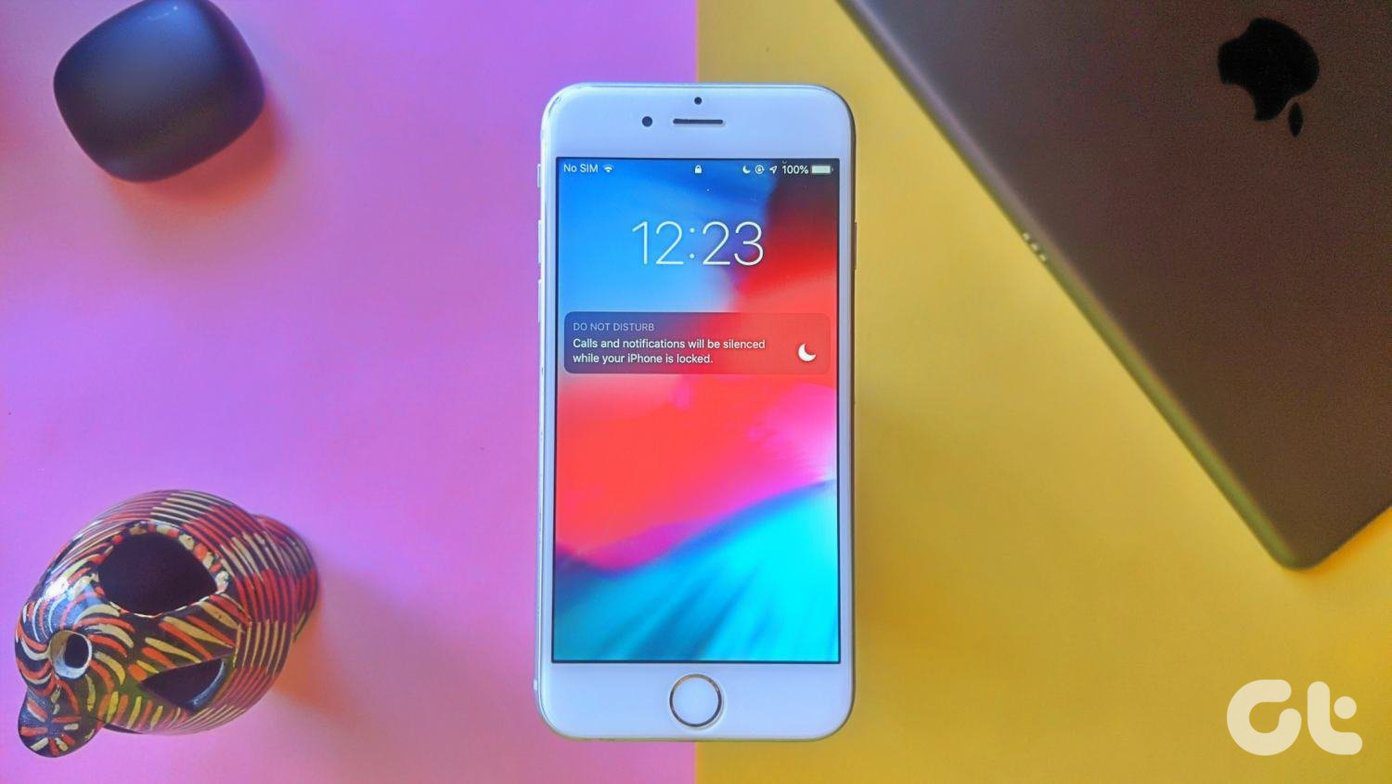 What’s the Difference Between Do Not Disturb, Airplane, and Silent Mode on iPhone
What Is Silent Mode on iPhone?
What’s the Difference Between Do Not Disturb, Airplane, and Silent Mode on iPhone
What Is Silent Mode on iPhone?
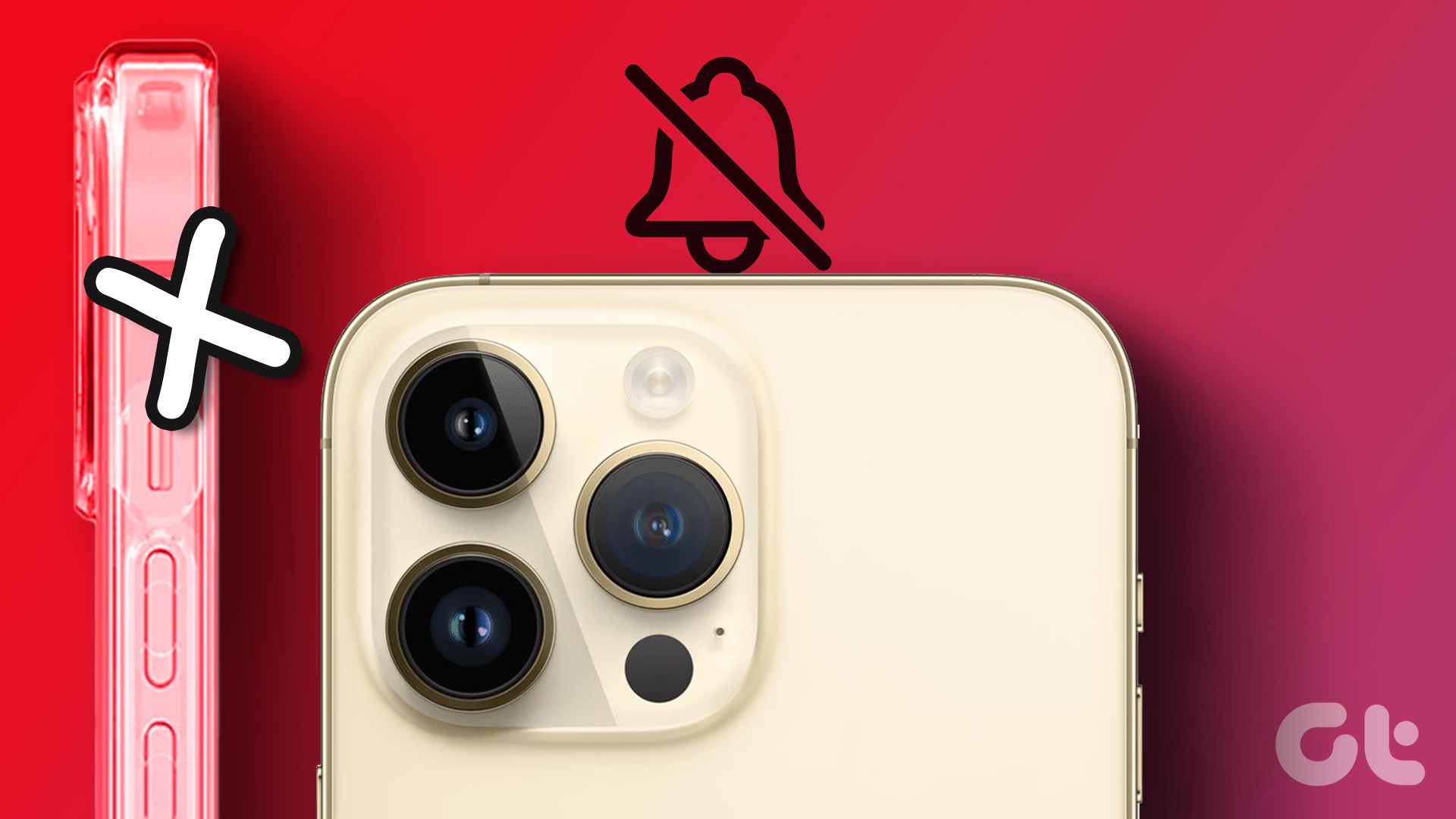 Turn On or Off Silent Mode on iPhone Without Switch or Action Button
https://youtu.be/4aTyKBjOvVY How to Enable & Disable Silent Mode on iPhone 15 Pro and Pro Max iPhone 15 Pro and 15 Pro Max not only have an Action Button instead of
Turn On or Off Silent Mode on iPhone Without Switch or Action Button
https://youtu.be/4aTyKBjOvVY How to Enable & Disable Silent Mode on iPhone 15 Pro and Pro Max iPhone 15 Pro and 15 Pro Max not only have an Action Button instead of
The article above may contain affiliate links which help support Guiding Tech. The content remains unbiased and authentic and will never affect our editorial integrity.