Method 1: Keep Screen On Using the Android System
The most basic method involves adjusting your phone’s screen timeout settings. This method doesn’t require any additional downloads and can be done directly from your device’s settings menu. Here’s how.
Step 1: On your Android device, head over to Settings > Display & brightness (or Screen on some devices) > Screen timeout.
Step 2: Here, you can choose the desired timeout duration from various options.


While this method is straightforward, it applies to the entire device rather than specific apps. Add to that, the longest timeout option might still be insufficient for extended use. If you want more control, especially for certain applications, you’ll need to explore other options.
Method 2: Keep Screen On Using Third-Party Apps
1. Screen Awake
Screen Awake is a super simple app with a single toggle. It rests actively inside your phone’s notification tray, and you can simply tap on it to toggle its status. Or, if you want, you can place a widget for the app on your homescreen. There are no settings to play with or anything to tweak.


You can just enable the app from the notification tray or the widget, and your screen will stay on. Tap on it again, and your screen will timeout normally. As simple as that.
2. Wakey
Wakey is a simple and useful app that will keep your screen awake when you are using all the apps whitelisted. This works best for devices that offer a very short duration for the screen timeout feature inside the device settings.
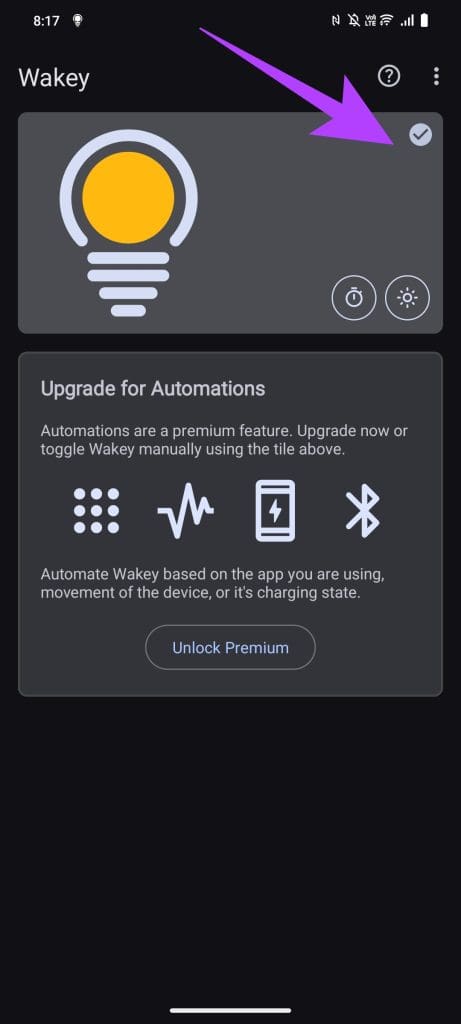

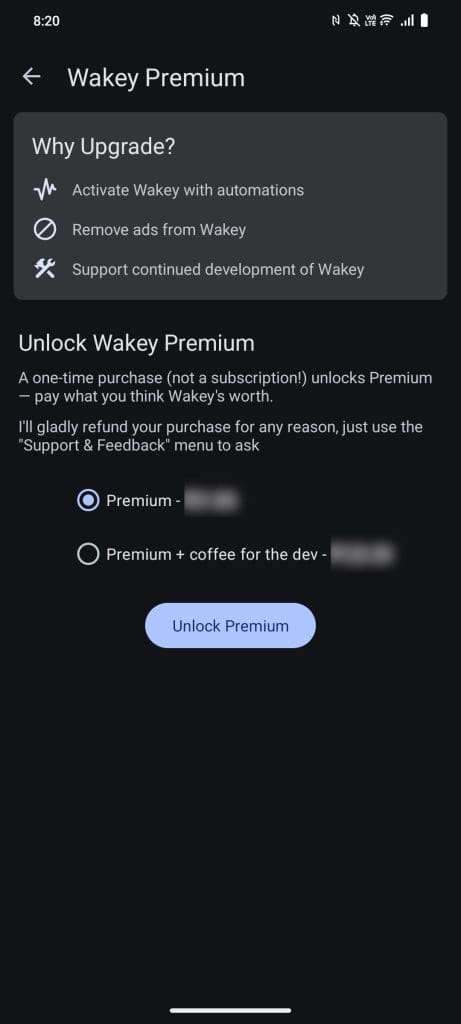
The free version of the app is limited and ad-supported, but it will let you set a timer to keep the screen on. It works just like system settings but for much longer durations. However, you will need to upgrade for $0.99 to remove ads, wake up the phone using automation, and whitelist apps.
3. Caffeine
Caffeine is another excellent app that helps you keep your screen awake with just a few taps. Inspired by the caffeine molecule, it’s designed to keep your screen active when you need it.

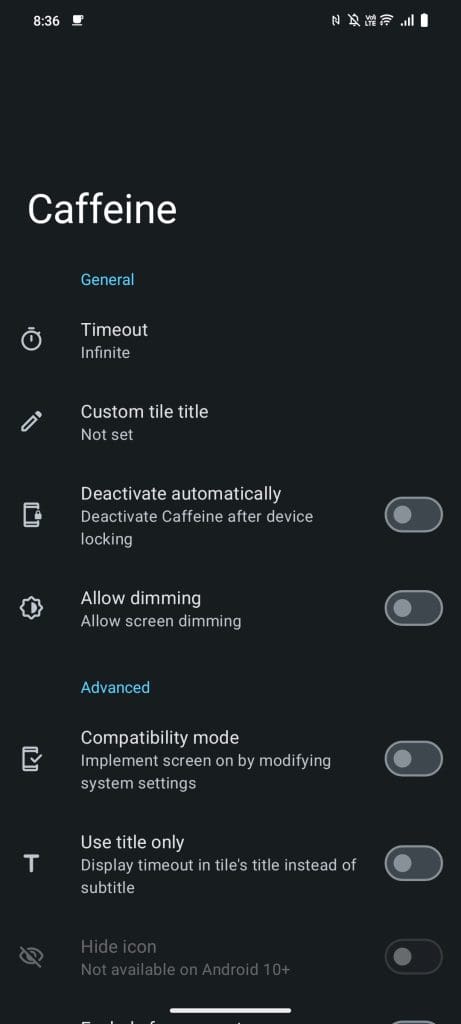

Unlike other apps, Caffeine offers an Infinite timeout option. This is great for users who want to keep this app on their secondary devices that are repurposed for something else, like a display window for your PC.
Was this helpful?
Last updated on 27 August, 2024
Read Next
 How to Fix Unknown Apps Keep Installing Automatically on Android
Basic Fixes: Use browsers with ad-blocks: Certain Android browsers come with native ad-blocking support that can help keep ads at bay.
How to Fix Unknown Apps Keep Installing Automatically on Android
Basic Fixes: Use browsers with ad-blocks: Certain Android browsers come with native ad-blocking support that can help keep ads at bay.
 4 Ways to Fix Chrome Downloads Keep Pausing on Android
Basic Fixes: Close and restart Chrome: You can open all background apps and close Chrome.
4 Ways to Fix Chrome Downloads Keep Pausing on Android
Basic Fixes: Close and restart Chrome: You can open all background apps and close Chrome.
 7 Best Alternatives to Google Keep on Android
Many swear by Google Keep, and others have their reasons to dislike it.
7 Best Alternatives to Google Keep on Android
Many swear by Google Keep, and others have their reasons to dislike it.
 Tech-Powered Travel Safety: Apps and Gadgets That Keep You Protected
Exploring the world around us is fun.
Tech-Powered Travel Safety: Apps and Gadgets That Keep You Protected
Exploring the world around us is fun.
 How to Transfer Samsung Notes to Google Keep
There’s a constant battle going on between Samsung and Google apps.
How to Transfer Samsung Notes to Google Keep
There’s a constant battle going on between Samsung and Google apps.
 4 Ways to Fix USB Devices Keep Disconnecting and Reconnecting in Windows 11
https://youtu.be/tUV-xdBsm5o Try Basic Fixes Reconnect the device: Unplugging your USB device and plugging it back in should help fix any issues caused by a loose connection.
4 Ways to Fix USB Devices Keep Disconnecting and Reconnecting in Windows 11
https://youtu.be/tUV-xdBsm5o Try Basic Fixes Reconnect the device: Unplugging your USB device and plugging it back in should help fix any issues caused by a loose connection.
 3 Ways to Fix Google Keep Not Syncing on iPhone
Basic Fixes Check internet access: Switch from mobile data to Wi-Fi and try connecting to a 5GHz frequency band if possible.
3 Ways to Fix Google Keep Not Syncing on iPhone
Basic Fixes Check internet access: Switch from mobile data to Wi-Fi and try connecting to a 5GHz frequency band if possible.
 Why Does Netflix Keep Logging Me Out and 3 Ways to Fix It
Why Netflix Logged You Out Automatically There are a few reasons why Netflix asks for sign-in every time you open the service.
Why Does Netflix Keep Logging Me Out and 3 Ways to Fix It
Why Netflix Logged You Out Automatically There are a few reasons why Netflix asks for sign-in every time you open the service.
The article above may contain affiliate links which help support Guiding Tech. The content remains unbiased and authentic and will never affect our editorial integrity.