


Must Know About Facebook Backgrounds
- You can’t add anything else: When using a background image, you can’t add another image, link, or video to your status update. Doing so will automatically remove the background image you chose.
- There’s a text limit: If the sentences are too long, Facebook will remove the chosen background image automatically, and you will find yourself typing on an ordinary white background.
- No custom background: You can only choose a background from the options provided by Facebook. The platform does not allow custom uploads, although, Facebook keeps adding/removing backgrounds as per approaching popular events, festivals, etc.
Add Backgrounds to Facebook Posts on Web
Step 1: Open Facebook and create a post. Click the multi-color Aa icon to open the background gallery.

Step 2: Here, click the square icon on the far right to open the backgrounds gallery.
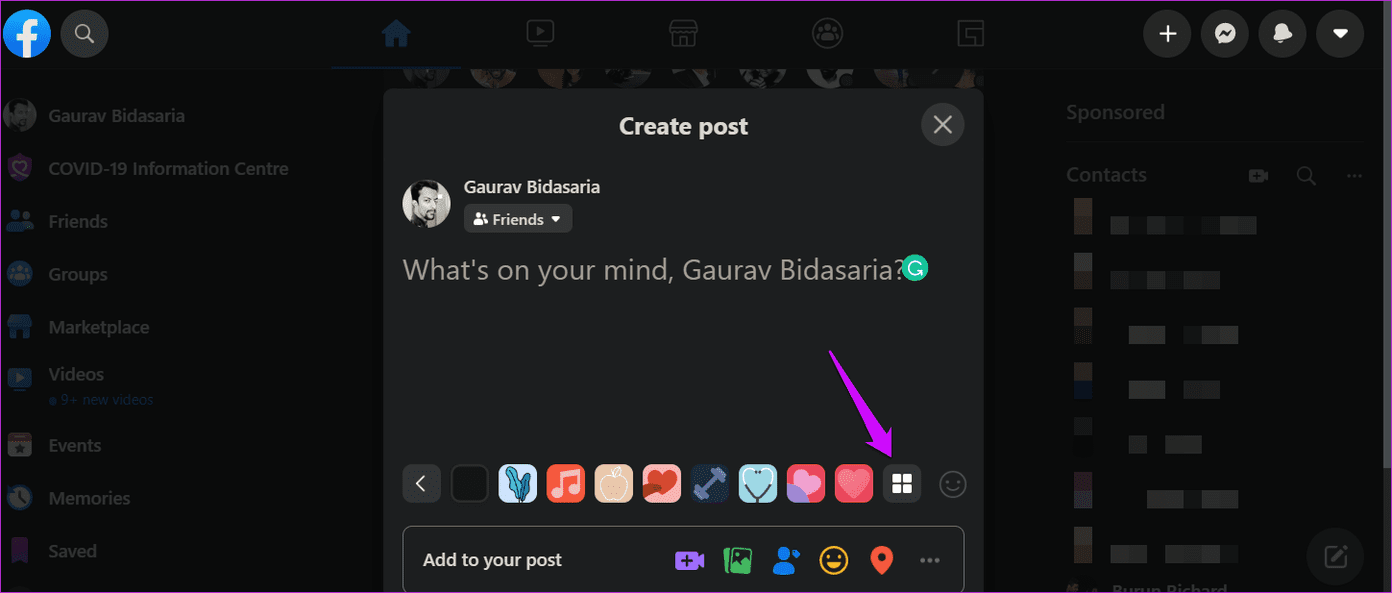
Step 3: You will view more backgrounds now. They are neatly organized under different categories. Click a background image to select it.

Step 4: Type your message or status update now. The text will appear on your chosen background in real time. Set visibility settings as you would normally do.

How to Add Backgrounds to Facebook Post on Android or iPhone
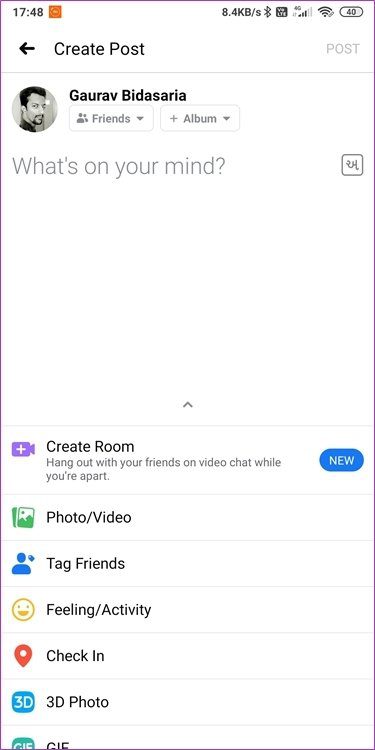
Step 1: Open the Facebook app and start creating a post.
Step 2: Scroll and select the menu up to find Background Color. It has the text Aa written on it.
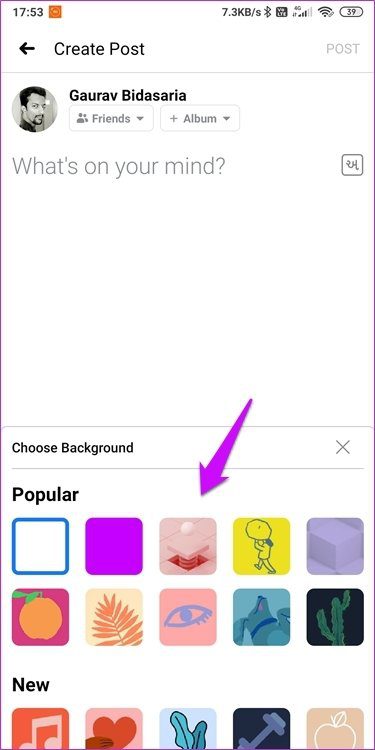
Step 3: You will view several backgrounds. Tap the last button to reveal more for your status update.

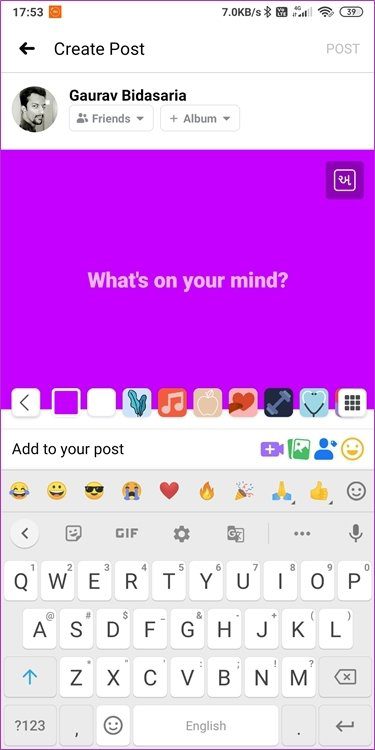
Step 4: Choose a background here to view it in real-time. Tap the background in the status area to begin typing your message.
Was this helpful?
Last updated on 07 August, 2024
Read Next
 Top 11 Funny Desktop Backgrounds for Work That You Should Get
Office is a funny place.
Top 11 Funny Desktop Backgrounds for Work That You Should Get
Office is a funny place.
 Facebook News Feed vs Your Story: Where Should You Post Updates
News Feed vs.
Facebook News Feed vs Your Story: Where Should You Post Updates
News Feed vs.
 How to Share a Facebook Post to Instagram Automatically or Manually
How to Automatically Post From Facebook to Instagram Before you can post content from Facebook to Instagram, there’s one prerequisite - link your Instagram and Facebook account/page.
How to Share a Facebook Post to Instagram Automatically or Manually
How to Automatically Post From Facebook to Instagram Before you can post content from Facebook to Instagram, there’s one prerequisite - link your Instagram and Facebook account/page.
 Why Can’t I Share My Facebook Post to Instagram
Preliminary Checks Before Troubleshooting Is the post private or restricted?
Why Can’t I Share My Facebook Post to Instagram
Preliminary Checks Before Troubleshooting Is the post private or restricted?
 Top 4 Ways to Fix Facebook Not Showing Friends Post
Why Am I Not Seeing Friend's Posts in My Facebook Feed Let's first understand how the Facebook feed algorithm works.
Top 4 Ways to Fix Facebook Not Showing Friends Post
Why Am I Not Seeing Friend's Posts in My Facebook Feed Let's first understand how the Facebook feed algorithm works.
 What to Do if You Can’t Post Comments on Facebook Posts
Try Basic Fixes The post owner has moderated comments: If the post owner has turned off comments from friends and followers, you won’t be able to comment.
What to Do if You Can’t Post Comments on Facebook Posts
Try Basic Fixes The post owner has moderated comments: If the post owner has turned off comments from friends and followers, you won’t be able to comment.
 8 Ways to Fix Add Music to Instagram Post Not Showing
Adding music enhances the vibe of an Instagram post.
8 Ways to Fix Add Music to Instagram Post Not Showing
Adding music enhances the vibe of an Instagram post.
 6 Chrome Extensions to Add Custom Keyboard Shortcuts
1.
6 Chrome Extensions to Add Custom Keyboard Shortcuts
1.
The article above may contain affiliate links which help support Guiding Tech. The content remains unbiased and authentic and will never affect our editorial integrity.

