How Does Apple Watch Mark Texts as Read?
There’s a common misconception that the Apple Watch sends read receipts when you view the message in the notifications. That isn’t true – even if you view the message in its entirety in the notification, a message will be marked as read-only when you open it on your Apple Watch.
If You Read Message on Apple Watch Does It Show Read on iPhone?
By default, the message will be marked as read when you view it on your Apple Watch. It will also be shown as ‘read’ on your iPhone.
However, you can configure read receipts to be sent only when you read the message on your iPhone, but not on your Apple Watch.
Turn Off Read Receipts on Apple Watch Only
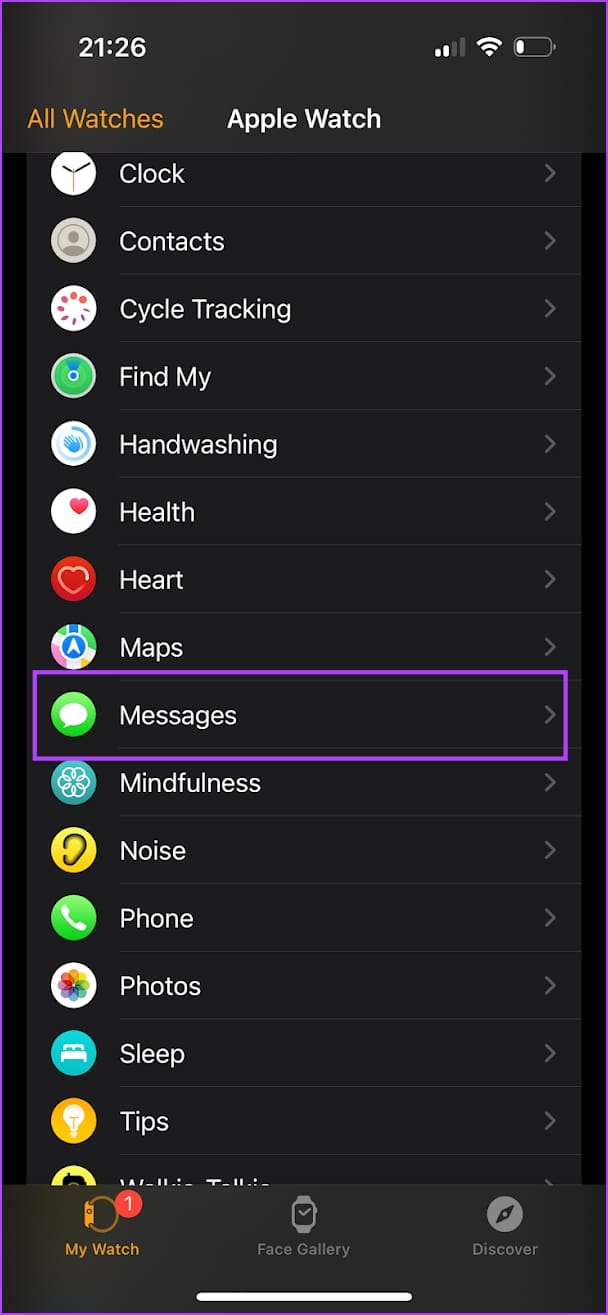
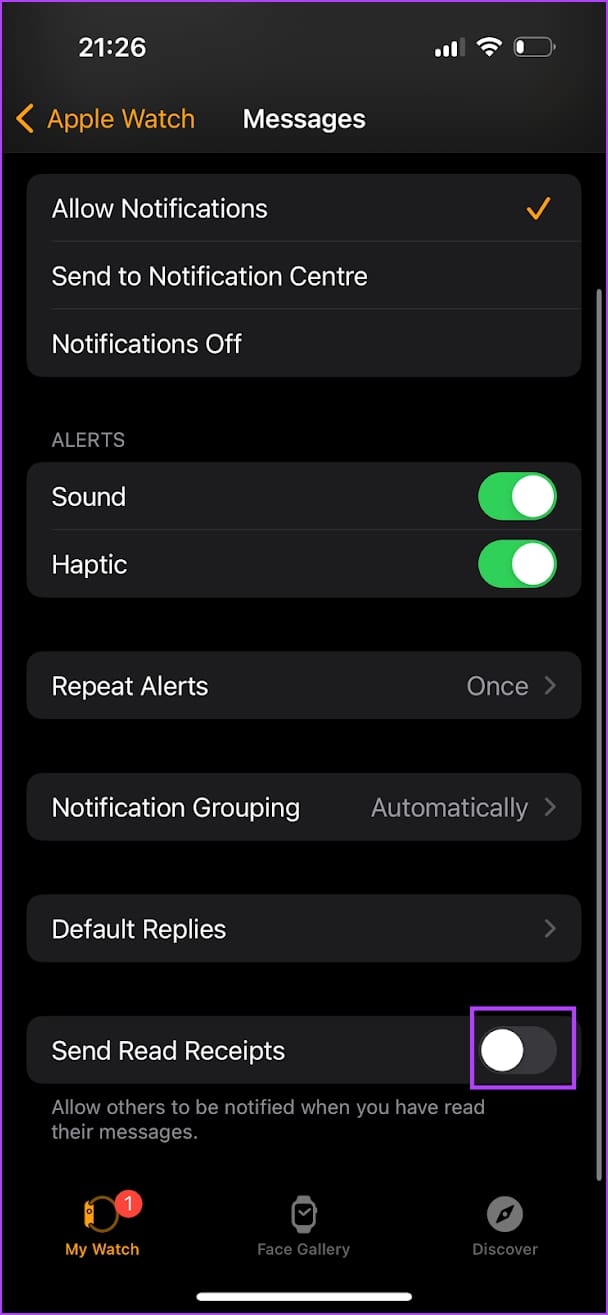
Step 1: Open the Watch app on your iPhone. Scroll down the list of options. Tap on Messages.
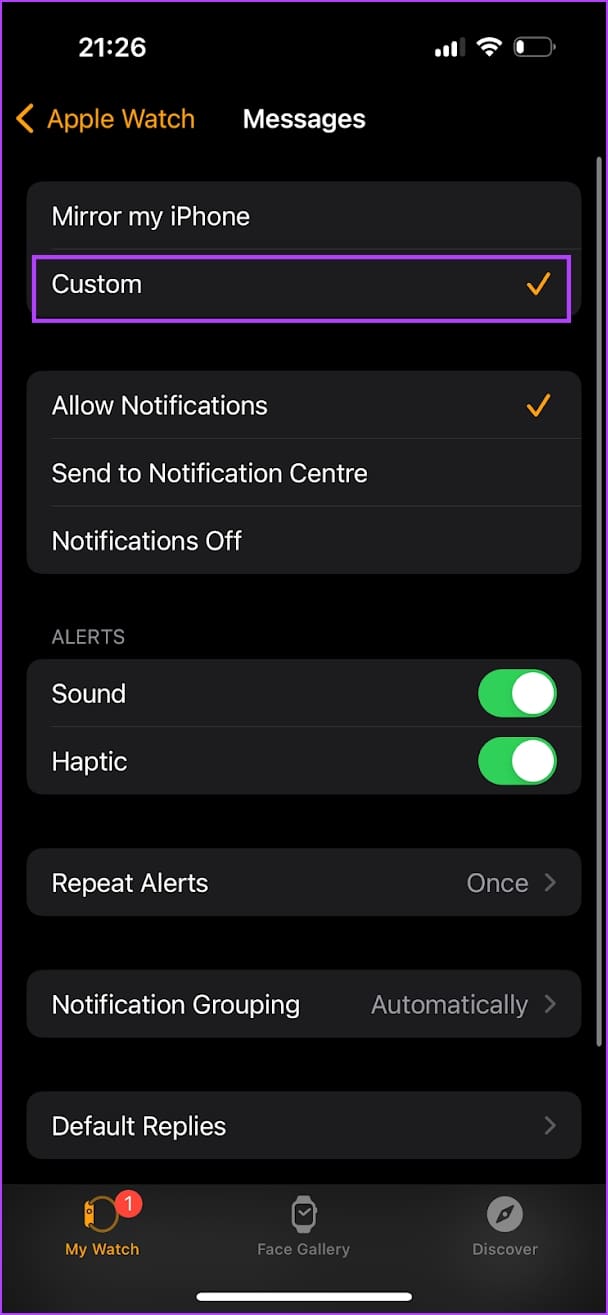
Step 2: Tap on Custom. This lets you create separate settings for messages on your iPhone and Apple Watch.
Step 3: Turn off the toggle for Send Read Receipts.
Also Read: How to make your Apple Watch vibrate for notifications.
Was this helpful?
Last updated on 19 May, 2024
Read Next
 Does Bumble Have Read Receipts and How to Tell if Someone Read Your Message
Does Bumble Show Read Receipts?
Does Bumble Have Read Receipts and How to Tell if Someone Read Your Message
Does Bumble Show Read Receipts?
 What Is Read Receipts in WhatsApp and Should You Turn Them Off
What Are Read Receipts in WhatsApp WhatsApp uses three types of checkmarks in chats: a single grey checkmark indicates your message has been sent, two grey checkmarks mean it was
What Is Read Receipts in WhatsApp and Should You Turn Them Off
What Are Read Receipts in WhatsApp WhatsApp uses three types of checkmarks in chats: a single grey checkmark indicates your message has been sent, two grey checkmarks mean it was
 What Are Telegram Read Receipts and Can You Turn Them Off?
What Does Telegram Check Mark or Read Receipt Mean?
What Are Telegram Read Receipts and Can You Turn Them Off?
What Does Telegram Check Mark or Read Receipt Mean?
 2 Fixes for Read Receipts Not Working on WhatsApp
Basic Fixes Force quit and relaunch: This will give the app a fresh start and should make the feature work.
2 Fixes for Read Receipts Not Working on WhatsApp
Basic Fixes Force quit and relaunch: This will give the app a fresh start and should make the feature work.
 How to Change Apple Watch Face from iPhone or Watch
Traditional watches had the problem that you couldn't change their clock face.
How to Change Apple Watch Face from iPhone or Watch
Traditional watches had the problem that you couldn't change their clock face.
 3 Ways to Turn Off Downtime on Apple Watch
What Is Downtime on the iPhone and Apple Watch Downtime is a screen time restriction for your Apple devices, disabling all applications when enabled.
3 Ways to Turn Off Downtime on Apple Watch
What Is Downtime on the iPhone and Apple Watch Downtime is a screen time restriction for your Apple devices, disabling all applications when enabled.
 How to Read Aloud a Webpage on Safari on iPhone
Make Safari Read Text Out Loud on iOS 17 Step 1: Open Safari and open the article or blog you want to listen to.
How to Read Aloud a Webpage on Safari on iPhone
Make Safari Read Text Out Loud on iOS 17 Step 1: Open Safari and open the article or blog you want to listen to.
 8 Methods to Check If an iPhone Is Original or Fake
https://youtu.be/zLp5RAEeHUE Method 1: Check the Hologram on the iPhone 15 Series Box Can I check if the iPhone is original without opening the box?
8 Methods to Check If an iPhone Is Original or Fake
https://youtu.be/zLp5RAEeHUE Method 1: Check the Hologram on the iPhone 15 Series Box Can I check if the iPhone is original without opening the box?
The article above may contain affiliate links which help support Guiding Tech. The content remains unbiased and authentic and will never affect our editorial integrity.