Try These Things First
- Force quit the app: The first thing to do is to completely stop the Google Meet app on your Android to cease any pending or stuck process and give it a fresh start. For that, force quit the app and then launch it again.
- Check your internet connection: The next thing you should do is check your internet connection speed by visiting Fast.com. If the result shows that your connection is weak, try restarting your router or switching to mobile data.
- Close apps that are using the camera: In addition, you should close any other application running in the background that might be using your device’s camera. You should specifically look for apps like Zoom, Teams, Slack, or any other application supporting video calling.
Fix 1: Turn off Limit Data Usage in the Meet App
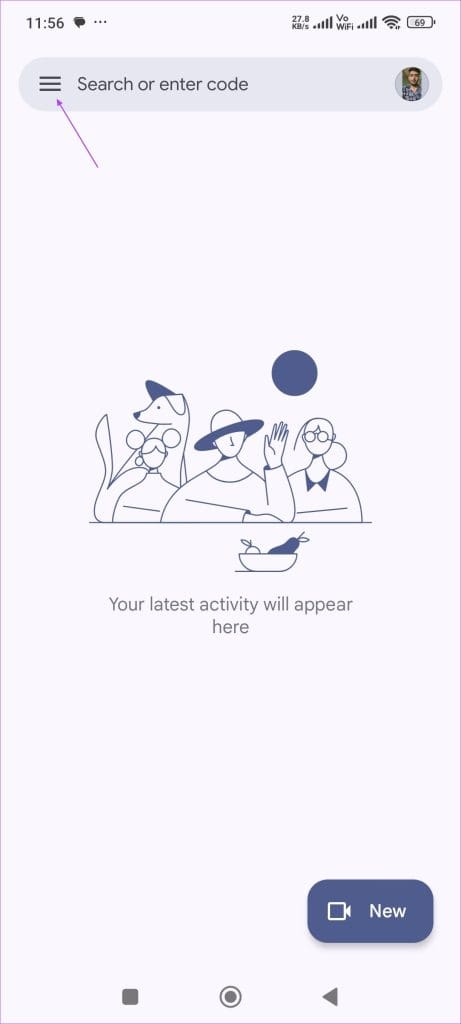
Google Meet has a built-in data limit feature that must be disabled if you are connected to cellular data, otherwise you might encounter issues while using the app. To disable this feature:
Step 1: Open the Meet app and tap on the hamburger icon at the top-left corner.
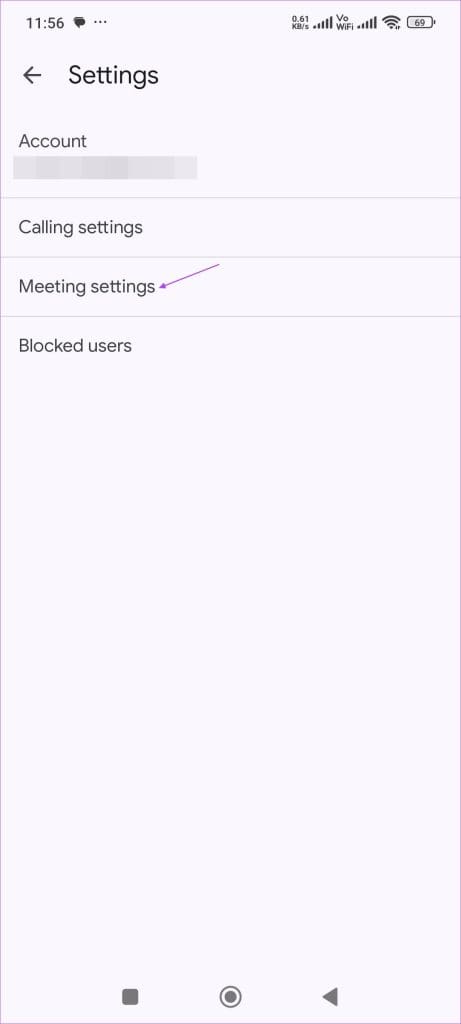
Step 2: Tap on Settings > Metting settings.
Step 3: Turn off the toggle for Limit data usage.

Try starting a video call and see if the problem is solved.
Fix 2: Allow Unrestricted Battery Usage for Google Meet
While low power mode on your Android device can help you conserve battery life, it inadvertently limits the operation of several apps in the background, potentially causing issues with Google Meet functionality.
If you wish to maintain the use of low power mode while ensuring Google Meet works smoothly, follow these steps to enable unrestricted battery usage for the Google Meet app:
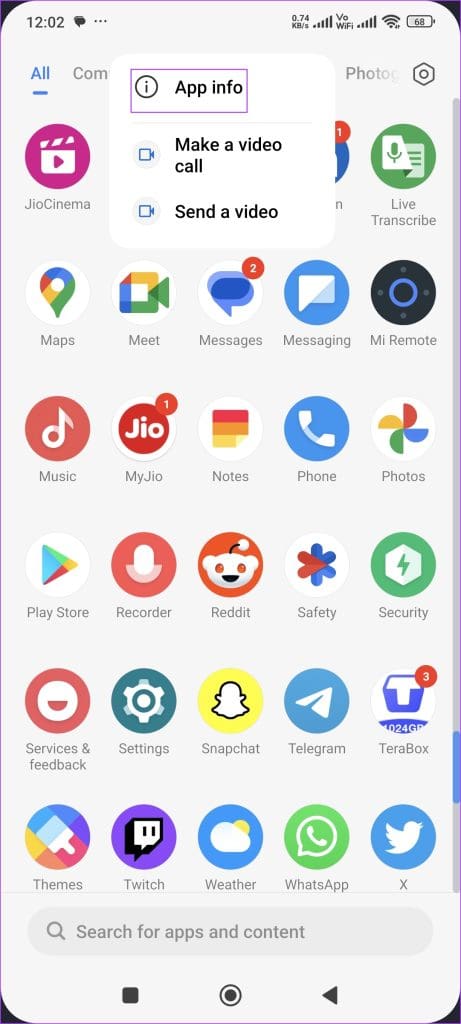
Step 1: Long-press the Google Meet icon on your Android phone and select App info.
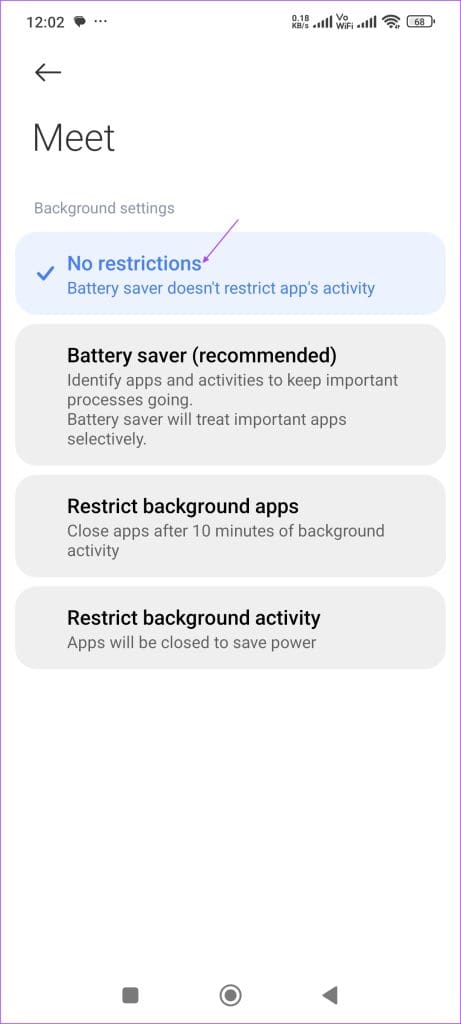
Step 2: Choose Battery saver > opt for No restrictions.

Fix 3: Allow Google Meet to Access the Camera
If Google Meet video is still not working, check the camera access for the app on your Android phone. Here’s how to check and reactivate it.
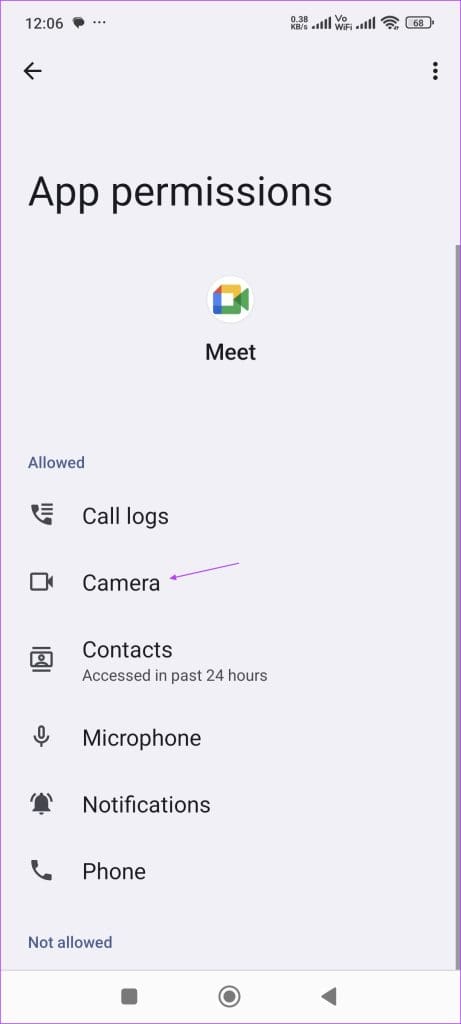
Step 1: Long-press the Google Meet icon > select App info > choose App permissions.
Step 2: Choose Camera.
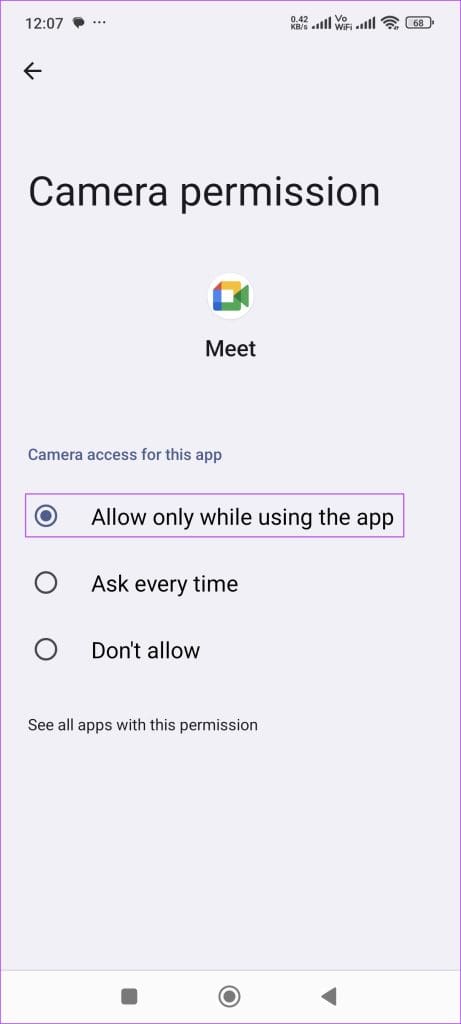
Step 3: Select Allow only while using the app.

Fix 4: Use Google Meet From the Gmail App
When none of the solutions work, the last resort is to use Google Meet from the Gmail app on your Android. Here’s how:
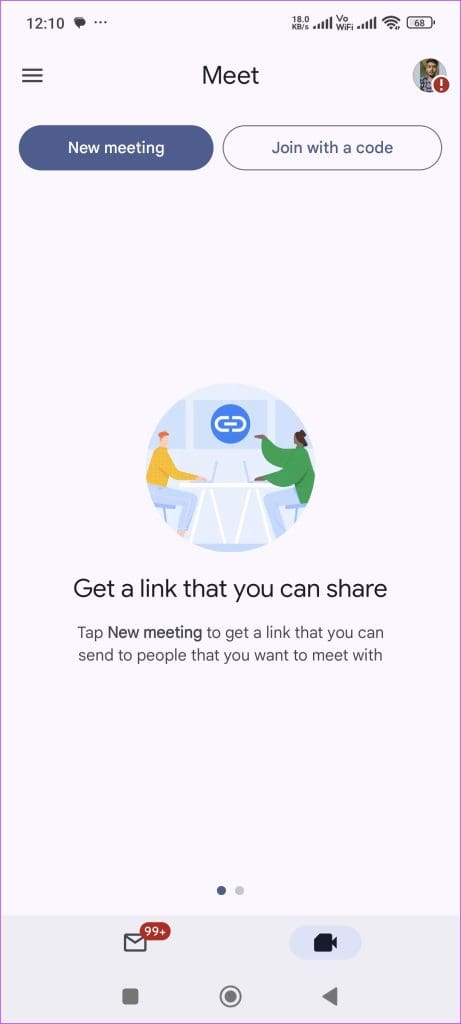
Step 1: Open the Gmail app on your Android phone and tap the Meet icon at the bottom right.
You can now start a meeting or join with a code.

Like in the Google Meet app, ensure that Limit data usage is disabled for the Gmail app. Here’s how to check the same.
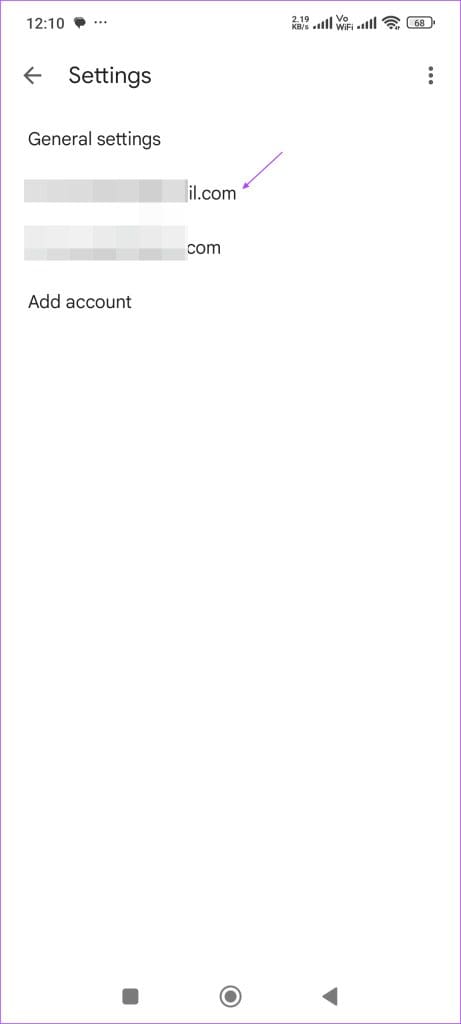
Step 1: In the Gmail app, tap on the hamburger icon at the top left and select Settings.
Step 2: Select the email account to start the Google Meet video.
Step 3: Uncheck the box for Limit data usage.


Also Read: How to share screen on Google Meet and other tricks
Was this helpful?
Last updated on 04 September, 2024
Read Next
 How to Share Video With Sound on Zoom, Microsoft Teams, and Google Meet
How to Share Video With Audio in Microsoft Teams The feature to share your screen containing the video and its sound in Microsoft Teams is limited to the Windows app
How to Share Video With Sound on Zoom, Microsoft Teams, and Google Meet
How to Share Video With Audio in Microsoft Teams The feature to share your screen containing the video and its sound in Microsoft Teams is limited to the Windows app
 Top 7 Ways to Fix Google Meet Audio Not Working
Major IT companies, such as Twitter and Spotify, are encouraging employees to work from home.
Top 7 Ways to Fix Google Meet Audio Not Working
Major IT companies, such as Twitter and Spotify, are encouraging employees to work from home.
 Top 10 Ways to Fix Google Meet Microphone Not Working on Windows and Mac
For the most part, Google Meet offers a seamless browser-based video conferencing experience on both Windows and macOS.
Top 10 Ways to Fix Google Meet Microphone Not Working on Windows and Mac
For the most part, Google Meet offers a seamless browser-based video conferencing experience on both Windows and macOS.
 4 Fixes When Google Meet Background Blur Is Not Working
Basic Fix: Use Google Chrome: Because not all browsers meet the requirements for blur, Google Chrome is the safest choice.
4 Fixes When Google Meet Background Blur Is Not Working
Basic Fix: Use Google Chrome: Because not all browsers meet the requirements for blur, Google Chrome is the safest choice.
 3 Fixes for Google Meet Not Working on iPhone
Basic Fixes Switch to 5GHz network: If you have any dual-band Wi-Fi router, you can connect to a 5GHz network for faster internet speeds.
3 Fixes for Google Meet Not Working on iPhone
Basic Fixes Switch to 5GHz network: If you have any dual-band Wi-Fi router, you can connect to a 5GHz network for faster internet speeds.
 2 Ways to Fix Google Meet “Not Allowed to Join” Error
Basic Fixes Sign into Google: The admin may have configured it to only allow participants who have signed in to a Google Account.
2 Ways to Fix Google Meet “Not Allowed to Join” Error
Basic Fixes Sign into Google: The admin may have configured it to only allow participants who have signed in to a Google Account.
 How to Put a Background in Google Meet Using Your Phone
How to Change Background in Google Meet App Keeping a virtual background can be very useful in creating a theme for your video calls, lectures, podcasts, webinars, and interviews.
How to Put a Background in Google Meet Using Your Phone
How to Change Background in Google Meet App Keeping a virtual background can be very useful in creating a theme for your video calls, lectures, podcasts, webinars, and interviews.
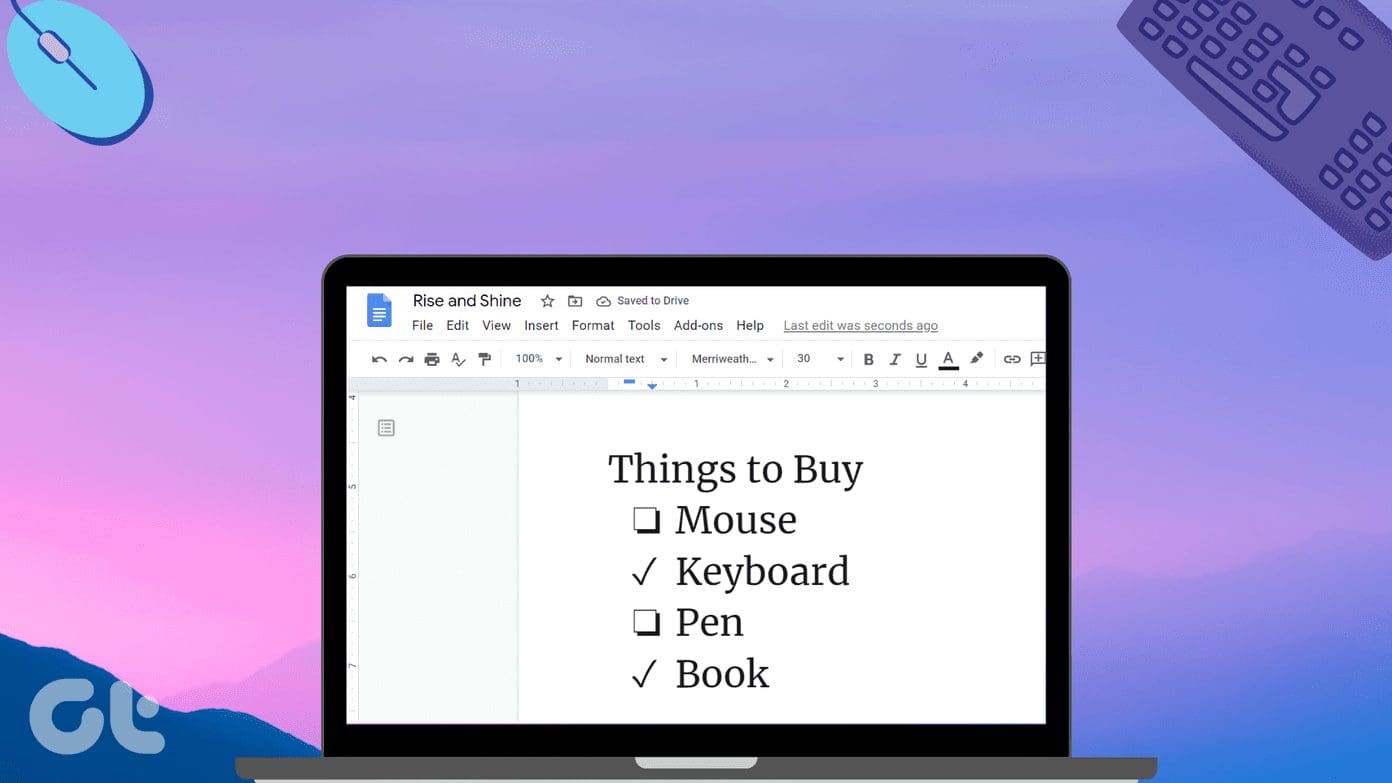 How to Change Name and Picture in Google Meet
How to Change Name and Picture on Google Meet on Mobile Devices Your Google Meet account is linked to your Google account, so you must change the name (and profile
How to Change Name and Picture in Google Meet
How to Change Name and Picture on Google Meet on Mobile Devices Your Google Meet account is linked to your Google account, so you must change the name (and profile
The article above may contain affiliate links which help support Guiding Tech. The content remains unbiased and authentic and will never affect our editorial integrity.