SharePoint is a useful file-sharing and storage tool that works effortlessly with other Microsoft 365 apps. That is, when it’s working. If you’re struggling with syncing, permission, or any other type of error, then this article is here to help with some common SharePoint errors and potential fixes.
Common SharePoint Errors and Their Fixes
Let’s take a look at the overarching problems you might encounter in SharePoint and how to potentially resolve them.
Slow Performance
If upload and download speeds are taking too long, not to mention navigation, then your first port of call should be your internet connection. Ensure you are close enough to the wireless router and that the router signal is stable. Restart your router to be sure. It might also be that your SharePoint has too many files, dragging its performance down. It might be time for a cleanup.
Access Denied
If you’re denied access to a certain file or folder (one of the most common SharePoint error messages) odds are pretty good you’re battling permission problems. If you’re running things from the Admin side of SharePoint, you can check to see who has permission to access files:
Step 1. On the SharePoint site, go to “Settings.”
Step 2. Click “Site permissions.”
Step 3. In the top ribbon, select “Check Permissions.”
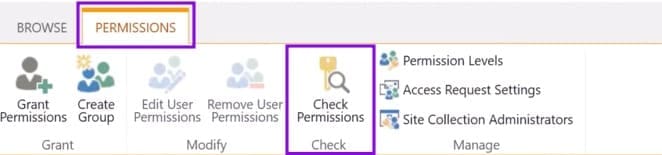
Step 4. Enter the name of the user you want to check and hit the “Check Now” button.
Step 5. If permission isn’t granted for a file or folder, click “Grant Permissions” in the top ribbon and enter the user’s name to rectify this.
Account Problems
If you’re using SharePoint Online or its workhorse tool, OneDrive, you might encounter the message “There is a problem with your account, please try again later” when trying to open a file. If this happens, you will need to clear your cached Microsoft login credentials to force a fresh, secure connection. Here’s how:
Step 1. Press the Windows Key, type “Credential Manager” into the search bar, and click on the app to open it.
Step 2. Select “Windows Credentials.”
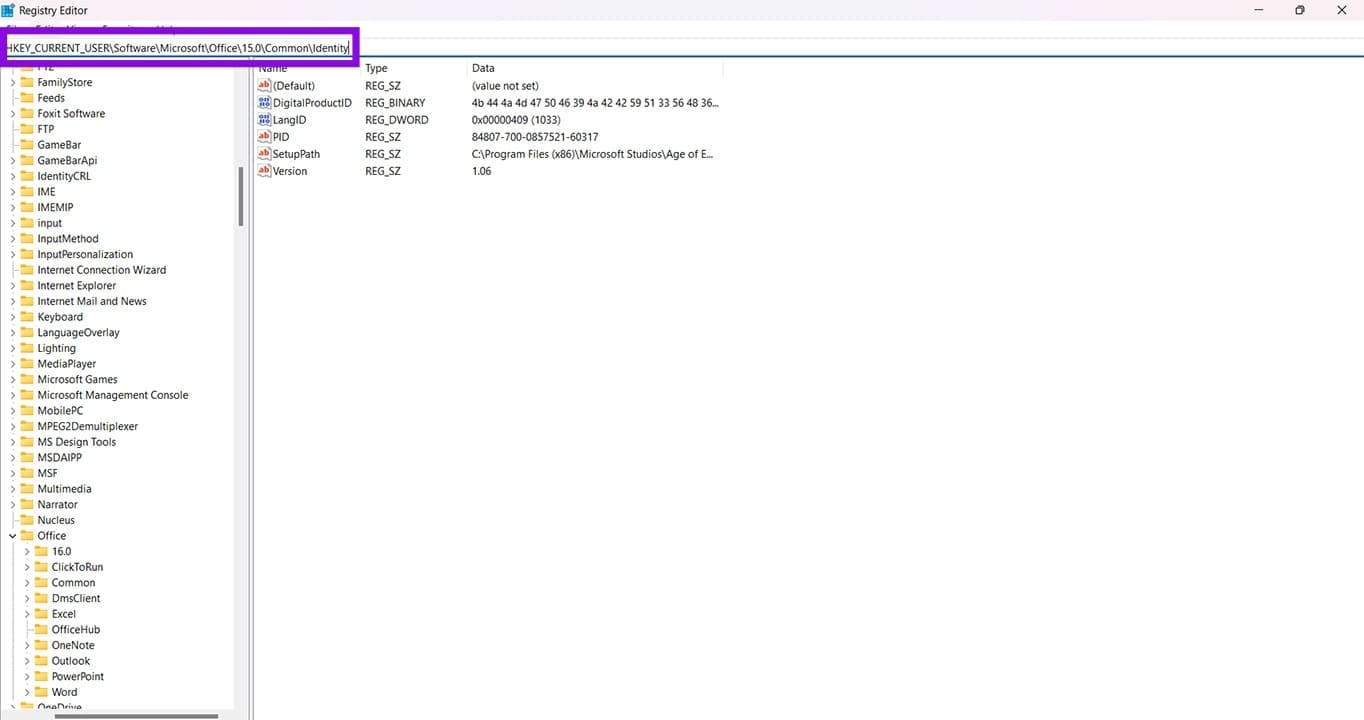
Step 3. Scroll down to the “Generic Credentials” section, click on any entries containing “MicrosoftOffice16” or “OneDrive,” and then click “Remove.”
Step 4. Close the window, restart your machine, and sign back into your Microsoft 365 account when prompted.
Too Many Items in Library
If you receive a warning about library limits, it’s important to remember that SharePoint caps its item view at 5000. If you’re over this limit, you can organize your files into separate folders, delete old ones, and remove versions you no longer need.
Syncing Issues
Seeing as SharePoint relies so much on OneDrive for syncing and storage, it only makes sense that it should be bound to the file rules of OneDrive, too. If some of your files aren’t syncing, check the following:
- The file size isn’t over the limit of 250GB.
- The name doesn’t contain the following characters: < >: ” / \ |? *
- The sync relationships should be under 300,000 items.
- The file name doesn’t exceed 260 characters.
Was this helpful?
Last updated on 02 June, 2026
Read Next
 Windows 11 25H2 Won’t Install – Common Fixes
Just when it seems you’re over the hurdle of installing Windows 11 24H2, along comes its successor a year later to make your life difficult all over again.
Windows 11 25H2 Won’t Install – Common Fixes
Just when it seems you’re over the hurdle of installing Windows 11 24H2, along comes its successor a year later to make your life difficult all over again.
 Why Is My PC Fan So Loud? Common Fixes
A loud PC is usually nothing to worry about when you’re gaming or using particularly demanding video editing programs.
Why Is My PC Fan So Loud? Common Fixes
A loud PC is usually nothing to worry about when you’re gaming or using particularly demanding video editing programs.
 Instagram Block vs Mute vs Hide: Common Terms Explained
What Does Blocking on Instagram Mean Similar to other social networks, blocking on Instagram completely restricts your profile from the other person.
Instagram Block vs Mute vs Hide: Common Terms Explained
What Does Blocking on Instagram Mean Similar to other social networks, blocking on Instagram completely restricts your profile from the other person.
 10 Common Facebook Marketplace Scams and How to Avoid Them
Besides being a popular social media platform, Facebook is also a great place to buy and sell things, thanks to Facebook Marketplace.
10 Common Facebook Marketplace Scams and How to Avoid Them
Besides being a popular social media platform, Facebook is also a great place to buy and sell things, thanks to Facebook Marketplace.
 OneNote Common Issues and How to Troubleshoot Them
OneNote is an excellent tool for creating, storing, and sharing notes between devices and with others.
OneNote Common Issues and How to Troubleshoot Them
OneNote is an excellent tool for creating, storing, and sharing notes between devices and with others.
 How to Solve Windows 10 Game Bar Not Working and Other Common Issues
With the recent Windows 10 version 1809 update, Microsoft pushed a bunch of improvements to the Xbox Game Bar.
How to Solve Windows 10 Game Bar Not Working and Other Common Issues
With the recent Windows 10 version 1809 update, Microsoft pushed a bunch of improvements to the Xbox Game Bar.
 4 Common Issues With Nothing Ear (1) and How to Fix Them
1.
4 Common Issues With Nothing Ear (1) and How to Fix Them
1.
 Five Common Office API Error Codes and What They Mean
Office Add-ins allow you to extend your standard Microsoft Office solution into something more.
Five Common Office API Error Codes and What They Mean
Office Add-ins allow you to extend your standard Microsoft Office solution into something more.
The article above may contain affiliate links which help support Guiding Tech. The content remains unbiased and authentic and will never affect our editorial integrity.