Prerequisite: Install FFmpeg for Audacity Plugin
The FFmpeg for Audacity plugin is a powerful extension that significantly enhances Audacity’s capabilities. If you are looking to extract audio from your video file, you may need this extension to increase the range of formats Audacity accepts. Follow these steps to install it.
Step 1: Download the FFmpeg for Audacity plugin.
Step 2: Double-click the downloaded file and follow the wizard to complete the installation.
Step 3: At the end of the installation, launch Audacity, click the Edit menu, and click Preferences.

Step 4: On the left pane click Libraries, then click Locate on the right.

Step 5: Browse for your downloaded file and click OK.
Extract Audio From Video With Audacity
Step 1: Open a video file by going to File > Open.
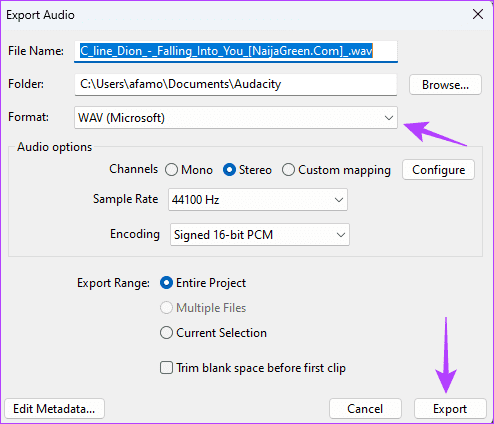
Step 2: Again, navigate to File, but this time, choose Export Audio.

Step 3: Choose the desired audio format and click Export.
Tip: You may also consider using Audacity to record audio on your computer.
Was this helpful?
Last updated on 17 August, 2024
Read Next
 5 Best Android Apps to Extract Audio from Video
Don't you wish you could get the audio from the latest music videos?
5 Best Android Apps to Extract Audio from Video
Don't you wish you could get the audio from the latest music videos?
 5 Best Ways to Extract Audio from Video on Windows 10
We’ve all been in a situation where we have thought of extracting the audio part playing in a video background.
5 Best Ways to Extract Audio from Video on Windows 10
We’ve all been in a situation where we have thought of extracting the audio part playing in a video background.
 4 Ways to Extract Audio From Video on Mac
Method 1: Use QuickTime Player to Save Audio From a Video QuickTime is the default video player on the Mac.
4 Ways to Extract Audio From Video on Mac
Method 1: Use QuickTime Player to Save Audio From a Video QuickTime is the default video player on the Mac.
 How To Automatically Extract ZIP Files After Downloading
ZIP files are necessary for combining multiple files together into one downloadable file.
How To Automatically Extract ZIP Files After Downloading
ZIP files are necessary for combining multiple files together into one downloadable file.
 5 Best Tools to Extract RAR Files on Windows 11 (Free and Paid)
1.
5 Best Tools to Extract RAR Files on Windows 11 (Free and Paid)
1.
 How to Extract a High-Quality Image From Video on Android
Method 1: Use the Gallery App Some Android devices have an inbuilt feature to extract still images from video.
How to Extract a High-Quality Image From Video on Android
Method 1: Use the Gallery App Some Android devices have an inbuilt feature to extract still images from video.
 5 Best Tools to Extract Fonts from PDFs Online
You are reading a PDF file and like the font type.
5 Best Tools to Extract Fonts from PDFs Online
You are reading a PDF file and like the font type.
 3 Ways to Extract a URL From Hyperlinks in Microsoft Excel
Method 1: From the Edit Hyperlink Dialog The context menu has a series of shortcuts for performing actions.
3 Ways to Extract a URL From Hyperlinks in Microsoft Excel
Method 1: From the Edit Hyperlink Dialog The context menu has a series of shortcuts for performing actions.
The article above may contain affiliate links which help support Guiding Tech. The content remains unbiased and authentic and will never affect our editorial integrity.