Let’s be honest, navigating Windows on a controller is a chore. If you’ve ever tried to use a gamepad to browse the Xbox app, launch a game from Steam, or do anything in the desktop UI while sitting on a couch, you know how tedious it is. The Xbox PC Mode is meant to solve that issue once and for all by creating a console-style gaming shell around Windows 11. Here’s what you need to know about it and how to turn it on.
What Is Xbox PC Mode and What Does It Do?

Xbox Mode is a dedicated gaming “overlay” for Windows 11 that replaces the traditional desktop with a full-screen dashboard that looks closer to the Xbox Series X|S interface. The screen itself is navigable via a controller like a console and has many more gaming-specific options than a traditional Windows desktop.
One of Xbox PC Mode’s most practical additions is a single aggregated game library. It pulls together your installed titles from Steam, Epic Games Store, GOG, and your Xbox/Game Pass into one browsable interface.
When Xbox Mode is active, Windows also suspends non-essential background apps and services (the taskbar, notifications, desktop components, and more). This can free up roughly 1 to 2 GB of system memory compared to standard desktop mode. For older hardware, this can be the difference between running a game and having it just sit in the library unplayed.
The feature ships with Auto SR, an AI-driven upscaling tool (applicable only for AI-enabled PCs). Unlike DLSS, FSR, or XeSS, Auto SR runs on the device’s NPU rather than the GPU, which keeps the GPU free for rendering while the NPU handles upscaling.
Another adaptation from Xbox Series X|S is the Quick Resume, the ability to jump between games without fully loading them. This means the PC stores game data and doesn’t delete it until you get out of the Xbox Mode.
With an active Game Pass Ultimate subscription, Xbox Mode also gives you direct access to cloud streaming via xCloud, with hundreds of titles available without the need to install them locally. Microsoft also added Play Anywhere Cloud Sync, which automatically syncs your game saves and settings between your Xbox console and your PC.
Xbox PC Mode vs. Steam Big Picture Mode
The comparison that comes up most often is with Valve’s Steam Big Picture mode and, more broadly, SteamOS. Valve’s approach has attracted a dedicated following among living-room and handheld PC gamers for its low-overhead, controller-first design. SteamOS’s delineation from Windows is part of what makes it work well on the Steam Deck.
Xbox Mode’s advantage is library size. Steam Big Picture only shows your Steam library. Xbox Mode pulls in Steam, Epic, GOG, and your Xbox titles simultaneously.
The limitation is that Xbox Mode is still built on top of Windows, and that means higher upfront memory usage regardless of background apps.
How to Enable Xbox Mode on Windows 11
Xbox Mode requires Windows 11 build 26200.8328 or higher and the latest version of the Xbox app. The feature is rolling out gradually, so it may or may not already be waiting for you in Settings.
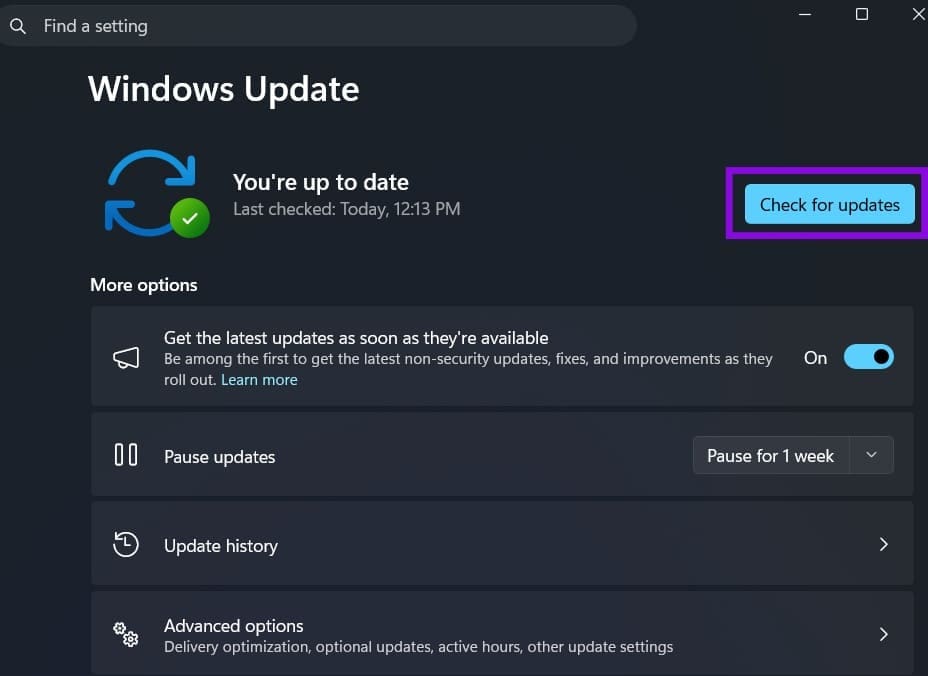
Step 1. Open “Settings,” go to “Windows Update,” and click “Check for updates.” Install the May 2026 Security Update (KB5089549) if it’s available. Alternatively, turn on the “Get the latest updates as soon as they’re available” toggle.
Step 2. Open the Microsoft Store, click your profile icon in the top right, and select “Downloads.” Find the Xbox app in the list and update it.
Step 3. In “Settings,” open the Gaming section from the left sidebar. “Xbox Mode” should appear at the top of the list above “Game Bar.”
Step 4. Turn on the “Enable Xbox Mode on Startup” toggle. Set the Xbox app as the home app when prompted.
Step 5. Launch the Xbox app. Click on “Xbox Mode” in the interface and select “Enter at startup (Optimize performance)” for the best gaming performance. This ensures Xbox Mode suspends background processes as soon as you log in.
Step 6. Restart the PC. If you want to go back to the original desktop, hit “Win + Tab.”
Was this helpful?
Last updated on 27 May, 2026
Read Next
 3 Fixes to Stop Deleted Photos From Coming Back on iPhone
Basic Fixes Restart your iPhone: A simple restart can sometimes fix issues like this one.
3 Fixes to Stop Deleted Photos From Coming Back on iPhone
Basic Fixes Restart your iPhone: A simple restart can sometimes fix issues like this one.
 7 Ways to Fix Discord Audio Not Coming Through Headset
Fix 1: Check the Default Audio Output Device on Your System To start, check the default audio output device on your Windows or Mac computer and ensure that audio is
7 Ways to Fix Discord Audio Not Coming Through Headset
Fix 1: Check the Default Audio Output Device on Your System To start, check the default audio output device on your Windows or Mac computer and ensure that audio is
 6 Ways to Fix Xbox App Not Opening in Windows 11
Fix 1.
6 Ways to Fix Xbox App Not Opening in Windows 11
Fix 1.
 5 Ways to Fix Xbox Game Bar Not Working on Windows 11
Fix 1: Enable Xbox Game Bar in Windows Settings If you can't launch the Xbox Game Bar from your connected game controller on Windows 11, head to Windows Settings to
5 Ways to Fix Xbox Game Bar Not Working on Windows 11
Fix 1: Enable Xbox Game Bar in Windows Settings If you can't launch the Xbox Game Bar from your connected game controller on Windows 11, head to Windows Settings to
 4 Best Ways to Record Screen Without Xbox Game Bar on Windows 11
The Xbox Game Bar on your Windows 11 computer is a good built-in tool for screen recording.
4 Best Ways to Record Screen Without Xbox Game Bar on Windows 11
The Xbox Game Bar on your Windows 11 computer is a good built-in tool for screen recording.
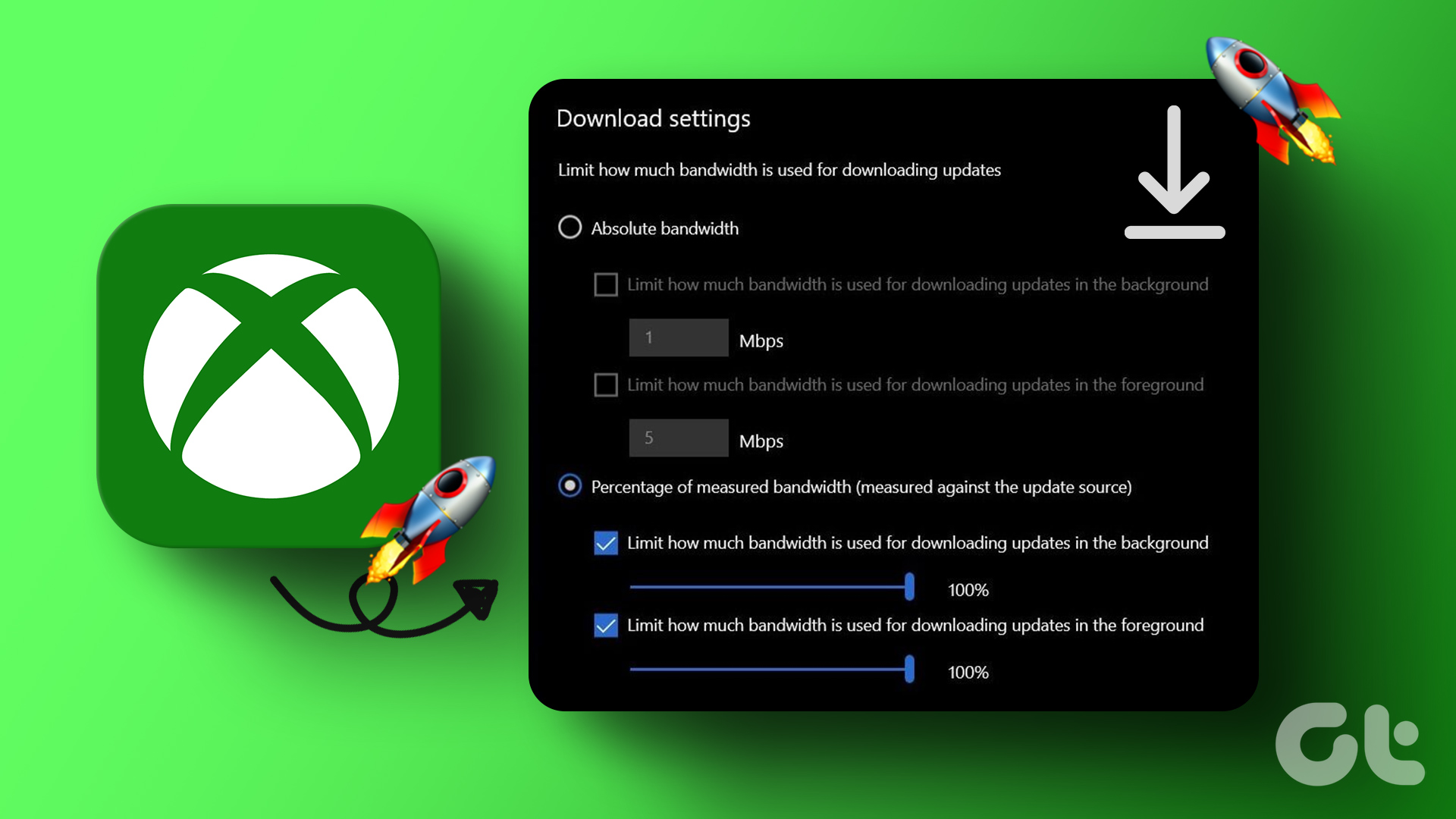 How to Increase Downloading Speed in Xbox App for Windows 11
Try These Things First Restart the Xbox app: At times, the Xbox app might misbehave and cause issues like slow downloading speed due to a temporary glitch or bug.
How to Increase Downloading Speed in Xbox App for Windows 11
Try These Things First Restart the Xbox app: At times, the Xbox app might misbehave and cause issues like slow downloading speed due to a temporary glitch or bug.
 3 Ways to Disable Xbox Game Bar on Windows 11
Method 1: Using PowerShell Step 1: Press the Windows key, type PowerShell, and click Run as Administrator.
3 Ways to Disable Xbox Game Bar on Windows 11
Method 1: Using PowerShell Step 1: Press the Windows key, type PowerShell, and click Run as Administrator.
 6 Ways to Fix Xbox Games Installation Stuck on Windows
Try These Fixes First Restart the Xbox app: You can close the Xbox app and try installing the apps again.
6 Ways to Fix Xbox Games Installation Stuck on Windows
Try These Fixes First Restart the Xbox app: You can close the Xbox app and try installing the apps again.
The article above may contain affiliate links which help support Guiding Tech. The content remains unbiased and authentic and will never affect our editorial integrity.