If you somehow get Word stuck in foreign language mode where none of the settings look familiar, this is usually due to changed global settings. Here’s how to change Word back to English and possibly prevent the issue later.
Fix 1: Navigate Through Word Stuck in Foreign Language and Change Local Settings
Typically, the way Word looks and where the options are doesn’t change, so you can click through settings to find the language selector.
Step 1. Maximize Word’s window and click on the first tab on the top toolbar (below the Word icon). In some versions of Word, it’s colored slightly differently (this is the “File” tab).
Step 2. Click on the option that’s on the bottom left of the entire window.

Step 3. Select the fifth tab on the left.
Step 4. You should have two boxes with buttons next to them. If you can see English in the first box, select that option and click on the second button on its right. If you can’t, click on the first button on the right.
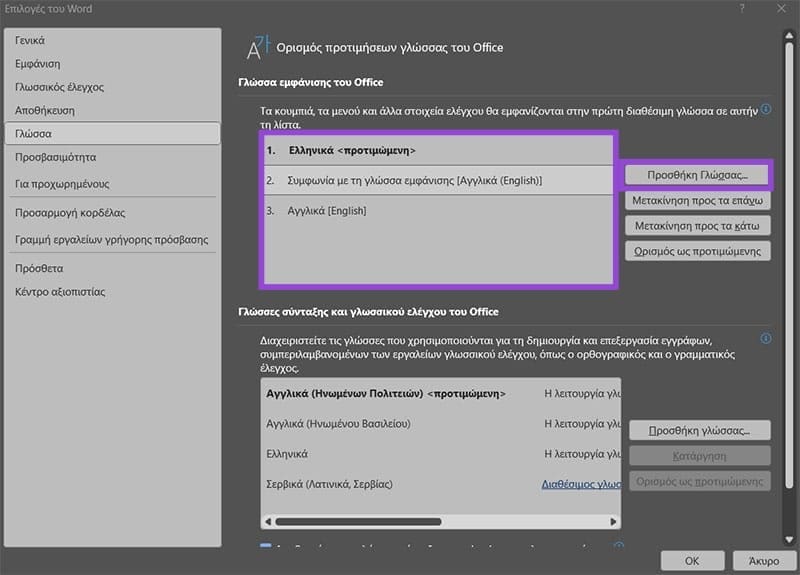
Step 4b. If you didn’t see English originally, the first button should open a language selector. You can find English there, select it, and make it visible in the box.
Step 5. There are two buttons on the bottom-right corner of the Settings window. Click on the left one to save the change.
You will need to restart Word for the language setting to initialize.
Notably, this also allows you to put Word to any language other than English as well.
Fix 2: Remove a Foreign Language Pack From Windows Settings
If you keep getting Word stuck in foreign language mode, it’s possible it’s picking up your Windows’ display language. You’ll need to remove the foreign language from the system’s language packs.
Step 1. Go to Settings and open the “Time & language” tab.
Step 2. Select “Language & region.”
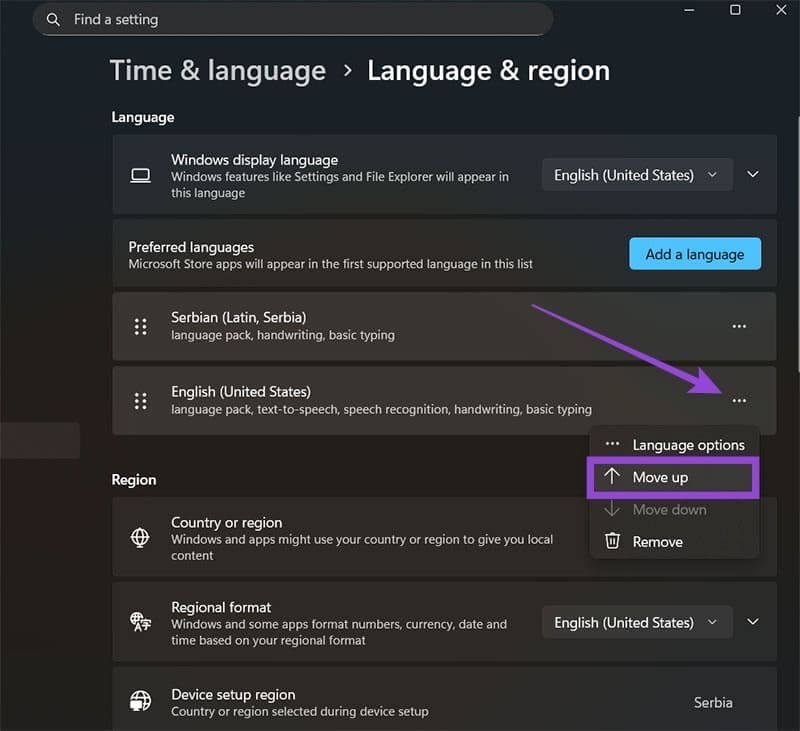
Step 3. Click on the three-dots menu for “English” and select “Move up” until it’s the first option to move Word back to English.
Step 4. Click on the three-dots menu for any foreign language and select “Remove.”
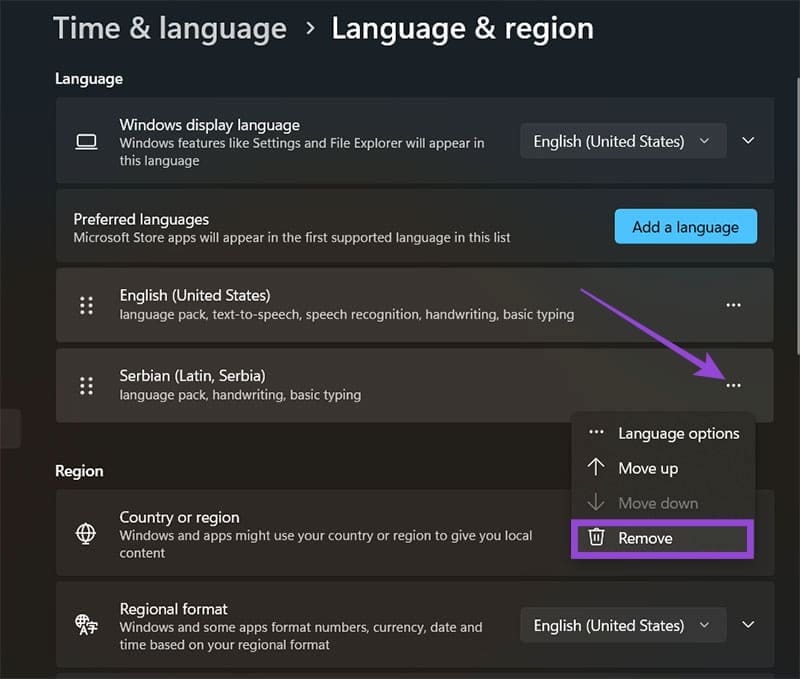
You may need to restart your system for this to take effect.
Fix 3: Check Microsoft Office Online Settings
If you’re using Microsoft 365, your account settings may be overwriting local app settings.
Step 1. Go to account.microsoft.com and sign in with your credentials.
Step 2. Go to the bottom of the page and check the footer for the language and region. Set the language to English.
Step 3. Repeat the process for setting up Word in English from Fix 1.
You may also need to change the settings on other Microsoft Office products to match.
Was this helpful?
Last updated on 11 December, 2025
Read Next
 3 Apps That Translate Foreign Languages Instantly Using Camera App
Technology has made sci-fi fantasies come true.
3 Apps That Translate Foreign Languages Instantly Using Camera App
Technology has made sci-fi fantasies come true.
 5 Ways to Fix Microsoft Word Stuck on Saving
Basic Fixes Wait for some time: Give it a moment since Word files might take a while to save recent changes, especially when the file size has increased considerably.
5 Ways to Fix Microsoft Word Stuck on Saving
Basic Fixes Wait for some time: Give it a moment since Word files might take a while to save recent changes, especially when the file size has increased considerably.
 Top 5 Fixes for Language Bar Missing in Windows 10
Windows 10 includes language packs to make it easy for people who often deal with foreign languages.
Top 5 Fixes for Language Bar Missing in Windows 10
Windows 10 includes language packs to make it easy for people who often deal with foreign languages.
 How to Change the Default Language in Windows 11
How to Change the Display Language in Windows 11 Windows 11 supports various languages.
How to Change the Default Language in Windows 11
How to Change the Display Language in Windows 11 Windows 11 supports various languages.
 How to Change the Default Language Shortcut in Windows
If one of your keyboard keys stopped working, it can be a big deal when it’s used for shortcuts.
How to Change the Default Language Shortcut in Windows
If one of your keyboard keys stopped working, it can be a big deal when it’s used for shortcuts.
 Apple Pages vs Microsoft Word: Which Word Processing Software Is Better
Every major tech company out there is offering their version of the productivity suite.
Apple Pages vs Microsoft Word: Which Word Processing Software Is Better
Every major tech company out there is offering their version of the productivity suite.
 Google Docs vs. Microsoft Word Online: Which Word Processor Is Better
Google Docs vs.
Google Docs vs. Microsoft Word Online: Which Word Processor Is Better
Google Docs vs.
 Fix: Microsoft Office Stuck on Getting Things Ready on Windows 11
Basic Fix Close other programs: This may be necessary, especially since other running programs may interfere with installation.
Fix: Microsoft Office Stuck on Getting Things Ready on Windows 11
Basic Fix Close other programs: This may be necessary, especially since other running programs may interfere with installation.
The article above may contain affiliate links which help support Guiding Tech. The content remains unbiased and authentic and will never affect our editorial integrity.