

It’s quite alarming when the one place in Windows you can head to change preferences and troubleshoot errors is either blank or missing entirely. Yet, there are times in Windows 11 when this may indeed occur. If you’re facing this aggravating problem, this article will provide some fixes for issues that leave Windows Settings blank or missing.
What to Do When Windows Settings Are Blank or Missing
Issues with your Settings can point to issues with file or system corruption, an issue with Explorer, or profile and account trouble. We’ve got some troubleshooters for you to try below:
Restart Explorer
If other parts of Windows Explorer aren’t working properly or freezing regularly, Settings might be one of the features affected. Restarting the Explorer process in Task Manager can provide a quick fix without having to restart everything. Here’s what to do:
Step 1. Open “Task Manager” by pressing (Ctrl + Shift + Esc).
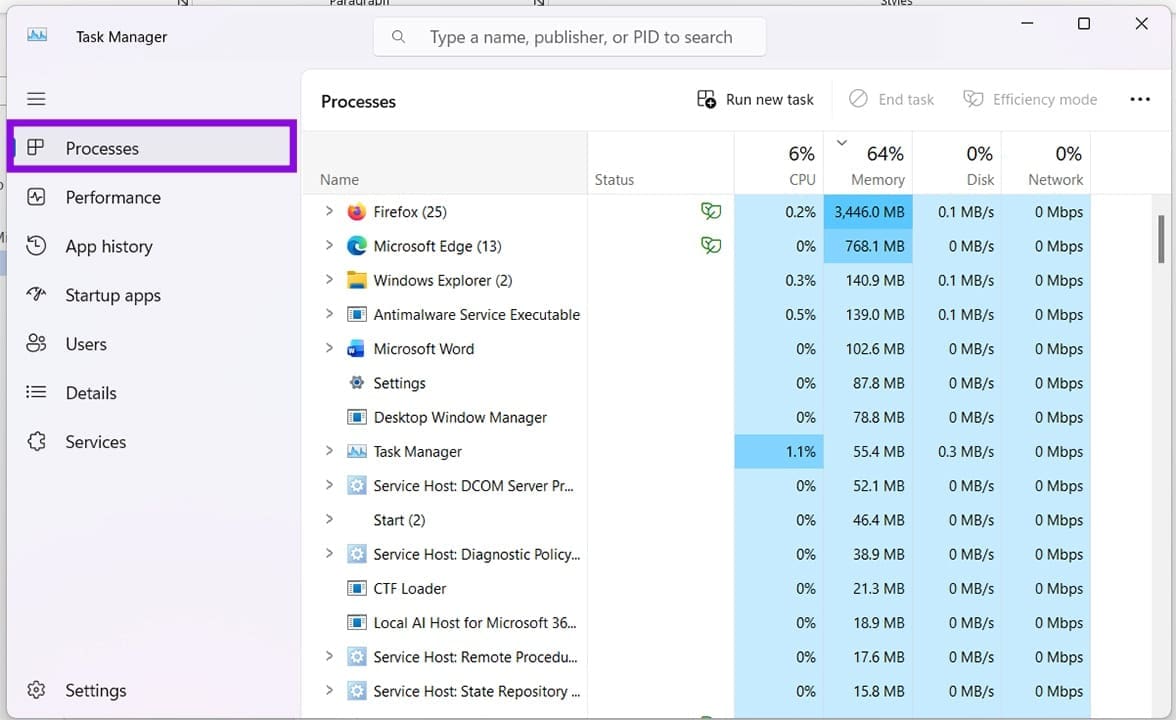
Step 2. Click the “Processes” tab and then find “Windows Explorer” in the main window.
Step 3. Click the “Restart task” button to restart Windows Explorer.
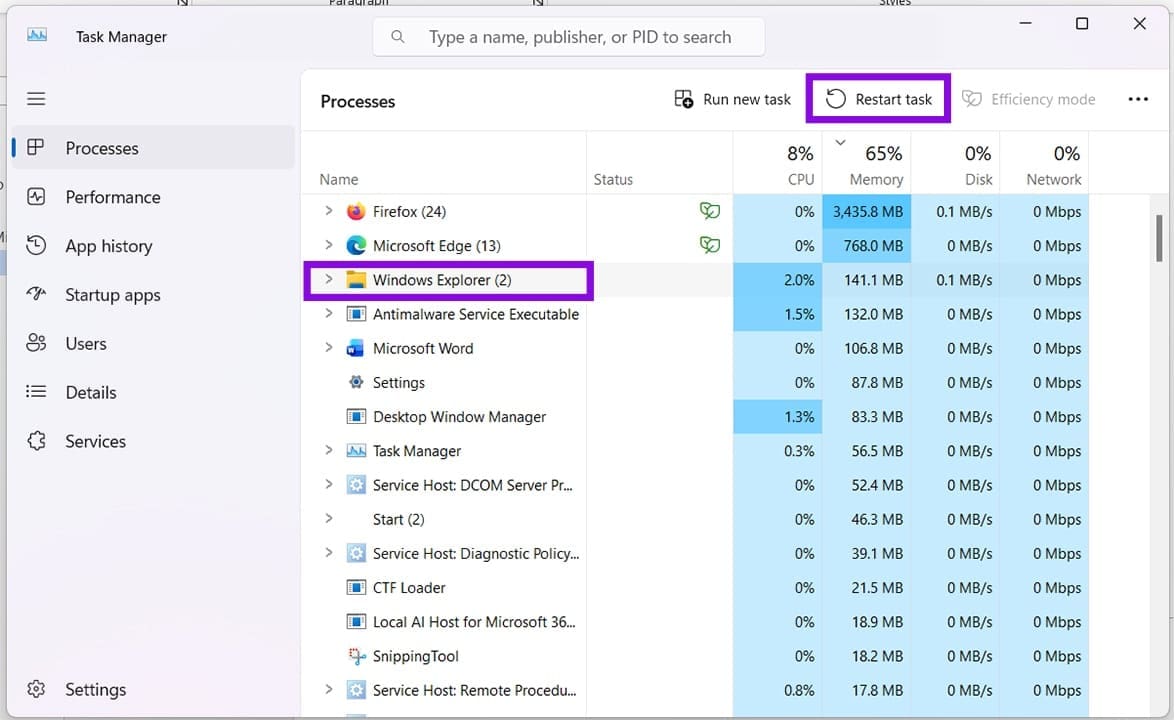
Step 4. Explorer will reboot. Try reopening “Settings” again to see if the issue is resolved.
Restart Your Machine
If a restart of Explorer doesn’t do the trick, your next course of action should be to reboot your PC completely. If this doesn’t work, you can also try restarting in Safe Mode and trying out “Settings” there, free of third-party app interference. To do this:
If you suspect faulty drivers (recently installed ones might be to blame), then you can attempt to boot into Safe Mode (which keeps only system essentials running) and remove them. Here’s how:
Step 1. Hold “Shift” while clicking the restart button in the Start menu. Your PC should boot into a blue menu.
Step 2. Choose “Troubleshoot.”
Step 3. In “Advanced Options,” choose “Startup Settings.”
Step 4. Startup Settings options Numbers 4 through 6 will all work for this, with “4” being the simplest form of Safe Mode. Type the number.
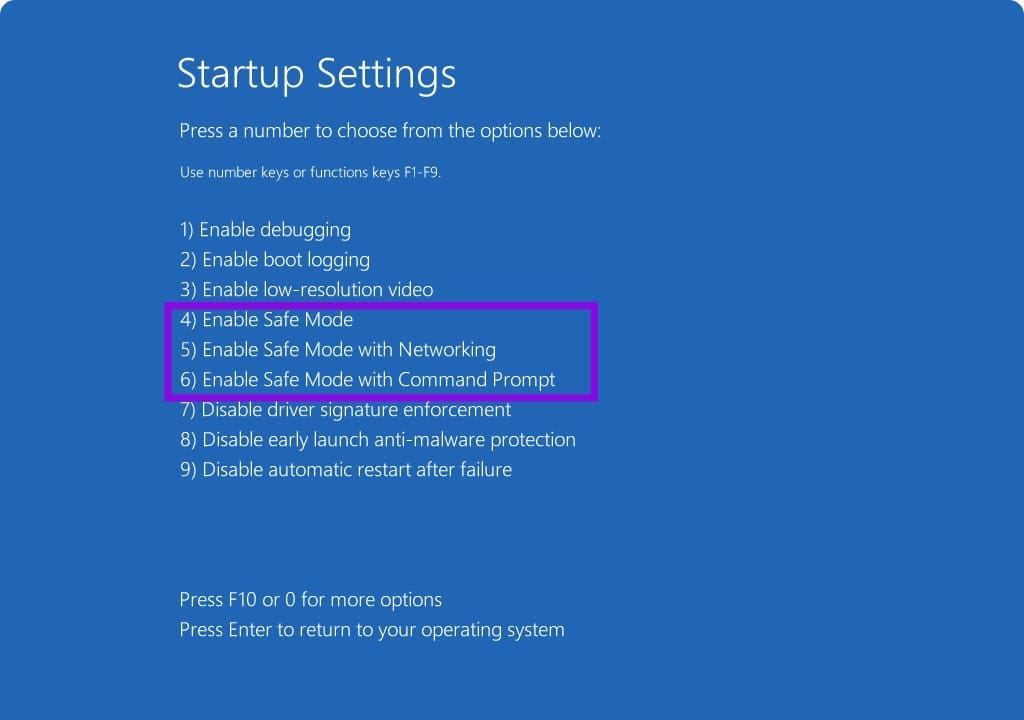
Step 5. Try “Settings” in Safe Mode and, if it works, your problem lies with a third-party app.
Register Your Settings
If the Windows Settings page is blank, then odds are good the entire Universal Windows Platform of Settings has been unregistered due to some issue. You’ll need to register it again in PowerShell. Here’s how:
Step 1. Open PowerShell via the search bar and click “Run as Administrator.”
Step 2. In PowerShell, enter “Get-AppxPackage -AllUsers -Name windows.immersivecontrolpanel | Foreach {Add-AppxPackage -DisableDevelopmentMode -Register “$($_.InstallLocation)\AppXManifest.xml”}” and click “Enter.”

Step 3. After the process finishes running, restart your machine and try “Settings” again.
Run SFC and DISM
If you think system corruption might be behind your file errors, then you can’t go wrong with an SFC and DISM check. Here’s what to do:
Step 1. Open “Run Dialog” (Win + R) and type “cmd” before hitting (Ctrl + Shift + Enter) to run as Admin.
Step 2. In Command Prompt, type “sfc /scannow” and hit “Enter.” Allow the process to run.
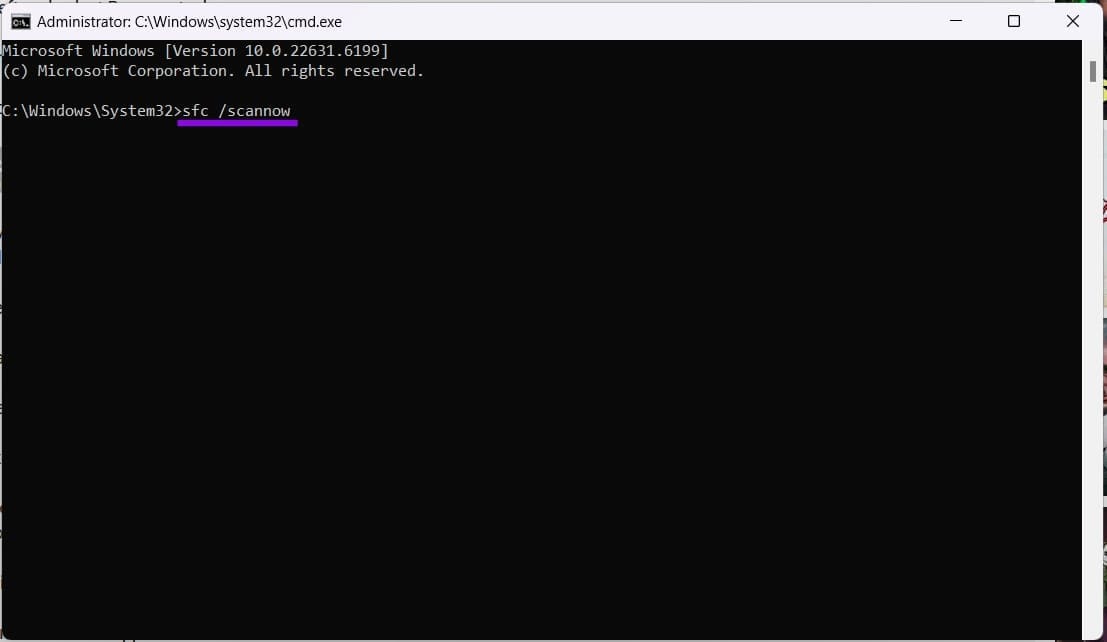
Step 3. Once finished, type “DISM.exe /Online /Cleanup-image /RestoreHealth” and click “Enter.” Let the process run.
Step 4. Restart your PC once both are finished.
Was this helpful?
Last updated on 27 June, 2026
Read Next
 4 Ways to Fix Blank White Screen in Microsoft Teams on Windows 11
Common Fixes Force close and reopen Microsoft Teams: Press the Ctrl + Shift + Esc shortcut to open Task Manager.
 Top 9 Ways to Fix Microsoft Excel Opening a Blank Document
Microsoft Excel remains an integral part of many businesses and enterprises.
 How to Fix Synaptics TouchPad Settings Missing in Windows
If you use a Windows-based laptop, there’s a good chance your laptop uses Synaptics TouchPad — the reason you are here too.
 5 Ways to Fix Google Chrome Showing Untitled Blank Page
Basic Fixes: Close and restart Chrome: Temporary browser glitches can cause Chrome to show an untitled blank page.
 Fix: Mac Mail Showing Blank Message Body for Exchange Emails
Basic Fixes Check your Outlook account details: Open Mail > Mail at the top-left corner > Accounts > Exchange account > Check your account details.
 Why Is My YouTube Home Screen Blank and How to Fix It
Why Is Your YouTube Homepage Blank Here are a few of the reasons your YouTube homepage is currently blank: Watch History is off for the selected YouTube account.
 Why Do You See Blank Thumbnails on Netflix?
1.
 How to Send a Blank Message on WhatsApp
Sending long-winded messages has become a thing of the past.
The article above may contain affiliate links which help support Guiding Tech. The content remains unbiased and authentic and will never affect our editorial integrity.