Why Is StandBy Mode Red on Your iPhone?
iOS 17’s StandBy mode turns red primarily due to low light conditions. However, it can also trigger due to one of the following reasons:
- A glitch in the StandBy feature.
- Your screen protector or phone case is covering the iPhone light sensor.
- A system bug is activating the night shift automatically.
- Incorrect iPhone settings.
Common Fixes
- Enable Location: Go to iPhone Settings > Privacy & Security > Location Services > ensure the Location Services toggle is enabled.
- Check device Date and Time: Access General settings on iPhone > select Date & Time > turn on Set Automatically.
- Check room lighting conditions: Ensure the place you’ve kept your iPhone has sufficient light.
- Ensure the iPhone light sensor isn’t covered: It is housed at the top of your screen among other device sensors.
- Update iOS: Open General settings on your iPhone > select Software Update > tap Update Now (if available).
Fix 1: Disable and Enable StandBy
Turning off and enabling StandBy refreshes the feature resolving existing glitches producing the red tone.
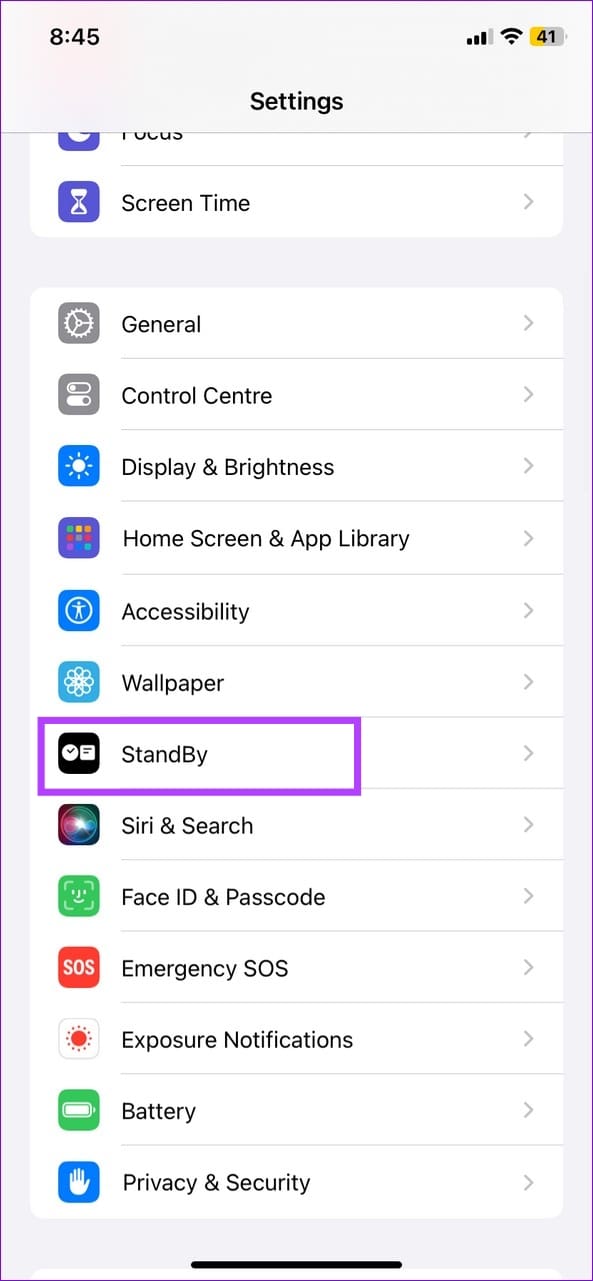
Step 1: Open the Settings app on your iPhone and tap StandBy.
Step 2: Disable the StandBy toggle, wait a few seconds, and turn it back on.

Fix 2: Disable Night Mode (Red Tone) in Standby
If you don’t want your iPhone to switch to a red tone in the StandBy mode, disable the Night Mode feature under its settings.
Open iPhone Settings > select StandBy > toggle off Night Mode under Display.


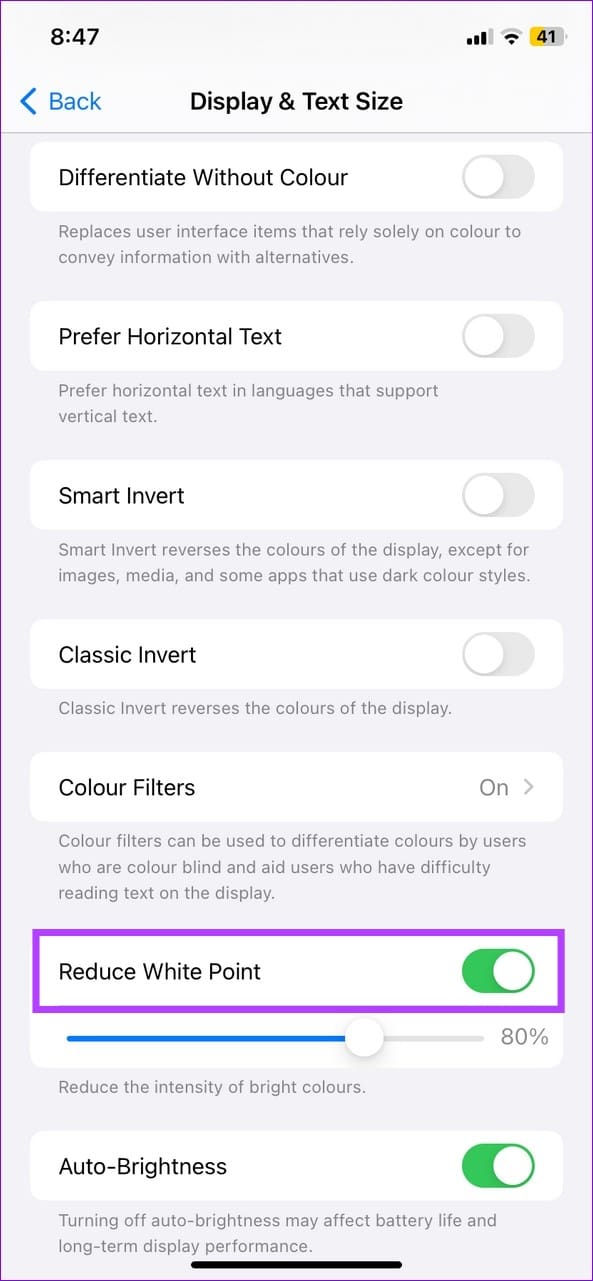
Fix 3: Turn off Reduce White Point
iOS 17’s Reduce White Point feature decreases the intensity of bright colors, which can sometimes trigger the red tone in the StandBy mode. Disabling it should fix the issue.
Step 1: Tap Accessibility under iPhone settings > select Display & Text Size.
Step 2: Scroll to the bottom > toggle off Reduce White Point.


Fix 4: Disable Night Shift Display Colors
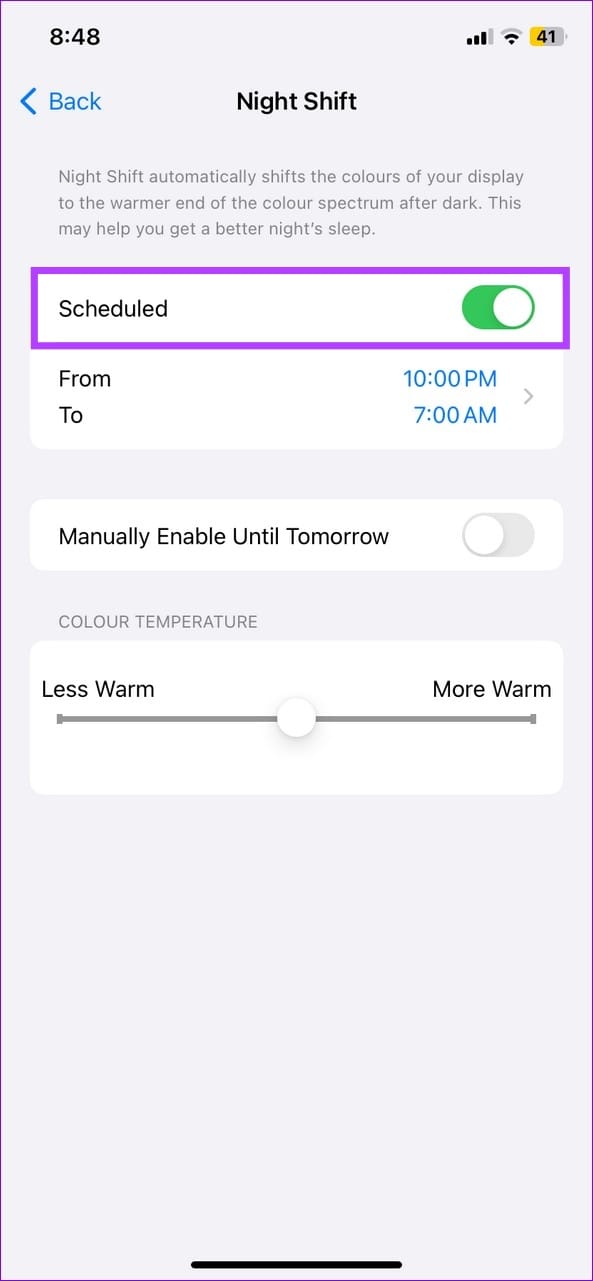
Night Shift automatically adjusts your display to produce warmer colors on schedule. However, a bug in it can trigger the red StandBy mode to appear. Disable the Night Shift feature to restore normalcy.
Step 1: Open iPhone settings > select Display & Brightness > tap Night Shift.
Step 2: Disable the Scheduled toggle.


Fix 5: Reset All iPhone Settings
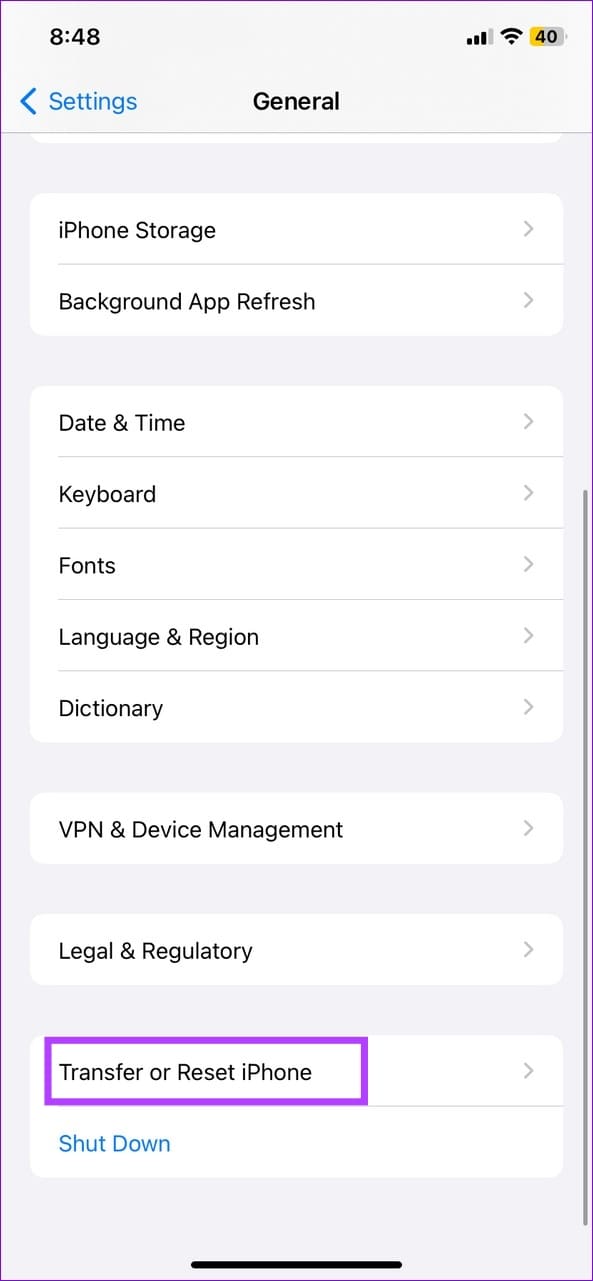
If nothing works, reset all iPhone settings to fix the red StandBy mode appearing on iOS 17.
Step 1: Open General settings on your iPhone > select Transfer or Reset iPhone.
Step 2: Tap Reset > select Reset All Settings. Enter your device passcode when prompted.


Was this helpful?
Last updated on 21 May, 2024
Read Next
 7 Ways to Fix Red Light Error on Motherboard
In the intricate world of computer hardware, the motherboard is your system's backbone.
7 Ways to Fix Red Light Error on Motherboard
In the intricate world of computer hardware, the motherboard is your system's backbone.
 4 Ways to Fix StandBy Mode Not Working on iPhone
https://youtu.be/yTncPBoavL0 Basic Fixes Restart iPhone: Restarting your iPhone closes all running services and can even squash temporary bugs.
4 Ways to Fix StandBy Mode Not Working on iPhone
https://youtu.be/yTncPBoavL0 Basic Fixes Restart iPhone: Restarting your iPhone closes all running services and can even squash temporary bugs.
 Top 11 Red Dead Redemption 2 Wallpapers in 4K and Full HD
Rockstar's Red Dead Redemption 2 was one of the most awaited open world game of 2018.
Top 11 Red Dead Redemption 2 Wallpapers in 4K and Full HD
Rockstar's Red Dead Redemption 2 was one of the most awaited open world game of 2018.
 Top 9 Ways to Fix Telegram Connecting Problems on iOS and Android
Telegram is jumping the popularity charts on both iOS and Android.
Top 9 Ways to Fix Telegram Connecting Problems on iOS and Android
Telegram is jumping the popularity charts on both iOS and Android.
 11 Ways to Fix iOS 17 Battery Drain Issue on iPhone
If you have an eligible device, installing the latest iOS 17 update seems a no-brainer.
11 Ways to Fix iOS 17 Battery Drain Issue on iPhone
If you have an eligible device, installing the latest iOS 17 update seems a no-brainer.
 5 Ways to Fix Memoji Disappeared After iOS 17 Update on iPhone
Fix 1: Send a Memoji via Stickers After the iOS 17 update, you can use the Stickers option to send a Memoji in iMessage.
5 Ways to Fix Memoji Disappeared After iOS 17 Update on iPhone
Fix 1: Send a Memoji via Stickers After the iOS 17 update, you can use the Stickers option to send a Memoji in iMessage.
 5 Ways to Fix iPhone Reminders Not Working in iOS 17
Basic Fixes: Restart the Reminders app: If the Reminders app runs into unexpected glitches or bugs, it might not work as expected on your iPhone.
5 Ways to Fix iPhone Reminders Not Working in iOS 17
Basic Fixes: Restart the Reminders app: If the Reminders app runs into unexpected glitches or bugs, it might not work as expected on your iPhone.
 How to Add Stickers to Photos or Videos on iPhone
Let's explore some options to add a sticker to a picture or video on an iPhone.
How to Add Stickers to Photos or Videos on iPhone
Let's explore some options to add a sticker to a picture or video on an iPhone.
The article above may contain affiliate links which help support Guiding Tech. The content remains unbiased and authentic and will never affect our editorial integrity.