

Where Does Steam Install Games?
By default, Steam installs games in the Steam installation folder on your computer. The specific location may vary depending on your operating system:
- On Windows: The default installation path is C:\Program Files (x86)\Steam for 64-bit systems and C:\Program Files\Steam for 32-bit systems.
- On macOS: The default installation path is /Users/[username]/Library/Application Support/Steam.
- On Linux: The default installation path is /home/[username]/.local/share/Steam.
When you install games on Steam, Steam typically installs them in separate folders within the Common folder, naming each folder after the respective game. You can view and manage your installed games by navigating to the respective folder within the Steam installation directory.
Things to Know Before Changing Download Location on Steam
- Ensure the new download location has enough storage space to accommodate your game installations. Check the available space on the target drive or folder to avoid storage issues later.
- Changing the download location won’t affect your internet connection speed directly. However, switching to a different drive or folder on a slower or less stable storage device might impact the time it takes to download games and updates.
- If you already have games installed in the current download location, Steam won’t automatically move them to the new location. You’ll need to manually move the game files to the desired location, copy the files to the new location, and then update the game’s installation path in Steam.
- Specific requirements or limitations may exist for installing or storing certain games. Check the game’s system requirements or consult any documentation the developer provides to ensure compatibility with the new download location.
- Changing the download location does not impact Steam updates. Regardless of your chosen download location, the Steam client will install updates in the default Steam installation folder.
How to Create a New Steam Library and Set it as Default Location
Note: For the demonstration, we will use a Windows computer.
Step 1: Launch Steam on your Windows or Mac computer.
Step 2: Click on Steam in the top bar.
Step 3: From the drop-down menu, select Settings.
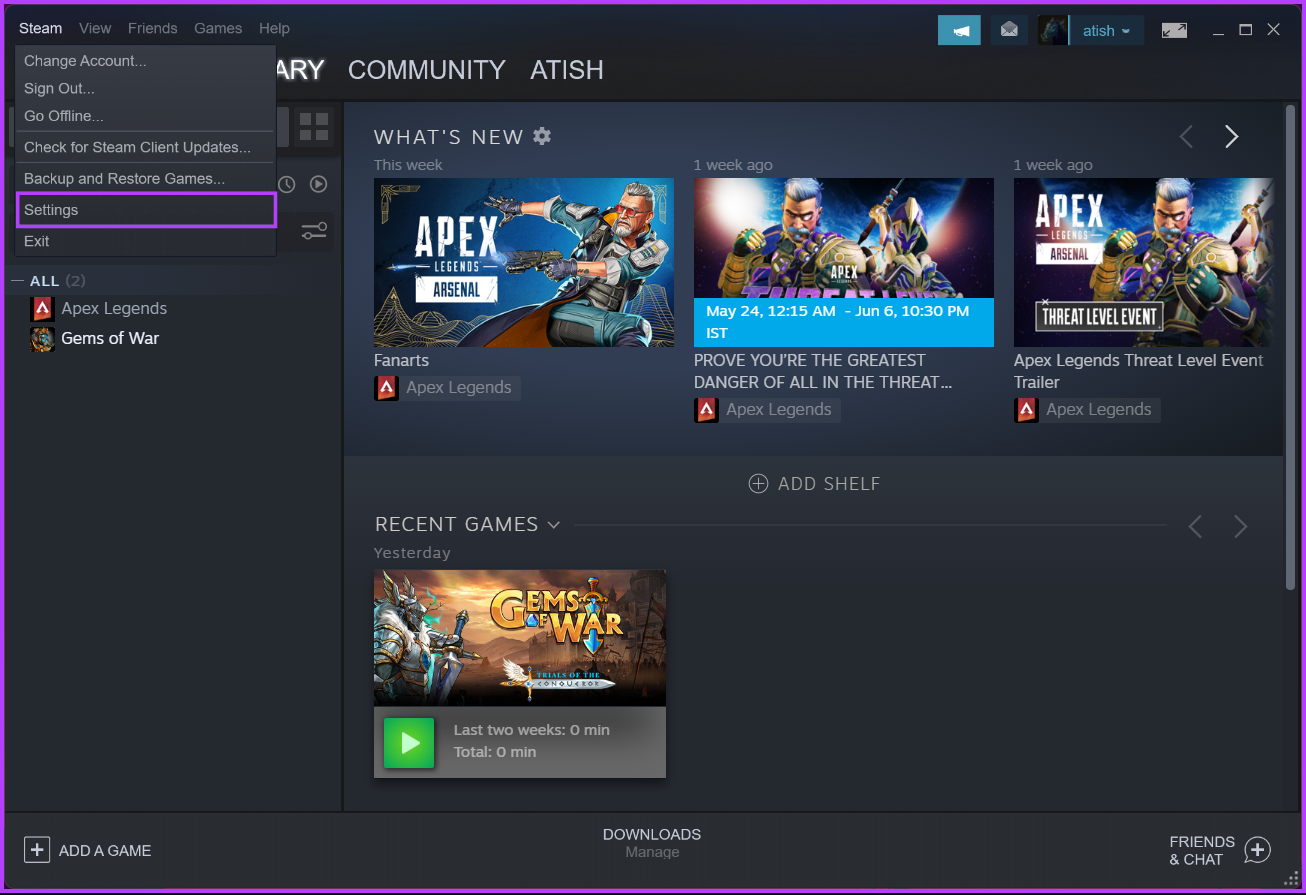
Step 4: In the Settings modal, go to Downloads. In the right pane, click on Steam Library Folders.
You will be taken to the Storage Manager window.

Step 5: Click the Plus (+) button next to the storage disk.
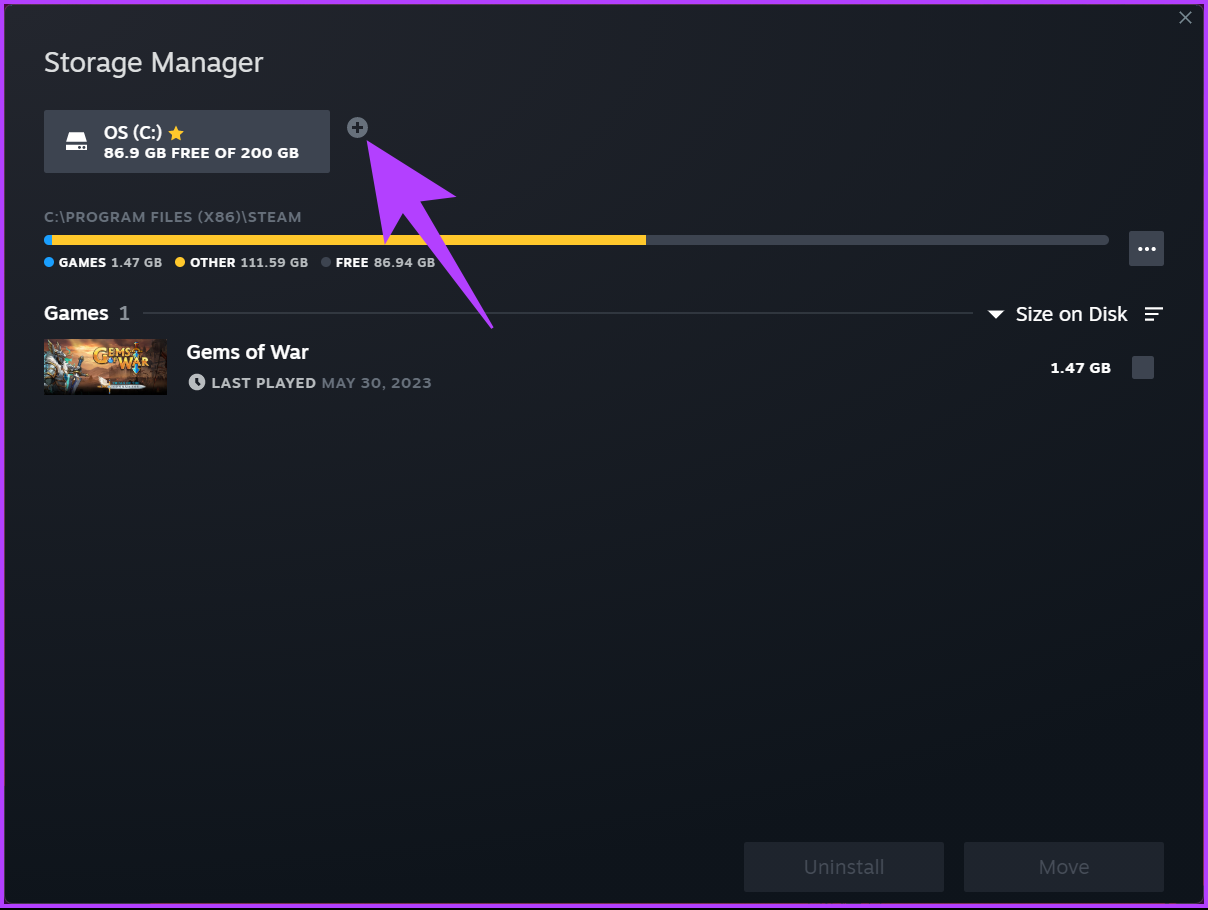
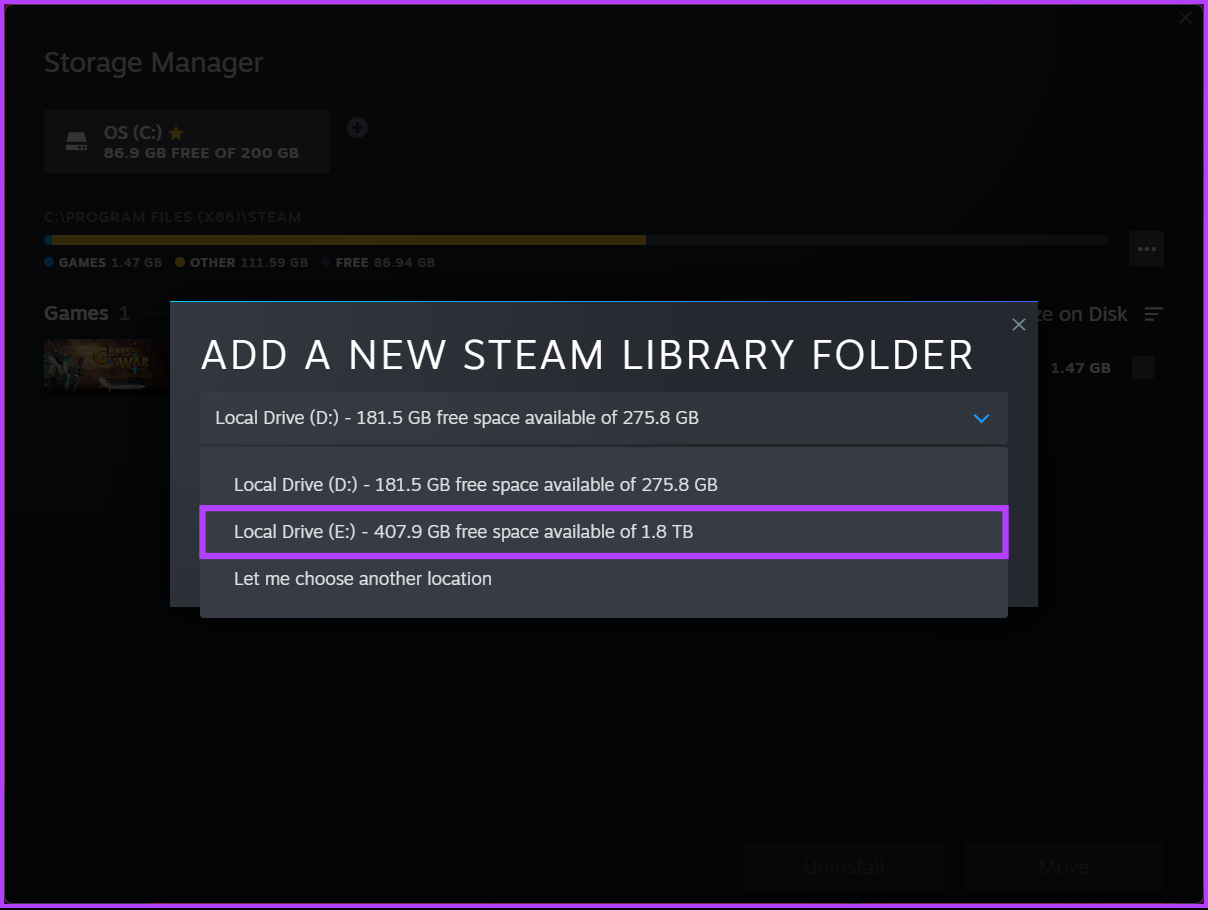
Step 6: In the pop-up, select Drive from the drop-down.
Note: If you have any specific location you want to add the file to, select Let me choose another location, select the location, and click OK.
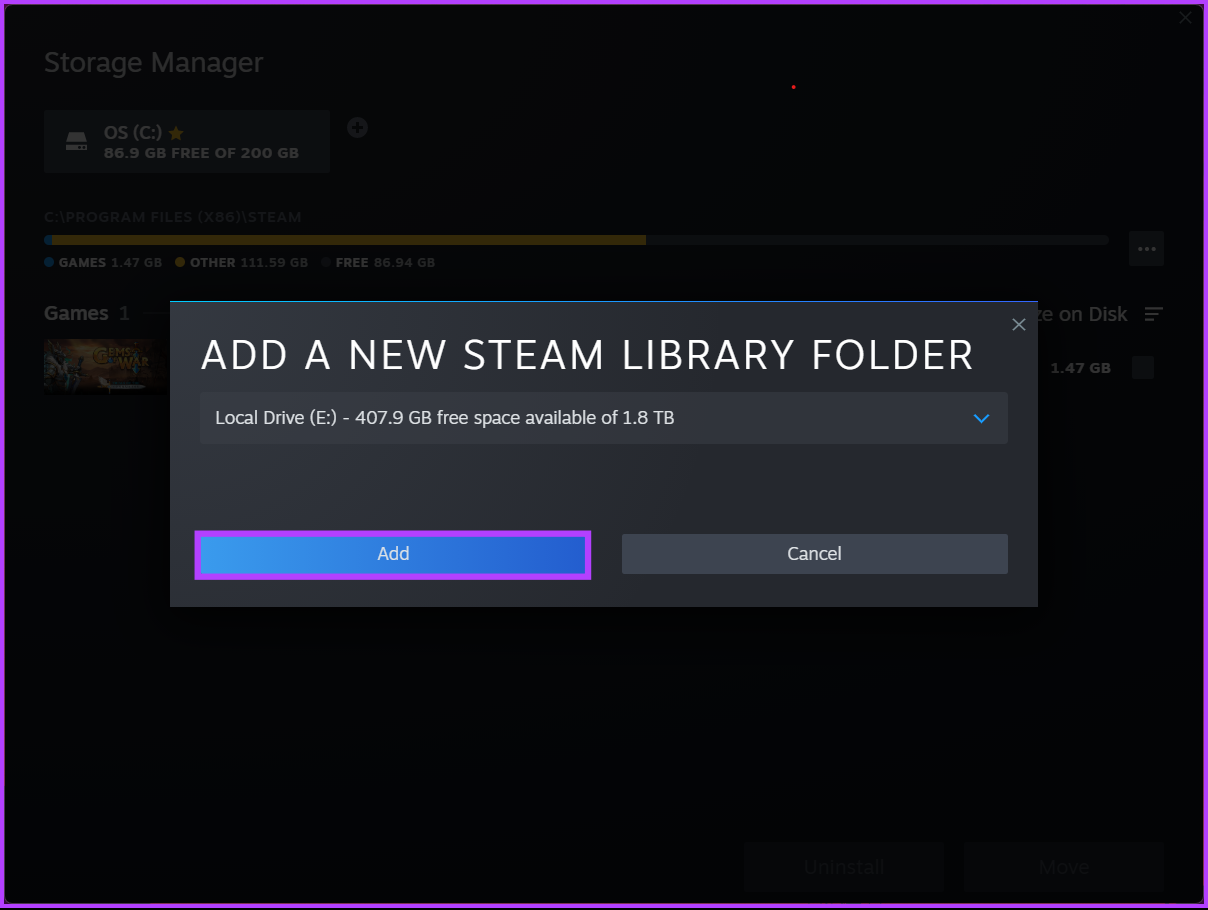
Step 7: Choose Add.
The storage space gets added to the Storage Manager. Now, to make the location default, continue with the below steps.
Step 8: Select the storage location and click the three-horizontal icon.

Step 9: From the drop-down context menu, select Make Default.
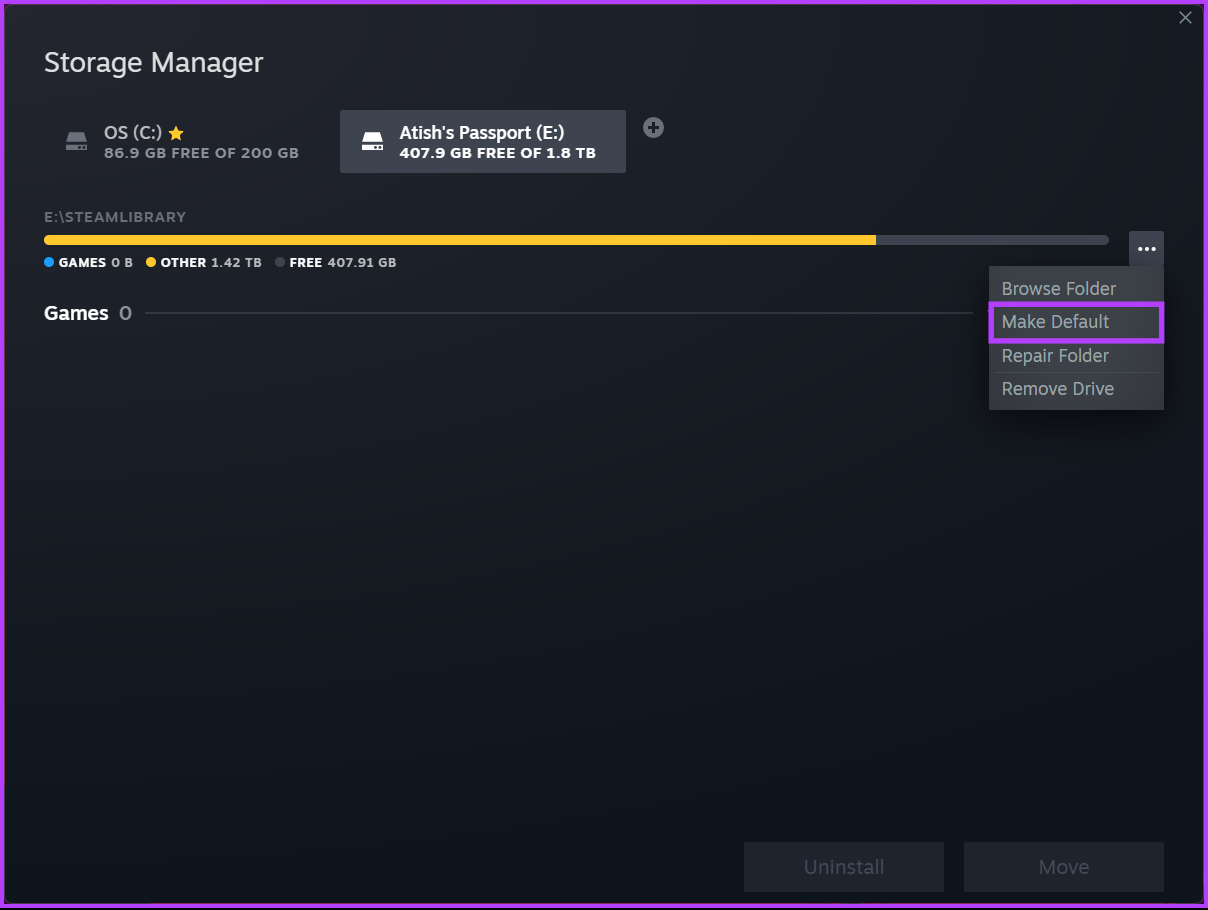
That’s all! You have successfully set your storage location as the default for downloading and storing games from Steam. You’ll notice a star icon next to the storage location, indicating it is now the default space.
2 Ways to Change the Default Location of Installed Steam Games
Method 1: Using Storage Manager
Note: The steps are the same for both Windows and Mac.
Step 1: Launch Steam on your Windows or Mac computer.
Step 2: Click on Steam in the top bar.
Step 3: From the drop-down menu, select Settings.
Step 4: Go to Download and click on Steam Library Folders.
You will be taken to the Storage Manager window.
Step 5: Navigate to the storage location where your game is stored and click on the check box. Once you select the game you want to relocate, choose Move.
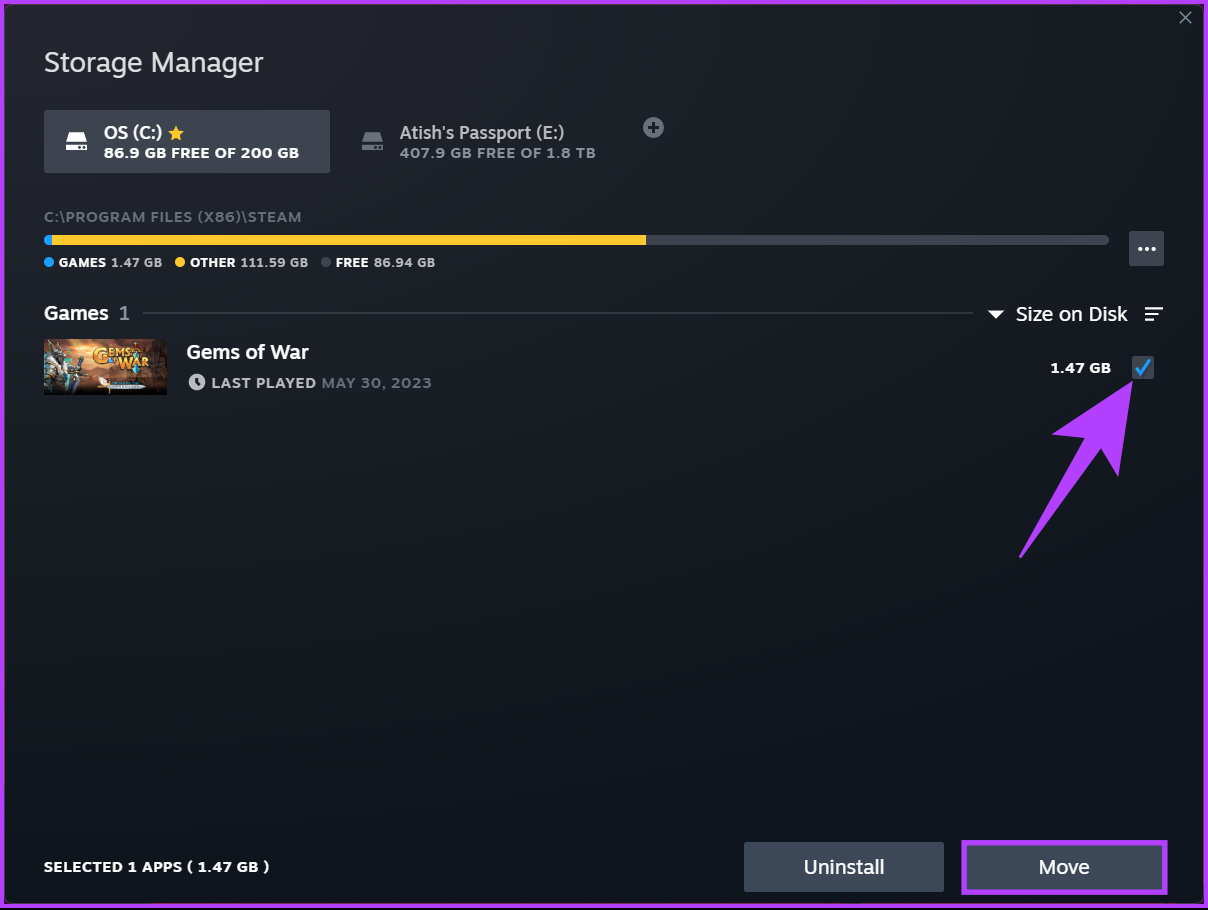
Step 6: In the pop-up, select the location you want to move to and click Move.
Note: If you have multiple storage options, simply click on the arrow symbol (chevron) and choose from the list of available locations.

There you go. You have successfully moved the game from one location to another with ease. If you want another way to move the game from a specific location, continue reading.
Method 2: Using the Games List
Unlike the above method, this method is unavailable for Mac users. Follow the below-mentioned steps.
Step 1: Launch Steam on your Windows computer.
Step 2: Go to Library from the top navigation bar.
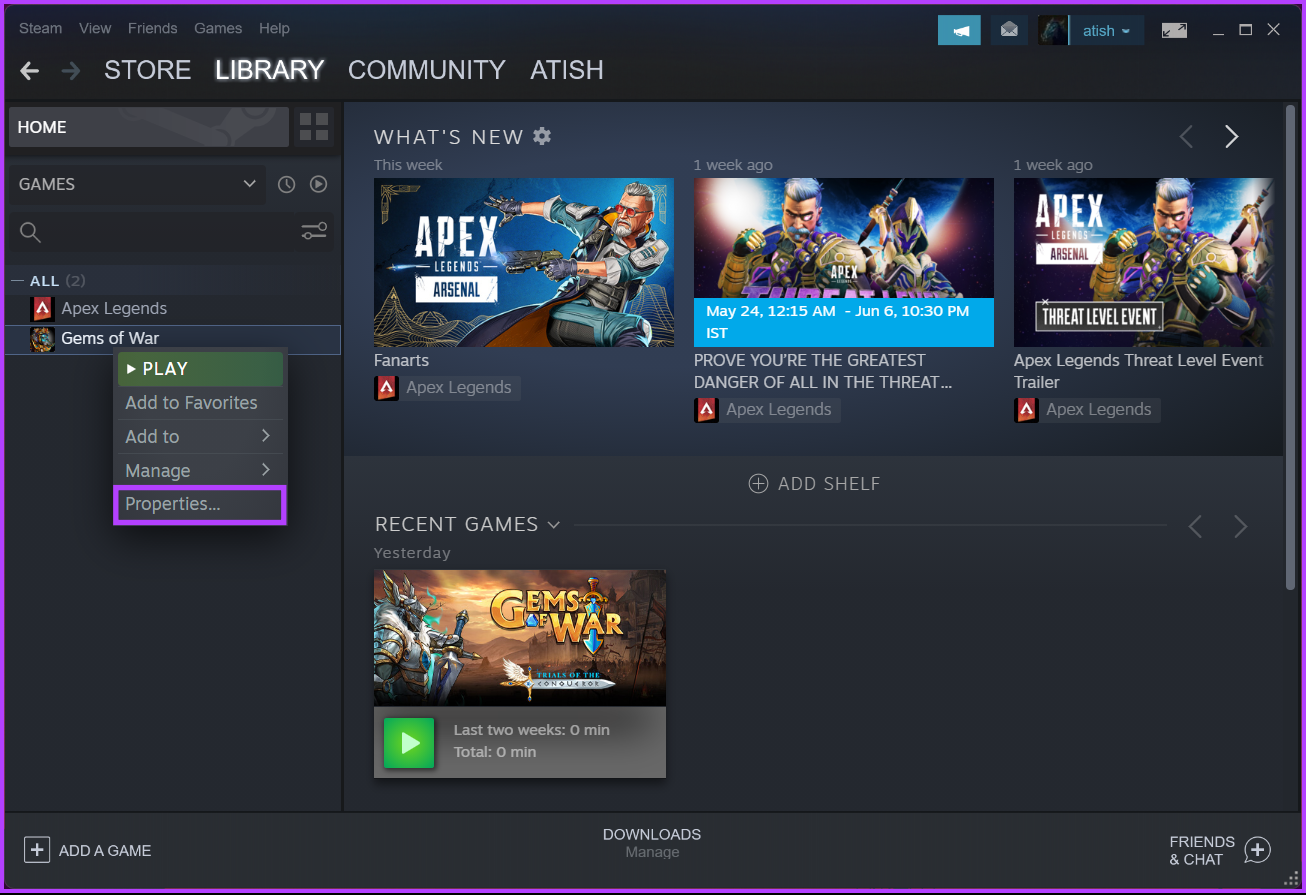
Step 3: From the sidebar, select the game you want to move to a different location and right-click on it.

Step 4: Choose Properties from the context menu.
You will be taken to the game settings.
Step 5: Go to Local Files from the sidebar and choose Move install folder.

Step 6: Select the location from the drop-down (if you have multiple locations) and click Move.

There you have it. You have moved the game location from one storage location to another without having to deal with moving files and folders.
What if you installed Steam in a location with limited storage space and now want to move it to a different location? continue reading.
How to Move the Steam Installation to a New Directory
Note: Before we begin with the steps below, ensure that Steam is not running (not even in the background).
Step 1: Go to the Steam installation directory on your computer. Generally, you will find it at the below address.
C:\Program Files(x86)\Steam
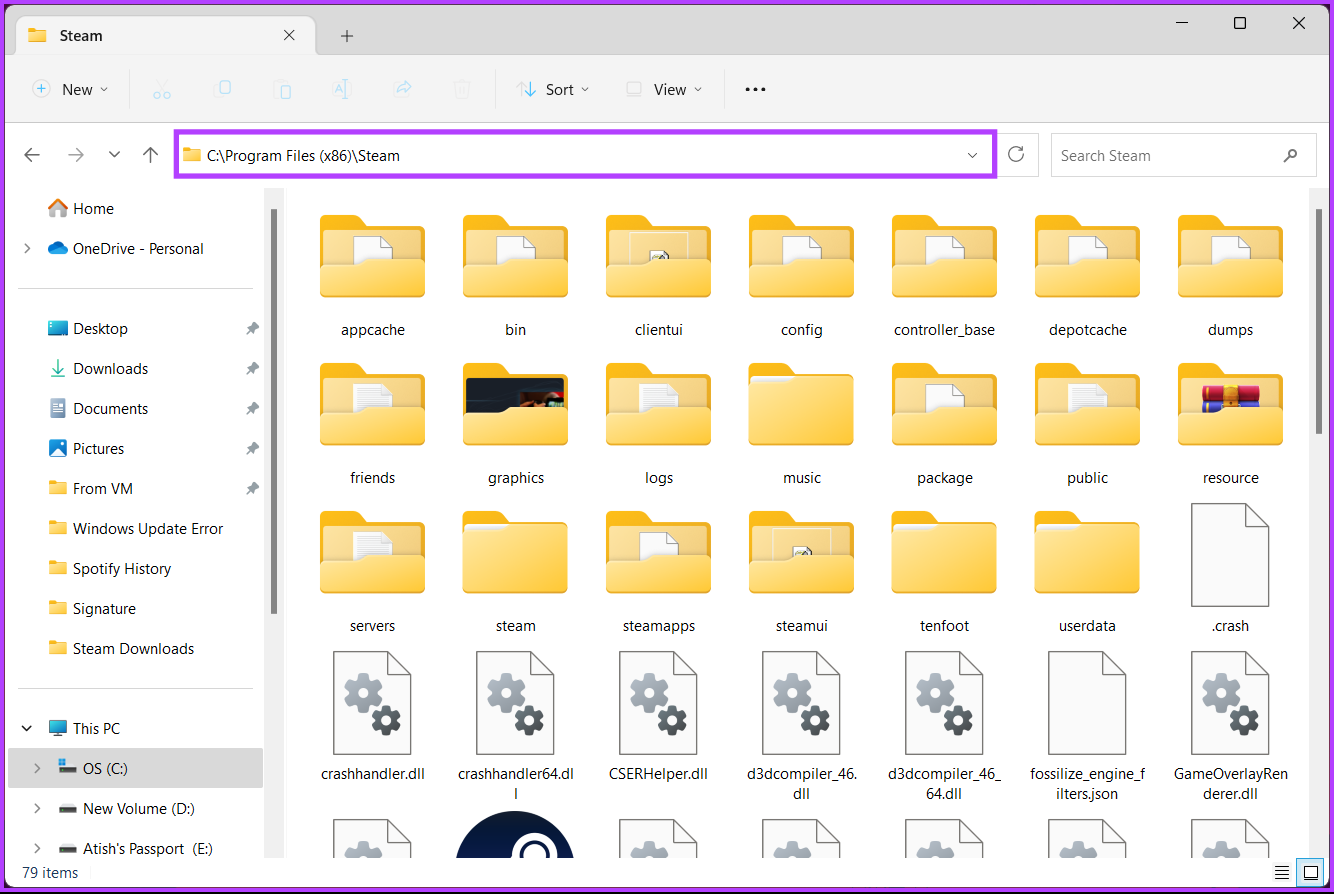
Step 2: In the Steam folder, aside from the steamapps, userdata folder, and Steam.exe file, delete everything.
Note: To delete, select the file and hit the Delete key on your keyboard.
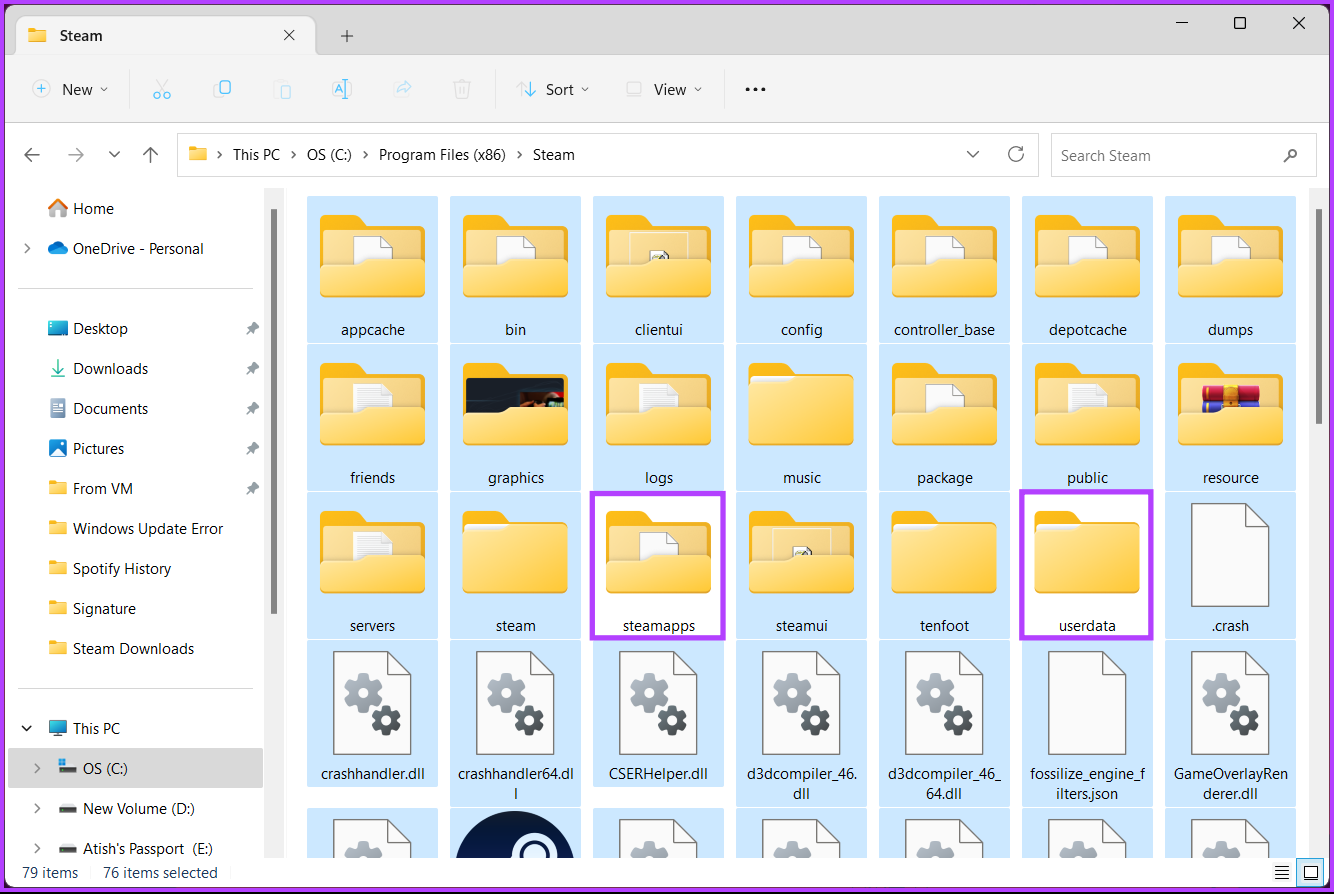
Step 3: Go back to the Steam folder. Now, cut the folder from the location using the Ctrl + X keys.
Step 4: Go to the destination directory and paste the Steam folder using the Ctrl + V keys.
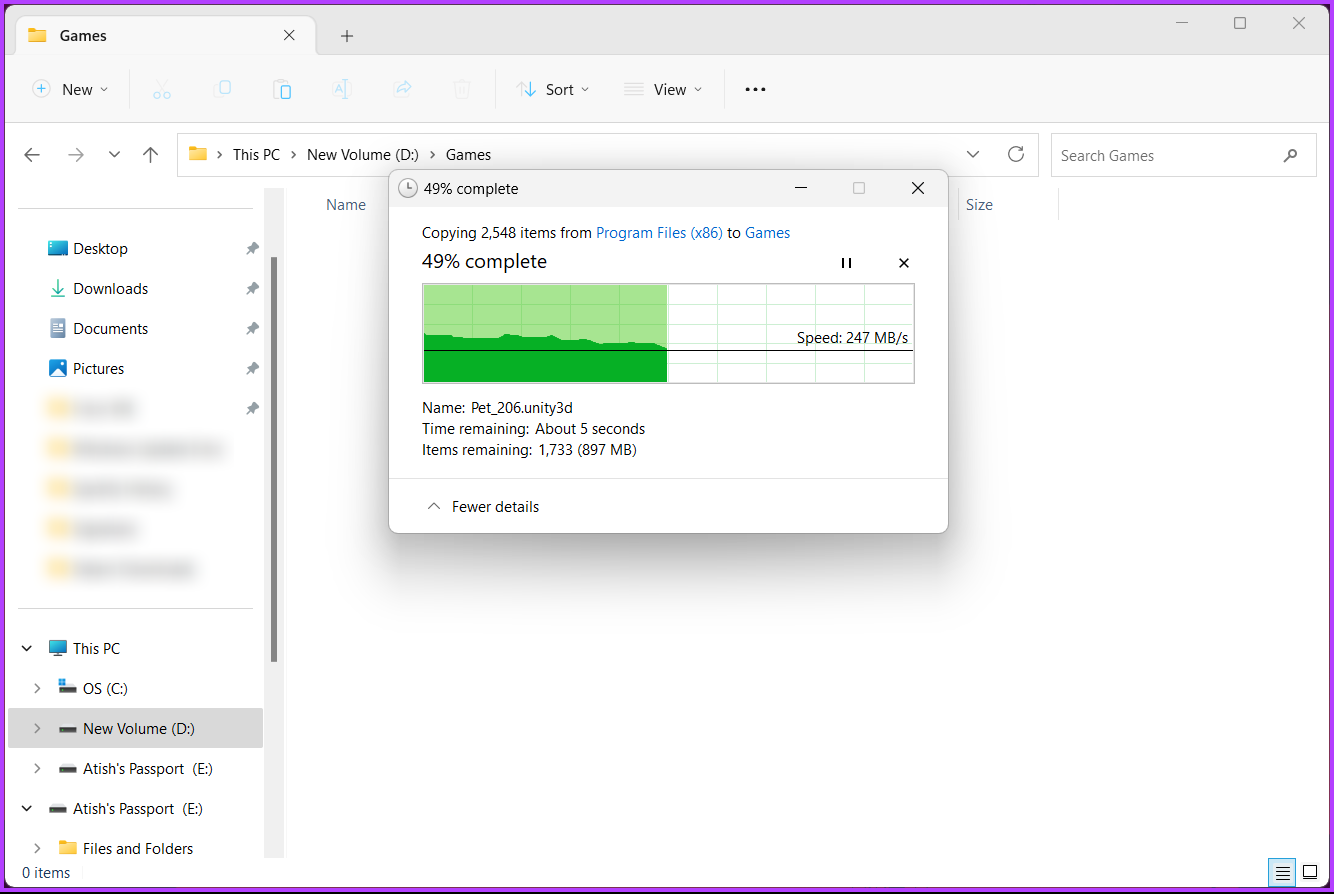
Once the folder is placed in the new directory, launch Steam on your PC. When you launch Steam, it automatically downloads and installs the necessary files to run smoothly. However, before launching any game from your library, verifying the integrity of your downloaded games is a good idea. Continue with the below steps.
Step 5: Go to the Library from the top navigation.
Step 6: Select the game you want to move to a different location from the sidebar and right-click on it.
Step 7: Choose Properties from the context menu.
You will be taken to the game settings.
Step 8: Under the Local Files tab, click Verify integrity of game files.

And there you have it! Steam will now check the game’s files to ensure everything is in order and fix any problems it discovers. The duration of this process may vary depending on the game’s size and your computer’s specifications.
That said, if you have any queries, check out the FAQ section below.
FAQs on Changing Download Location on Steam
The download location in Steam is important for several reasons. It helps manage storage, so games don’t occupy too much space on your main drive. It can also affect performance, as a faster and more stable connection location leads to quicker downloads and smoother updates.
Choosing a specific download location makes organizing and managing games easier. Plus, storing games separately allows for easier backups and restores, saving you from downloading them again.
Yes, Steam downloads games locally to your computer or storage device. When you initiate a game download on Steam, the game files are downloaded and stored on your computer’s hard drive or the designated location you set in Steam. This allows you to install and play games even when you’re offline or don’t have an internet connection.
Now that you know where Steam games are stored and how to change their location, you have greater control over your gaming experience.
Was this helpful?
Last updated on 31 August, 2024
1 Comment
Leave a Reply
Read Next
 How to Find Where Are Teams Recordings Stored
Microsoft Teams is an essential platform for virtual meetings, webinars, and collaborative work.
How to Find Where Are Teams Recordings Stored
Microsoft Teams is an essential platform for virtual meetings, webinars, and collaborative work.
 Where Are WhatsApp Documents or Images Stored on iPhone and Android
Where Are WhatsApp Images and Videos Stored on iPhone WhatsApp servers store the images and videos you receive in WhatsApp.
Where Are WhatsApp Documents or Images Stored on iPhone and Android
Where Are WhatsApp Images and Videos Stored on iPhone WhatsApp servers store the images and videos you receive in WhatsApp.
 How to Change Epic Games Install Location on Windows
Where Are Epic Games Installed on Your System?
How to Change Epic Games Install Location on Windows
Where Are Epic Games Installed on Your System?
 How to Fix Epic Games Library Not Showing Games
Basic Fixes: Refresh Epic Games launcher library: A quick refresh can help fix any glitches keeping you from accessing your Epic Games Library.
How to Fix Epic Games Library Not Showing Games
Basic Fixes: Refresh Epic Games launcher library: A quick refresh can help fix any glitches keeping you from accessing your Epic Games Library.
 How to Uninstall Epic Games Launcher and Its Games
Things to Consider Before Uninstalling Games or Epic Games Launcher Before uninstalling Epic Games Launcher or the games in it, consider the following things: Backup game files: If you have
How to Uninstall Epic Games Launcher and Its Games
Things to Consider Before Uninstalling Games or Epic Games Launcher Before uninstalling Epic Games Launcher or the games in it, consider the following things: Backup game files: If you have
 Steam Not Downloading Games? Here’s How to Fix It
Basic Fixes: Reboot the home network and fix other network problems: You should restart your home connection since this problem mainly points to a network issue.
Steam Not Downloading Games? Here’s How to Fix It
Basic Fixes: Reboot the home network and fix other network problems: You should restart your home connection since this problem mainly points to a network issue.
 How to Link Epic Games to Steam: Everything You Need to Know
Things to Remember Before you go ahead with linking your Steam and Epic Games accounts to one another, there are a handful of things to keep in mind.
How to Link Epic Games to Steam: Everything You Need to Know
Things to Remember Before you go ahead with linking your Steam and Epic Games accounts to one another, there are a handful of things to keep in mind.
 How to Share Games on Steam With Friends and Family
Do you ever stare at your massive Steam library, wishing you could share the joy with your friends?
How to Share Games on Steam With Friends and Family
Do you ever stare at your massive Steam library, wishing you could share the joy with your friends?
The article above may contain affiliate links which help support Guiding Tech. The content remains unbiased and authentic and will never affect our editorial integrity.


I found this article by limiting my search to URLs created in the last month to find the most current information about this. I don’t know why, but I do not have these options to select and to move the installation directory. I use Windows 10 and no matter what I do Steam insists on putting all my games in c:\Program Files (x86). I can select a second drive in Steam> Settings> Storage. But if I try to point to a different directory on c:\ Steam ignores that and puts everything back in Program Files.
It looks to me like Steam has decided not to allow users to move their installation on c: (I understand why they would want to do this). But I am puzzled how the information in such a recent article can be so different from what I see in Steam. Is this some kind of Steam Premium feature? Or is your article already out-of-date?