


1. Enjoy Absolute Power if You Created the Group
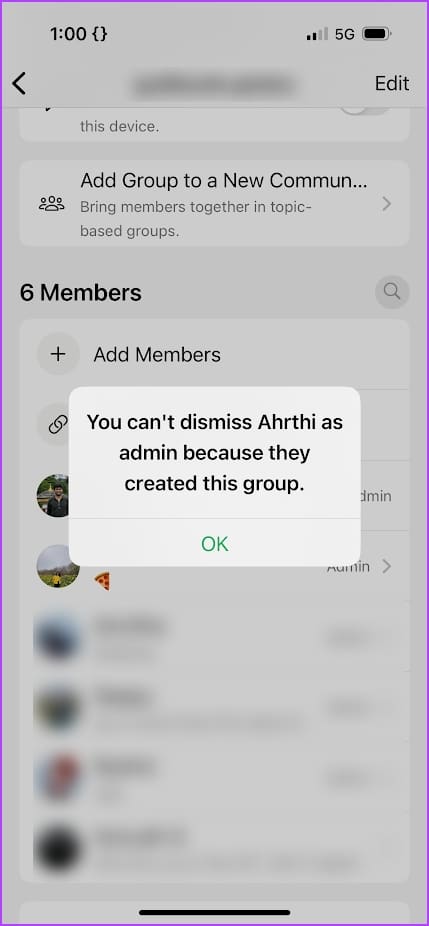
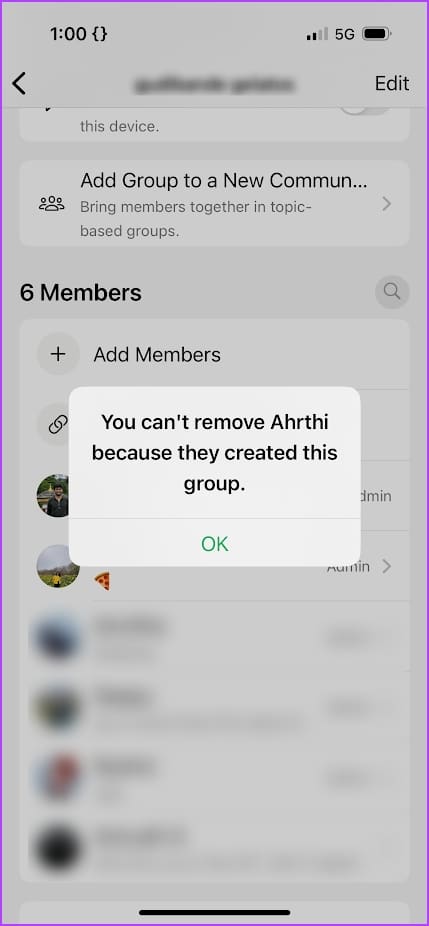
If you create a group on WhatsApp – you are an administrator by default, you can’t be removed as an admin or from the group by any other admin.
2. Remove Members From the Group
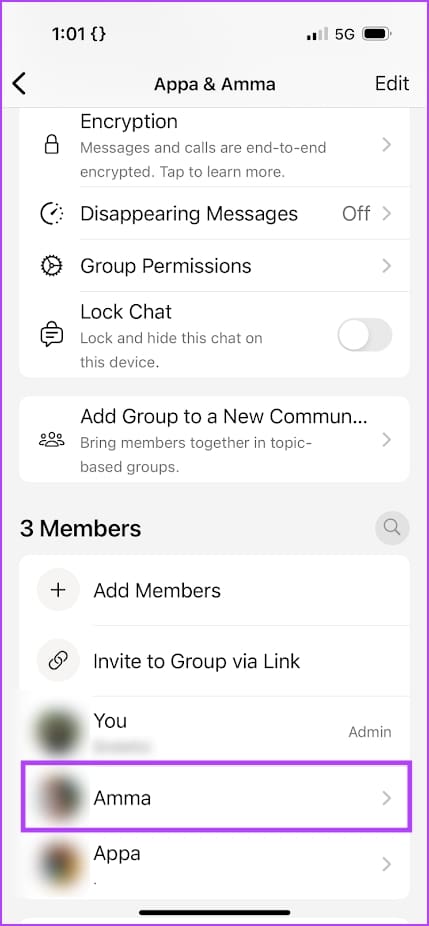
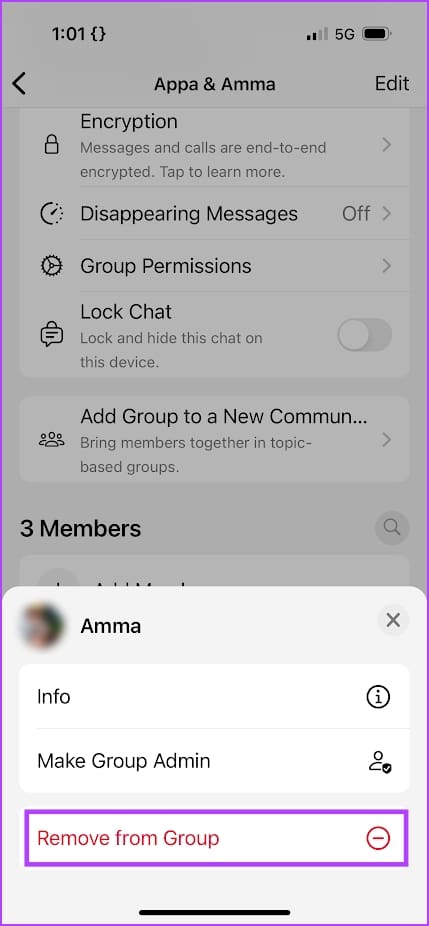
As an administrator, you can easily remove members from the group. Further, you can also remove someone as an administrator of the group.
Tap on a member in the list and use the Remove from Group option.
Also Read: WhatsApp group tips and tricks that all users should know.
3. Prevent Members From Changing Group Settings
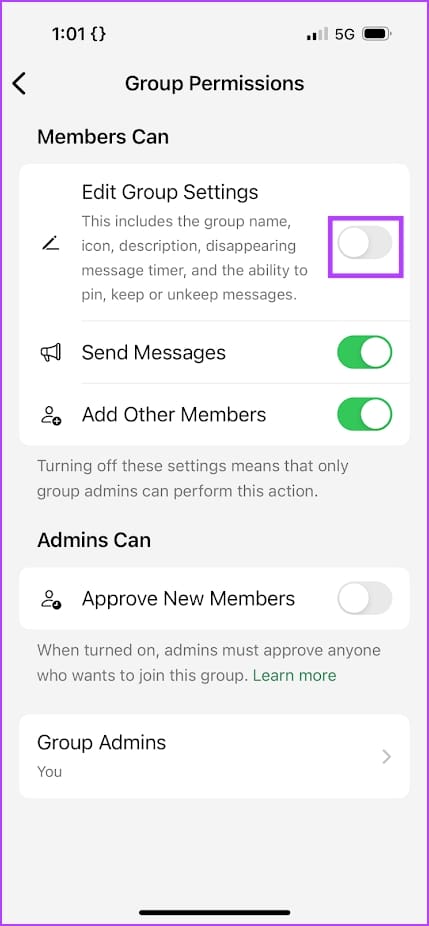
If you don’t want members to change the group name, description, and other settings, such as the disappearing messages timer or pinned messages, go to Group Permissions and turn off Edit Group Settings.

4. Make it an Admin Only Messaging Group
To ensure only admins can send messages in the group – go to Group Permissions and turn off the toggle for Send Messages.


5. Prevent Members From Adding New Members
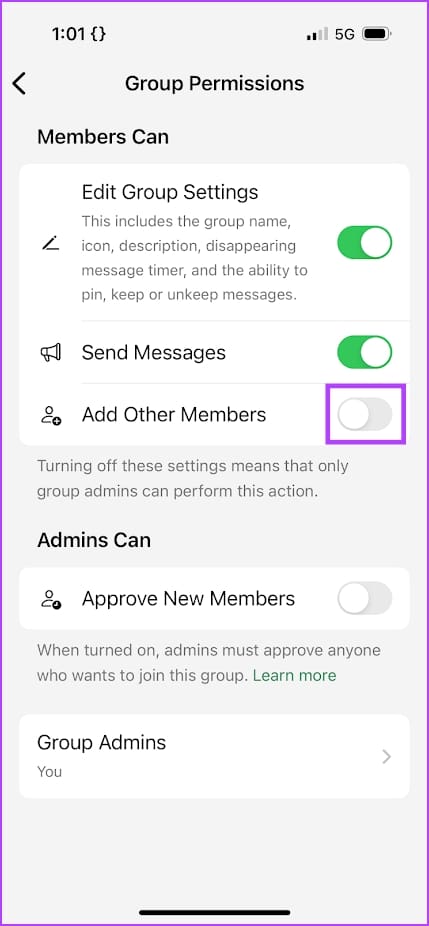
If you don’t want members in your group to add new ones, go to Group Permissions and turn off Add Other Members. This allows only the admins of the group to add new members.

6. Promote a Member to an Admin
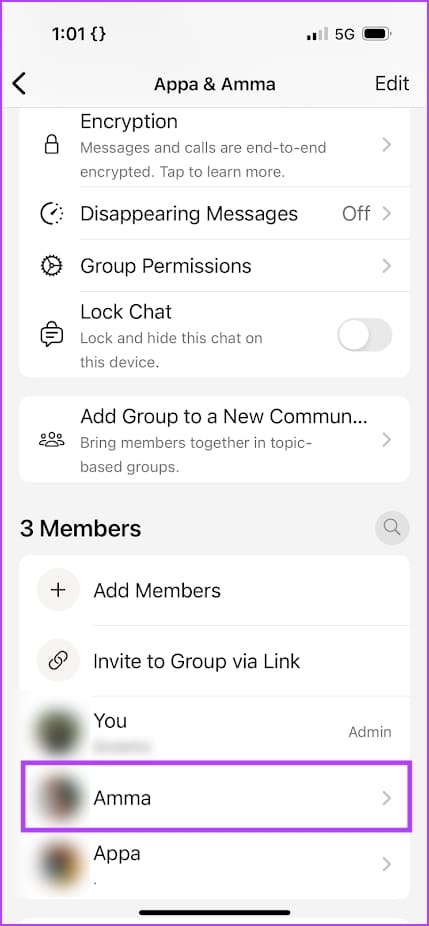
If you want to share your power, you can promote a member of the group to an administrator. Tap on the name of the member in the list and select Male Group Admin.

7. Enable Approval for New Members
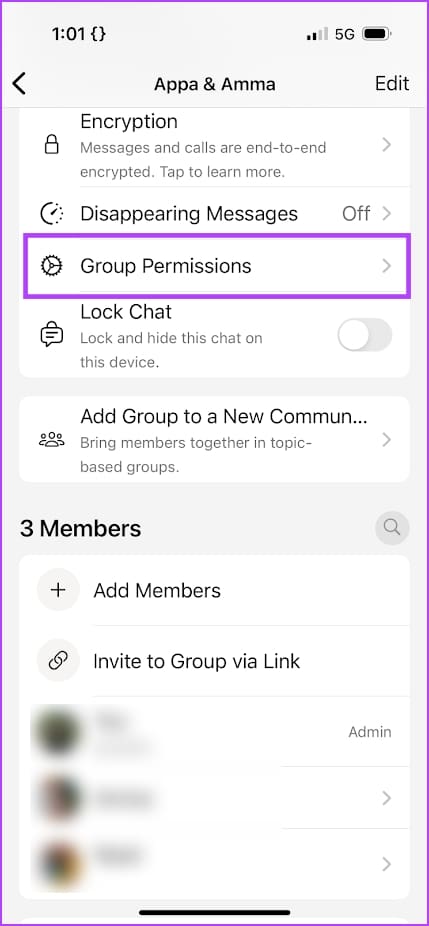
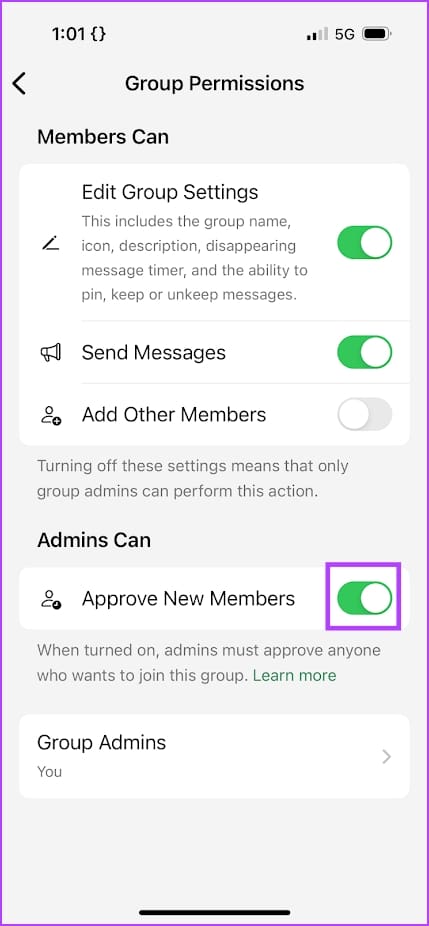
If you want new members to be added to a group only after approval from an administrator, go to Group Permissions and turn on Approve New Members. This feature is useful if you’ve shared the link to join the group in public.
8. Add Group to a Community
WhatsApp lets you create a community to enable discussions and conversations and announce updates among a large group of people. Communities also let you create multiple groups for sub-topics under a common subject.
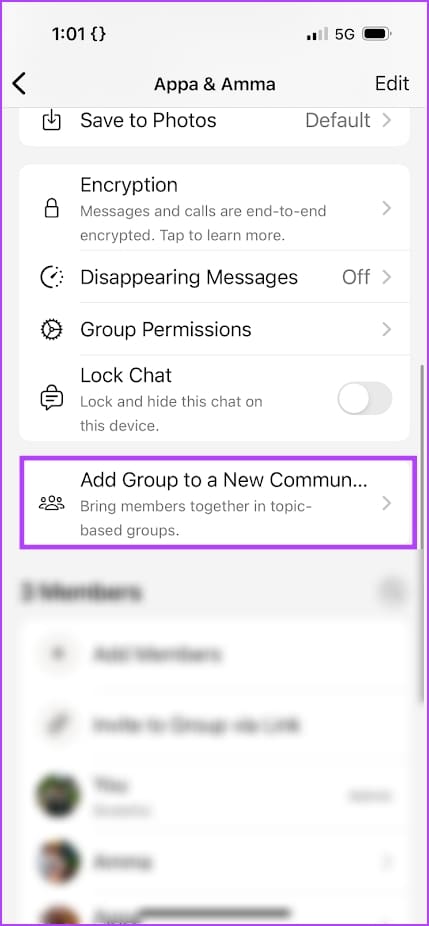
As an admin, you can add your WhatsApp group to a community. Tap on Add Group to a New Community to start your community.

Also Read: How to delete, deactivate, or exit WhatsApp Community
Was this helpful?
Last updated on 04 September, 2024
1 Comment
Leave a Reply
Read Next
 How to Add or Remove Admins on Mac
Add Admin to Mac Using System Settings The easiest way to add a new admin to your Mac is going into your System Preferences.
How to Add or Remove Admins on Mac
Add Admin to Mac Using System Settings The easiest way to add a new admin to your Mac is going into your System Preferences.
 3 Ways to Create a WhatsApp Group or a Chat With Yourself
Method 1: Create a Group By Removing Another Member You can temporarily create a group with just one member, and remove them later.
3 Ways to Create a WhatsApp Group or a Chat With Yourself
Method 1: Create a Group By Removing Another Member You can temporarily create a group with just one member, and remove them later.
 How to Mute WhatsApp Group Notifications Permanently
Note: WhatsApp syncs across devices.
How to Mute WhatsApp Group Notifications Permanently
Note: WhatsApp syncs across devices.
 How to Restrict WhatsApp Group Activities
WhatsApp Group Restrictions WhatsApp offers several features that allow group admins to set boundaries and control the flow of information.
How to Restrict WhatsApp Group Activities
WhatsApp Group Restrictions WhatsApp offers several features that allow group admins to set boundaries and control the flow of information.
 16 WhatsApp Group Tips and Tricks That All Users Should Know
Note: The below features have been illustrated with images and instructions using an iPhone.
16 WhatsApp Group Tips and Tricks That All Users Should Know
Note: The below features have been illustrated with images and instructions using an iPhone.
 How to Leave a WhatsApp Group Without Anyone Knowing
How to Exit a WhatsApp Group Silently Note: The steps remain the same regardless of which platform you use.
How to Leave a WhatsApp Group Without Anyone Knowing
How to Exit a WhatsApp Group Silently Note: The steps remain the same regardless of which platform you use.
 How to Add and Invite Someone to WhatsApp Group
Note: The steps are the same for Android and iOS, with some minor level changes in the button or option placement.
How to Add and Invite Someone to WhatsApp Group
Note: The steps are the same for Android and iOS, with some minor level changes in the button or option placement.
 How to Lock Individual and Group Chats in WhatsApp on iPhone
Things to Remember Before proceeding with the steps, we want to highlight some important aspects.
How to Lock Individual and Group Chats in WhatsApp on iPhone
Things to Remember Before proceeding with the steps, we want to highlight some important aspects.
The article above may contain affiliate links which help support Guiding Tech. The content remains unbiased and authentic and will never affect our editorial integrity.


When a group has several administrators and one of these administrators takes it upon themself to act as an unelected censor, how can we prevent this by using a statement to all admins of their responsibilities… Thanks.