


Before you start, there is a minor difference between iPhone and Android. On iPhone, after you select Forward, it enables the checkbox following each message, which you can then tap to select and then again tap on Forward to bring up the contact or group selection box. You get the same experience on Whatsapp web and desktop.
On Android, press one message to select, then tap the message to select more. Use the forward button to bring up the contact or group selection menu.
How to Forward WhatsApp Messages With Sender Name and Time Stamp
WhatsApp doesn’t allow you to forward a message with the sender’s name or time stamp. Instead, forwarding a message on the app will display a Forwarded tag. However, copying multiple messages and pasting them anywhere adds name and time to the message.
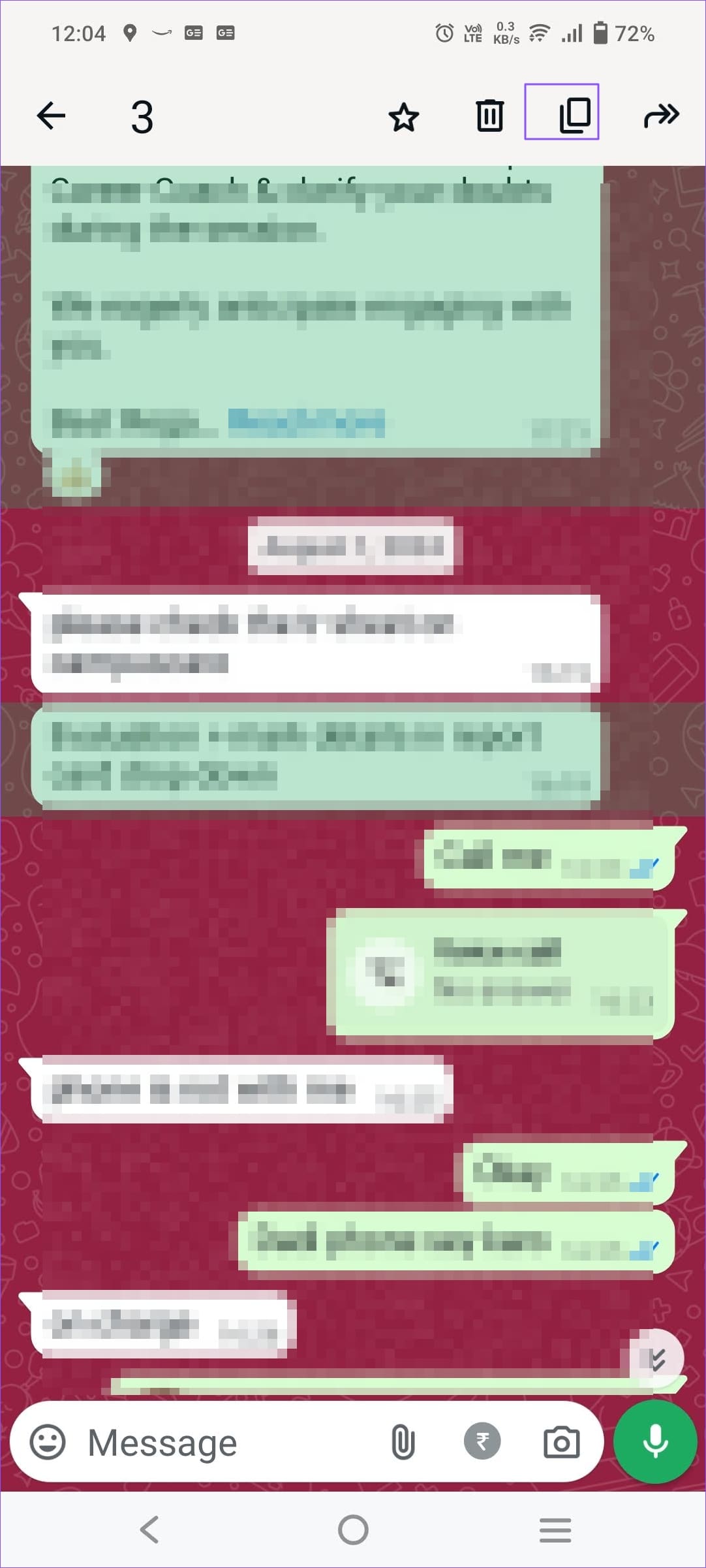

That is not technically a forward, but that’s one way to share the message anywhere.
You can always take a screenshot of the chat and send it to someone else if you want the name and timestamp displayed, but this has limitations.
How to Share a Photo With Original Caption on WhatsApp
Default Forward Option
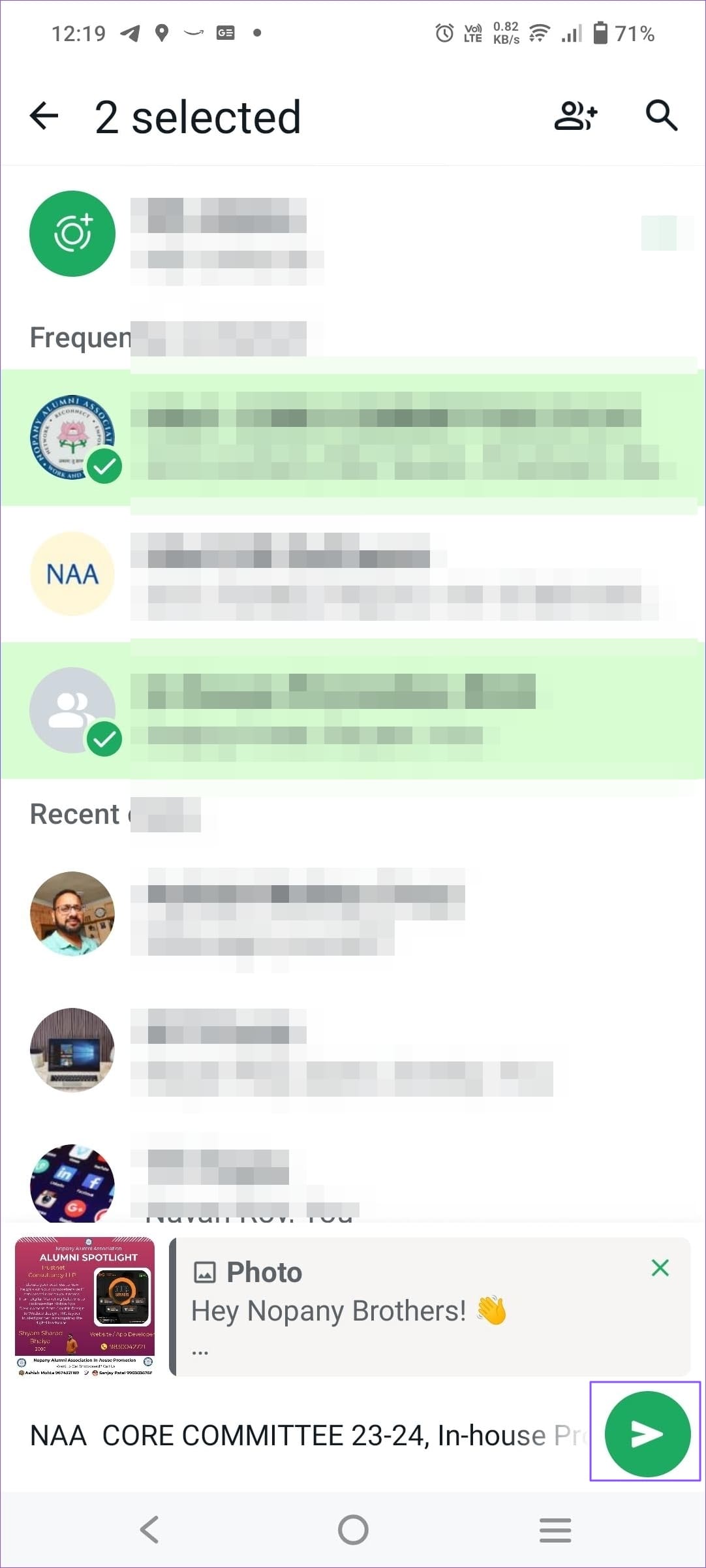
WhatsApp, by default, allows you to share a photo with its original caption. However, the photo will have a forwarded label at the top of the message.
Step 1: First, long-press on the image you want to forward and select the Forward icon. Then, select one or multiple contacts or groups.
Step 2: Finally, tap the Send button to send the image with its original caption. You should see a preview of the caption with the image at the bottom.


Share Option
You can only select one message to share it outside WhatsApp.
Step 1: Use long presses to select a message from the chatbox. Then, tap the three-dot menu and select Share from the flyout menu.
Step 2: This will bring up the Android share menu, where you can select the app you want to share and share it.


This option is missing on the iPhone. So, if you don’t want the don’t want the forwarded label on your messages, you can download and share the image with others. However, you will need to type the caption manually. WhatsApp doesn’t allow you only to copy the caption.
How to Forward a Message to Multiple People or Groups
Step 1: First, press on the message you would like to forward and tap on the forward button.
Step 2: Next, select multiple contacts or groups, and tap the Send button to send the message.
How to Forward Multiple Messages at Once
Step 1: Start by pressing long on a message, then tap on more messages to select which you want to forward.
Step 2: Finally, tap the Forward icon and select one or multiple contacts. Lastly, tap the Send button.
How to Forward WhatsApp Messages via Email
You can forward your WhatsApp messages via email in two ways. First, you can copy a message, paste it into your inbox, and send it to others.
If you have multiple WhatsApp messages to share, you can first select all the messages and share them via email.
Step 1: First, long-press on the message and tap on the three-dot menu to bring up the Share icon.
Step 2: Pull up the menu and choose your email app.
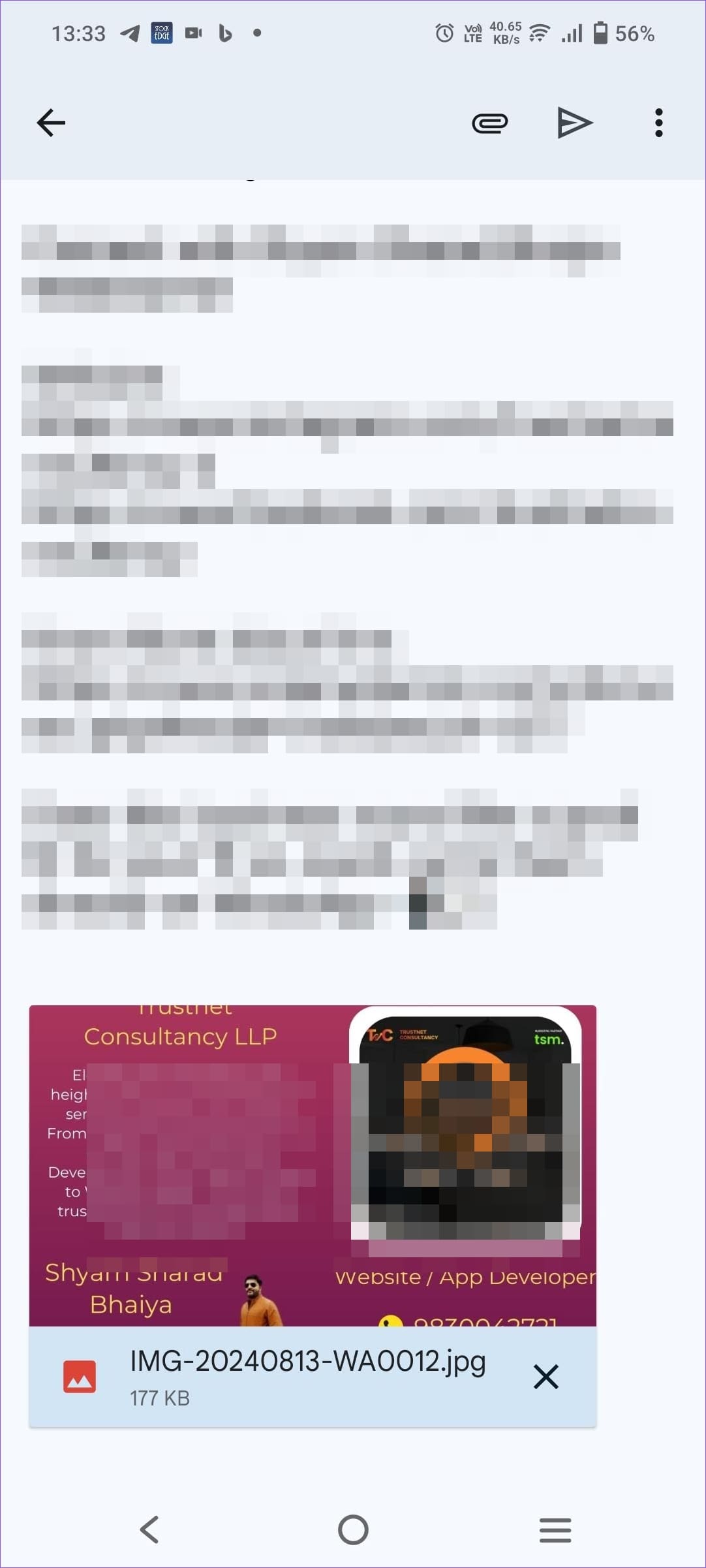
Step 3: That’s it. The message will be automatically posted to your email inbox. Now, you can enter a subject line and the recipient’s email address to send the email.


Was this helpful?
Last updated on 16 August, 2024
Read Next
 How to Read WhatsApp Messages Without Sender Knowing
Method 1: Dive Into Notification History (Android) You can read WhatsApp messages without letting the sender know by accessing the Notification History on your Android smartphone.
How to Read WhatsApp Messages Without Sender Knowing
Method 1: Dive Into Notification History (Android) You can read WhatsApp messages without letting the sender know by accessing the Notification History on your Android smartphone.
 Why Can’t I Forward Messages on WhatsApp
WhatsApp allows you to forward messages from one conversation to all contacts or groups.
Why Can’t I Forward Messages on WhatsApp
WhatsApp allows you to forward messages from one conversation to all contacts or groups.
 Can You Hide Sender’s Name on iPhone Messages
Whenever you receive a message on your iPhone, the Messages app sends you a notification specifying who has sent the message and, in some instances, even the content of the
Can You Hide Sender’s Name on iPhone Messages
Whenever you receive a message on your iPhone, the Messages app sends you a notification specifying who has sent the message and, in some instances, even the content of the
 How to Automatically Forward Text Messages to Another Phone or PC on Android
Things to Know About the Auto Forward SMS App Android does not allow you to forward text messages via native features automatically.
How to Automatically Forward Text Messages to Another Phone or PC on Android
Things to Know About the Auto Forward SMS App Android does not allow you to forward text messages via native features automatically.
 What Happens When You Block a Sender in Outlook: GT Explains
Emails are still popular and will be for a long time.
What Happens When You Block a Sender in Outlook: GT Explains
Emails are still popular and will be for a long time.
 How to Block or Unblock a Sender in Microsoft Outlook
How to Block an Email Address on Microsoft Outlook for Desktop On Microsoft Outlook for desktop, users can use the Block Sender feature to prevent emails from certain email addresses
How to Block or Unblock a Sender in Microsoft Outlook
How to Block an Email Address on Microsoft Outlook for Desktop On Microsoft Outlook for desktop, users can use the Block Sender feature to prevent emails from certain email addresses
 How to Auto-Forward Emails in Outlook
Use Outlook Forwarding Step 1: Navigate to Outlook Web on the desktop browser and sign in using Microsoft account credentials.
How to Auto-Forward Emails in Outlook
Use Outlook Forwarding Step 1: Navigate to Outlook Web on the desktop browser and sign in using Microsoft account credentials.
 How to Fast Forward (and Rewind) Instagram Live Stories Video Replays
Fast-Forward an Instagram Live Story Video Replay Before we proceed, it is pertinent to state that you can only forward replays of live sessions/videos that users share on their stories.
How to Fast Forward (and Rewind) Instagram Live Stories Video Replays
Fast-Forward an Instagram Live Story Video Replay Before we proceed, it is pertinent to state that you can only forward replays of live sessions/videos that users share on their stories.
The article above may contain affiliate links which help support Guiding Tech. The content remains unbiased and authentic and will never affect our editorial integrity.

