

The System File Checker is a vital part of most troubleshooting routines, which helps users check for and repair errors in important system files. But what happens when the troubleshooter needs troubleshooting? Today, we’re going to be looking at what to do when the “SFC SCANNOW” does not complete.
SFC SCANNOW Does Not Complete – Fixes to Try
So, if you’re stuck with a System File Checker that won’t finish the job, we’ve got several troubleshooting methods to help you out below:
Run DISM First
Deployment Image Servicing and Management (DISM) and SFC go together so often in troubleshooting that they’re often mentioned in the same breath. If SFC does not complete, try running the DISM scan before it and see if it either fixes the issue or allows the file checker to run again. Here’s what to do:
Step 2. To check if issues picked up can be repaired, once the above process is done, type “DISM /Online /Cleanup-Image /CheckHealth” and press “Enter.”
Step 1. Open the Run dialog (Win + R) and type “cmd” before clicking (Ctrl + Shift + Enter) to run as Administrator.
Step 3. In Command Prompt, you’ll first need to scan for disk corruption. Type “DISM /Online /Cleanup-Image /ScanHealth” and click “Enter.” The process will begin running.
Step 4. Finally, to begin fixing any issues picked up, type “DISM /Online /Cleanup-Image /RestoreHealth” and click “Enter.”
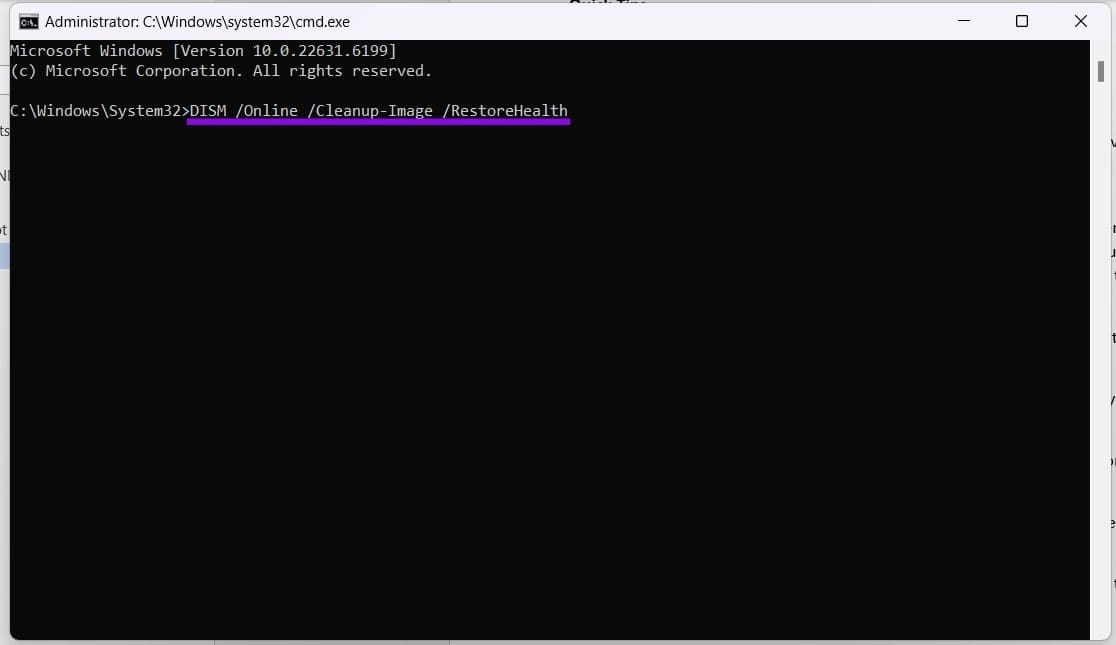
Step 5. Restart your machine. If your issue isn’t resolved by the DISM, try running the SFC scan in Command Prompt and see if the issue is resolved.
Run CHKDSK
Disk Checker is yet another close troubleshooting cousin of SFC. If things are getting stuck, this is also a good option to try:
Step 1. Open Command Prompt as Administrator.
Step 2. Type “chkdsk C: /f” into the prompt (“C” is your OS drive and “/f” tells CHKDSK to automatically repair detected file-system errors).
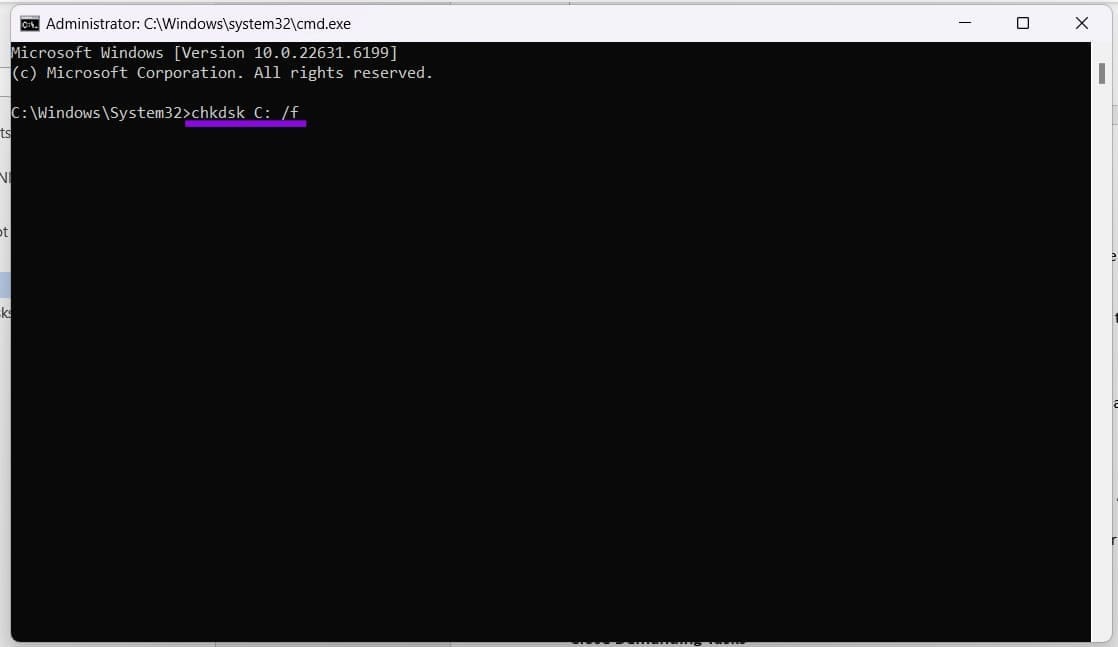
Step 3. Select “Enter.” You’ll be told the volume is in use. Type “Y” and click “Enter” to begin the scan when the system restarts.
Step 4. Restart your PC and let the process run.
Close Demanding Tasks
Unsurprisingly, SFC needs a lot of processing power to perform optimally. It’s a good idea, therefore, to give it as much freedom to run as possible. Close all your most demanding apps, including browsers, and free up memory. If you want to check what’s taking up the most resources, open Task Manager by pressing (Ctrl + Shift + Esc) and sorting processes by “Memory.”

Try SFC in Safe Mode
To ensure no third-party apps and processes are interfering with the file checker, you should try running it in Safe Mode. To boot into it:
Step 1. Open the Run Dialog (Win + R) and type “msconfig” into the box, and press “OK.”
Step 2. The System Configuration Window will pop up. Navigate to the “Boot” tab at the top of the window.
Step 3. In the “Boot Options” subgroup, check “Safe boot.” Choose your specific subtype of Safe Mode. “Minimal” is the most stripped-down, while “Network” offers connectivity.
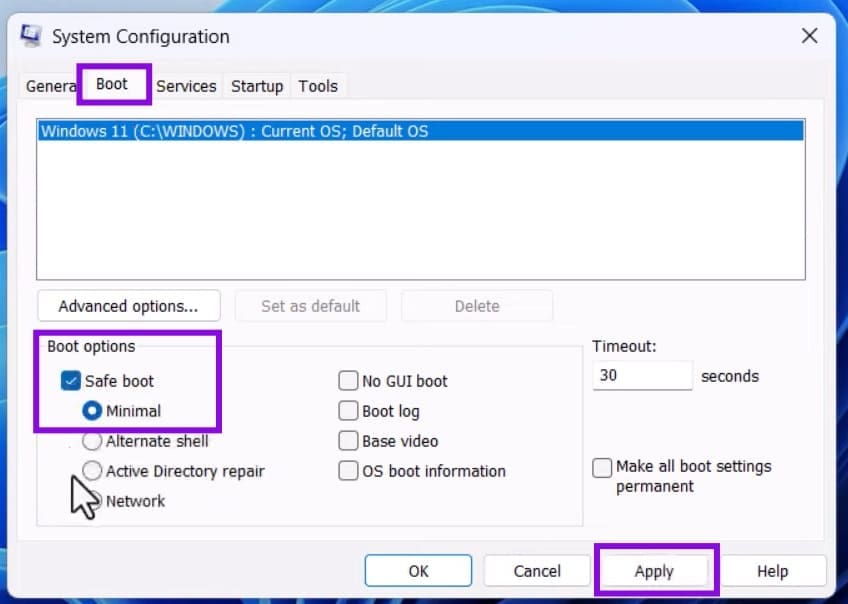
Step 4. Once done, click “Apply,” then “OK” to finalize.
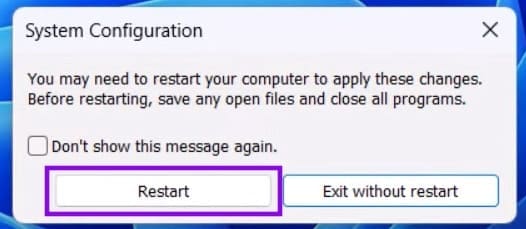
Step 5. Another pop-up will ask you to restart your PC to finalize changes. Click the “Restart,” and you’ll boot into Safe Mode automatically.
Was this helpful?
Last updated on 15 June, 2026
Read Next
 How to Use SFC Scannow to Repair Windows System Files
What Is SFC Scan?
How to Use SFC Scannow to Repair Windows System Files
What Is SFC Scan?
 A Complete Guide to OneDrive Storage and Avoiding Disk Full Error
Microsoft OneDrive, previously known as SkyDrive, is a complete cloud storage solution for Windows users.
A Complete Guide to OneDrive Storage and Avoiding Disk Full Error
Microsoft OneDrive, previously known as SkyDrive, is a complete cloud storage solution for Windows users.
 A Complete Guide to Adding and Editing Text in Paint 3D
Adding text to your image is one of the basic functionalities of any photo-editing apps.
A Complete Guide to Adding and Editing Text in Paint 3D
Adding text to your image is one of the basic functionalities of any photo-editing apps.
 A Complete Guide to Fixing Blurry Text in Windows 10
Microsoft’s Windows 10 operating system enjoys a comfortable lead over the rivals in the desktop OS market share.
A Complete Guide to Fixing Blurry Text in Windows 10
Microsoft’s Windows 10 operating system enjoys a comfortable lead over the rivals in the desktop OS market share.
 A Complete Guide to Using Split Screen in Windows 10
Windows makes multitasking feel like a cakewalk.
A Complete Guide to Using Split Screen in Windows 10
Windows makes multitasking feel like a cakewalk.
 What Is Clipboard in Windows 10 and How to Use It: A Complete Guide
You must have used copy-paste functionality at least once whether you own a smartphone, tablet, or computer.
What Is Clipboard in Windows 10 and How to Use It: A Complete Guide
You must have used copy-paste functionality at least once whether you own a smartphone, tablet, or computer.
 A Complete Guide to Using System Restore in Windows 11
Have you made an unwanted change to your Windows 11 PC and don't know how to revert it?
A Complete Guide to Using System Restore in Windows 11
Have you made an unwanted change to your Windows 11 PC and don't know how to revert it?
 4 Fixes for “There Isn’t Enough Memory to Complete This Action” in Microsoft Excel
Try Basic Fixes Close background apps and programs: Running too many resource-intensive apps and programs on Windows can trigger the "There isn’t enough memory to complete this action" error in
4 Fixes for “There Isn’t Enough Memory to Complete This Action” in Microsoft Excel
Try Basic Fixes Close background apps and programs: Running too many resource-intensive apps and programs on Windows can trigger the "There isn’t enough memory to complete this action" error in
The article above may contain affiliate links which help support Guiding Tech. The content remains unbiased and authentic and will never affect our editorial integrity.

