1. Backup Your Data
One of the first steps you should take is backing up data. After using your computer for a while, you will have many files containing important, personal information. These may include personal documents, photos, videos, music and movies, and software license keys.
Simply storing this information on the cloud with Google Drive or OneDrive may suffice. However, these backups are often very large and require a more practical backup solution, like storing them in an SSD file. You should take note to use the best SSDs for Windows so that your files are secure and not corrupted.
2. Sign Out of Your Accounts
To get the best experience on a computer, you need to sign in to different services. These services often have access to your information and user habits. It is important to sign out of them before transferring ownership of your computer. Below, we show you how to sign out of your Microsoft account, but you may sign out of other accounts like your Google, social media, or software accounts.
Step 1: Press Windows + I to open the Settings app.
Step 2: On the left pane, click Accounts; on the right, click Your Account.

Step 3: Under the Account settings section, click Sign in with a local account instead.
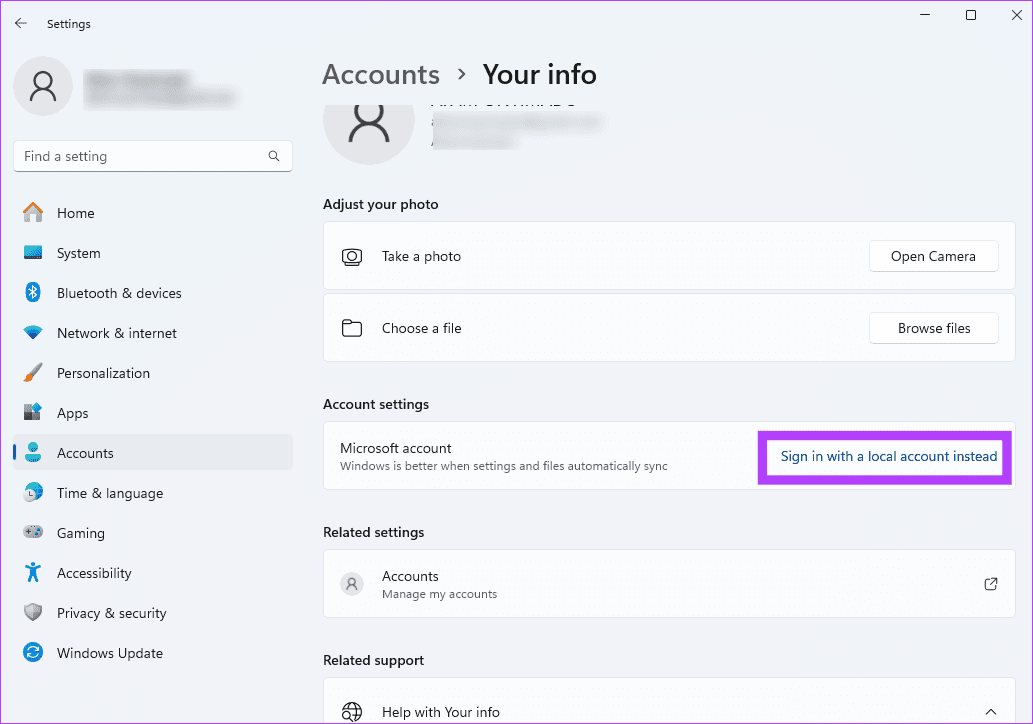
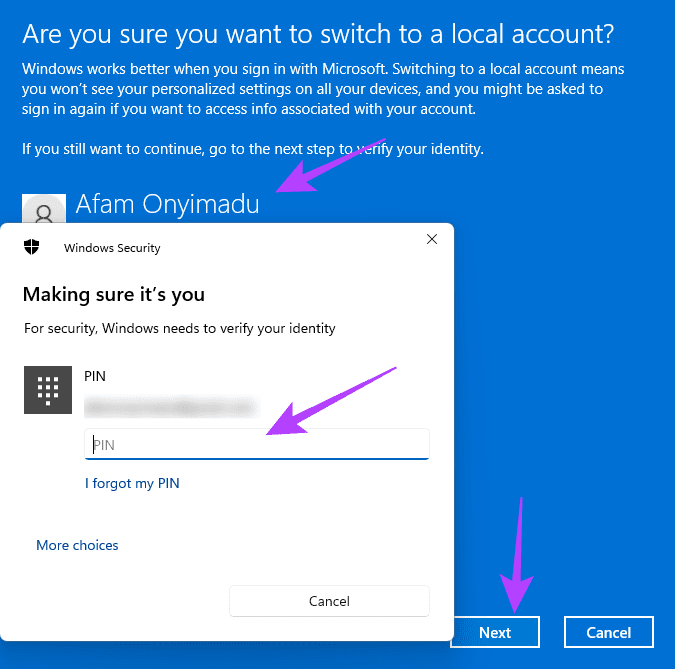
Step 4: Click your account, enter your password or PIN, and click the Next button.
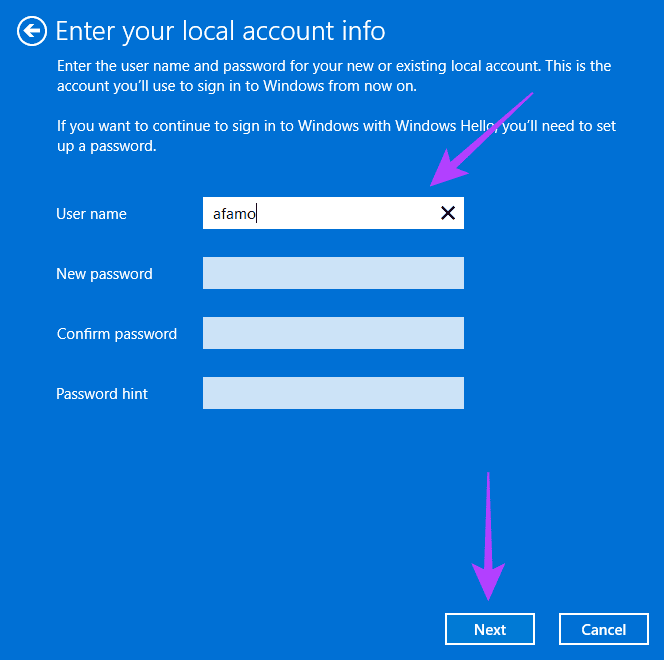
Step 5: Input a new user name and click Next.
Step 6: Click the Sign out and finish button.

3. Deactivate Any Software Licenses
Deactivating software licenses will depend on your specific situation. For some licenses, transferring ownership may violate the terms and agreements. So, deactivating the license will allow the new owner to purchase and activate the software legally. Also, leaving your financial or personal info associated with your license poses a security risk.
For specifics on license deactivation, you may check the software’s documentation or EULA, look for any deactivation options within the software, or contact the software developer.
4. Perform a Factory Reset of the PC
For most people, a factory reset is often the go-to step before giving out or selling a computer. However, this may not always be required, especially when you have backed up and removed every account, personal file, and software license on your computer.
That said, resetting the Windows 11 PC is often required because it removes all settings on your computer and returns it to the state it was in when you first installed it. This is an important security measure. A reset will also get rid of possible malware and spyware and would generally guarantee a faster sale.
Step 1: Press Windows + I to open the Settings app.
Step 2: Navigate System > Recovery.

Step 3: Click Reset this PC.

Step 4: Select Remove Everything.
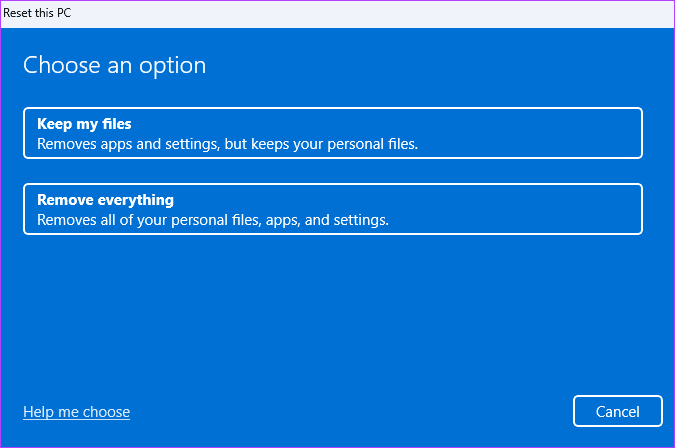
Step 5: You may choose Cloud install if you need an installation from a new download; if not, choose Local reinstall.

Step 6: Click Next and follow the wizard to complete the process.
5. Remove Any Hardware Locks
Hardware locks, such as BitLocker or FileVault, are encryption mechanisms that protect your data by requiring a password or key to access it. When you sell or give away a computer, you expect the new owner to be able to access all its areas and data. If you have certain hardware locks, some elements will be unusable.
6. Replace Bad Components
When you want to sell or give away a computer, replacing bad components is one of the steps you should take. It ensures that the new owner gets the computer in perfect working order. A few common components you should check include the mouse, keyboards, hard drives, and RAM.
You may run the Windows Diagnostic tool to find hardware components that are faulty and in need of replacement.
7. Perform a Physical PC Cleaning
Before shipping out the computer, you must perform a physical cleaning. A properly cleaned computer would attract possible buyers. However, you should be careful not to damage physical components like the keyboard or display while cleaning the computer.
To clean the computer, ensure you unplug it, dust it off, wipe down surfaces, and clean the screen and the keyboard. You may blow dry air through the computer to remove debris or dust particles.
Selling Your Computer in the Best Possible State
Getting a new owner for your computer is a big deal, and you should ensure they get the computer in the best possible state. These points to note before selling your computer will ensure it sells at the best possible prices and also ensure your data and security are not compromised.
Are there other things you consider important before selling your computer? Please let us know in the comment section below.
Was this helpful?
Last updated on 27 August, 2024
Read Next
 4 Ways to Fix if Microsoft Teams Keeps Showing Away
Fix 1: Manually Reset Your Status Active on Teams On Windows or Mac Step 1: Launch Microsoft Team, depending on your operating system. Note: For demonstration purposes, we are going
4 Ways to Fix if Microsoft Teams Keeps Showing Away
Fix 1: Manually Reset Your Status Active on Teams On Windows or Mac Step 1: Launch Microsoft Team, depending on your operating system. Note: For demonstration purposes, we are going
 4 Fixes for Microsoft Teams Notification Won’t Go Away on Windows
Fix 1: Open the Chat App and Clear Notifications (Windows 11 Only) Your Windows 11 PC includes a dedicated Chat app that can help you access and respond to your
4 Fixes for Microsoft Teams Notification Won’t Go Away on Windows
Fix 1: Open the Chat App and Clear Notifications (Windows 11 Only) Your Windows 11 PC includes a dedicated Chat app that can help you access and respond to your
 5 Fixes if App Notifications Won’t Go away on iPhone
Basic Fixes: Restart your iPhone: Turning your iPhone off and back on can help eliminate temporary glitches that might be causing the notifications to be stuck on your device.
5 Fixes if App Notifications Won’t Go away on iPhone
Basic Fixes: Restart your iPhone: Turning your iPhone off and back on can help eliminate temporary glitches that might be causing the notifications to be stuck on your device.
 5 Ways to Fix Facebook Messenger Notification Won’t Go Away
Try Basic Fixes Mark your messages as read: At times, Facebook Messenger may sometimes fail to mark your messages as read, even after you have opened them.
5 Ways to Fix Facebook Messenger Notification Won’t Go Away
Try Basic Fixes Mark your messages as read: At times, Facebook Messenger may sometimes fail to mark your messages as read, even after you have opened them.
 How to Estimate Laptop Battery Life Before Buying
We all know how much manufacturers lie about battery life.
How to Estimate Laptop Battery Life Before Buying
We all know how much manufacturers lie about battery life.
 2 Ways to Password Protect OneDrive Links Before Sharing
Method 1: Add Password Protection Using Microsoft 365 One of the most requested OneDrive features was finally added by Microsoft.
2 Ways to Password Protect OneDrive Links Before Sharing
Method 1: Add Password Protection Using Microsoft 365 One of the most requested OneDrive features was finally added by Microsoft.
 8 Methods to Check If an iPhone Is Original or Fake
https://youtu.be/zLp5RAEeHUE Method 1: Check the Hologram on the iPhone 15 Series Box Can I check if the iPhone is original without opening the box?
8 Methods to Check If an iPhone Is Original or Fake
https://youtu.be/zLp5RAEeHUE Method 1: Check the Hologram on the iPhone 15 Series Box Can I check if the iPhone is original without opening the box?
 Check These 12 Phone Tips Before Going on Vacation This Summer
Summer is an exciting season filled with travel opportunities with loved ones.
Check These 12 Phone Tips Before Going on Vacation This Summer
Summer is an exciting season filled with travel opportunities with loved ones.
The article above may contain affiliate links which help support Guiding Tech. The content remains unbiased and authentic and will never affect our editorial integrity.