Windows 11 ships with a lot of settings you may never want and a handful of behaviors you’d probably change if Microsoft made them easier to find. There are tracking services running in the background by default, the Start menu is filled with bloatware, and dozens of system configuration options are buried across menus that seem purposefully obscure. Sophia Script for Windows 11 (there are also versions for Windows 10 and Windows 11 LTSC) is a free, open-source PowerShell module built specifically to address all of this in one place. Here’s how to use Sophia Script for Windows.
What Is Sophia Script and What It Does?
Sophia Script is an open-source PowerShell module hosted on GitHub. It’s designed for Windows 10 and Windows 11 and contains more than 150 individual functions that let you configure the operating system. While most of the changes can be made through Settings, the script displays the configuration in an easy-to-use program with all major features visible.
The script works through configuration files being edited (commenting out the functions you don’t want and uncommenting the ones you do), then run using PowerShell. That versatility makes it extremely powerful, but you need to have a solid grasp of Windows settings and what each option does.
The script’s functions are organized into broad categories, each addressing a different part of Windows 11:
- Privacy and telemetry – Disables the DiagTrack (Connected User Experiences and Telemetry) service, turns off advertising ID tracking, disables activity history and location services, and controls what diagnostic data Windows sends to Microsoft.
- Bloatware removal – Uninstalls pre-installed apps, including Copilot, Xbox apps, Microsoft Teams consumer, News, Weather, and others.
- OneDrive – Fully uninstalls OneDrive, including its startup entries, scheduled tasks, and shell integration.
- Scheduled task automation – Creates pre-built scheduled tasks for Windows cleanup (removing unused update files and temp files), SoftwareDistribution folder cleanup, and Temp folder maintenance.
- Interface customization – Configures File Explorer behavior, adjusts the taskbar, manages context menu entries, controls search behavior, and tweaks the Start menu layout.
- System and security – Sets Windows Update delivery settings, configures system restore points, manages app permissions, adjusts power settings, and controls Windows Defender.
- App associations – Exports and imports Windows file type associations as a JSON file, making it easy to replicate your preferred app defaults across devices.
- WSL and developer tools – Installs the Windows Subsystem for Linux with a friendly distro selection prompt and the latest Microsoft Visual C++ redistributables.
How to Download Sophia Script for Windows
The script is distributed through GitHub and can also be installed via Winget or Scoop.
Step 1. Open PowerShell as administrator. Press Win + S, type “PowerShell,” right-click the result, and select “Run as administrator.”
Step 2. To install via Winget, run:
winget install –id TeamSophia.SophiaScript –accept-source-agreements
This downloads the latest version as a self-extracting archive that is immediately run and should create a folder in your default download location.
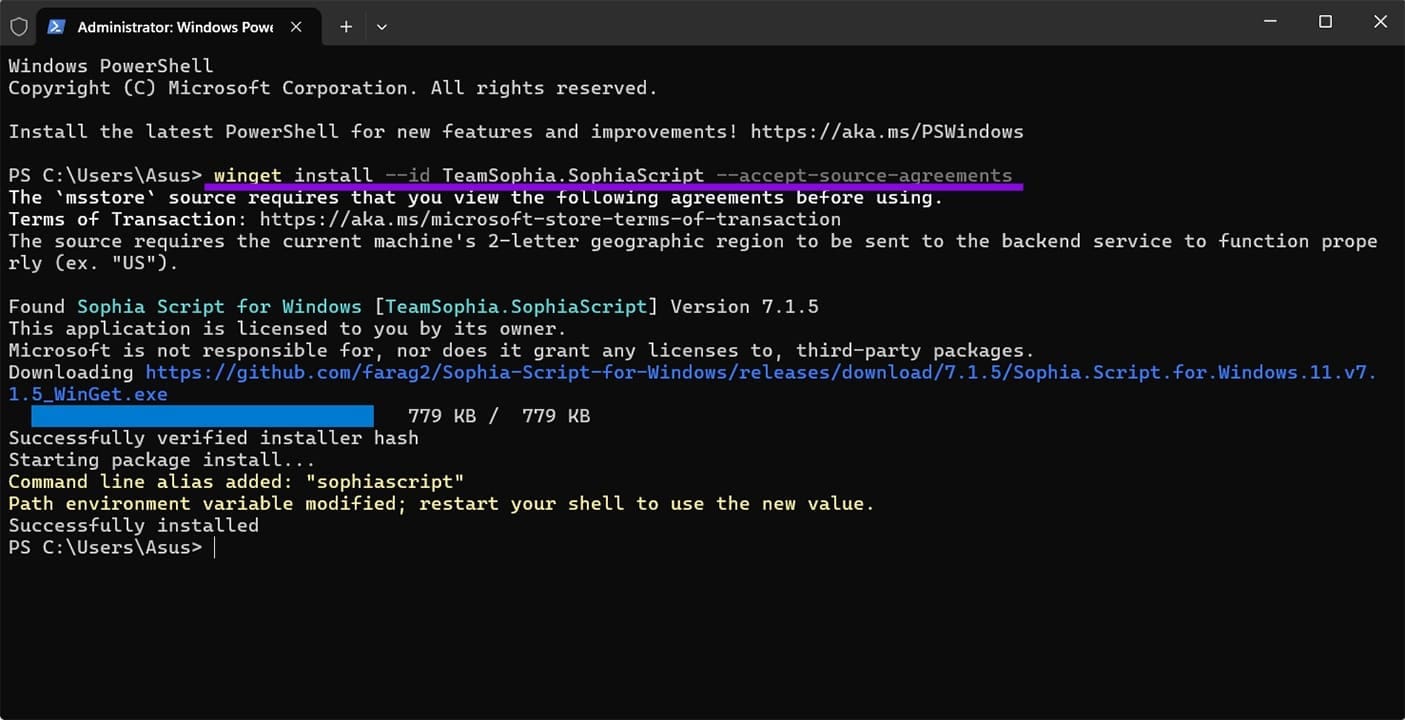
Alternatively, go to https://github.com/farag2/Sophia-Script-for-Windows and download the latest release manually from the Releases section. Extract the archive to a folder you can easily navigate to.
The folder contains the main files you’ll work with: Sophia.ps1 (the preset/configuration file that lists which functions to run) and Functions.ps1 (the file that contains the actual code for each function). You edit Sophia.ps1; you don’t need to touch Functions.ps1.
How to Configure the Preset File
Before running anything, you need to open Sophia.ps1 and decide which functions to enable. Visual Studio Code works best because it highlights specific code sections and is easier to navigate. However, you can also use Notepad++ since it doesn’t require a large download.
Step 1. Open Sophia.ps1 in your editor of choice.
Step 2. Scroll to the section labeled “Preset configuration starts here.” Each function in this section is either active or commented out with a # symbol at the start of the line.
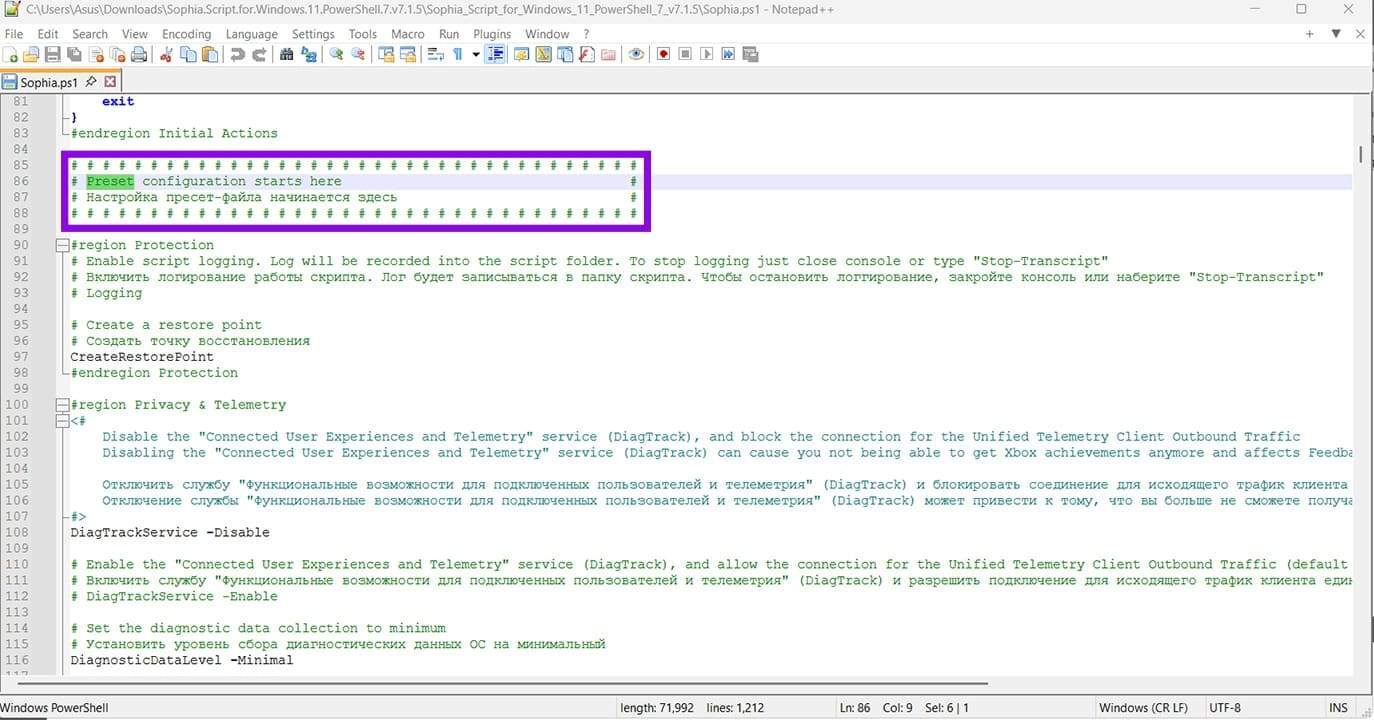
Step 3. To enable a function, remove the # from that line. To disable one, add # at the start. Each function has a comment above it explaining exactly what it does.
Step 4. When you’ve configured the functions you want, save the file. If you want to keep your custom preset separate from the original, save it under a new name in the same folder.
How to Run Sophia Script
Actually running the script is fairly simple.
Step 1. Open PowerShell or Windows Terminal as administrator.
Step 2. Navigate to the folder where you extracted the Sophia Script. Right-click on the address bar in File Explorer and select “Copy.”
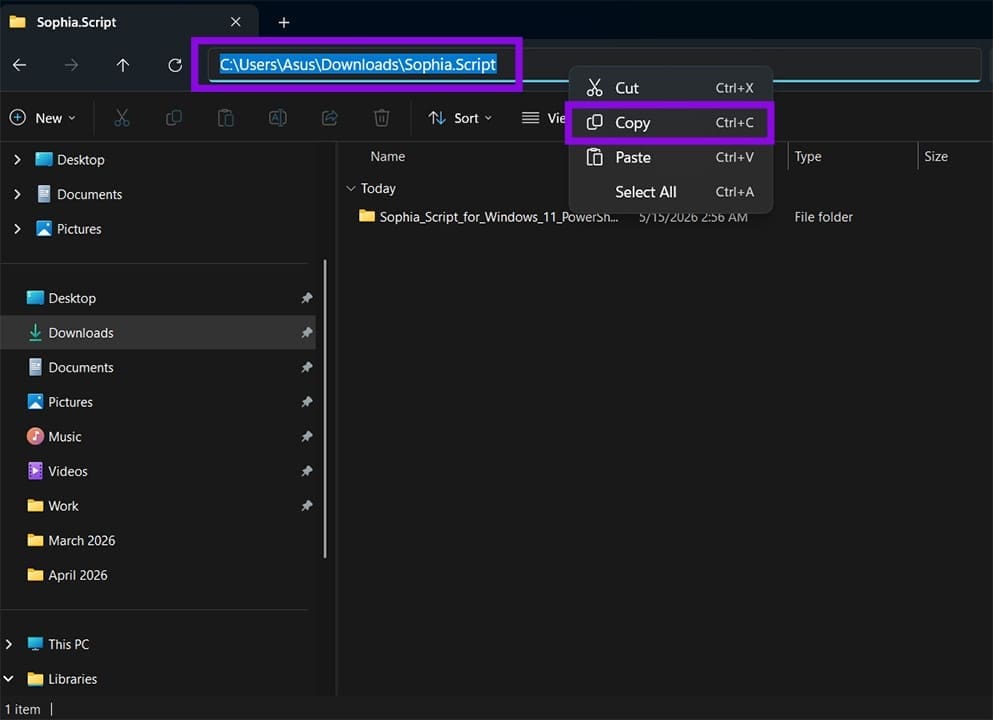
Step 3. In PowerShell, type in “cd” then a space, then paste in the address. Then click “Enter” to make PowerShell move to that location.
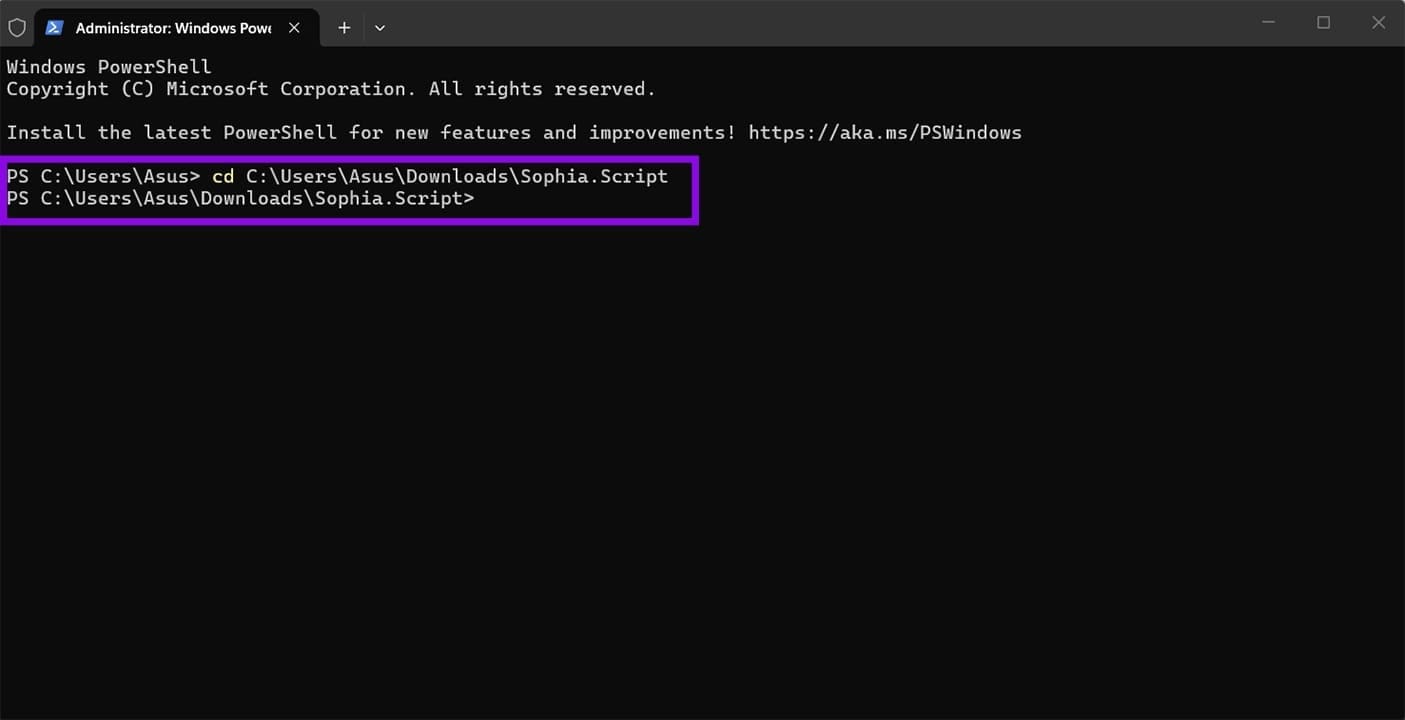
Step 4. Paste in and run the following line to give the script access to the configuration settings:
Set-ExecutionPolicy -ExecutionPolicy Bypass -Scope Process -Force
Step 5. Run your configured preset file:
.\Sophia.ps1
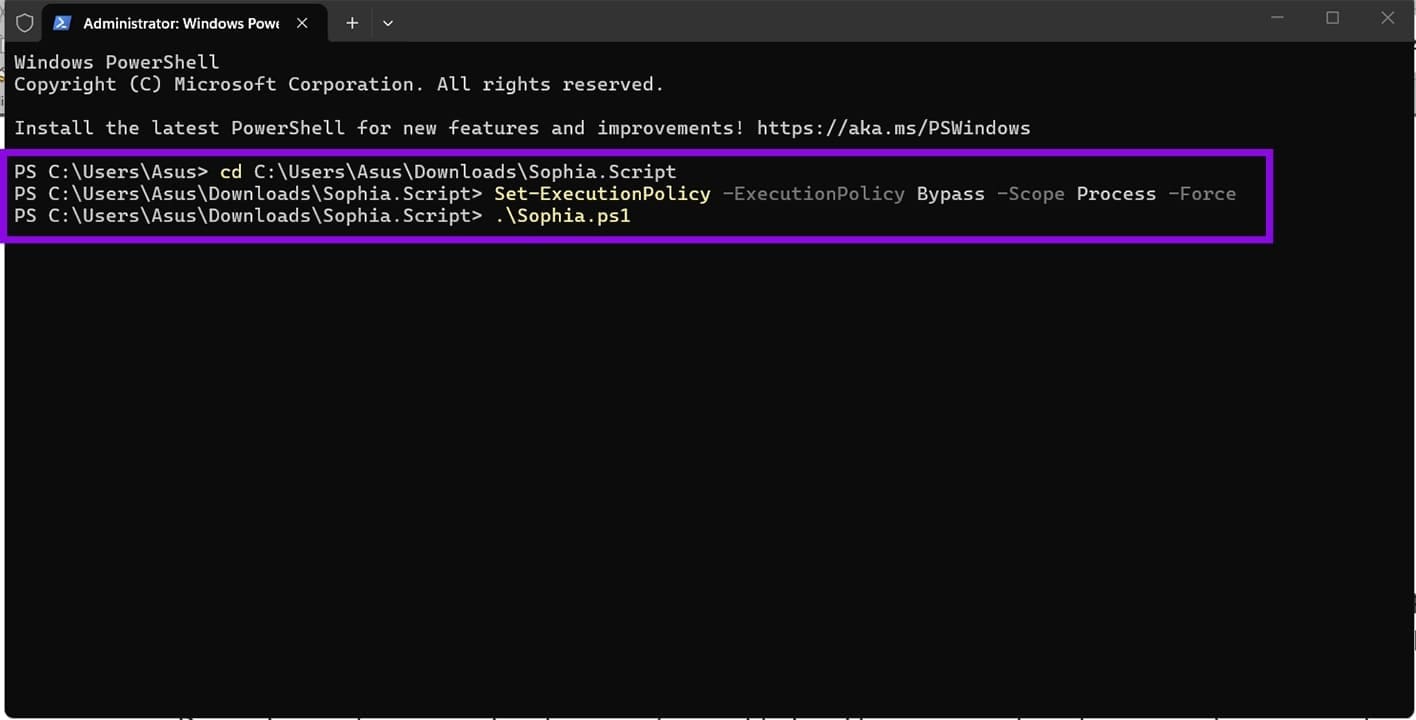
If you’ve saved a preset under a different name, use that one.
The script will begin executing the functions you enabled. For functions that include interactive prompts like selecting which apps to uninstall, configuring scheduled tasks, or setting telemetry levels, the script will provide pop-up windows asking for your input, then wait for a response before continuing.
Depending on how many functions you’ve enabled and how many interactive prompts appear, a typical first run takes between 10 and 30 minutes. Subsequent runs of the same preset are faster since you already know what each prompt asks.
Automated Scheduled Tasks
One of Sophia Script’s more practical time-savers is its ability to create Windows scheduled tasks that perform maintenance.
The tasks it can create include:
- Windows Cleanup and Windows Cleanup Notification: Cleans up unused Windows update files and temporary system files on a schedule, with a toast notification before it runs, so you can postpone it.
- SoftwareDistribution cleanup: Periodically clears the %SystemRoot%\SoftwareDistribution\Download folder, where Windows stores downloaded update packages that are no longer needed.
- Temp folder cleanup: Cleans the user %TEMP% folder on a schedule.
SophiApp: The GUI Alternative
If editing a PowerShell script isn’t your preferred workflow, the same developer has a companion project called SophiApp 2.0. It’s a full graphical interface that has most of the functions of Sophia Script through a point-and-click UI. It shows you available tweaks organized by category, lets you toggle them on or off with checkboxes, and applies them when you click “Apply.”
The trade-off is that SophiApp currently covers a somewhat smaller function set than the full script and is under active development.
Things to Keep in Mind Before Running the Sophia Script
Sophia Script is a powerful tool, and the same power that makes it useful also means you should approach it with some care:
- Make a full system backup before running the script for the first time. Even though every function uses officially supported methods, you’re making real changes to system behavior, and a restore point or image backup is good practice.
- Only enable functions you understand. The comments in Sophia.ps1 explain each one.
- Always run the script with administrator privileges.
- The script is updated regularly to track Windows updates. After a major Windows 11 feature update, you’ll need to download the latest version of Sophia Script before running it again to avoid applying outdated functions.
- Some changes affect all users on the machine, not just the current account. Functions that modify system-wide settings are labeled accordingly in the comments.
Was this helpful?
Last updated on 17 May, 2026
Read Next
 7 Ways to Get Help in Windows 10 and Windows 11
Note: All the steps in this article work for both Windows 10 and Windows 11 1.
7 Ways to Get Help in Windows 10 and Windows 11
Note: All the steps in this article work for both Windows 10 and Windows 11 1.
 3 Fixes for “How to Get Help in Windows” Keeps Popping Up
Try Basic Fixes Check if the F1 key is stuck: The F1 key on Windows serves as a shortcut to access the help page for the active program or window.
3 Fixes for “How to Get Help in Windows” Keeps Popping Up
Try Basic Fixes Check if the F1 key is stuck: The F1 key on Windows serves as a shortcut to access the help page for the active program or window.
 5 AI Tools to Help You Generate PowerPoint Presentation from Text
We’ve entered the age of AI.
5 AI Tools to Help You Generate PowerPoint Presentation from Text
We’ve entered the age of AI.
 Here’s How I Joined the 5 AM Club With the Help of My iPhone
Early to bed, early to rise makes a person healthy, wealthy, and wise -- this is a phrase taught in first grade in school.
Here’s How I Joined the 5 AM Club With the Help of My iPhone
Early to bed, early to rise makes a person healthy, wealthy, and wise -- this is a phrase taught in first grade in school.
 5 Ways to Fix Error 0x8007003B on Windows 10 and Windows 11
Fix 1: Check Disk Format Windows may throw the error 0x8007003B message while transferring large files over a network if the destination drive is FAT32 formatted.
5 Ways to Fix Error 0x8007003B on Windows 10 and Windows 11
Fix 1: Check Disk Format Windows may throw the error 0x8007003B message while transferring large files over a network if the destination drive is FAT32 formatted.
 3 Ways to Launch Windows Terminal on Windows 11
Method 1: Launch Windows Terminal Using the Run Dialog The Run dialog lets you execute any program or command within the same network on your computer.
3 Ways to Launch Windows Terminal on Windows 11
Method 1: Launch Windows Terminal Using the Run Dialog The Run dialog lets you execute any program or command within the same network on your computer.
 5 Fixes for Windows Security App Showing White Screen on Windows 11
Common Fixes Reboot PC: Press the Windows + X shortcut to open the Power User Menu, select Shut down or sign out, and click Restart.
5 Fixes for Windows Security App Showing White Screen on Windows 11
Common Fixes Reboot PC: Press the Windows + X shortcut to open the Power User Menu, select Shut down or sign out, and click Restart.
 Windows Focus Assist (Windows 11) Keeps Turning On – How to Fix It
Usually, not getting notifications while you’re hard at work is a good thing.
Windows Focus Assist (Windows 11) Keeps Turning On – How to Fix It
Usually, not getting notifications while you’re hard at work is a good thing.
The article above may contain affiliate links which help support Guiding Tech. The content remains unbiased and authentic and will never affect our editorial integrity.