AI is becoming a more prominent part of the Windows operating system, with Microsoft’s Copilot AI now present in all of its main apps. The tech giant is also rolling out a new feature – Recall – powered by Copilot and aimed at helping users return to pages or pieces of content they’ve seen before.
Here’s a closer look at the Microsoft recall feature.
What Is the Microsoft Recall Feature?

Like the name implies, Recall is all about going back – back to previous moments in your usage session, web pages you saw earlier, or even individual images or pieces of text you viewed hours or even days ago.
Let’s say you remember seeing a particular news article earlier in the day but you don’t remember which site it was on, or even the headline. You just remember some of the content or the general theme, and want to revisit it.
Usually, you’d have to delve through your browser history and type in different keywords in the hopes of finding what you’re looking for. With the Microsoft Recall feature you can just type in some keywords or a phrase describing what you are looking for and it’ll look back through your history to help you find it.
How Does It Work?

When it’s all set up, Recall works by saving snapshots (images) of your device every few seconds. These shots are stored locally, and Microsoft claims nobody else will have access to them – even the company itself. You’ll need a lot of spare storage space available for all those images.
When you want to use Recall to find something, you can open the semantic search bar and tell it what you’re looking for. Since it’s powered by AI, it can understand a range of inputs and semantic terms to narrow down the search. You could type something like: “Show me those blue shoes I found online the other day” and it should be able to figure out what you want.
It then presents you with the most relevant snapshots for you to browse through and find what you’re after. Each image is interactive, too. So, if there’s a visible URL in the image, you can click it to go straight to the website, or click DOC files in the snapshot to open them directly in Word.
What Are the Benefits?

The big benefit here, as with many other AI features and technologies, is efficiency. Recall has the potential to save users time and speed up many day-to-day processes. You waste far less time trying to remember where a specific file or web page is, eliminate the need to hunt through browser history, chat logs, or File Explorer, and you get an almost instant access to anything you remember and wish to revisit.
Any Risks or Downsides?
As for the downsides, some users have raised privacy concerns about this feature. If your device is capturing screenshots every few seconds, even if they’re stored locally, there’s always a risk someone else could see or access them somehow.
Additionally, as mentioned earlier, this feature requires a lot of storage space since it takes so many screenshots. Plus, since it’s a new feature and still being worked on, it may not always work exactly how you want it.
How to Access It
For now, Recall is only available on Copilot+ PCs. There’s no other way to get it on any other device, though that could change in the future. Your Copilot+ PC will also need:
- At least 50GB of free space
- A neural processing unit (40 TOPs minimum)
- 16GB of RAM
- Eight logical processors
- Enhanced sign-in security enabled with at least one form of biometric protection (facial recognition or fingerprint)
How to Disable Microsoft Recall Feature
If you feel that Recall isn’t right for you, you don’t have to enable it at all. It’s not automatically switched on by default. You have to manually enable it yourself when setting up your Copilot+ PC or later on by opening the Recall app. If you have it enabled and want to turn it off, here’s how:
Step 1. Go to “Settings.” You can get there by pressing “Windows” and “I” together.

Step 2. Click “Privacy & security” in the menu on the left.

Step 3. Find the “Recall & Snapshots” option, then toggle “Save Snapshots” to off.

Was this helpful?
Last updated on 04 December, 2024
Read Next
 How to Recall an Email on Microsoft Outlook for Desktop and Web
Have you experienced panic after sending an email because you noticed an error or you forgot to include an important attachment?
How to Recall an Email on Microsoft Outlook for Desktop and Web
Have you experienced panic after sending an email because you noticed an error or you forgot to include an important attachment?
 How to Recall an Email in Gmail Using App or Web Browser
While proofreading an email is a must, there are always times when you end up missing things.
How to Recall an Email in Gmail Using App or Web Browser
While proofreading an email is a must, there are always times when you end up missing things.
 How to Use Microsoft Edge Drop Feature to Share Files Between Devices
How to Send Files From Your Desktop Using Microsoft Edge Drop Microsoft Edge’s Drop feature is only available in version 110.0.1587.41 or later.
How to Use Microsoft Edge Drop Feature to Share Files Between Devices
How to Send Files From Your Desktop Using Microsoft Edge Drop Microsoft Edge’s Drop feature is only available in version 110.0.1587.41 or later.
 How to Use the Read Aloud Feature in Microsoft Edge
Use Read Aloud in Microsoft Edge on Desktop Microsoft Edge’s Read Aloud feature is simple to use and does not require any setup.
How to Use the Read Aloud Feature in Microsoft Edge
Use Read Aloud in Microsoft Edge on Desktop Microsoft Edge’s Read Aloud feature is simple to use and does not require any setup.
 5 Fixes When Wireless Display Feature is Not Working on Windows 11
Basic Fixes: Ensure your devices support Miracast and Wi-Fi Direct protocol: One essential prerequisite for using the wireless display feature on Windows 11 is that all your devices, including your
5 Fixes When Wireless Display Feature is Not Working on Windows 11
Basic Fixes: Ensure your devices support Miracast and Wi-Fi Direct protocol: One essential prerequisite for using the wireless display feature on Windows 11 is that all your devices, including your
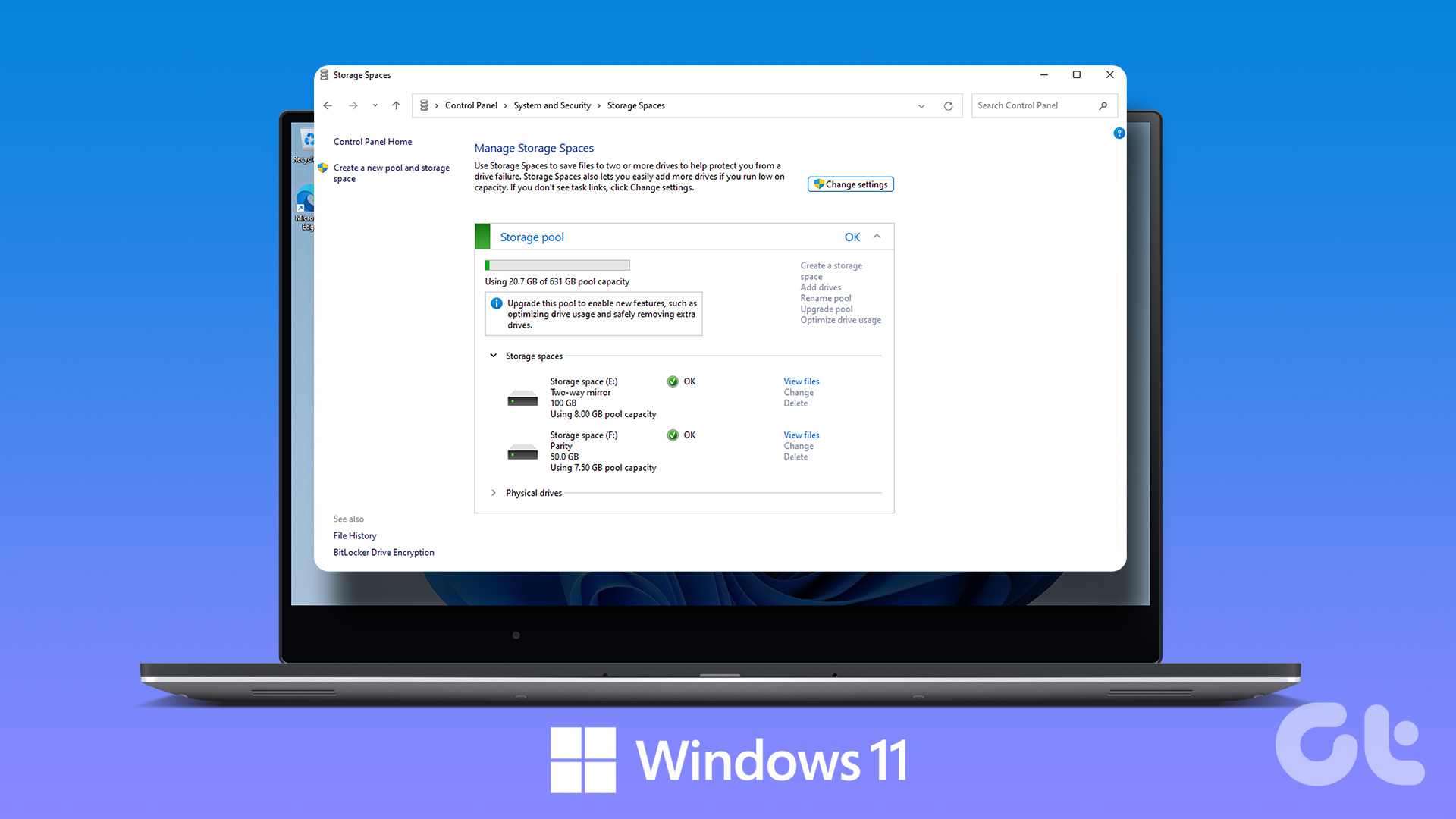 How to Create and Use the Storage Spaces Feature on Windows 11
What Are Storage Spaces in Windows 11 and Why Should You Create One Storage Spaces lets you create an array or group of two or more physical hard drives to create
How to Create and Use the Storage Spaces Feature on Windows 11
What Are Storage Spaces in Windows 11 and Why Should You Create One Storage Spaces lets you create an array or group of two or more physical hard drives to create
 What Is Gmail’s Mute Feature and How to Use It Effectively
What Is Gmail’s Mute Feature?
What Is Gmail’s Mute Feature and How to Use It Effectively
What Is Gmail’s Mute Feature?
 4 Fixes For Google Lens Translate Feature Not Working
Basic Fixes Clear cache Google app: Go to Google App Info > Storage and cache > Clear cache.
4 Fixes For Google Lens Translate Feature Not Working
Basic Fixes Clear cache Google app: Go to Google App Info > Storage and cache > Clear cache.
The article above may contain affiliate links which help support Guiding Tech. The content remains unbiased and authentic and will never affect our editorial integrity.