


What Does Archive in Gmail Mean?
In simple words, Archive means hiding an email from the inbox. While the email disappears from the main inbox, it’s not deleted completely. It’s only hidden from the main view. Moreover, you can always unarchive those emails later.
Sadly, there is no separate Archive folder where you can find your archived emails in Gmail. All the archived emails go into the All Mail folder (more on that below), which also houses your other emails. You need to remove it from there manually.
Note: The archived emails appear in the search results as well.
How to Archive Emails in Gmail on Mobile and Web (Desktop)
Gmail has a handy archive feature; the steps differ for PC and mobile apps. Let’s look at the steps for both.
On PC
Step 1: Launch the Gmail website and log in with your account.
Step 2: Hover your mouse over the email you want to archive. New icons will appear on the right side of the email. Click on the Archive icon.

Pro Tip: Find out what is Snooze in Gmail and how to turn it on or off.
Alternatively, you may follow the below steps after launching Gmail:
Step 1: Tick the box for the email you want to archive; you may select as many boxes as you want simultaneously.
Step 2: Click the Archive icon at the top bar of the email.
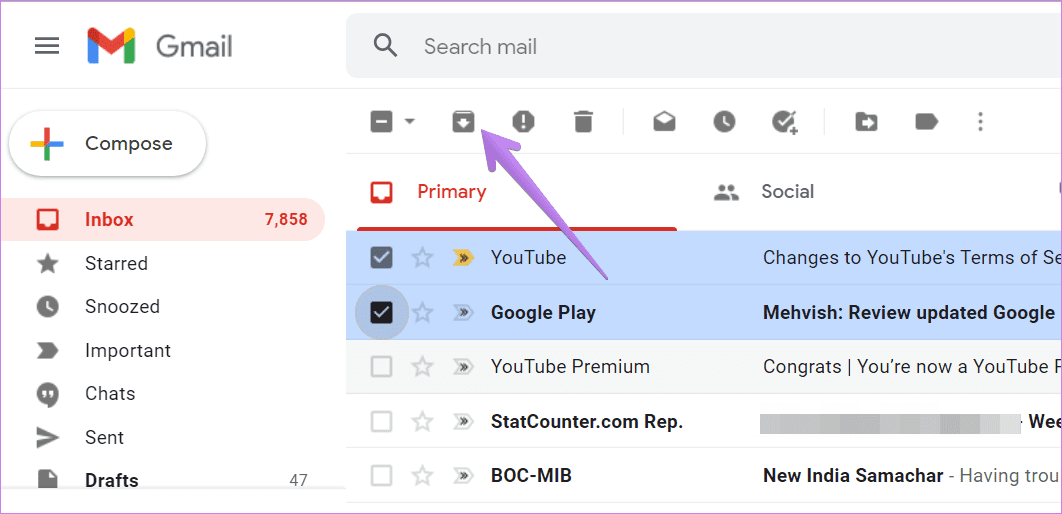
On Gmail Mobile App
Step 1: Launch the Gmail app.
Step 2: Touch and hold the email to select it. Once selected, tap on the Archive icon at the top. You may select multiple emails for archiving at once.
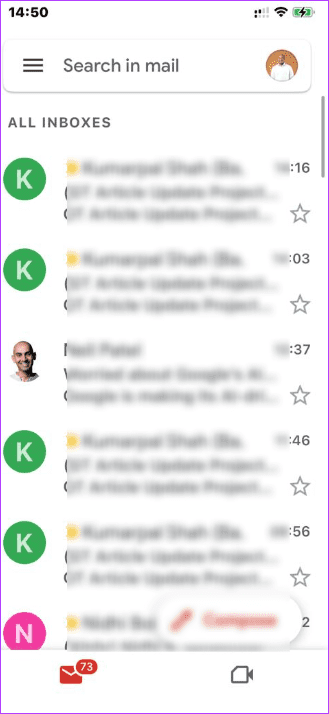
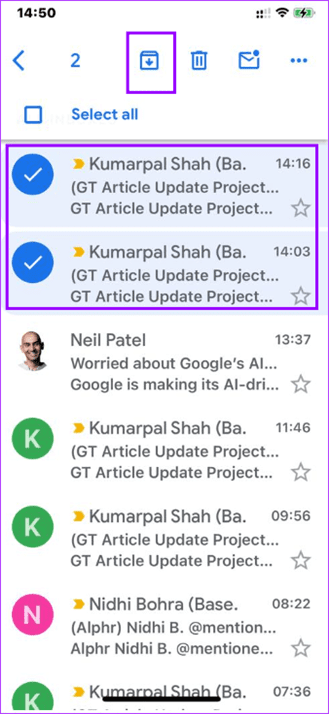
Alternatively, you may swipe left on the email to archive it.
How to Find and Unarchive Archived Emails on Mobile and Web
Looking for Archived email can be a task, yet you can achieve it easily. The steps vary slightly for PC and mobile devices.
On PC
Step 1: Navigate to Gmail on your PC.
Step 2: Click on the All Mail folder on the left sidebar of your inbox. If you do not see the All Mail folder, click More.
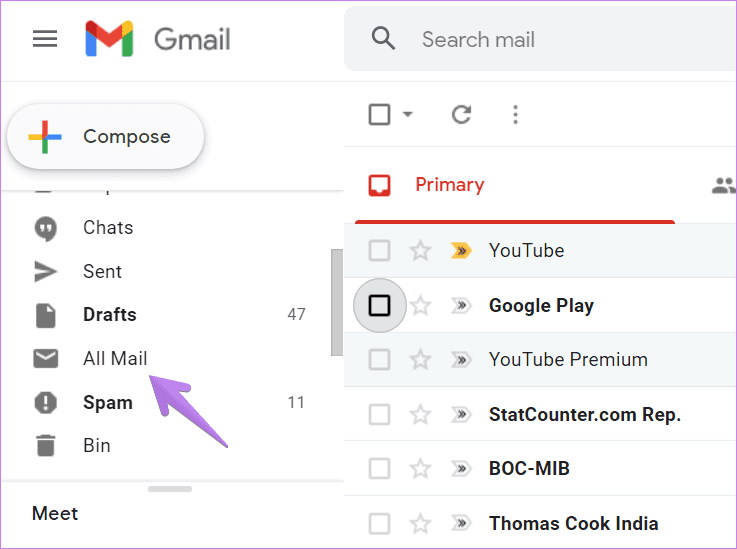
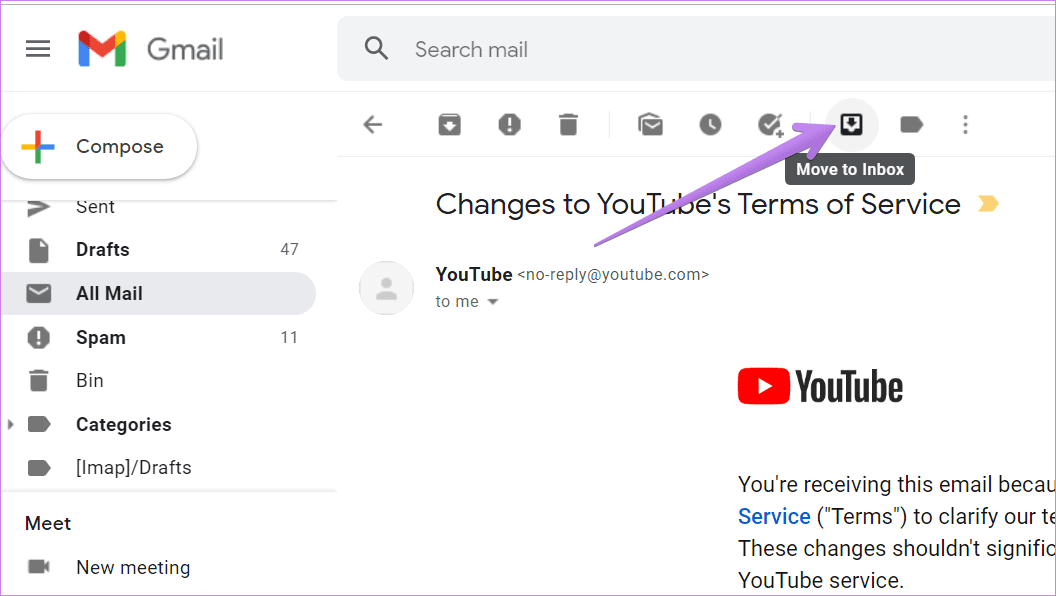
Step 3: Click on the email you want to unarchive. When the email opens, click on the Move to Inbox icon at the top.
This will move the email back to the inbox, where you can view and access it directly.
On Mobile
Step 1: Open the Gmail app on Android, iPhone, or iPad. Tap on the three-bar icon to open the left sidebar > select All mail.

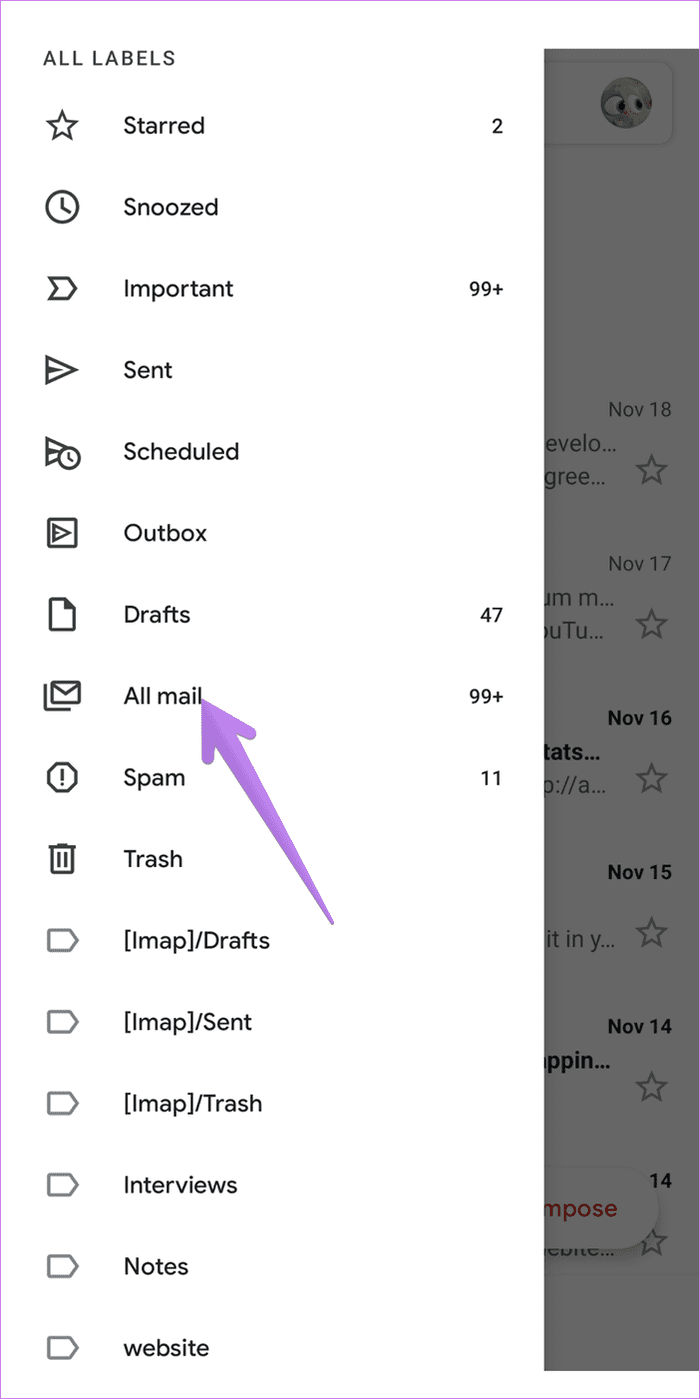
Step 2: Tap the picture icon next to the email you want to unarchive. When selected, tap on the three-dot icon at the top > choose Move to inbox.


Alternatively, open the email you want to unarchive. Tap on the three-dot icon at the top of the Gmail app > choose Move to inbox from the menu.


Tip: If you don’t see the Move to inbox option, select Move to > Primary.
Alternatively, you may search the Gmail search bar for the title or a keyword from your archived email. Once you find it, follow the steps above to unarchive it.
Was this helpful?
Last updated on 28 May, 2024
2 Comments
Leave a Reply
Read Next
 How to Archive or Unarchive Messages in Messenger
What Happens When You Archive a Chat in Messenger?
How to Archive or Unarchive Messages in Messenger
What Happens When You Archive a Chat in Messenger?
 What is Archive in WhatsApp and What Happens When You Archive a Chat
What is Archive in WhatsApp Archive is a chat organization and privacy feature that lets you hide WhatsApp chats from the main list (chats tab).
What is Archive in WhatsApp and What Happens When You Archive a Chat
What is Archive in WhatsApp Archive is a chat organization and privacy feature that lets you hide WhatsApp chats from the main list (chats tab).
 Gmail Mute vs Snooze vs Archive: What’s the Difference?
What Happens When You Archive?
Gmail Mute vs Snooze vs Archive: What’s the Difference?
What Happens When You Archive?
 How to Unarchive Instagram Posts on Android and iPhone
How to Unarchive Photos on Instagram The steps to unarchive photos on Instagram differ from those to unarchive stories.
How to Unarchive Instagram Posts on Android and iPhone
How to Unarchive Photos on Instagram The steps to unarchive photos on Instagram differ from those to unarchive stories.
 How to Auto-Delete Emails in Gmail
Method 1: Using Filters Gmail offers filters to manage incoming emails automatically.
How to Auto-Delete Emails in Gmail
Method 1: Using Filters Gmail offers filters to manage incoming emails automatically.
 How to Mark All Emails As Read in Gmail
Method 1: Mark All Email as Read in Gmail Web Google doesn’t offer a direct option to mark all emails as read, so we must use special search prompts to
How to Mark All Emails As Read in Gmail
Method 1: Mark All Email as Read in Gmail Web Google doesn’t offer a direct option to mark all emails as read, so we must use special search prompts to
 Declutter Your Inbox: How to Filter Unread Emails in Gmail
Method 1: Using a Query in the Search Field Like Google Search, there are various tips and tricks for using Gmail Search to get the desired results.
Declutter Your Inbox: How to Filter Unread Emails in Gmail
Method 1: Using a Query in the Search Field Like Google Search, there are various tips and tricks for using Gmail Search to get the desired results.
 How to Set Up Auto Forward in Gmail for All or Specific Emails
Auto forwarding email is quite helpful when you move to a different mailbox but still want to receive all incoming emails sent to the older mail address.
How to Set Up Auto Forward in Gmail for All or Specific Emails
Auto forwarding email is quite helpful when you move to a different mailbox but still want to receive all incoming emails sent to the older mail address.
The article above may contain affiliate links which help support Guiding Tech. The content remains unbiased and authentic and will never affect our editorial integrity.

I am suddenly not getting any mail. Can you help
They made this way to hard to find.