Add Apps to the Home Screen
You can easily add your favorite apps to your home screen. This lets you open the app quickly instead of searching it in the app drawer.
Simply tap and hold the app icon in the app drawer and drag it to your home screen.
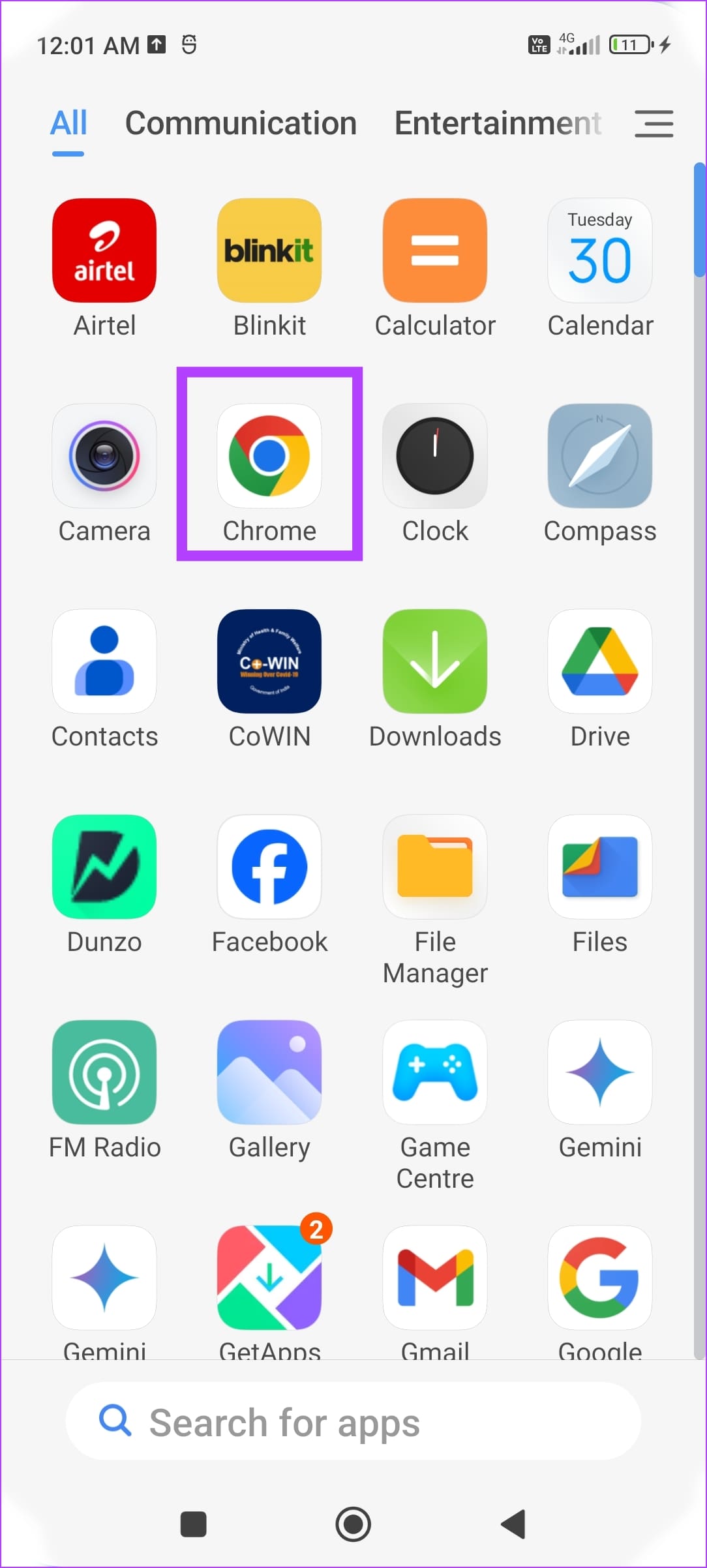

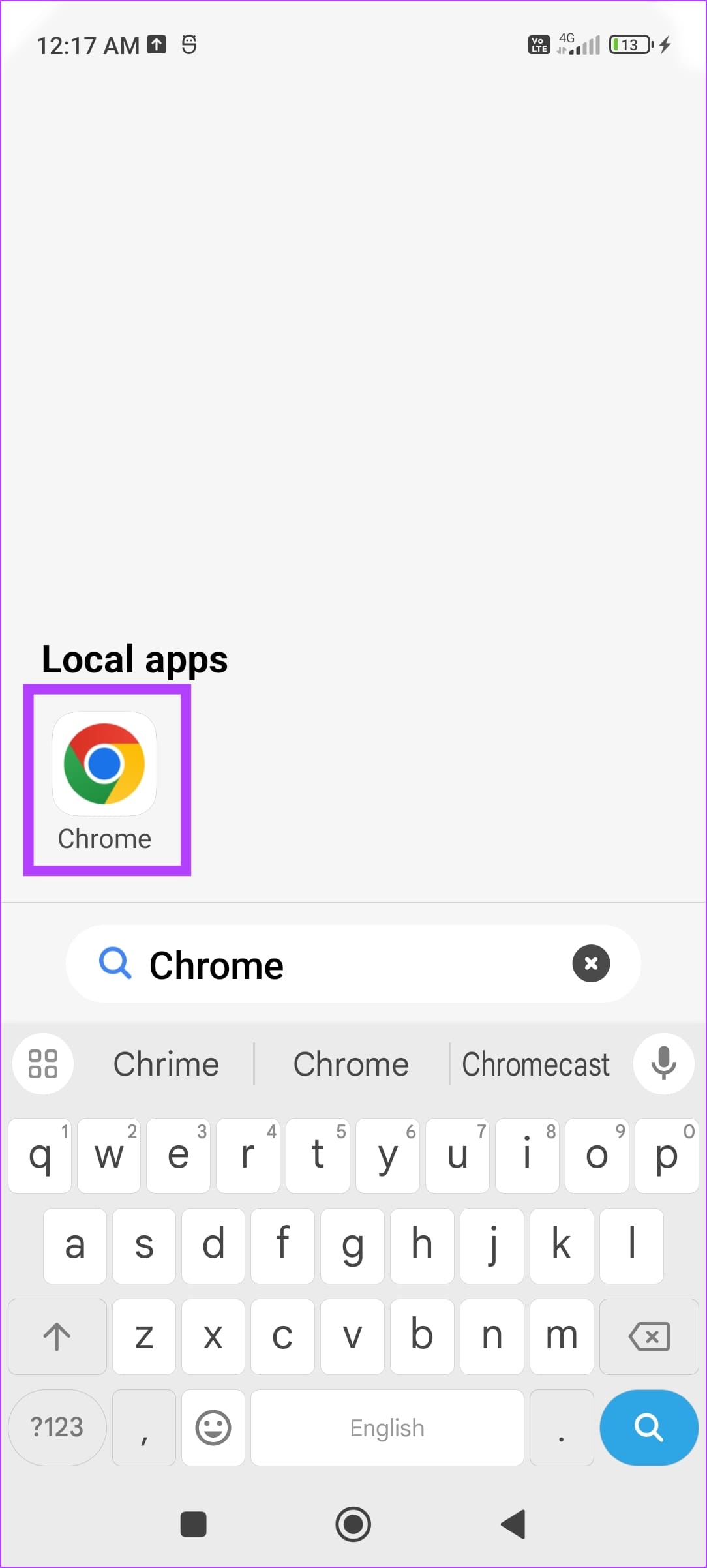
Search Apps in the App Drawer
Want to find an app from a large collection in the app drawer? Don’t worry; search for the app by typing its name in the search bar, and you can open it quickly.
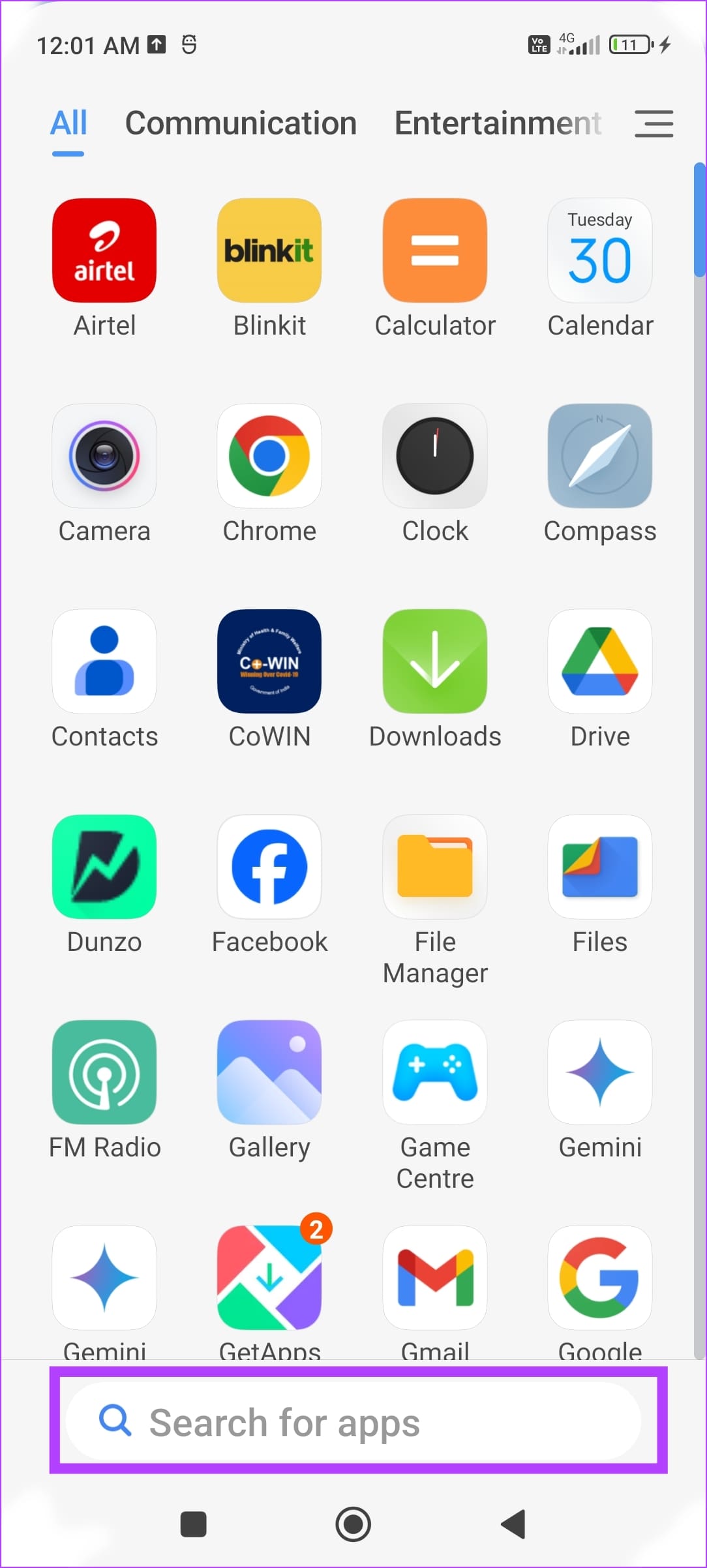
Browse Apps by Category
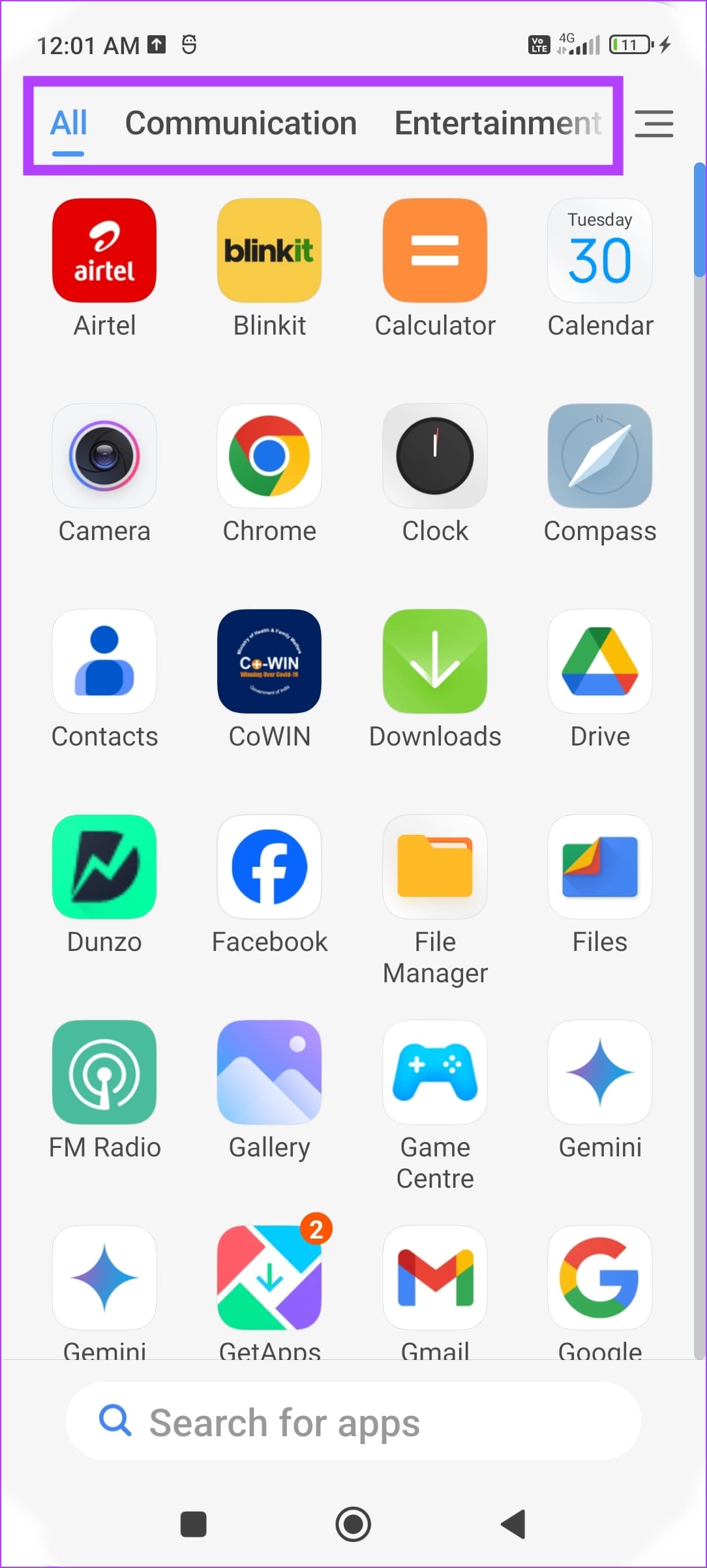
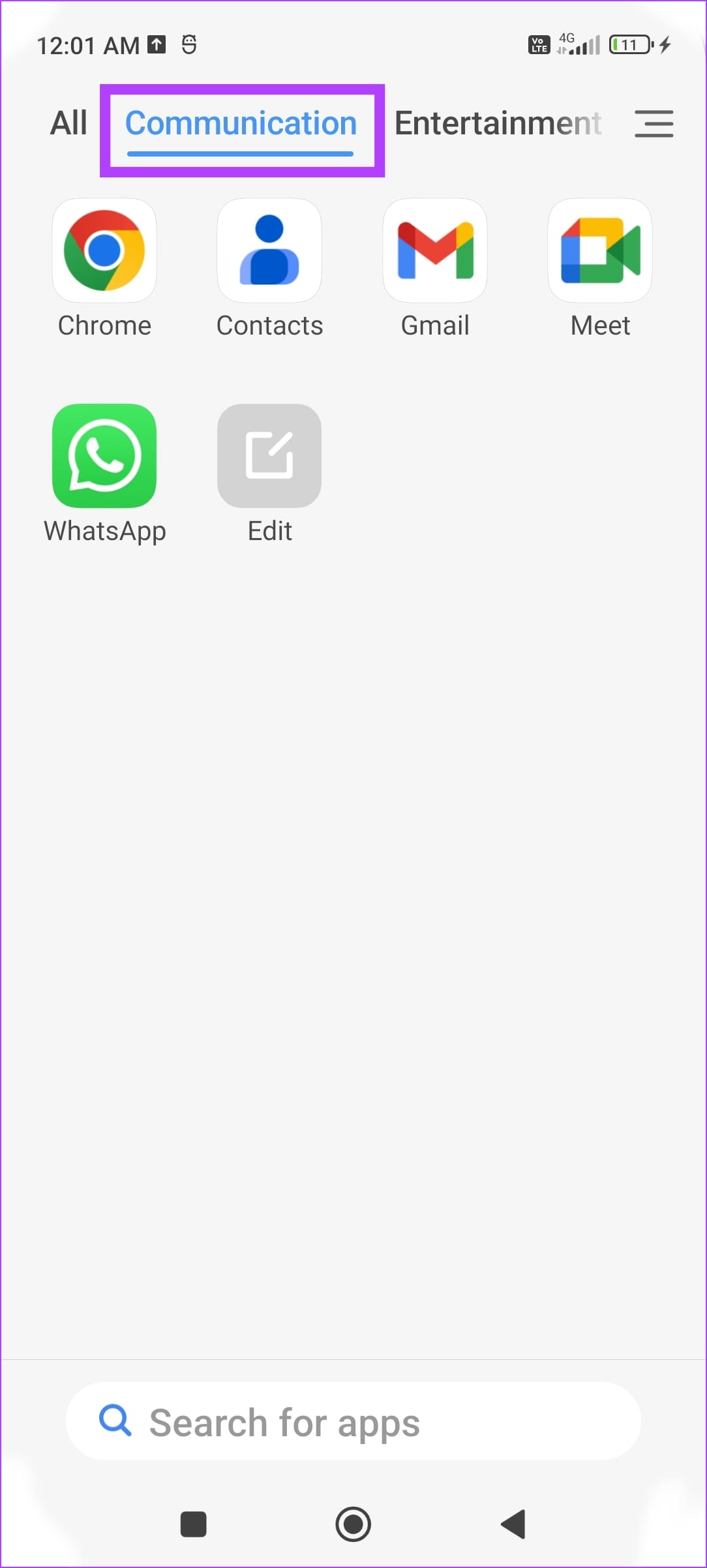
Some launchers, like the default on my Xiaomi device, let you browse apps by category. This helps you view a large library of apps in an organized fashion.
If you like to browse apps sorted by category and your device doesn’t have this feature, you can download a third-party app launcher like Smart Launcher from the Google Play Store.
Sort Apps in the App Drawer
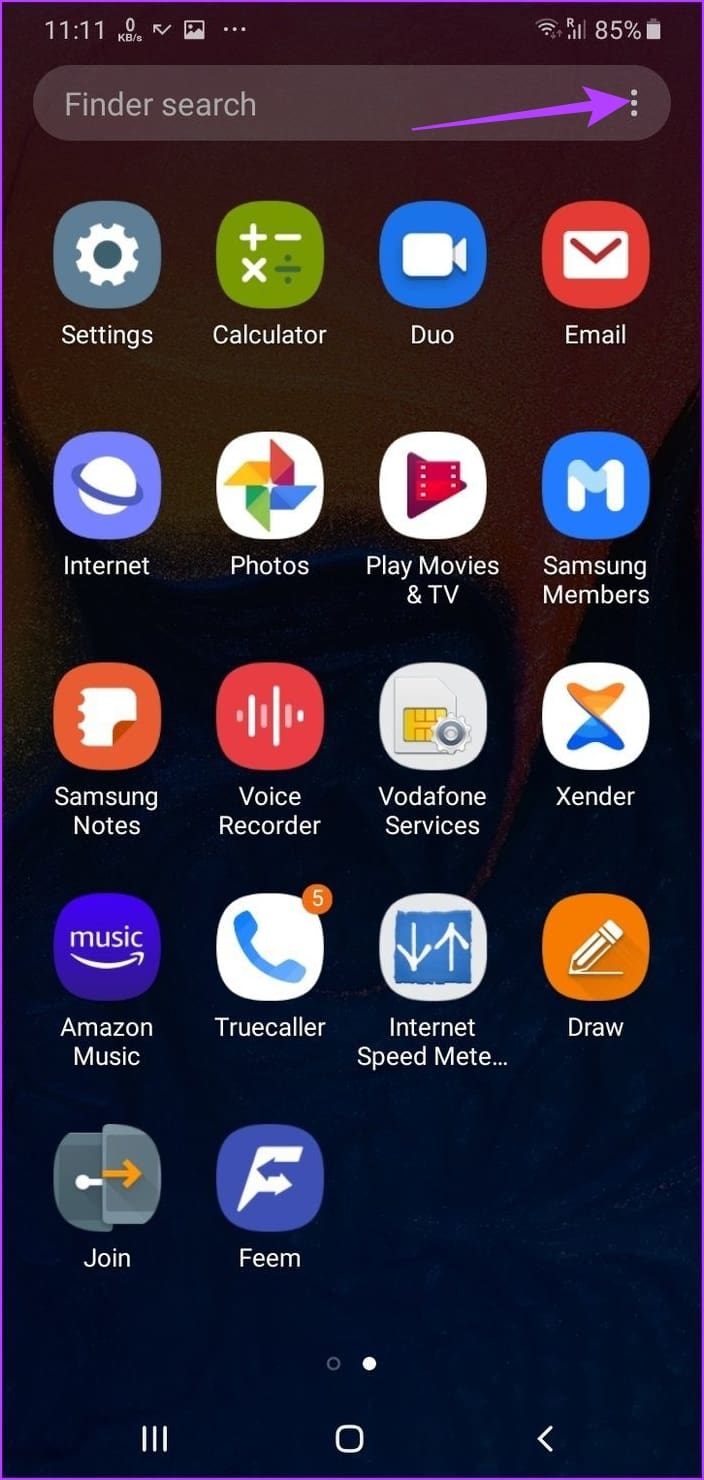
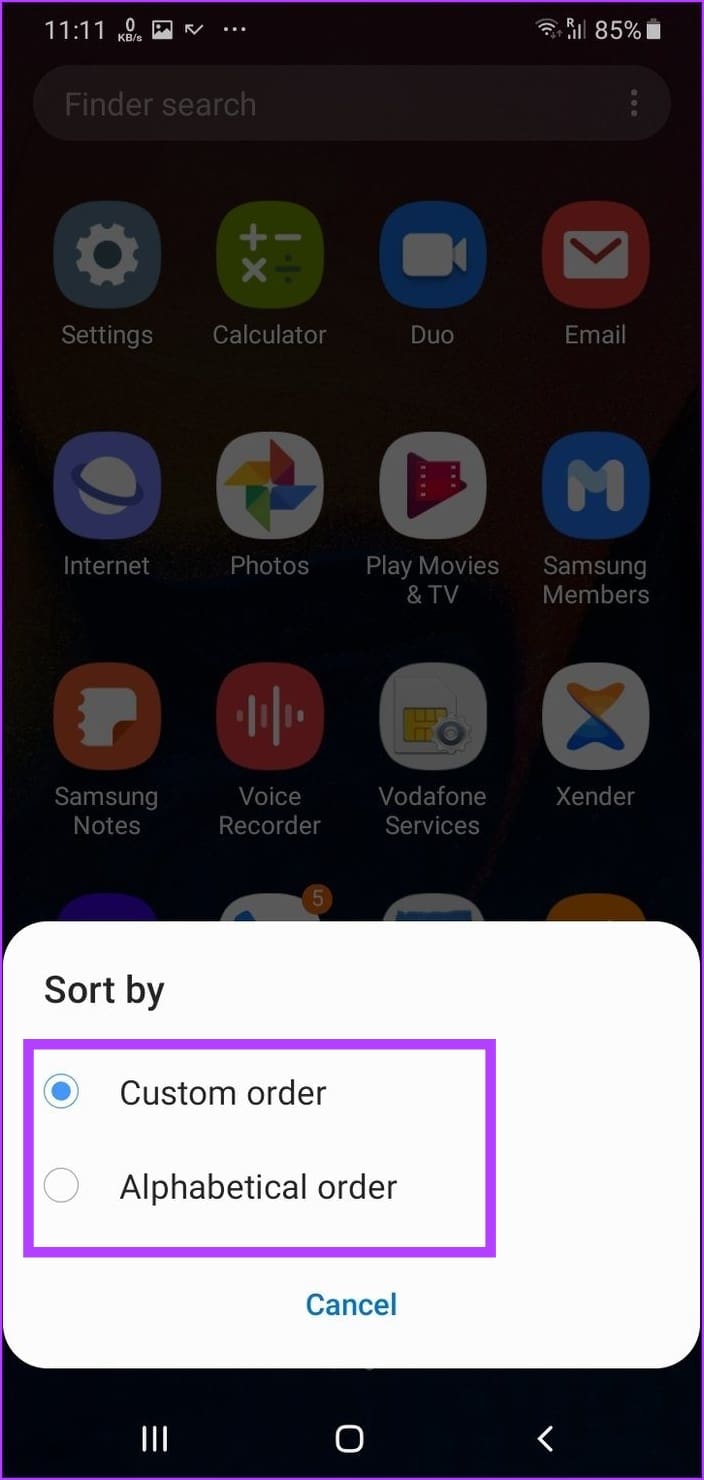
Some devices also allow you to sort apps in the app drawer. On a Samsung device, you can view apps in alphabetical order or sort them to see the most used apps first.
Tap on the three-dot icon at the top right corner of the app drawer and choose your sort mode.
Use the Scroll Bar to Quickly Scroll Through
Here’s another trick for quickly finding an app in the app drawer: Slide the scroll bar in the downward or upward direction to find apps by their first letter. I always use this to find an app on my mind.


As mentioned earlier, your device may not have many features built into its app drawer. You can always download a third-party app launcher from the Google Play Store, like Nova Launcher, Microsoft Launcher, or Niagara Launcher, to explore a wide range of features.
Was this helpful?
Last updated on 15 May, 2024
Read Next
 Top 3 Ways to Change App Drawer on Samsung Galaxy Phones
https://youtu.be/A_ni2sV14uM 1.
Top 3 Ways to Change App Drawer on Samsung Galaxy Phones
https://youtu.be/A_ni2sV14uM 1.
 Top 5 Ways to Install Android App Bundles on Android
Google is moving to adopt Android App Bundles (AAB) as a new file format and bidding farewell to the APK (Android Package) format.
Top 5 Ways to Install Android App Bundles on Android
Google is moving to adopt Android App Bundles (AAB) as a new file format and bidding farewell to the APK (Android Package) format.
 What’s the Difference Between Google Photos and Gallery App on Android
Google Photos vs.
What’s the Difference Between Google Photos and Gallery App on Android
Google Photos vs.
 How to Use Xiaomi ShareMe App to Transfer Files and Data on Android
How do you transfer files between two phones?
How to Use Xiaomi ShareMe App to Transfer Files and Data on Android
How do you transfer files between two phones?
 6 Ways to Fix Microsoft Teams App Not Working on Android
Basic Fixes Check internet connectivity: Ensure your device is connected to a Wi-Fi network or cellular data with good signal strength and an active plan.
6 Ways to Fix Microsoft Teams App Not Working on Android
Basic Fixes Check internet connectivity: Ensure your device is connected to a Wi-Fi network or cellular data with good signal strength and an active plan.
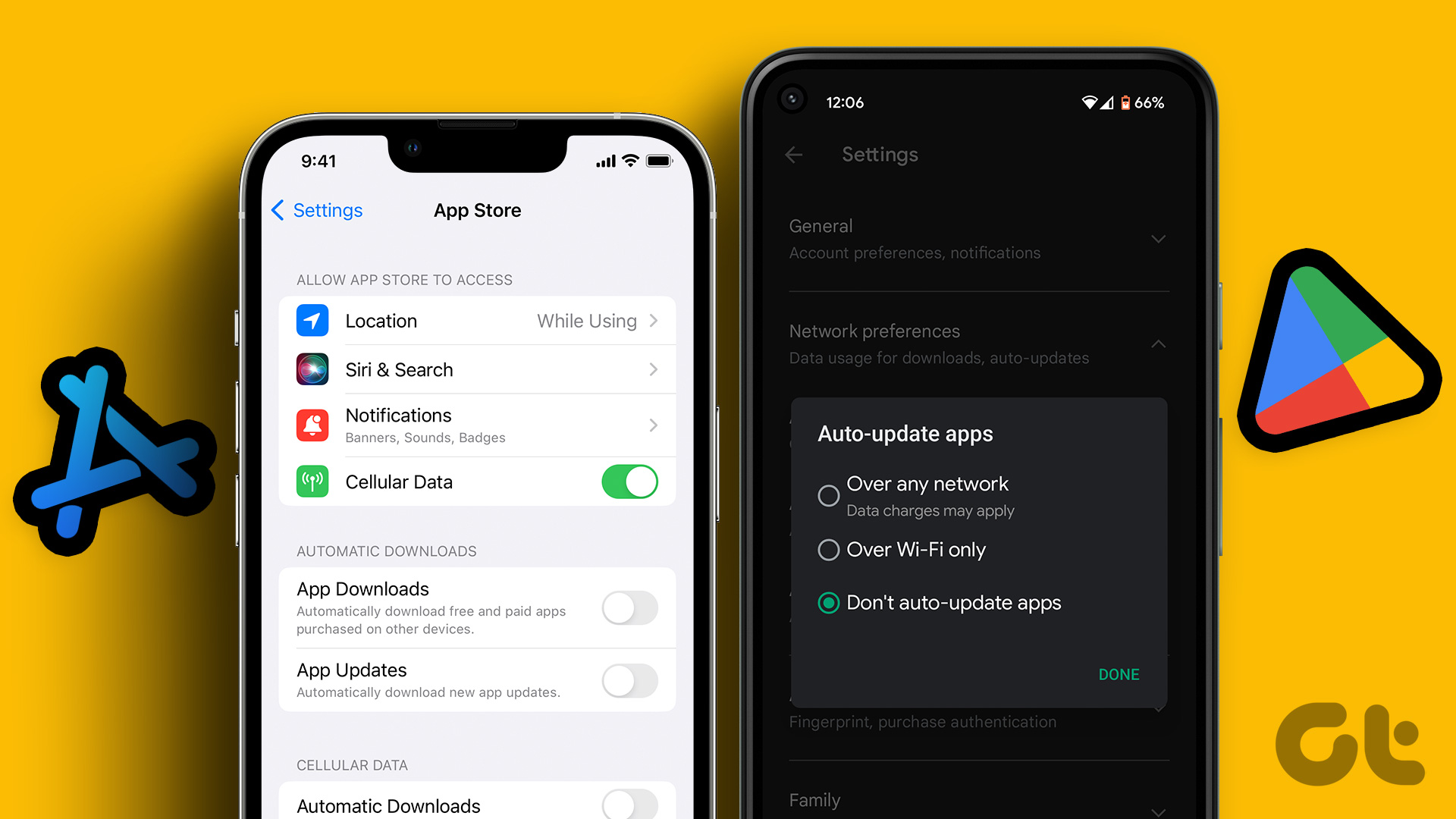 How to Disable Automatic App Updates on Android and iOS
Automatic app updates ensure that your favorite apps are always updated and bug-free.
How to Disable Automatic App Updates on Android and iOS
Automatic app updates ensure that your favorite apps are always updated and bug-free.
 5 Ways to Fix Google Fit App Not Tracking Steps on Android
Try Basic Fixes Disable or uninstall other step counter apps: If there are multiple health apps installed on your Android, Google Fit may fail to track your steps due to
5 Ways to Fix Google Fit App Not Tracking Steps on Android
Try Basic Fixes Disable or uninstall other step counter apps: If there are multiple health apps installed on your Android, Google Fit may fail to track your steps due to
 3 Ways to Check App Version on iPhone and Android
How to Find App Version on iPhone Method 1: From Settings Step 1: Open Settings on your iPhone.
3 Ways to Check App Version on iPhone and Android
How to Find App Version on iPhone Method 1: From Settings Step 1: Open Settings on your iPhone.
The article above may contain affiliate links which help support Guiding Tech. The content remains unbiased and authentic and will never affect our editorial integrity.