


Basic Fixes:
- Free up Mailbox Storage: If your mailbox storage is full, you will not receive new emails, and deleting or creating extra storage is the only option.
- Check Gmail servers: Gmail servers may face an outage. You can visit Downdetector on the web and search for Gmail. If you notice high outage graphs, it confirms that Gmail is experiencing downtime, and you should wait for Google to fix the issue.
- Update Outlook: You should also update Outlook by clicking File, Office Account, expanding Update Options, and clicking Update Now.
Fix 1: Remove Gmail From Blocked Senders
Gmail may have accidentally been included in the blocked senders list. If this is the case, it must be removed. Follow the steps below.
Step 1: Launch the Outlook app.
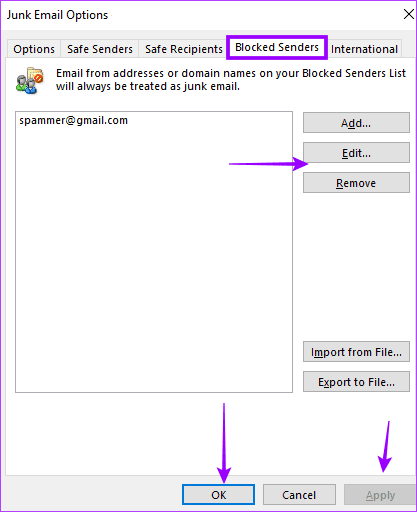
Step 2: Click the Home menu > Block Sender icon > Junk E-mail Options.

Step 3: Navigate to the Blocked Senders tab. If Gmail is on the list, click on it > click Remove > hit Apply and OK.
Fix 2: Repair Gmail Account in Outlook
Outlook offers an option to repair added accounts in the app. If the Gmail email provider misbehaves on Outlook, you can repair the account and try again. Follow the steps below.
Step 1: Open the Outlook app on Windows.
Step 2: Go to the File menu at the top.

Step 3: From the Info menu, expand Account Settings.

Step 4: Click on Account Settings and find email accounts. Click on Gmail > select Repair at the top.

Let Outlook repair the Gmail account. Check if you receive new emails from Gmail.
Fix 3: Manage or Update Rules for Gmail in Outlook
If you have created rules to move emails from certain email addresses to spam boxes, check the rules menu again and delete unnecessary rules.
Step 1: Open Outlook on Windows and click File at the top.

Step 2: From the Info tab, select Manage Rules & Alerts.

Step 3: Select Gmail email provider from the drop-down menu and check the rules. You can click on a rule and select Delete at the top to remove it.

Fix 4: Remove and Add the Gmail Account
This trick worked wonders for us, and we got Gmail up and running with Outlook on Windows. You must remove the existing Gmail account from Outlook and add it again.
Step 1: Launch Outlook on Windows and find the Gmail account from the left sidebar.
Step 2: Right-click on Gmail ID and select Remove from the context menu.

Step 3: Confirm your action. Now, Outlook will remove Gmail from the app.
Step 4: Go to the File tab > select Add Account from the Info menu.
Step 5: Add Google ID and password, and integrate Gmail with Outlook again.
Was this helpful?
Last updated on 28 May, 2024
1 Comment
Leave a Reply
Read Next
 3 Fixes for Gmail Not Receiving Emails on iPhone
Basic Fixes Check Spam: Sometimes even the most important and legitimate emails land up in the Spam folder.
3 Fixes for Gmail Not Receiving Emails on iPhone
Basic Fixes Check Spam: Sometimes even the most important and legitimate emails land up in the Spam folder.
 2 Ways to Fix Outlook Receiving Late Emails on Windows 11
Basic Fixes: Check the Internet connection and Outlook server status: If you work with a sketchy Internet connection on your laptop, you may face delays in receiving emails on Outlook.
2 Ways to Fix Outlook Receiving Late Emails on Windows 11
Basic Fixes: Check the Internet connection and Outlook server status: If you work with a sketchy Internet connection on your laptop, you may face delays in receiving emails on Outlook.
 5 Ways to Fix Gmail Receiving Late Emails on Phone
Common Fixes Check your network connection: Ensure your phone has a good internet connection to avoid delays in receiving new emails on Gmail.
5 Ways to Fix Gmail Receiving Late Emails on Phone
Common Fixes Check your network connection: Ensure your phone has a good internet connection to avoid delays in receiving new emails on Gmail.
 4 Fixes for Outlook Web Not Receiving Emails
Basic Fixes Check outlook server status: Visit DownDetector and check whether Outlook servers are responding in your region.
4 Fixes for Outlook Web Not Receiving Emails
Basic Fixes Check outlook server status: Visit DownDetector and check whether Outlook servers are responding in your region.
 5 Ways to Fix Outlook Not Receiving Emails on iPhone
Common Fixes Enable and disable the Airplane Mode: Open the Settings app, toggle on the Airplane Mode, and turn it off after a few seconds.
5 Ways to Fix Outlook Not Receiving Emails on iPhone
Common Fixes Enable and disable the Airplane Mode: Open the Settings app, toggle on the Airplane Mode, and turn it off after a few seconds.
 3 Fixes for Microsoft Outlook Not Receiving Emails on Android
Basic Fixes Check other inboxes: If you have multiple email accounts in the Outlook app, you might have opened the wrong one in the app.
3 Fixes for Microsoft Outlook Not Receiving Emails on Android
Basic Fixes Check other inboxes: If you have multiple email accounts in the Outlook app, you might have opened the wrong one in the app.
 How to Fix Outlook for Mac Not Receiving Emails Automatically
Basic Fixes Check email storage: If your email inbox storage is full, you won’t receive new messages in any app or on the web Switch between new and classic Outlook
How to Fix Outlook for Mac Not Receiving Emails Automatically
Basic Fixes Check email storage: If your email inbox storage is full, you won’t receive new messages in any app or on the web Switch between new and classic Outlook
 How to Print Emails to PDF in Outlook and Gmail for iOS
Print Emails to PDF in Outlook for iOS Step 1: Open the email you want to convert.
How to Print Emails to PDF in Outlook and Gmail for iOS
Print Emails to PDF in Outlook for iOS Step 1: Open the email you want to convert.
The article above may contain affiliate links which help support Guiding Tech. The content remains unbiased and authentic and will never affect our editorial integrity.


I tried all of the suggestions shown.
I was unable to remove the email address as described in step 3.
Right clicking the email address shows a greyed out (unusable) remove the email account.