


Fix 1: Outlook Windows App
There are two ways to open images in the Outlook Windows app. First, you can individually download images for an email or make a tweak from Outlook settings to download images for all emails automatically.
1. Download Images for a Specific Email
Step 1: Open an email from which you want to see images.
Step 2: Find the click here to download pictures option. Click on it, and Outlook will download pictures for that specific email.

2. Make Changes to Outlook Settings
Step 1: Open Outlook on Windows.
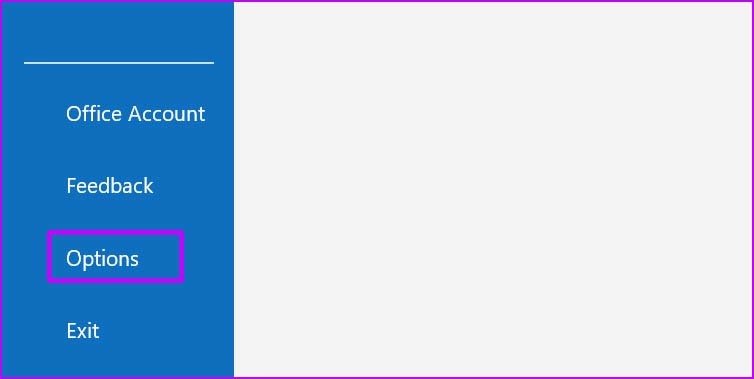
Step 2: Click on File at the top and go to Options.
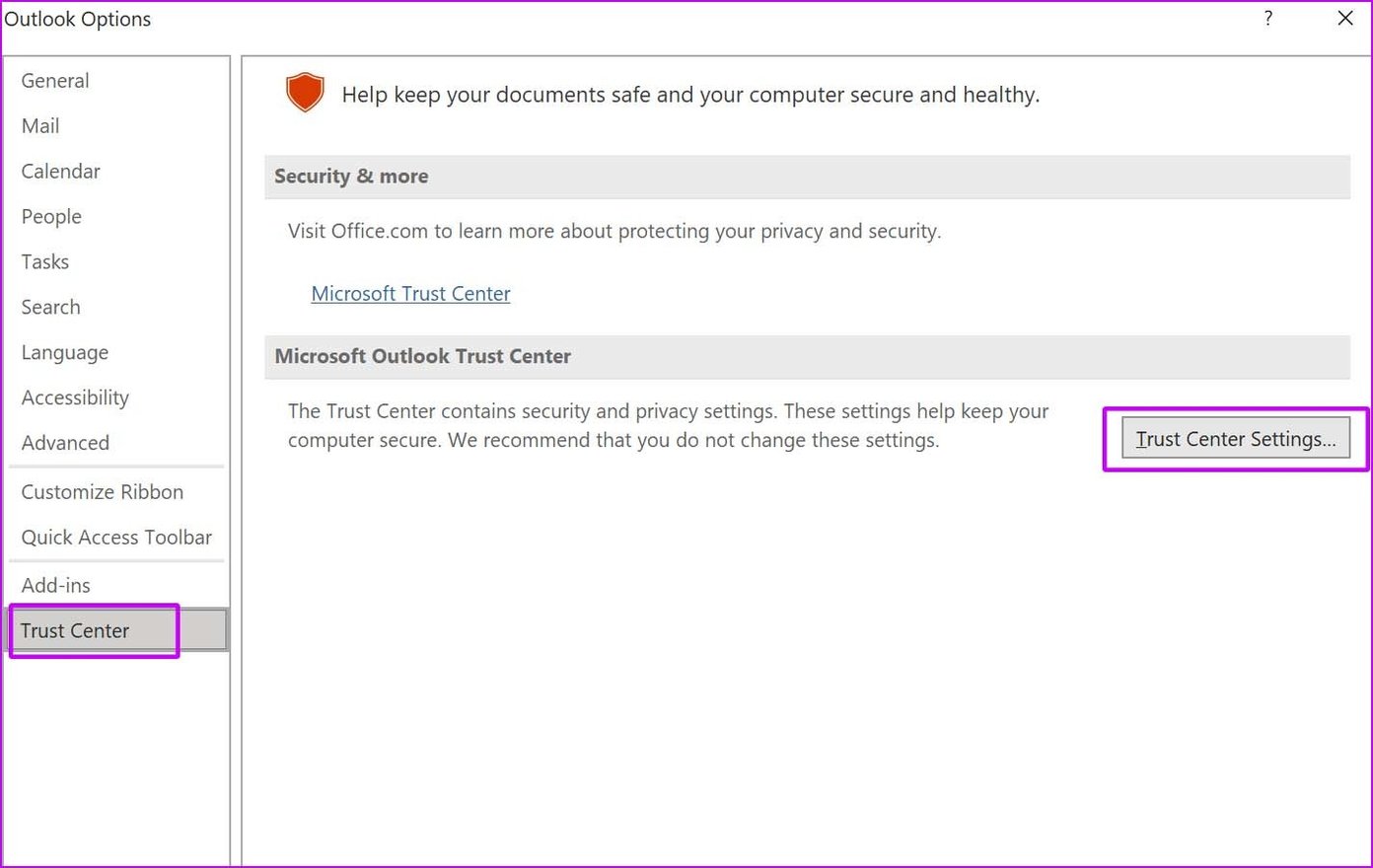
Step 3: Select Trust Center Settings.
Step 4: Select Automatic Download from the left sidebar.
Step 5: Uncheck Don’t download pictures automatically in standard HTML email messages or RSS items.

Step 6: You can also uncheck Don’t download pictures in encrypted or signed HTML email messages.
Hit OK at the bottom, and Outlook will start downloading and displaying images. Once you start seeing images in the Outlook app, right-click on an image you want to download and select Save as Picture.
You will see Outlook taking a long time to load an email as the app will first download images to show the live preview on the right side.
Fix 2: Outlook App for Mac
The Outlook app for Mac offers the option to download images from the internet or block them automatically. You can tweak the settings from the Preferences menu.
Step 1: Open Outlook on Mac.
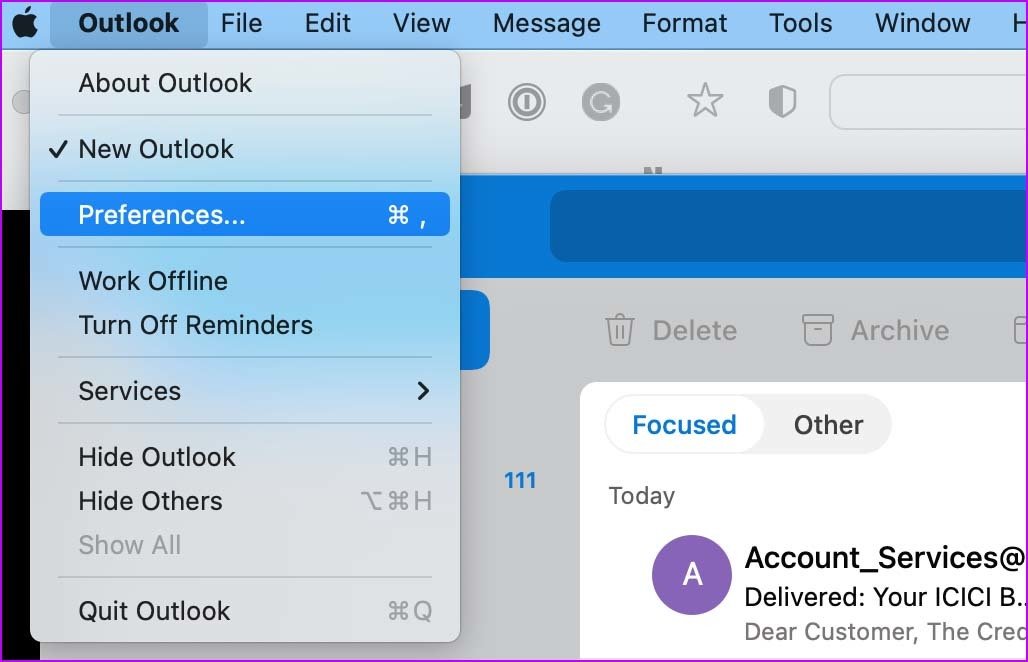
Step 2: Click on Outlook in the menu bar.
Step 3: Go to Preferences.
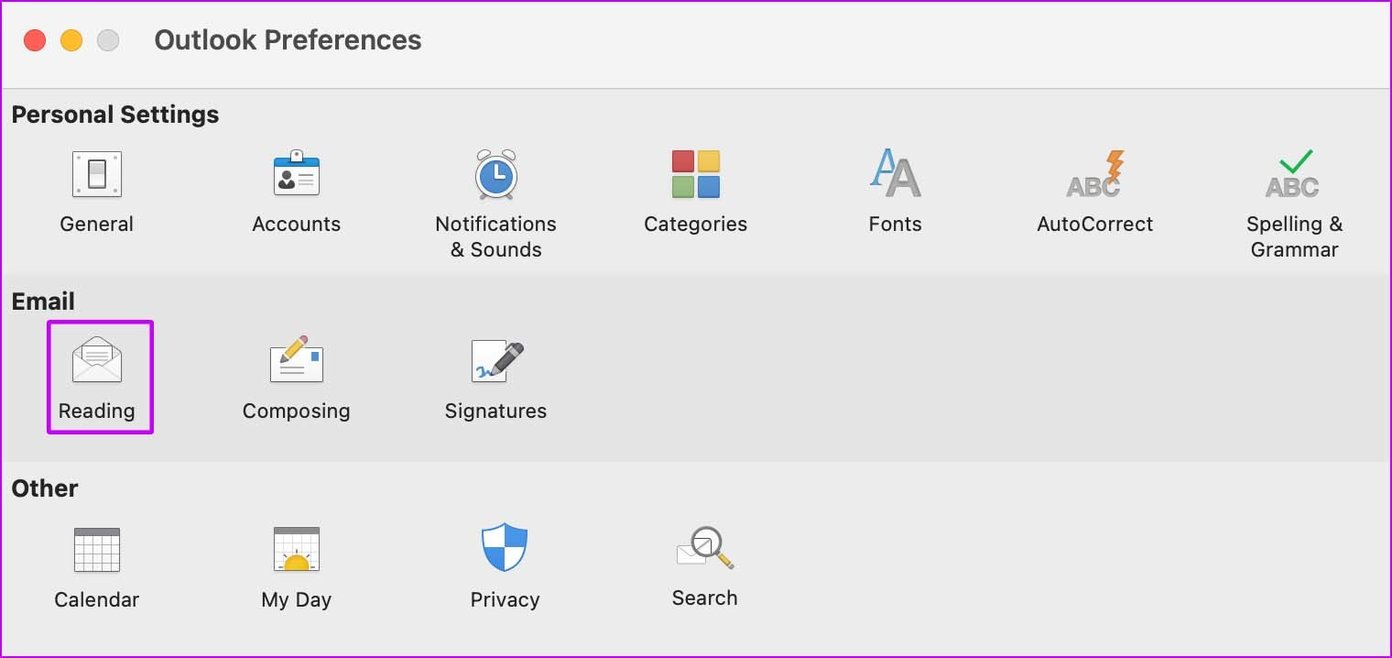
Step 4: Select Reading from the Email menu.
Step 5: Scroll down to Automatically download pictures from the internet menu.
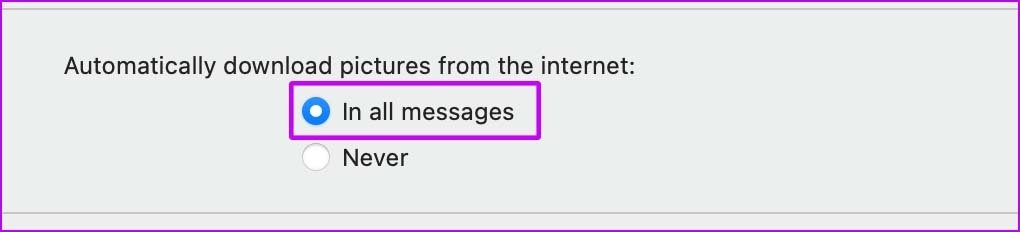
Step 6: Select the In all messages option and close the menu.
Outlook will download and display an image preview from the right side.
Fix 3: Outlook Web
If you face images not opening issues on Outlook web, there is an option to show attachments in the message list. Here’s how to use it.
Step 1: Visit Outlook on the web and sign in using your Microsoft account details.
Step 2: Click on Setting gear icon at the top and open Outlook Settings.
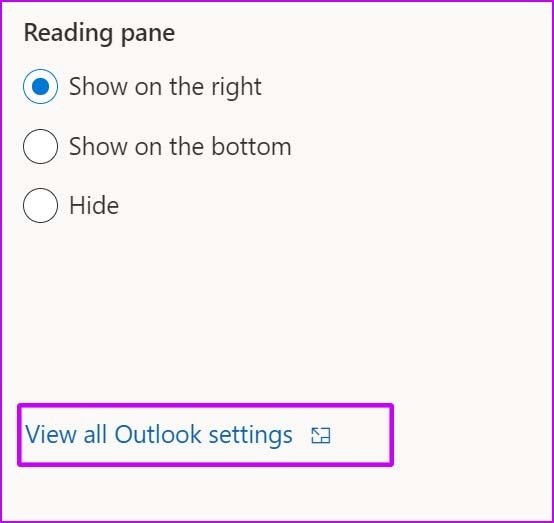
Step 3: Select Mail and open Layout settings.
Step 4: Scroll down and select the Show attachments in message list option under the Inline previews menu.
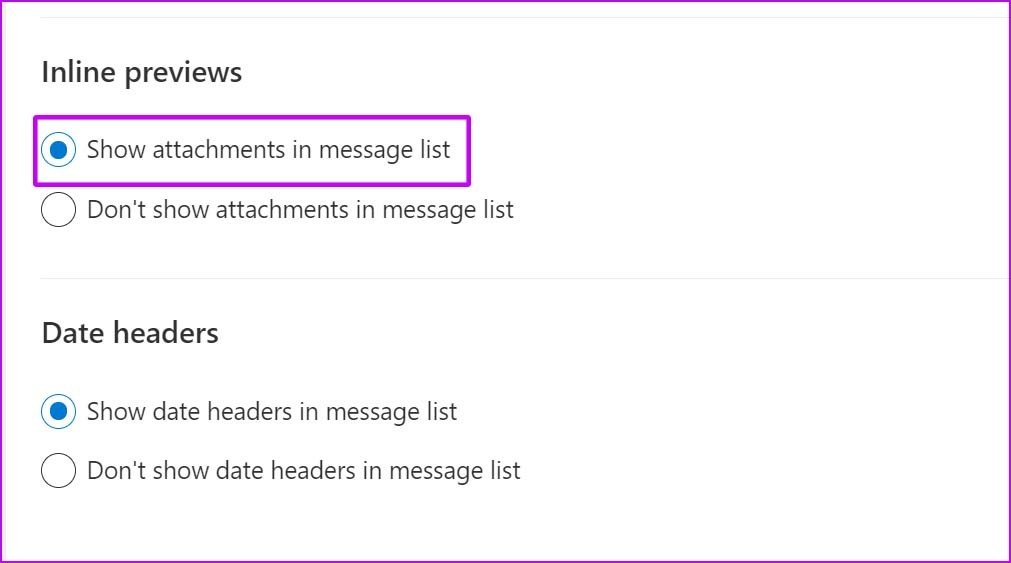
Close the menu, and Outlook will no longer block images in the app.
Fix 4: Try Forwarding an Email
This trick has worked for many to restore Outlook images in the app. Try forwarding an email, and Outlook will display missing images in the forwarded email.
Sometimes, we miss such basic tricks to fix normal issues on the computer. Ensure you have a working internet connection and apply the steps above to start opening images in Outlook.
Was this helpful?
Last updated on 28 July, 2024
1 Comment
Leave a Reply
Read Next
 5 Ways to Fix Outlook Not Opening on Windows 11
Try Basic Fixes End Outlook processes using Task Manager: At times, Microsoft Outlook may fail to load its interface due to temporary glitches.
5 Ways to Fix Outlook Not Opening on Windows 11
Try Basic Fixes End Outlook processes using Task Manager: At times, Microsoft Outlook may fail to load its interface due to temporary glitches.
 Top 4 Ways to Change New Outlook Back to Old (Classic View) Outlook on Windows and Mac
The new Outlook app for desktop boasts a modern and simplified design, aligning it more closely with the web version of Microsoft Outlook.
Top 4 Ways to Change New Outlook Back to Old (Classic View) Outlook on Windows and Mac
The new Outlook app for desktop boasts a modern and simplified design, aligning it more closely with the web version of Microsoft Outlook.
 Top 5 Ways to Fix Microsoft Teams Not Displaying Images on Windows
Preliminary Fixes Check the Internet Connection: A stable internet connection is crucial for Microsoft Teams to properly load images and other media content.
Top 5 Ways to Fix Microsoft Teams Not Displaying Images on Windows
Preliminary Fixes Check the Internet Connection: A stable internet connection is crucial for Microsoft Teams to properly load images and other media content.
 Top 8 Ways to Fix File Explorer Not Opening on Windows 10
File Explorer is an integral part of Windows 10 OS.
Top 8 Ways to Fix File Explorer Not Opening on Windows 10
File Explorer is an integral part of Windows 10 OS.
 Top 9 Ways to Fix Microsoft Store Not Opening on Windows 10
Microsoft plans to revamp its Store on Windows from scratch sometime in the future.
Top 9 Ways to Fix Microsoft Store Not Opening on Windows 10
Microsoft plans to revamp its Store on Windows from scratch sometime in the future.
 2 Ways to Fix Discord Not Opening on Windows 10 and Windows 11
Try Basic Fixes End Discord processes: Press Ctrl + Shift + Esc to launch the Task Manager.
2 Ways to Fix Discord Not Opening on Windows 10 and Windows 11
Try Basic Fixes End Discord processes: Press Ctrl + Shift + Esc to launch the Task Manager.
 Top 10 Ways to Fix Microsoft Edge Not Opening on Windows
Microsoft Edge has been nothing short of outstanding since the switchover from EdgeHTML to Chromium.
Top 10 Ways to Fix Microsoft Edge Not Opening on Windows
Microsoft Edge has been nothing short of outstanding since the switchover from EdgeHTML to Chromium.
 Top 6 Ways to Fix Games Not Opening in Full Screen on Windows 11
Fix 1: Use the Keyboard Shortcut Sometimes, the games may open in windowed mode by default, and you might have hit the Maximize window shortcut on your computer.
Top 6 Ways to Fix Games Not Opening in Full Screen on Windows 11
Fix 1: Use the Keyboard Shortcut Sometimes, the games may open in windowed mode by default, and you might have hit the Maximize window shortcut on your computer.
The article above may contain affiliate links which help support Guiding Tech. The content remains unbiased and authentic and will never affect our editorial integrity.


This has just start with me (April 2024) I have made sure the boxes you say are unchecked and they were but I still get the problem of the red X
Any ideas or pointers would be gratefully received
Thanks