Are you serious about your PC gaming? Well, so is Windows 11, and ready to help you take your experience to the next level: your full-screen experience. In this article, we’ll be looking at Windows 11 Xbox Fullscreen and how best to utilize it.
What Is the Fullscreen Experience?
Xbox and its parent company, Microsoft, have always been tied together. Windows 11 now brings handheld gaming functionality to the PC with Xbox Full Screen. This special screen overlay enables smoother navigation for those using controllers and gives the console experience to PC gamers, with the easy ability to switch right back to your Desktop.
That said, the experience is not yet widely available, and if you’re looking to get in on this early experience, you’ll need to join the Xbox Insider Hub and the Windows Insider Preview Build 26220.7271.
How to Use the Windows 11 Xbox Fullscreen
If you’re eager to experience Xbox Fullscreen on Windows 11, then there are a few things you need to do:
Become a Windows Insider
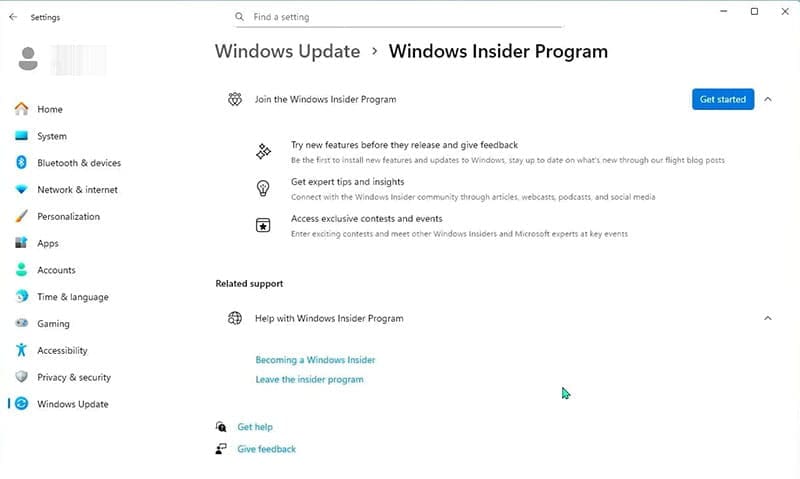
If you’re already signed in with your Microsoft Account, you can sign up to be a member of the Windows Insider Program for free and be first in line to test new features like this one. Joining the Beta Channel, or any of the more advanced ones (Dev and Canary), will have you sorted for the Xbox experience.
For joining, go to Settings and choose “Windows Update” from the sidebar. Choose your channel, and you’re good to go. Install any updates that come your way, which could take a while.
Use the Xbox Insider Hub
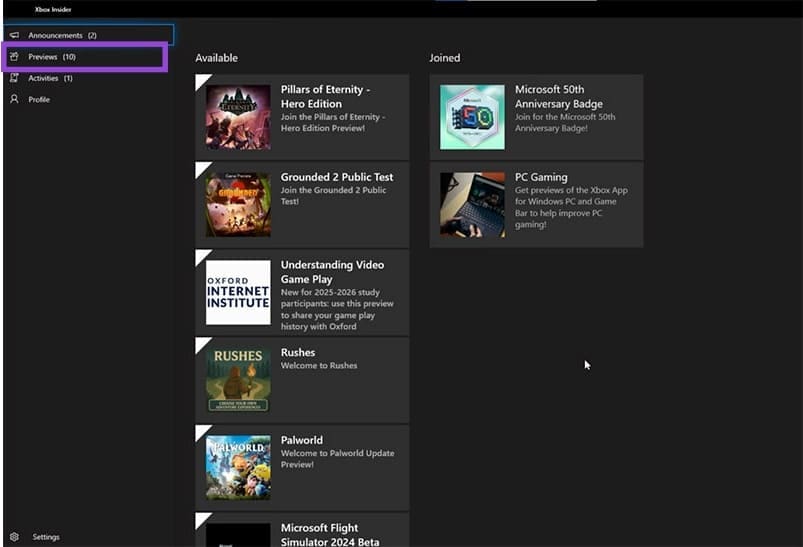
Your next step, if you haven’t done so already, is to download and install the Xbox Insider Hub from the Microsoft Store and sign in to your Microsoft Account. Open the app and do the following:
Step 1. Click “Previews” in the sidebar.
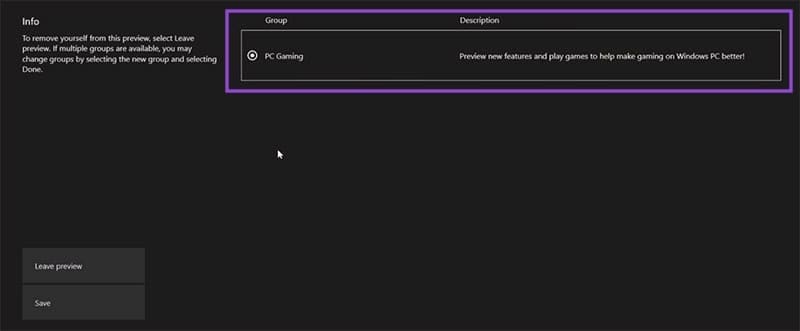
Step 2. Click “PC Gaming” and then opt into the previews. Click “Save” to exit.
Activate Your Fullscreen Gaming Experience
So, with that all out the way, you’re ready to start using the Xbox Full Screen experience. Here’s what you need to do:
Step 1. Open Settings (Win + I) and choose “Gaming” from the sidebar.
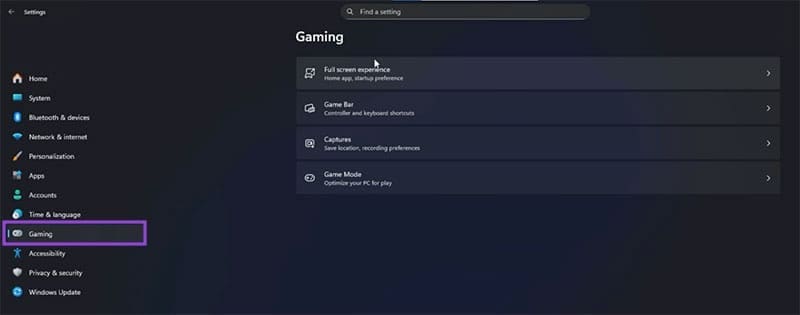
Step 2. Click “Full screen experience” in the main window.
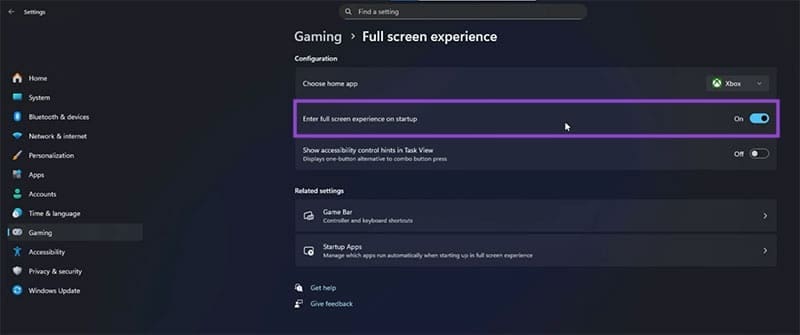
Step 3. This isn’t compulsory, but if you’re keen, you can enable the full screen from startup by dragging the “Enter full screen experience in startup” slider to “On.” You’ll be launched straight into the action on startup.
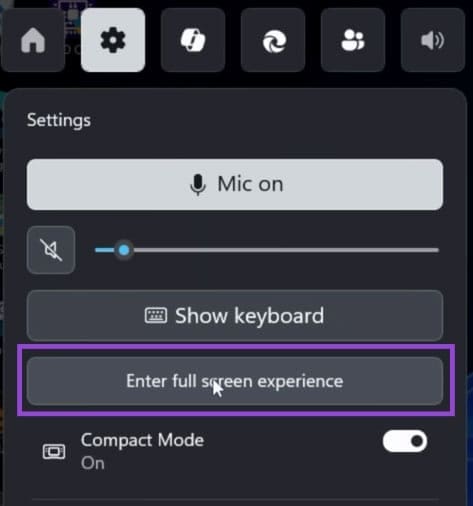
Step 4. You can enter the Full Screen Experience by pressing (Win + G) to open the Game Bar and selecting “Enter full screen experience” or by pressing (Win + F11) to toggle between screens.
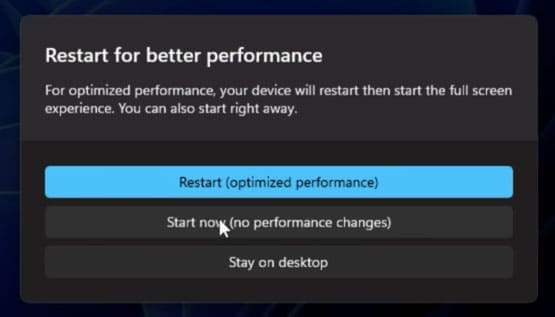
Step 5. A message will pop up recommending you to restart your machine to enter Windows 11 in full-screen mode and to free up RAM by closing desktop apps. The choice is yours, but restarting is better for performance.
Step 6. Press the Xbox Button on your controller to cycle between windows.

Step 7. From the main game screen, you can open games from Steam, other clients, and your PC easily. You can run multiple games, clients, and tabs at once, though keep in mind, this might eat up your RAM and processor resources.
Was this helpful?
Last updated on 13 December, 2025
Read Next
 How to Fix Discord Stuck in Fullscreen Mode on Windows 11
Basic Fixes Minimize the full-screen mode via interaction keys: Click the Minimize or Fullscreen buttons at the top right of the Discord app window to disable its full-screen mode.
How to Fix Discord Stuck in Fullscreen Mode on Windows 11
Basic Fixes Minimize the full-screen mode via interaction keys: Click the Minimize or Fullscreen buttons at the top right of the Discord app window to disable its full-screen mode.
 3 Fixes if GeForce Experience Not Recording Game Audio in Windows 11
Common Fixes Close and restart GeForce Experience - Click the Arrow button in the system tray notifications area and right-click the NVIDIA icon to select Exit.
3 Fixes if GeForce Experience Not Recording Game Audio in Windows 11
Common Fixes Close and restart GeForce Experience - Click the Arrow button in the system tray notifications area and right-click the NVIDIA icon to select Exit.
 How to Download and Install NVIDIA Drivers Without GeForce Experience
Prerequisite 1: Check Which NVIDIA GPU You Have First, you need to check which NVIDIA graphics card you have installed on your system.
How to Download and Install NVIDIA Drivers Without GeForce Experience
Prerequisite 1: Check Which NVIDIA GPU You Have First, you need to check which NVIDIA graphics card you have installed on your system.
 6 Ways to Fix Xbox App Not Opening in Windows 11
Fix 1.
6 Ways to Fix Xbox App Not Opening in Windows 11
Fix 1.
 5 Ways to Fix Xbox Game Bar Not Working on Windows 11
Fix 1: Enable Xbox Game Bar in Windows Settings If you can't launch the Xbox Game Bar from your connected game controller on Windows 11, head to Windows Settings to
5 Ways to Fix Xbox Game Bar Not Working on Windows 11
Fix 1: Enable Xbox Game Bar in Windows Settings If you can't launch the Xbox Game Bar from your connected game controller on Windows 11, head to Windows Settings to
 How to Increase Downloading Speed in Xbox App for Windows 11
Try These Things First Restart the Xbox app: At times, the Xbox app might misbehave and cause issues like slow downloading speed due to a temporary glitch or bug.
How to Increase Downloading Speed in Xbox App for Windows 11
Try These Things First Restart the Xbox app: At times, the Xbox app might misbehave and cause issues like slow downloading speed due to a temporary glitch or bug.
 3 Ways to Disable Xbox Game Bar on Windows 11
Method 1: Using PowerShell Step 1: Press the Windows key, type PowerShell, and click Run as Administrator.
3 Ways to Disable Xbox Game Bar on Windows 11
Method 1: Using PowerShell Step 1: Press the Windows key, type PowerShell, and click Run as Administrator.
 5 Ways to Fix Xbox App Won’t Let Me Log in on Windows 11
Fix 1: Ensure Xbox Services Are Running The Xbox app for Windows relies on certain background services to work on your computer.
5 Ways to Fix Xbox App Won’t Let Me Log in on Windows 11
Fix 1: Ensure Xbox Services Are Running The Xbox app for Windows relies on certain background services to work on your computer.
The article above may contain affiliate links which help support Guiding Tech. The content remains unbiased and authentic and will never affect our editorial integrity.