Note: You can only play and download music for offline listening on Apple Watch if you’re a Spotify Premium user. The free version only supports music playback control on the Apple Watch.
How to Download Spotify on Apple Watch
Note that you can only use Spotify on your Apple Watch if installed on your iPhone. Further, you can only use Spotify on Apple Watch with the same account logged in on the iPhone.
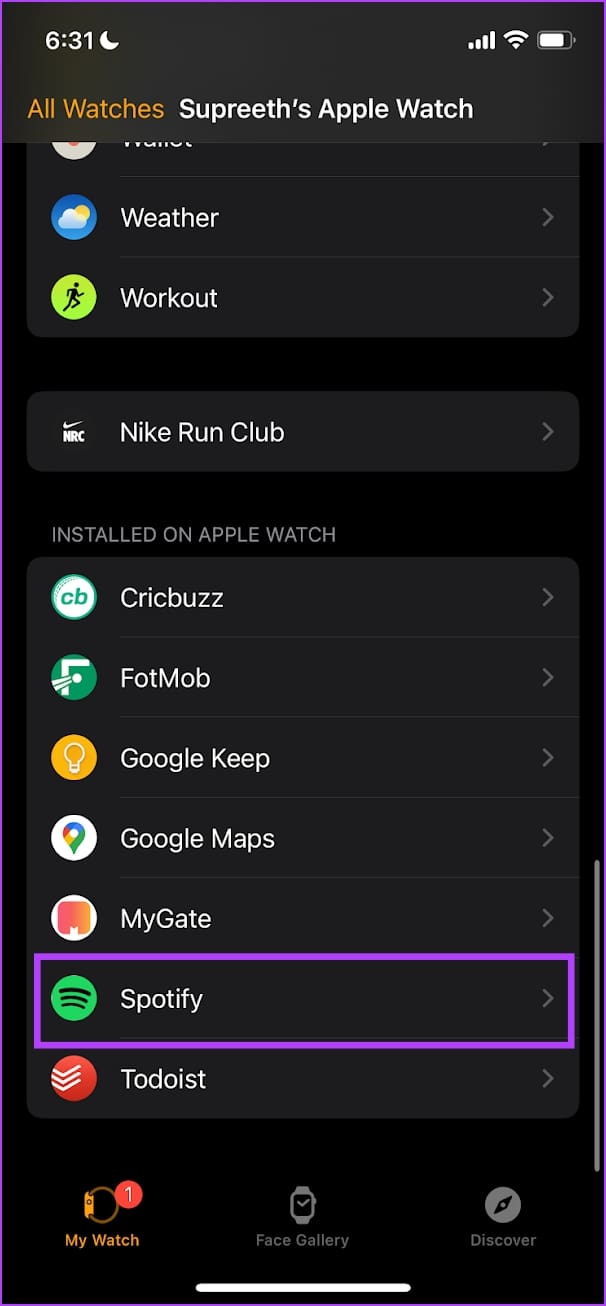
Step 1: Open the Watch app on your iPhone. Scroll down to Available Apps and install Spotify.
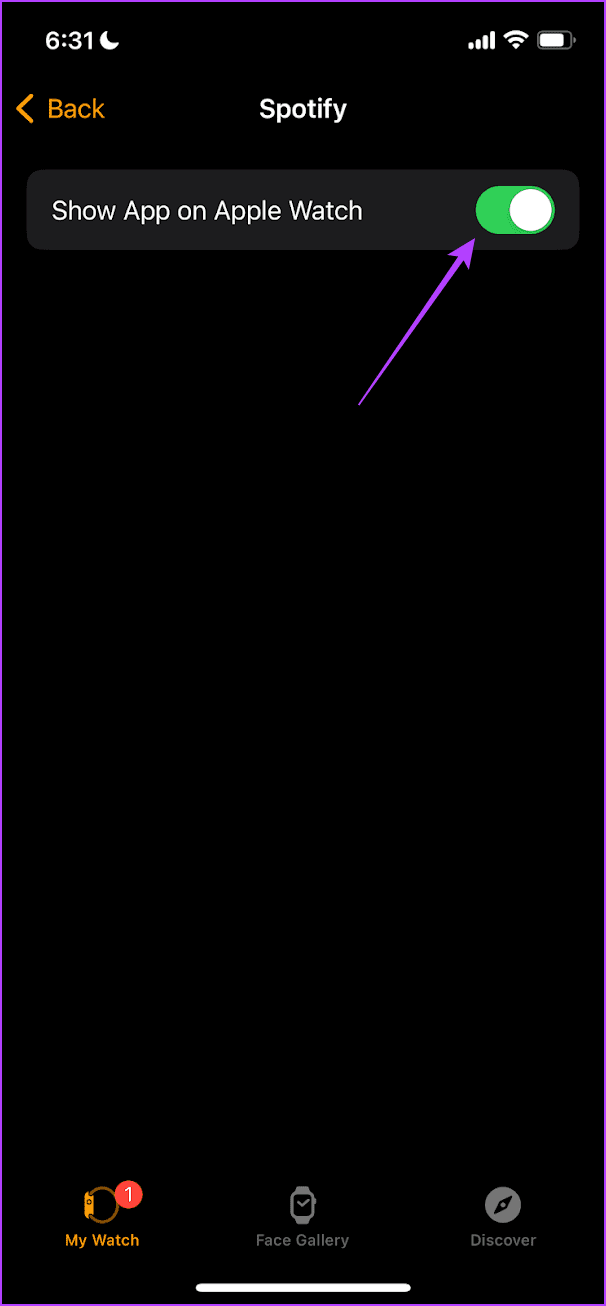
Step 2: Open the Watch app, Select Spotify in the installed apps section, and turn on Show app on Apple Watch.

Play Spotify on Apple Watch Without iPhone
Once you install the Spotify app on your Apple Watch, you can directly play music without using your iPhone. However, you must be aware that the Apple Watch has no speakers for audio output. So, you can play music by connecting a pair of Bluetooth headphones.
Step 1: Press Digital Crown to open the App Library on your Apple Watch. Open the Spotify app.

Step 2: Ensure you have connected your Bluetooth earphones and your Apple Watch is connected to your iPhone.
Step 3: Swipe left on the now playing tab to access your library, or swipe right to access your homepage. Select a song to play.
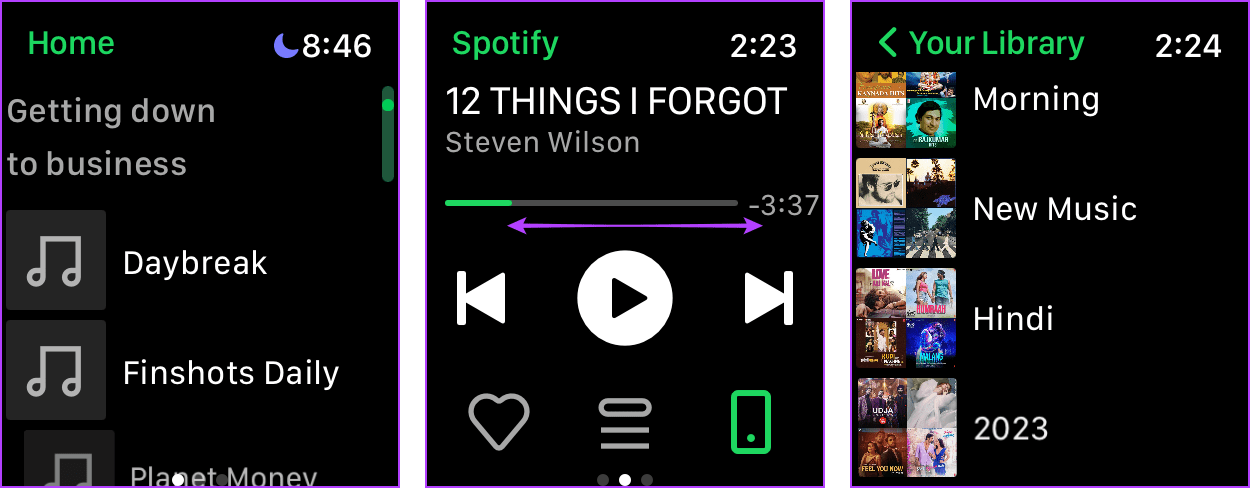
Step 4: To ensure audio output via the connected earphones on your watch, tap on the device icon and select Apple Watch.


Download Spotify Songs and Playlists Offline on Apple Watch
The best part about Spotify on Apple Watch is that you can download and listen to music offline without connecting to the internet and your iPhone.
Step 1: Press the Digital Crown once to open the App Library on your Apple Watch. Open the Spotify app.
Step 2: Swipe right or left to access your homepage or library, respectively.
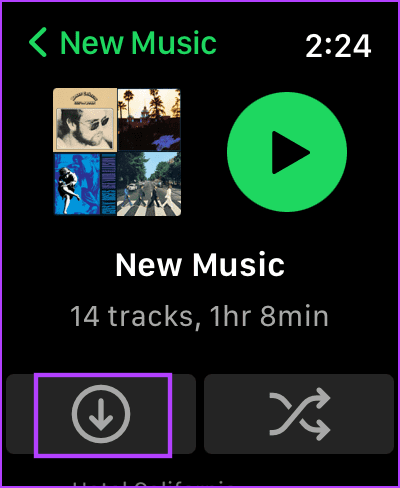
Step 3: Choose the album or the playlist you want to download. Tap on the download icon.

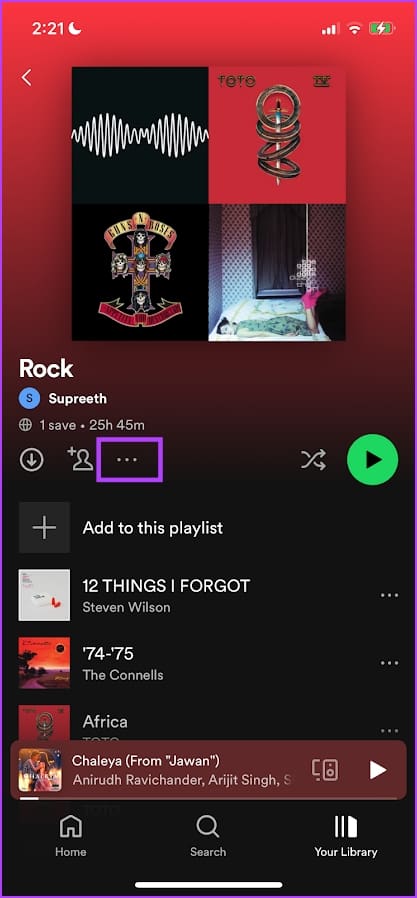
Alternatively, you can download an album or playlist to your Apple Watch from the Spotify app on your iPhone.
Open the album or playlist and tap on the three dots icon. Tap on the Download to Apple Watch option.
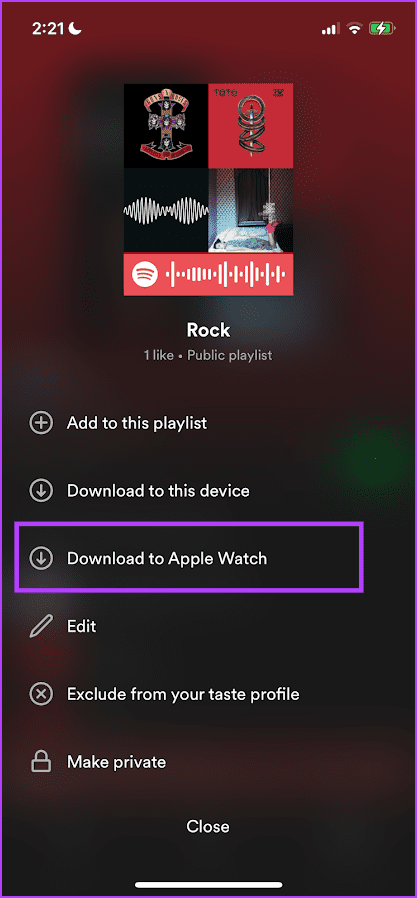
However, the download quality will follow the option you’ve selected in the Spotify settings menu on your iPhone. You can change the download quality on the Spotify app on your iPhone, and the changes will reflect on your Apple Watch.
Access Downloaded Spotify Music on Apple Watch
Once you download music on Spotify on your Apple Watch, here’s how to access it.
Step 1: Press the Digital Crown to open the App Library on your Apple Watch.
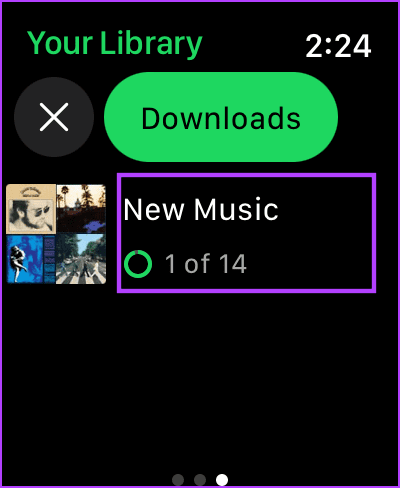
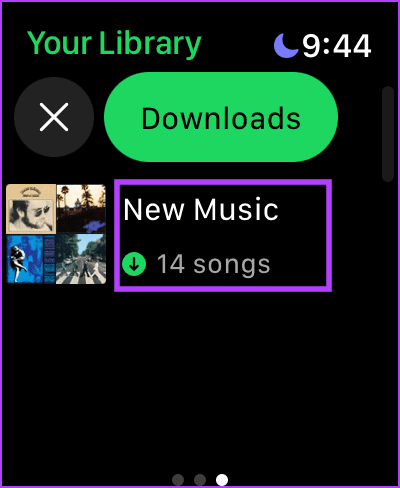
Step 2: Open the Spotify app > swipe left to access your library. Tap on Downloads.
You will find all your downloaded music on Spotify on your Apple Watch.


Remove Spotify Downloads From Apple Watch
If you run out of storage, you can delete your downloads using your Apple Watch or iPhone. Let’s go through the steps.
Using Apple Watch
Step 1: Press the Digital Crown to open the App Library on your Apple Watch.
Step 2: Open the Spotify app. Swipe left to access your library and tap on Downloads.
Step 3: Tap on the album or playlist you want to delete.
Step 4: Tap on the download icon to remove the downloaded playlist or album.

Using iPhone
Step 1: Open the Spotify app and select the playlist or album you want to delete from your library.
Step 2: Tap on the three dots icon > Remove from Apple Watch.


Also Read: How to fix Spotify not working on Apple Watch.
Bonus: Control Playback on Spotify on Apple Watch Using Siri
You may find it cumbersome to access the playback controls on the Spotify app on your Apple Watch. Siri works great with your Apple Watch while using Spotify, and here’s everything you need to know.
You can ask Siri to do the following while playing music on Spotify on your Apple Watch:
- Play content – Ask Siri to play songs, artists, albums, playlists, podcasts.
- Change the volume levels.
- Skip tracks and move to the next track in the queue.
- Play or pause music.
All you need to do is to say ‘Hey Siri’ followed by the command.

Also Read: Apps to make your Apple Watch do more than just fitness tracking.
Was this helpful?
Last updated on 04 September, 2024
Read Next
 How to Close Apps on Apple Watch (Without Side Button)
How to Close Open Apps The watchOS 10 update removed the side button for launching recent applications, and many users are struggling to find a way out.
How to Close Apps on Apple Watch (Without Side Button)
How to Close Open Apps The watchOS 10 update removed the side button for launching recent applications, and many users are struggling to find a way out.
 How to Change Apple Watch Face from iPhone or Watch
Traditional watches had the problem that you couldn't change their clock face.
How to Change Apple Watch Face from iPhone or Watch
Traditional watches had the problem that you couldn't change their clock face.
 3 Ways to Fix Spotify Not Working on Apple Watch
Basic Fixes Ensure Apple Watch is connected: Make sure your Apple Watch is connected to your iPhone with an active internet connection.
3 Ways to Fix Spotify Not Working on Apple Watch
Basic Fixes Ensure Apple Watch is connected: Make sure your Apple Watch is connected to your iPhone with an active internet connection.
 How to Loop a Song on Spotify without Manual Intervention
How to Put a Song on Repeat in the Spotify App on a PC Quick Tip: You can use keyboard shortcuts to enable repeat on the desktop player: Ctrl +
How to Loop a Song on Spotify without Manual Intervention
How to Put a Song on Repeat in the Spotify App on a PC Quick Tip: You can use keyboard shortcuts to enable repeat on the desktop player: Ctrl +
 4 Cool Sites to Watch YouTube Videos Without YouTube
1.
4 Cool Sites to Watch YouTube Videos Without YouTube
1.
 How to Turn Off Apple TV With or Without a Remote
Apple TV is slowly becoming a fan favorite, especially for those who are already a part of the Apple ecosystem.
How to Turn Off Apple TV With or Without a Remote
Apple TV is slowly becoming a fan favorite, especially for those who are already a part of the Apple ecosystem.
 How to Ping Apple Watch from iPhone and Vice Versa
Many times, we place our Apple Watch and forget where we actually placed it.
How to Ping Apple Watch from iPhone and Vice Versa
Many times, we place our Apple Watch and forget where we actually placed it.
 How to Change Weather Location on iPhone, iPad, or Apple Watch
If you own an iPhone or an Apple Watch, you probably know how convenient it is to check the weather forecast on these devices.
How to Change Weather Location on iPhone, iPad, or Apple Watch
If you own an iPhone or an Apple Watch, you probably know how convenient it is to check the weather forecast on these devices.
The article above may contain affiliate links which help support Guiding Tech. The content remains unbiased and authentic and will never affect our editorial integrity.