Things to Consider Before Uninstalling Games or Epic Games Launcher
Before uninstalling Epic Games Launcher or the games in it, consider the following things:
- Backup game files: If you have games installed through Epic Games Launcher, consider backing up your game files before uninstalling the launcher to avoid losing progress or saving data.
- Account management: Uninstalling Epic Games Launcher does not delete your Epic Games account. If you wish to delete or manage your account settings, you can do so through the Epic Games website.
- Reinstalling games: To install the game again later, you can access it from the Library in Epic Games Launcher.
- Check for updates: Before uninstalling, ensure that you have the latest version of Epic Games Launcher to avoid potential issues during the uninstallation process.
How to Uninstall Epic Games Launcher
You can completely remove the Epic Games Launcher. Follow the below steps.
PC
The steps to uninstall Epic Games Launcher are the same as uninstalling any app on Windows. Here is what to do:
Step 1: Open Settings by pressing Windows + I.
Step 2: Click Apps, then Installed apps.

Step 3: Now, click the three dots next to Epic Games Launcher and select Uninstall.

Step 4: Click Uninstall to confirm.

Mobile
To remove the app on iOS, you only have to long-press the app icon, select Remove App, and then confirm the choice by tapping Delete App. On Android, you may follow the steps below.
Note: The steps to uninstall apps in Android might differ based on your Android smartphone. However, these steps will still give you an idea of what to do.
Step 1: On your Android smartphone, open Settings and tap Apps.
Step 2: Choose Epic Games Store.
Tip: If you can’t find the app, tap See all X apps. From here, you can find the Epic Games Store.


Step 3: Tap Uninstall and then tap OK to confirm.


However, if you cannot uninstall Epic Games Launcher, we have already provided a detailed guide on the possible fixes.
How to Uninstall Games From Epic Games Launcher
As of writing this guide, Epic Games Launcher is only available for Windows and macOS. Meanwhile, for Android, there is the Epic Games Store, where you can only find Epic games.
As of writing this guide, the iPhone does not have a dedicated Epic Games Store. The only way to uninstall Epic games is to delete those apps from your iPhone. Below, we have mentioned the steps to delete games from your device’s Epic Games library.
Desktop
Step 1: Open Epic Games Launcher and choose Library.
Step 2: Now, choose the three dots next to the game you want to Uninstall.
Step 3: Select Uninstall and proceed by selecting Uninstall.

Android
Step 1: Open the Epic Games Store and tap the game you want to uninstall.
Step 2: Choose Uninstall.


Step 3: Tap OK to confirm.
How to Remove Games From Epic Games Library
The only way to do this is by creating a support ticket on Epic Games Store.
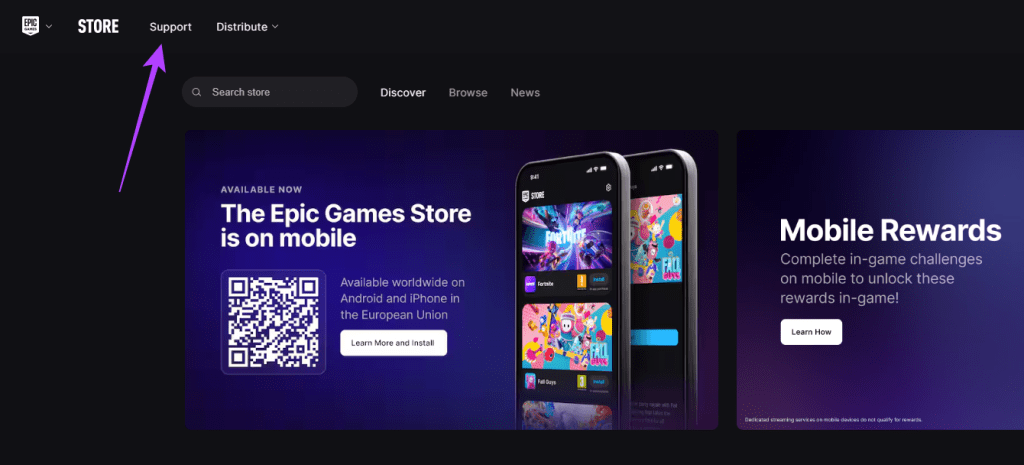
Step 1: Visit the Epic Games Store in your browser and click the Support menu.
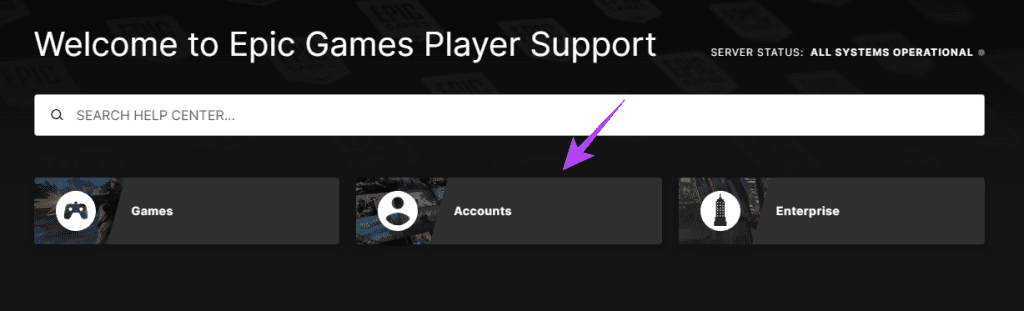
Step 2: Click the Accounts option.
Step 3: Select Epic Games Store.

Step 4: Scroll down and click Contact Us.

Step 5: Fill out the form stating you would like to remove a game from your library, including the name of the game, and send it.
FAQs
1. Do I need to buy games again if I uninstall Epic Games?
No. Once purchased, the games will remain in your Library, and you can access them anytime by installing Epic Games Launcher again.
2. Can you uninstall and reinstall games on Epic Games?
Yes. You can uninstall and reinstall a game as often as you like inside the Epic Games Launcher.
Was this helpful?
Last updated on 28 August, 2024
Read Next
 How to Update Epic Games Launcher and Its Games on Windows
How to Check and Update Epic Games Launcher Epic Games Launcher auto-updates along with its games.
How to Update Epic Games Launcher and Its Games on Windows
How to Check and Update Epic Games Launcher Epic Games Launcher auto-updates along with its games.
 5 Ways to Fix Can’t Uninstall Epic Games Launcher From Windows
https://youtu.be/FlTQNprjfwQ Fix 1: Close the Epic Games Launcher Using Task Manager Windows may have trouble uninstalling a program if it is actively running in the background.
5 Ways to Fix Can’t Uninstall Epic Games Launcher From Windows
https://youtu.be/FlTQNprjfwQ Fix 1: Close the Epic Games Launcher Using Task Manager Windows may have trouble uninstalling a program if it is actively running in the background.
 How to Fix Epic Games Library Not Showing Games
Basic Fixes: Refresh Epic Games launcher library: A quick refresh can help fix any glitches keeping you from accessing your Epic Games Library.
How to Fix Epic Games Library Not Showing Games
Basic Fixes: Refresh Epic Games launcher library: A quick refresh can help fix any glitches keeping you from accessing your Epic Games Library.
 4 Ways to Fix Slow Download Speed in Epic Games Launcher on Windows 11
https://youtu.be/w8E4d-rCMUQ Basic Fixes: Check the Epic Server Status: Epic Games Launcher also relies on multiple servers to operate, and It’s possible that a server might be out of order or
4 Ways to Fix Slow Download Speed in Epic Games Launcher on Windows 11
https://youtu.be/w8E4d-rCMUQ Basic Fixes: Check the Epic Server Status: Epic Games Launcher also relies on multiple servers to operate, and It’s possible that a server might be out of order or
 2 Ways to Fix Epic Games Not Sending a Security Code
Basic Fixes: Check network connection: If your phone has a spotty network connection, you may not receive a security code from Epic Games via email or SMS.
2 Ways to Fix Epic Games Not Sending a Security Code
Basic Fixes: Check network connection: If your phone has a spotty network connection, you may not receive a security code from Epic Games via email or SMS.
 How to Link Epic Games to Steam: Everything You Need to Know
Things to Remember Before you go ahead with linking your Steam and Epic Games accounts to one another, there are a handful of things to keep in mind.
How to Link Epic Games to Steam: Everything You Need to Know
Things to Remember Before you go ahead with linking your Steam and Epic Games accounts to one another, there are a handful of things to keep in mind.
 6 Ways to Fix Epic Games Error Code II-E1003
Basic Fixes: Ensure Stable Network: This is one of the biggest reasons you see the Install Failed Error Code II-E1003 in Epic Games.
6 Ways to Fix Epic Games Error Code II-E1003
Basic Fixes: Ensure Stable Network: This is one of the biggest reasons you see the Install Failed Error Code II-E1003 in Epic Games.
 How to Change Epic Games Install Location on Windows
Where Are Epic Games Installed on Your System?
How to Change Epic Games Install Location on Windows
Where Are Epic Games Installed on Your System?
The article above may contain affiliate links which help support Guiding Tech. The content remains unbiased and authentic and will never affect our editorial integrity.