How to Unhide Notes in MIUI (Redmi, Poco, and Xiaomi Devices)
Step 1: Open the Notes app, swipe down, hold your screen, and release it to reveal the hidden notes. Enter the security pattern.
Step 2: Tap and hold to select the hidden note, and tap on Unhide.

Also Read: How to transfer notes to a new phone
10 Tips to Make the Most From the Notes App on Your MIUI Device
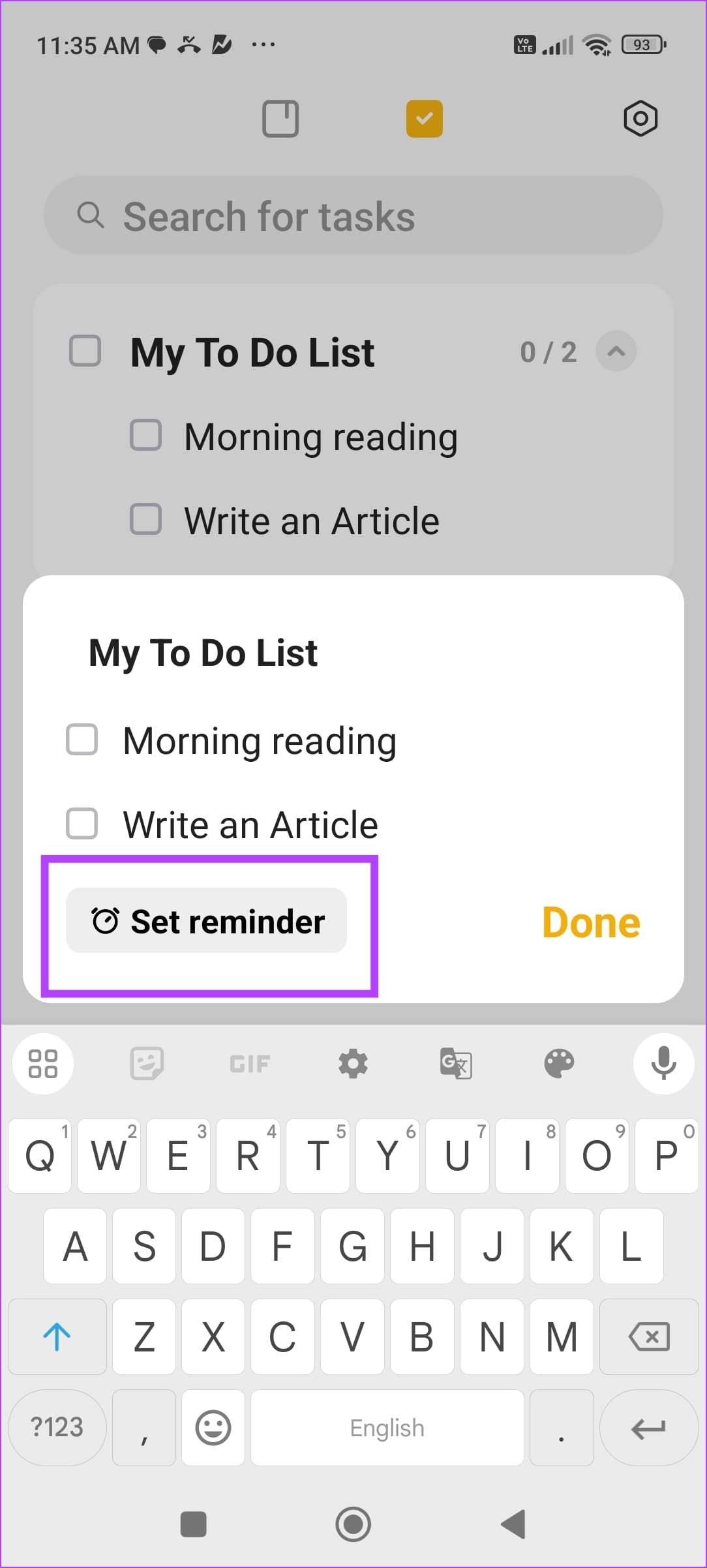
1. Create Tasks and Add Reminders
You can open the tasks tab, and create a list of tasks. You can check them off when you’re done. Further, you can also add reminders to these tasks – to notify you at a given time.

2. Create a Mind Map
You can also use the Create a mind map option to make one – write down a list, and add the necessary indents to build the map. Once done, tap on the maps icon to change the view.



3. Change Theme
This is my favorite feature – the notes app is often plain, and boring on most devices but not on MIUI. Tap on the theme icon to change the background theme for your notes.


4. Share Notes as Text or Picture
You can share your notes as text or as a picture. Tap on the share icon at the top, and select the necessary option.


5. Create a Reminder for the Note
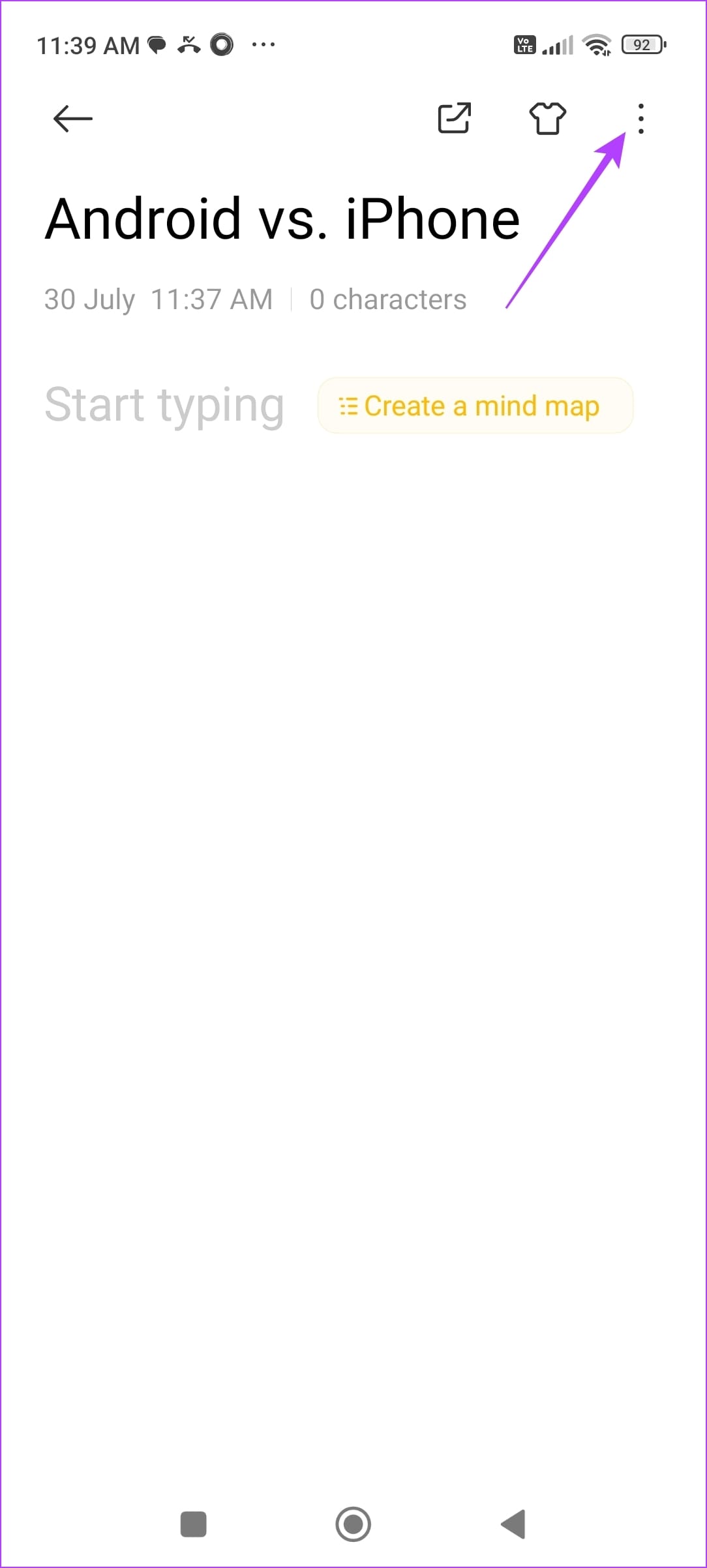
If you leave a note and forget about it – this feature is for you. Tap on the three-dots icon at the top right corner, and select Reminder to let the app notify you, and remind you of the note.

6. Place Note on the Home Screen
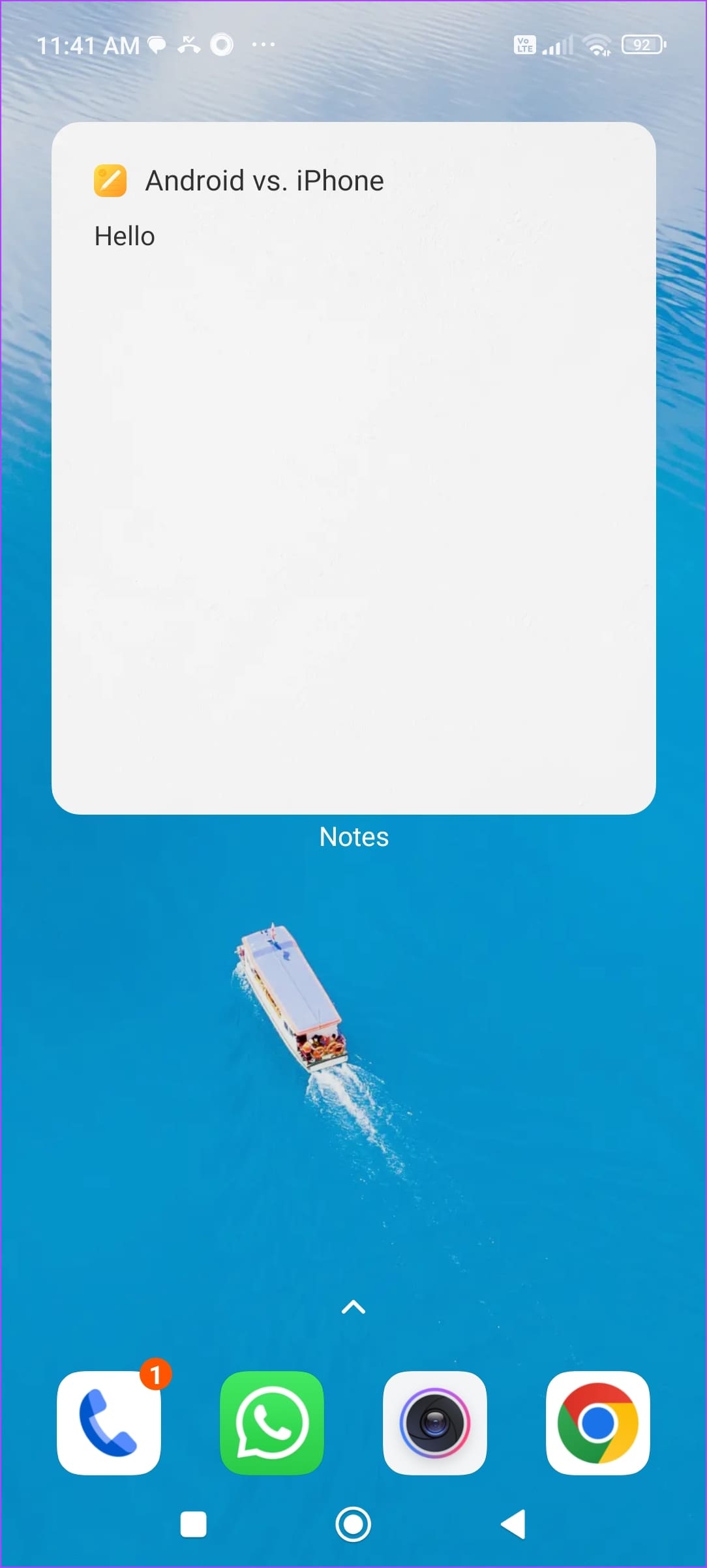
Want to access a note at your fingertips? Tap on the three-dots icon at the top, and select Place on Home Screen. If you are using the default launcher, you will see a widget that lets you quickly access the note from your home screen.

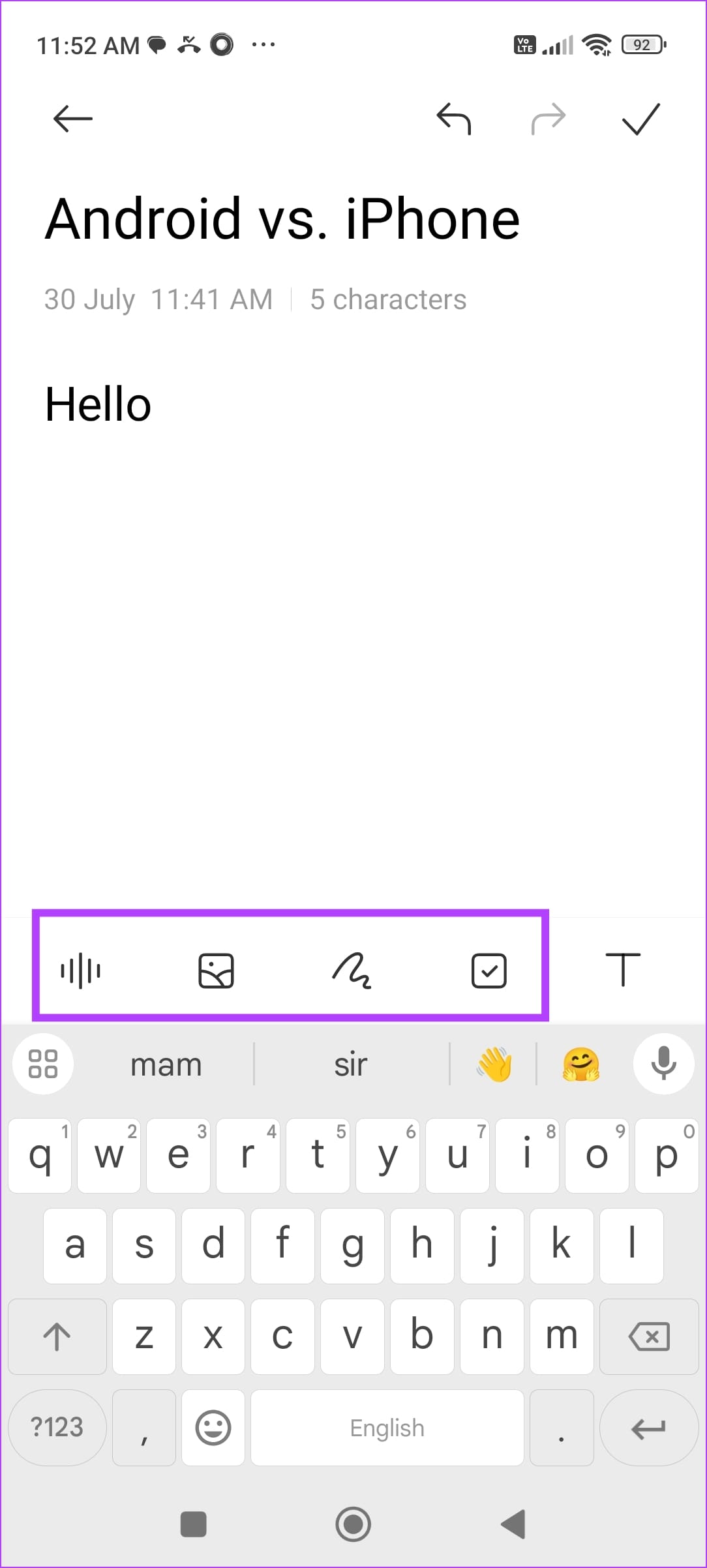
7. Add Voice Notes, Images, or a Drawing
The notes app on your MIUI device lets you add a voice note, or an image or even lets you draw on the note. To do so, access the feature ribbon on top of your keyboard.

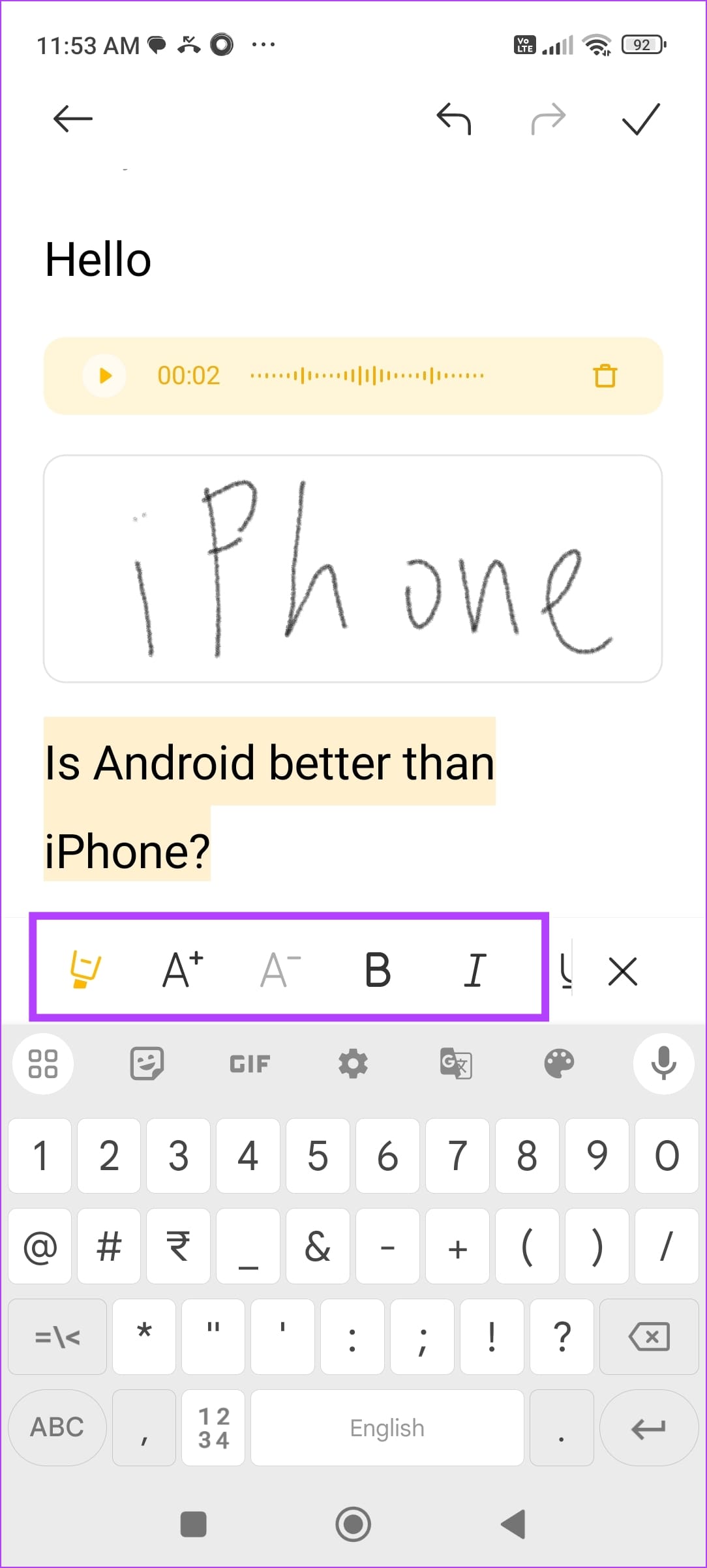
8. Add Text Formatiing
Tap on the T icon on top of the keyboard to use the Text Formatting options. This lets you increase the font size, add emphasis, and even highlight text.

9. Change Text Size
If you want to change the default text size on the Notes app, tap on the Settings icon, and change the Font Size.


10. Create Folders
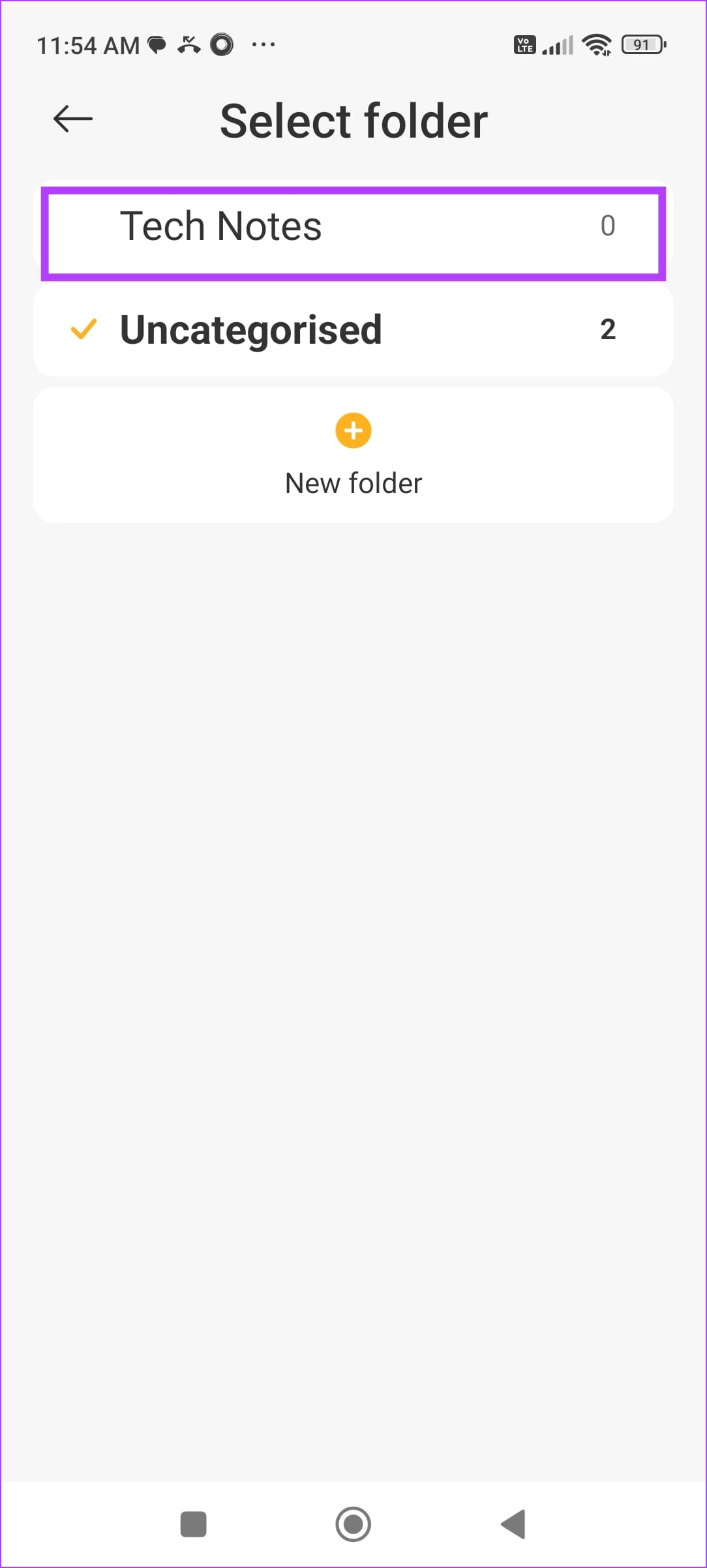
Folders are a great way to organize your notes. On the homepage of the notes app, tap on the folder icon and create a new folder.
To add a note to a folder, tap on the three-dots icon at the top, select Move to, and choose the folder.


Also Read: How to clear storage on MIUI for more space
Was this helpful?
Last updated on 27 August, 2024
Read Next
 How to Fix MIUI Battery Drain Issue on Redmi Devices
Basic Fixes: Check for software updates: If you've recently updated to a new MIUI version, software-related bugs can cause higher-than-normal battery drain.
How to Fix MIUI Battery Drain Issue on Redmi Devices
Basic Fixes: Check for software updates: If you've recently updated to a new MIUI version, software-related bugs can cause higher-than-normal battery drain.
 How to Hide or Unhide Apps on Samsung Galaxy Phones
Method 1: Hide Apps From Home Screen and App Drawer Samsung One UI Launcher has a built-in feature to hide apps from your home screen and app drawer.
How to Hide or Unhide Apps on Samsung Galaxy Phones
Method 1: Hide Apps From Home Screen and App Drawer Samsung One UI Launcher has a built-in feature to hide apps from your home screen and app drawer.
 How to Stop Sharing iPhone Notes With Other Apple Devices
Method 1: Remove Other Users From Your Note The Notes app allows you to share your notes with other users.
How to Stop Sharing iPhone Notes With Other Apple Devices
Method 1: Remove Other Users From Your Note The Notes app allows you to share your notes with other users.
 How to Hide and Unhide Some Desktop Icons on Windows 10
You might want to hide some apps icons from your Windows PC if you share them with your family or kids.
How to Hide and Unhide Some Desktop Icons on Windows 10
You might want to hide some apps icons from your Windows PC if you share them with your family or kids.
 How to Hide and Unhide Yourself on Google Meet (PC and Mobile)
Note: When you hide your camera feed, you can still see others, depending on their camera privacy setting.
How to Hide and Unhide Yourself on Google Meet (PC and Mobile)
Note: When you hide your camera feed, you can still see others, depending on their camera privacy setting.
 How to Hide or Unhide Tagged Photos From Your Instagram Profile
How to Hide Tagged Photos From Your Instagram Profile Hiding a tagged photo or video from your Instagram profile is easy.
How to Hide or Unhide Tagged Photos From Your Instagram Profile
How to Hide Tagged Photos From Your Instagram Profile Hiding a tagged photo or video from your Instagram profile is easy.
 How to Unhide Posts on Reddit and What Happens When You Hide Them
No matter which social media platform you are on, there will be some loose ends in content moderation, and Reddit has it too - it lets you hide posts that
How to Unhide Posts on Reddit and What Happens When You Hide Them
No matter which social media platform you are on, there will be some loose ends in content moderation, and Reddit has it too - it lets you hide posts that
 How to Hide and Unhide Viber Chats on Mobile
How to Hide Viber Chats You can hide individual chats or group conversations on Viber to protect your privacy.
How to Hide and Unhide Viber Chats on Mobile
How to Hide Viber Chats You can hide individual chats or group conversations on Viber to protect your privacy.
The article above may contain affiliate links which help support Guiding Tech. The content remains unbiased and authentic and will never affect our editorial integrity.