When trying to access your mail via Outlook, you may get an error message in the likes of “Your server does not support the connection encryption type you have specified. Try changing the encryption method.” But if you haven’t changed anything, you may need to perform some fixing. Here are the most common troubleshooting tips for an Outlook TLS error.
Fix 1: How to Fix Outlook TLS Error by Switching Between SSL and TLS
Sometimes the encryption type you’ve selected in Outlook doesn’t match what your mail server expects. If you have SSL selected but your server requires TLS (or vice versa), you’ll get an encryption error. Switching between the two can often work.
Step 1. Click on File in the top menu ribbon.
Step 2. Go to “Account Settings,” then select “Account Settings” again from the dropdown menu.
Step 3. Select your email account from the list and click “Change.”
Step 4. Go to the Advanced tab at the top of the settings window.
Step 5. Look for the section labeled “Use the following type of encrypted connection.” If it’s set to SSL, change it to TLS. If it’s set to TLS, try changing it to SSL.
Step 6. Click OK to save the changes, then close and restart Outlook.
Fix 2: Enable TLS 1.2 in Windows Internet Options
Even if Outlook is configured correctly, Windows might not have TLS 1.2 enabled. This is especially common on older computers which have upgraded from Windows 7.
Step 1. Hit “Win + R” to open the Run dialog.
Step 2. Type “inetcpl.cpl” and hit “Enter.” This opens “Internet Properties.”
Step 3. Click on the Advanced tab at the top of the window.
Step 4. Scroll down until you find the section with “Security” or “Use TLS.”
Step 5. Check the boxes next to “Use TLS 1.2” and “Use TLS 1.3.” Uncheck “Use SSL 3.0,” “Use TLS 1.0,” and “Use TLS 1.1” (if they are checked).
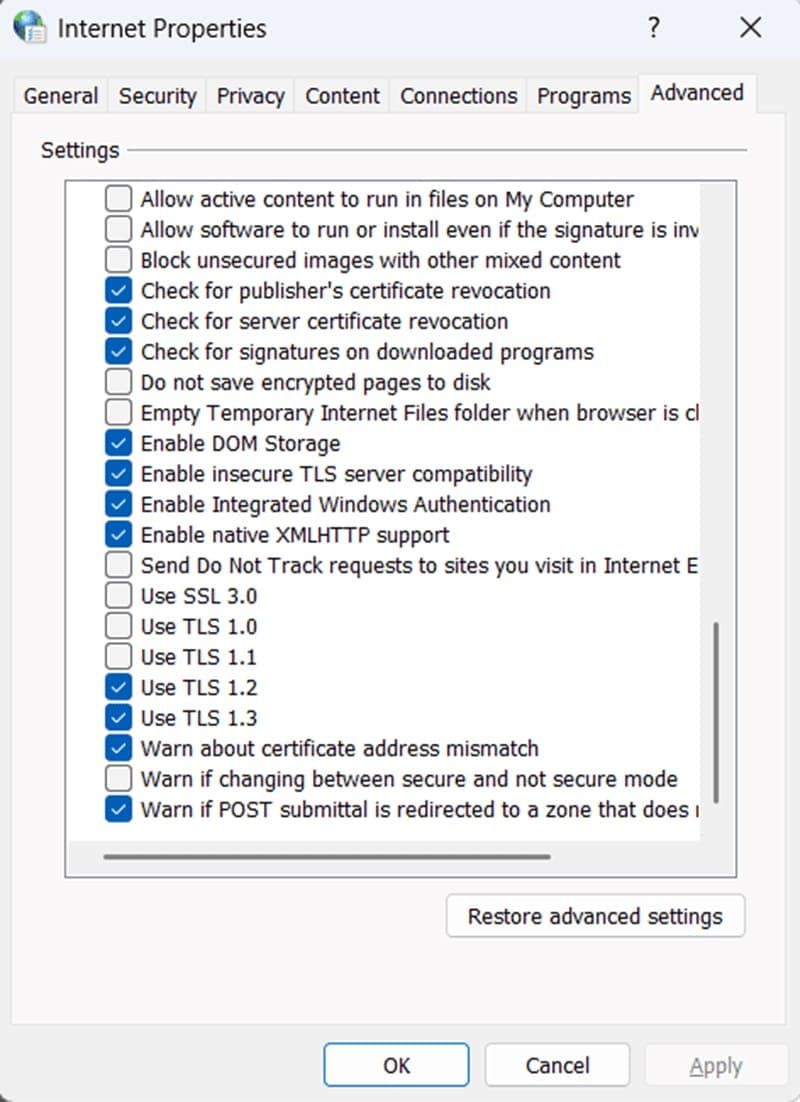
Step 7. Click “Apply” and then “OK” to save your changes.
Step 8. Restart your computer for the changes to take effect.
Fix 3: Update Outlook to the Latest Version
If you’re using an older version of Outlook, it might not support TLS 1.3 properly. Outlook versions from the 2010 era and earlier have limited TLS support.
Step 1. Open Outlook and click File from the menu.
Step 2. Look for an “Office Update” or “Check for Updates” option. Click on it if available.
Step 3. If updates are available, follow the prompts to download and install them. This might require a restart.
Step 4. Alternatively, if Outlook updates aren’t available, check for Windows updates.
Step 5. Click Check for updates and install any available updates.
Step 6. Restart your computer and try Outlook again.
If you have a really old version of Outlook that came with Microsoft Office, you might need to upgrade the entire suite.
Fix 5: Verify Correct Mail Server Settings
Sometimes the TLS error is caused by incorrect server settings. If your incoming or outgoing mail server address is wrong, or if you’re using the wrong port, you’ll get connection errors. Port 995 is typically used for POP3 with SSL, while port 587 is used for SMTP with TLS.
Step 1. Contact your email provider (Gmail, Outlook.com, your company, your hosting provider, etc.) and ask for the correct incoming and outgoing mail server settings.
Step 2. Open Outlook’s Account Settings (File > Account > Account).

Step 3. Select your email account and click “Manage.”
Step 4. Go to the Advanced tab and verify or change the values to the following:
- Incoming Mail Server (POP3 or IMAP) address
- Incoming server port (usually 995 for POP3 SSL, 993 for IMAP SSL)
- Outgoing Mail Server (SMTP) address
- Outgoing server port (usually 587 for SMTP with TLS).
Step 5. Restart Outlook and test your email connection.
Was this helpful?
Last updated on 14 February, 2026
Read Next
 Add Safe Mode to Windows 11 Boot Menu for Easier Troubleshooting
When something goes wrong in Windows, Safe Mode is an excellent way to troubleshoot by isolation.
Add Safe Mode to Windows 11 Boot Menu for Easier Troubleshooting
When something goes wrong in Windows, Safe Mode is an excellent way to troubleshoot by isolation.
 Windows 11 Screen Keeps Flickering – Troubleshooting Guide
You might not be sure why it’s happening, but it’s happening: your Windows 11 screen keeps flickering and you want some answers, or better yet, some solutions.
Windows 11 Screen Keeps Flickering – Troubleshooting Guide
You might not be sure why it’s happening, but it’s happening: your Windows 11 screen keeps flickering and you want some answers, or better yet, some solutions.
 Top 4 Ways to Change New Outlook Back to Old (Classic View) Outlook on Windows and Mac
The new Outlook app for desktop boasts a modern and simplified design, aligning it more closely with the web version of Microsoft Outlook.
Top 4 Ways to Change New Outlook Back to Old (Classic View) Outlook on Windows and Mac
The new Outlook app for desktop boasts a modern and simplified design, aligning it more closely with the web version of Microsoft Outlook.
 6 Best Microsoft Outlook Calendar Tips & Tricks to Manage It Better
The Microsoft Office Calendar is part of Microsoft 365 products and is not a stand-alone program.
6 Best Microsoft Outlook Calendar Tips & Tricks to Manage It Better
The Microsoft Office Calendar is part of Microsoft 365 products and is not a stand-alone program.
 5 Ways to Fix Outlook IMAP Error 0x800CCC0E on Windows 11
Try Basic Fixes Clear emails from the Outbox folder: Outlook may throw the 0x800CCC0E error if some of your messages are stuck in the outbox.
5 Ways to Fix Outlook IMAP Error 0x800CCC0E on Windows 11
Try Basic Fixes Clear emails from the Outbox folder: Outlook may throw the 0x800CCC0E error if some of your messages are stuck in the outbox.
 5 Fixes for the “Outlook Data File Has Reached the Maximum Size” Error in Windows
Fix 1: Compact the Microsoft Outlook Data File Compacting your Outlook data file removes unused space and purges redundant information from the data file, effectively reducing its size.
5 Fixes for the “Outlook Data File Has Reached the Maximum Size” Error in Windows
Fix 1: Compact the Microsoft Outlook Data File Compacting your Outlook data file removes unused space and purges redundant information from the data file, effectively reducing its size.
 5 Fixes for Microsoft Outlook Out of Memory or System Resources Error on Windows
Fix 1: Run the Inbox Repair Tool Damaged or corrupted PST or OST files can cause Outlook to run out of memory on your Windows computer.
5 Fixes for Microsoft Outlook Out of Memory or System Resources Error on Windows
Fix 1: Run the Inbox Repair Tool Damaged or corrupted PST or OST files can cause Outlook to run out of memory on your Windows computer.
 5 Fixes for “Not Implemented” Error in Microsoft Outlook for Windows
Fix 1: Rename the Send/Receive Settings File Is Outlook only showing the "Not Implemented" error when you click the "Send/Receive" tab?
5 Fixes for “Not Implemented” Error in Microsoft Outlook for Windows
Fix 1: Rename the Send/Receive Settings File Is Outlook only showing the "Not Implemented" error when you click the "Send/Receive" tab?
The article above may contain affiliate links which help support Guiding Tech. The content remains unbiased and authentic and will never affect our editorial integrity.