

Your new iPhone is ready, but customer conversations, order PDFs, and voice notes remain on your Android. To migrate these records smoothly, use Dr.Fone’s WhatsApp transfer after completing your initial iPhone setup. You can select specific data categories and retain existing iPhone chats.
Apple’s Move to iOS app does not support migrating WhatsApp Business data. Third-party desktop utilities bridge this gap, though creating fresh backups and keeping your Android device intact until you verify every file remains essential.
Why Move to iOS Does Not Transfer WhatsApp Business
WhatsApp’s official migration guidelines state clearly that the WhatsApp Business app is excluded from native cross-platform transfers. Performing a factory reset on your iPhone will not remove this restriction.
Move to iOS transfers standard personal WhatsApp accounts during initial setup on a fresh or reset device. Wiping an iPhone that is already configured will still leave your Business conversations behind.
Check Whether Your iPhone Already Has Business Chats
Before starting, evaluate your iPhone’s current state to protect active customer records:
- Set up with no important Business history: Confirm system requirements, then run the desktop Business transfer tool directly.
- Set up with important Business chats: Create a fresh backup first and select the option to keep existing chats during migration.
- Not yet set up: Complete standard iPhone initial setup, verify software requirements, and proceed with the desktop transfer.
Prepare the Phones and Decide Whether to Make an Extra Backup
Check the Account, Source Files, Devices, and Storage
You need your Android Business history, active phone number access, a computer, and data-capable USB cables. Keep both phones charged and check available iPhone capacity under Settings > General > iPhone Storage.
Note one older customer chat, a recent conversation, and a group thread. Open important photos, videos, PDFs, and voice notes on Android so you can verify them accurately afterward.
When an Extra Backup Is Worth Making
Creating a computer backup is recommended whenever you lack a recent copy of critical business records. You can skip this step if your iPhone is empty or already backed up safely.
A standalone computer backup protects irreplaceable records separately from in-transfer merge choices. Making a copy prevents permanent data loss if unexpected connection drops occur.
Back Up Android WhatsApp Business to Your Computer
Follow these steps to save an optional copy of your Android records:
- Connect your Android phone and open Dr.Fone > Toolbox > WhatsApp Transfer.
- Select WA Business > Backup WhatsApp Business messages.
- Monitor progress and follow any prompts appearing on your Android screen.
- If prompted for an encryption key, open Android WhatsApp Settings > Chats > Chat backup > End-to-end encrypted backup > Use 64-Digit Encryption Key Instead, then click Next on your computer.
- Tap Turn On > Generate Your 64-digit Key, leave the screen open, and click Scan on your computer.
- Save the key privately, tap I Saved My 64-Digit Key > Create, and click Next.
- Click View It once finished to inspect your backed-up chats and files, then click OK.
Keep your existing encryption password safe rather than replacing it unnecessarily. Always resolve failed backups before proceeding with any device transfer.
Back Up Existing iPhone WhatsApp Business Chats
If your iPhone holds important messages, back them up first:
- Connect your unlocked iPhone and tap Trust if prompted on screen.
- Navigate to Toolbox > WhatsApp Transfer > WA Business > Backup WhatsApp Business messages.
- Keep the cable firmly connected until the backup bar completes.
- Click View It to verify your key conversations, then close the preview.
Transfer WhatsApp Business from Android to iPhone
Desktop migration tools allow selective transfers even after you start using your iPhone. Ensure your computer recognizes both devices before starting the six steps below.
Connect Both Phones and Confirm the Transfer Direction
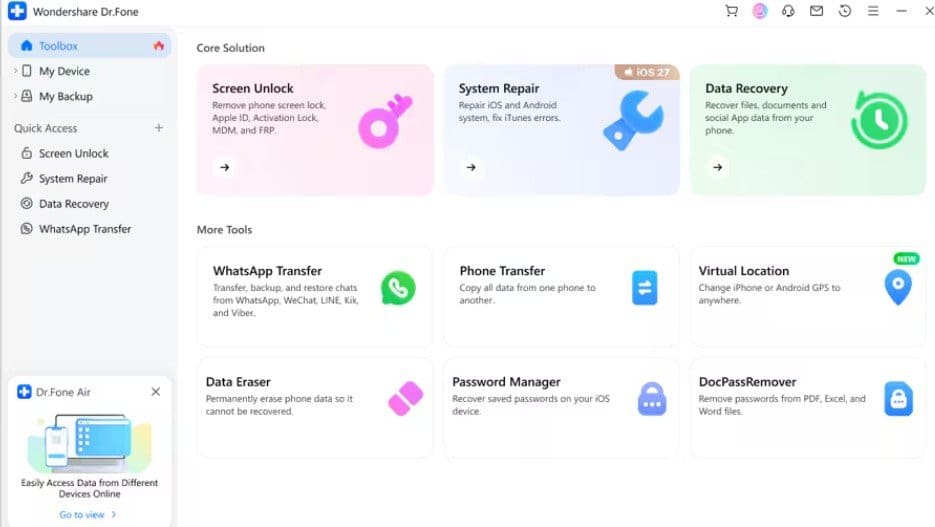
- Connect both phones via USB cables and launch Toolbox > WhatsApp Transfer on your computer.
- Open the WhatsApp Business tab and select Transfer WhatsApp Business messages. Verify Android is set as Source and iPhone as Destination, clicking Flip if reversed.
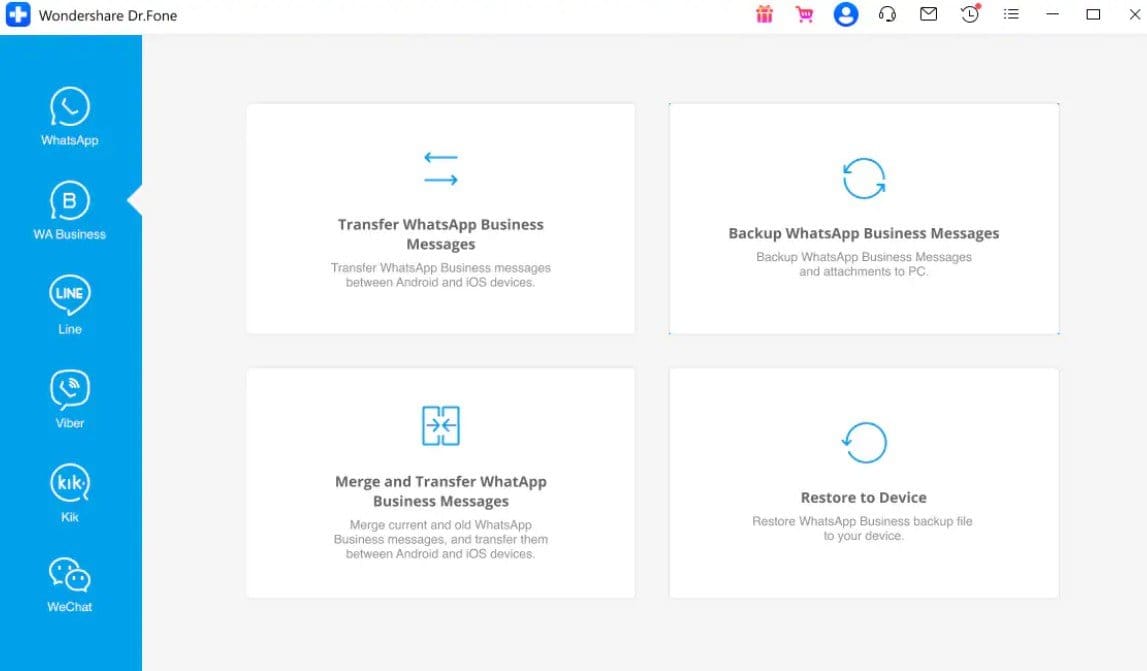
Both devices must appear clearly in the Business transfer view before you proceed. Confirm you selected the Business tab rather than standard personal WhatsApp migration.
Choose Which Data Types to Transfer
- Check your device roles, select desired categories like messages, photos, voice notes, videos, files, and call logs, then click Transfer.
Selective category filtering works specifically for Android-to-iPhone Business migrations. While individual call logs are selectable, entire chat threads move by category rather than single selection.
Choose Whether to Keep Existing iPhone Business Data
- Read the destination prompt carefully. Select Yes to retain existing iPhone Business chats, or No to overwrite them, then click Next.
Choosing to keep data protects recent iPhone customer inquiries, though duplicate messages may appear. Always rely on a fresh backup before choosing to overwrite destination data.
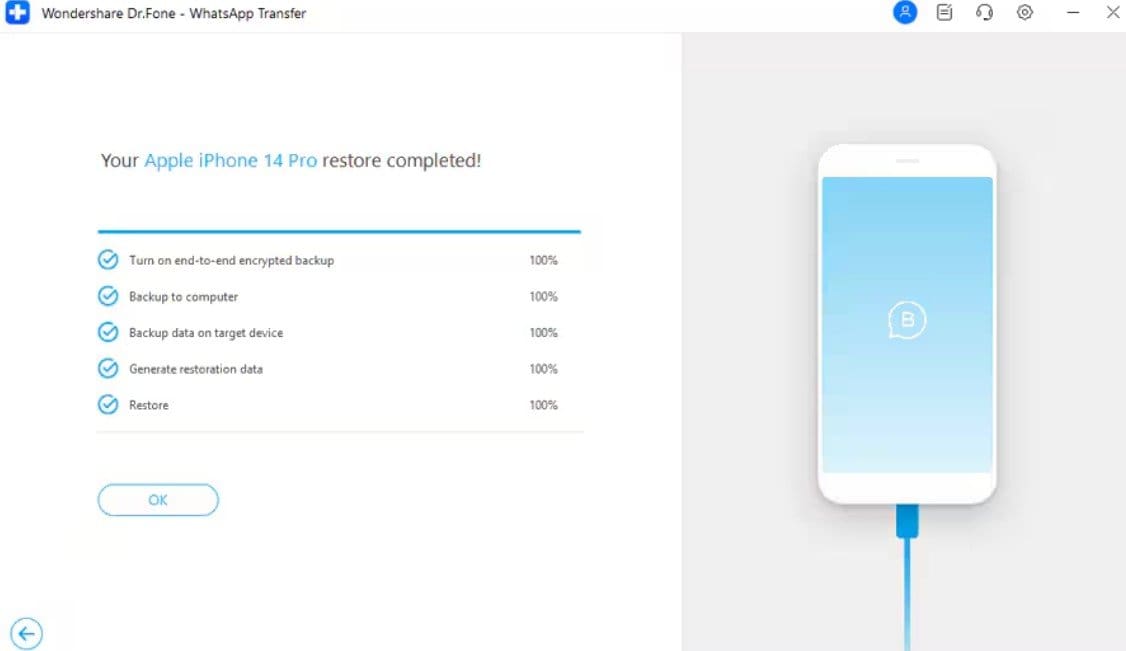
Wait for Completion, Then Check the Result
- Keep both phones undisturbed while data transfers and respond to on-screen prompts promptly.
- Wait for the completion screen, then open WhatsApp Business on your iPhone to inspect chats and media.
What to Do If WhatsApp Business Transfer Gets Stuck
Identify the Stage and Any Waiting Prompt
A stalled progress bar or unanswered prompt requires calm verification:
- Note the exact transfer stage and any displayed error code without recording private customer details.
- Respond to pending prompts asking whether to keep existing iPhone chats or generate encryption keys.
- Leave cables connected if progress continues slowly, or contact Wondershare Support if progress freezes completely.
- Wait until a failed session ends completely before unplugging devices or attempting a retry.
Check Connections and Storage After the Session Has Ended
Run these hardware checks if a phone fails to connect:
- Swap to a verified data-capable USB cable and test another computer port while no session runs.
- Unlock your iPhone and approve Trust prompts inside Apple Devices, Finder, or iTunes.
- Restart both the iPhone and computer after stopping the session, then reconnect.
- Confirm device roles in the Business view and verify free space under Settings > General > iPhone Storage.
If Android detection fails repeatedly, verify USB debugging settings specific to your phone manufacturer.
Protect New iPhone Chats Before a Justified Retry
Prepare carefully before restarting a failed migration:
- Document the failed stage, error wording, selected categories, and software versions.
- Resolve identified cable or storage bottlenecks before running the tool again.
- Back up any new customer messages received on the iPhone since your first attempt.
- Confirm Android Source, iPhone Destination, categories, and the Yes retention choice.
- Restart the transfer and contact support with saved logs if the exact error repeats.
Verify Chats and Files Before Retiring Android
Compare Important Conversations and Open Attachments
Inspect your migrated records thoroughly once the desktop utility finishes:
- Launch WhatsApp Business on your iPhone and verify your business phone number.
- Compare an older customer thread, a recent chat, and a group against your Android notes.
- Open a sample photo, video, order PDF, and voice note to confirm media playback, and verify call logs if selected.
Reviewing these items confirms the item existed on Android, was included in your selection, and opens properly on iPhone. If managing high volumes of business calls afterward, comparing a normal call vs. WhatsApp call helps optimize client communication workflows.
Review Your Business Settings on iPhone
- Inspect your product catalog, chat labels, quick replies, greeting messages, and away notices.
- Note any business profile settings requiring manual reconfiguration on iOS, and keep Android backups intact until everything works smoothly.
If Chats Are Missing or the Account Will Not Verify
Check Whether Missing Items Were Available and Selected
Troubleshoot missing files systematically after migration:
- Confirm you logged into the correct Business phone number and included that file type during selection.
- Check your Android backup to verify the file opened properly prior to migration.
- Inspect Settings > General > iPhone Storage to ensure low space did not block media loading.
- Contact support with the exact transfer stage and error details if selected items remain missing.
Avoid triggering an iCloud restore over newly transferred chats, as this overwrites local migration data. If messaging errors appear while testing group broadcasts, learning how to resolve WhatsApp error 131026 or troubleshooting how to fix call failed because the group has too many participants on WhatsApp can help restore smooth business operations.
Fix WhatsApp Business Number Verification Problems
Follow official registration steps if SMS verification codes fail:
- Enter your full international number with the country code, omitting leading zeros or exit codes.
- Wait for the on-screen countdown timer to finish without requesting duplicate codes prematurely.
- Tap Call Me once available to receive your six-digit verification code via voice call.
- Contact WhatsApp Support with error screenshots if verification blocks access, leaving chats untouched on both phones.
Once verified, manage incoming client call boundaries effectively by learning how to stop WhatsApp calls without blocking contacts during off-hours.
Final Thoughts
Moving WhatsApp Business from Android to an already configured iPhone works reliably without wiping your device. Confirm device compatibility, set the transfer direction accurately, and choose whether to retain existing iPhone conversations. Always create backups beforehand and test critical chats, order PDFs, and business tools on your iPhone before retiring your old Android handset.
Was this helpful?
Last updated on 24 November, 2026
Read Next
 Top 10 Things to Know About WhatsApp Business Catalog Feature
WhatsApp has been beneficial for small businesses that don’t have the resources to run a website or expensive marketing.
 How To Fix Instagram Not Posting To Facebook Business Page Issue
Both Facebook and Instagram have features that make them easy to use together.
 How to Create and Use Business Cards in Microsoft Outlook
Microsoft Outlook provides a lot of features that make email management easy.
 How to Turn off Business Account on Instagram
What Is a Business Account on Instagram An Instagram business account gives businesses access to certain features restricted to personal accounts that help grow their brands.
 30 Best Free AI Tools Online for Your Business or Personal Use
There has been a meteoric rise in the development of Artificial intelligence and Machine Learning in the last few years.
 How to Setup and Use FTP Server on Android
There are many ways to transfer data from your Android device to PC.
 4 Ways to Setup Speed Dial on Android
Method 1: Add Contact to Favorites Your Android phone lets you create and manage a list of your favorite contacts so that you can contact them quickly without shuffling through
 How to Transfer Contacts from iPhone to iPhone: 5 Easy Ways
Method 1: Transfer Contacts From iPhone to iPhone With iCloud Sync Using iCloud backup is the simplest way to keep your iPhone contacts synchronized across all your devices.
The article above may contain affiliate links which help support Guiding Tech. The content remains unbiased and authentic and will never affect our editorial integrity.

