

Try Basic Fixes
- Wait for the app download to complete: If the app you’re trying to delete is installing, you might see a grayed-out app icon that says “Waiting.” To uninstall it, terminate the download process by long-pressing the app icon and selecting Cancel Download.
- Install iOS updates: Apple regularly releases software updates for your iPhone to add new features and fix known bugs. If the issue is caused by a bug within iOS, installing newer updates should help.
Fix 1: Check Restrictions for Deleting Apps
Your iPhone lets you set up various content restrictions so that your notorious child (or anyone else for that matter) cannot make changes against your will. If you’ve modified content restrictions on your iPhone in the past, you might have accidentally disallowed your iPhone from deleting apps. Here’s how to change that.
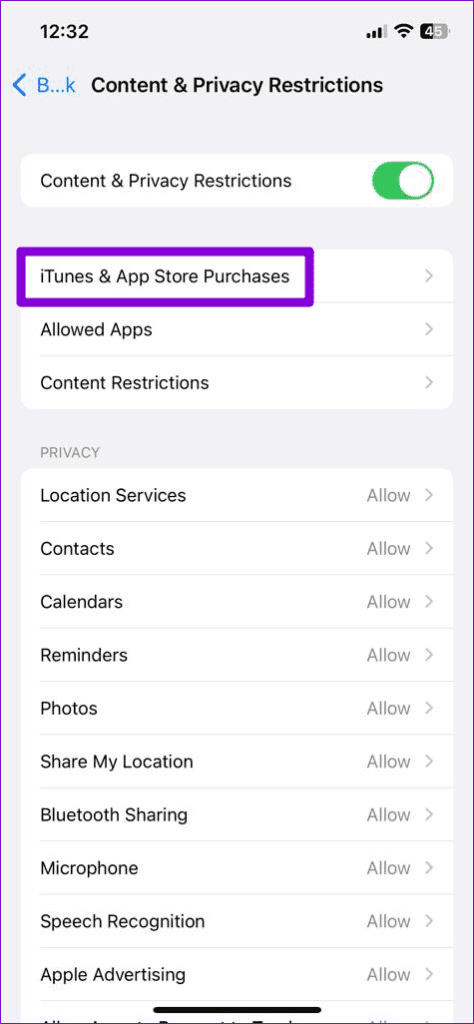
Step 1: Open the Settings app on your iPhone > navigate to Screen Time > Content & Privacy Restrictions.

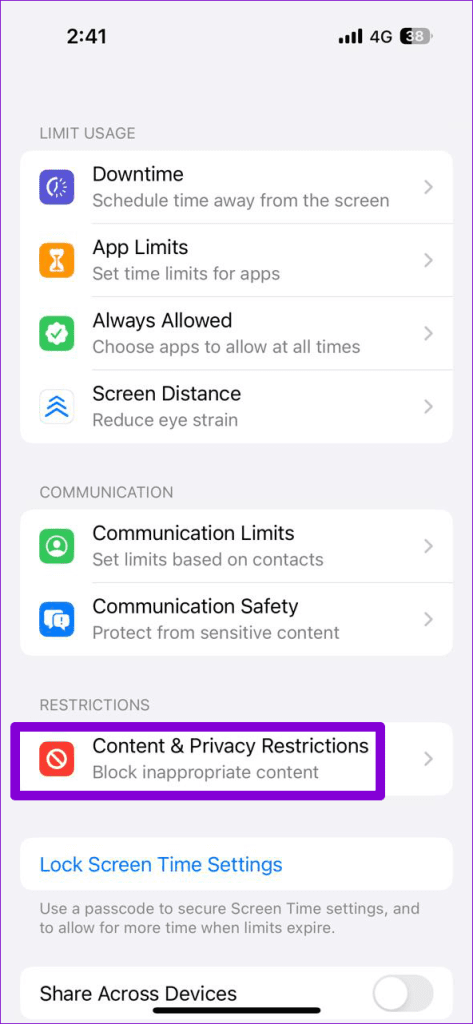
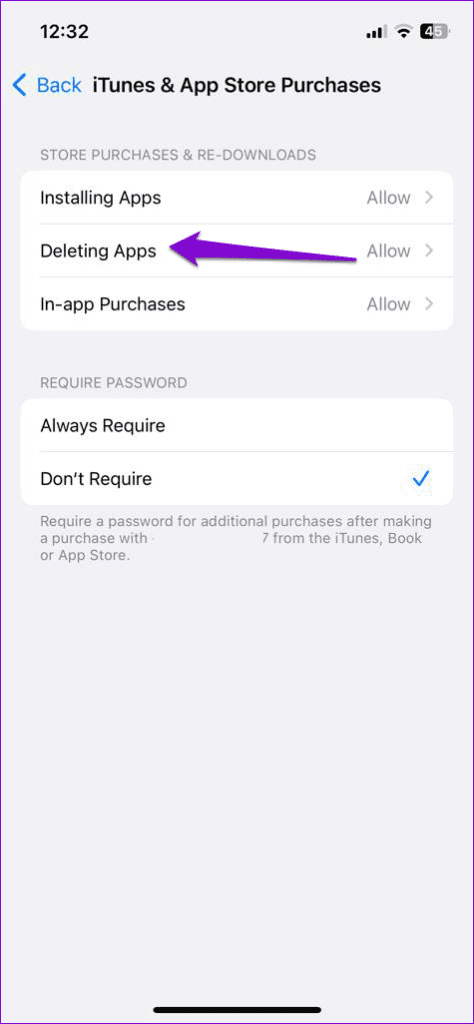
Step 2: Go to iTunes & App Store Purchases > Deleting Apps > select Allow from the following menu.

Fix 2: Delete Apps From Settings
If you still have trouble deleting apps from the Home Screen, use the Settings app on your iPhone to do so.
Step 1: Open the Settings app > go to General > iPhone Storage.
Step 2: Scroll down and tap on the app you wish to remove > tap Delete App to remove the app.


Fix 3: Uninstall the App via the App Store
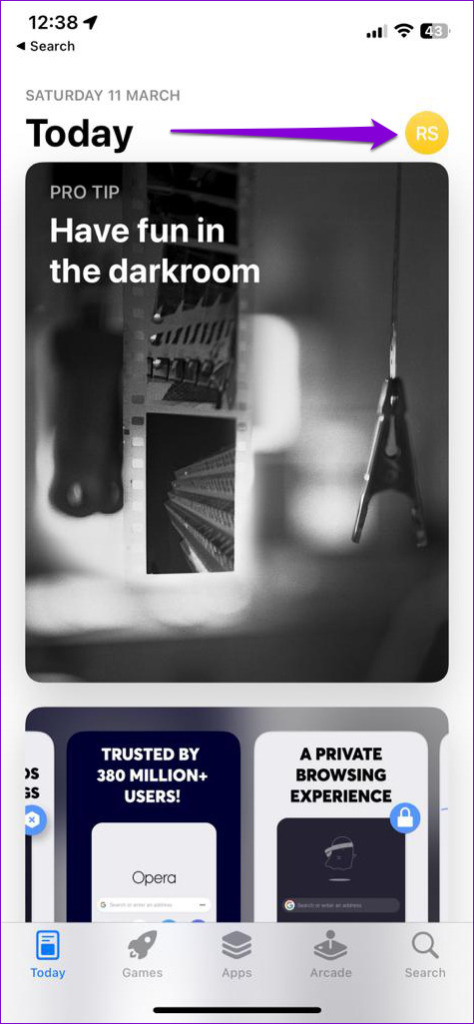
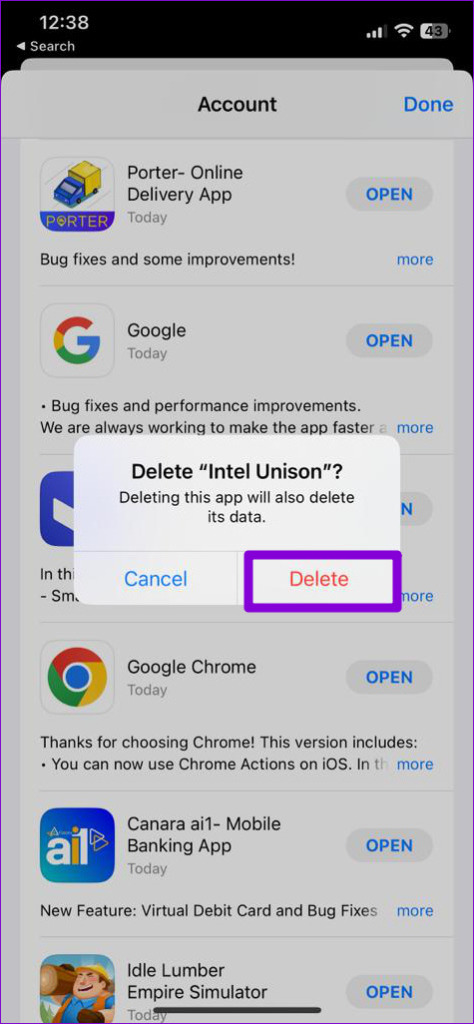
Step 1: Open the App Store on your iPhone > tap the profile icon at the top right corner.
Step 2: Scroll down to locate the app you wish to remove. Swipe left on the app and tap on Delete > select Delete to confirm.

Fix 4: Sign Out of Apple ID and Sign Back In
Authentication issues with your Apple ID can also prevent you from removing apps from your iPhone. A quick way to fix this is to sign out of your Apple ID and sign back in. Here are the steps for the same.
Step 1: Open the Settings app on your iPhone and tap your name at the top.
Step 2: Scroll to the bottom and tap on Sign Out. Then, tap Sign Out at the top right.


Once you’re logged out, sign back in with your Apple ID credentials and check if you can delete apps from your iPhone.
Fix 5: Reset All Settings
If you’re here, it’s safe to assume that the above fixes haven’t worked. So, your best option is to reset all settings on your iPhone. Here’s how to do it.
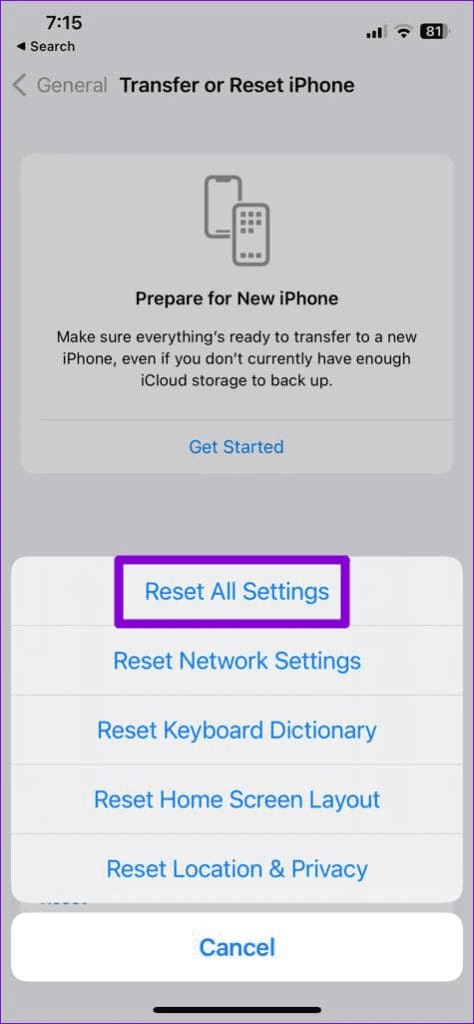
Step 1: Open the Settings menu > navigate to General > Transfer or Reset iPhone.
Step 2: Tap on Reset at the bottom and select Reset All Settings.


Was this helpful?
Last updated on 06 August, 2024
1 Comment
Leave a Reply
Read Next
 How to Add, Delete, or Hide iMessage Apps on iPhone
How to Access iMessage App Drawer To access the iMessage app drawer on your iPhone, follow these steps: Step 1: Open the Messages app on your iPhone.
How to Add, Delete, or Hide iMessage Apps on iPhone
How to Access iMessage App Drawer To access the iMessage app drawer on your iPhone, follow these steps: Step 1: Open the Messages app on your iPhone.
 How to Bulk Delete Multiple Apps on iPhone or iPad
Note: While you can delete multiple apps on your iPhone, you can't select all and delete them in one go.
How to Bulk Delete Multiple Apps on iPhone or iPad
Note: While you can delete multiple apps on your iPhone, you can't select all and delete them in one go.
 How to Delete a Story on Instagram and What to Do if You Can’t Delete It
How to Delete a Live Story on IG Once you upload a story on Instagram, it lasts for 24 hours.
How to Delete a Story on Instagram and What to Do if You Can’t Delete It
How to Delete a Live Story on IG Once you upload a story on Instagram, it lasts for 24 hours.
 5 Ways to Delete and Reinstall Apps on Samsung Smart TV
Is your Samsung TVs storage full or do you want to troubleshoot an app?
5 Ways to Delete and Reinstall Apps on Samsung Smart TV
Is your Samsung TVs storage full or do you want to troubleshoot an app?
 How to Delete WhatsApp Backup From iCloud Storage on iPhone
Method 1: Delete WhatsApp Backup From iCloud iCloud allows you to delete individual app data from its backup.
How to Delete WhatsApp Backup From iCloud Storage on iPhone
Method 1: Delete WhatsApp Backup From iCloud iCloud allows you to delete individual app data from its backup.
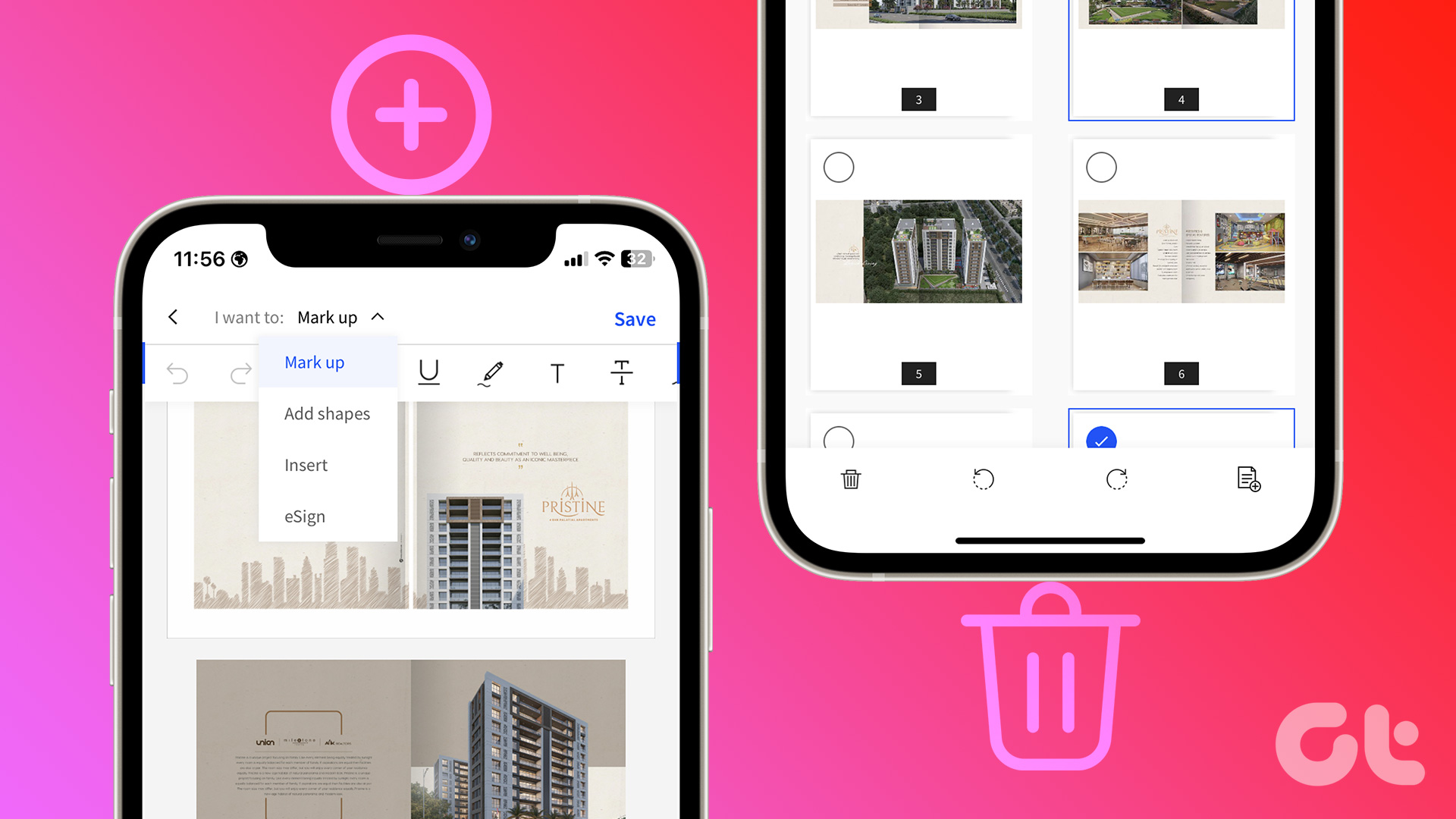 Top 3 Ways to Add or Delete PDF Pages on iPhone
Method 1: Delete PDF Pages Using the Default PDF Editor on iPhone Step 1: Open the Files app on your iPhone.
Top 3 Ways to Add or Delete PDF Pages on iPhone
Method 1: Delete PDF Pages Using the Default PDF Editor on iPhone Step 1: Open the Files app on your iPhone.
 How to Find and Delete Safari’s ‘Shared With You’ Links on iPhone
How to Enable Shared With You If your iPhone runs iOS 15 or later, you can use the Shared With You feature.
How to Find and Delete Safari’s ‘Shared With You’ Links on iPhone
How to Enable Shared With You If your iPhone runs iOS 15 or later, you can use the Shared With You feature.
 How to Block and Delete Messages on iPhone
If you have an iPhone and constantly receive spam messages from unknown numbers, you can report the messages as spam or junk.
How to Block and Delete Messages on iPhone
If you have an iPhone and constantly receive spam messages from unknown numbers, you can report the messages as spam or junk.
The article above may contain affiliate links which help support Guiding Tech. The content remains unbiased and authentic and will never affect our editorial integrity.
Hi Pankil,
My name in settings is in grey color and I cannot tap it so I can’t authenticate my Apply ID. Need help pls. Can’t open other apps because of this. What do I do?