


Basic Fixes
- Check your network connection: Ensure your device has good internet. I recommend an internet speed of at least 10 Mbps to watch Twitch live streams and use chats without errors.
- Verify the Twitch Chat server status: Visit the Twitch Status page to check an active chat service outage.
- Open Twitch in your browser’s incognito mode: An installed browser extension or misconfiguration may prevent you from accessing chats in Twitch. Press Ctrl + Shift + N in Chrome-based browsers to open the incognito mode and open Twitch.
- Use a different browser: Your browser may be incompatible with loading all Twitch features. Switch to a different web browser and reopen Twitch to access chats.
- Disable VPN: Open the VPN app, select Disconnect to disable the active connection, and reload Twitch.
- Log out and sign back in: Click your profile icon at the top right corner of Twitch and select Log Out. Click Login and type your account credentials to sign back in.
Fix 1: Clear Browser Cache and Data (Desktop)
Corrupt cache and obsolete browser data can create issues in loading Twitch chats. Clear them manually from your browser settings to restore the chat section. Let’s take Google Chrome for instance.
Step 1: Open Google Chrome, click its three-dot menu at the top right, and select Settings.

Step 2: Select Privacy and security from the left sidebar and click Delete browsing data.

Step 3: Mark the Cached images and files, and click Delete data to remove it.

Fix 2: Disable Browser Extensions and Reload Twitch (Desktop)
Twitch chats may fail to load in a live stream if an installed browser extension is blocking it. Disable or remove all installed extensions and reload Twitch in a new tab.
Step 1: Click the three-dot menu at the top right of Google Chrome, select Extensions, and open Manage Extensions.

Step 2: Toggle off installed extensions to disable them. Alternatively, click Remove under the browser extension to uninstall it from your browser.

Fix 3: Flush the DNS Cache (Desktop)
Flushing the DNS cache clears out IP addresses and DNS records, effectively resolving internet connectivity issues that may prevent Twitch from loading chats during a stream.
Step 1: Press the Windows key, search Command Prompt, and click Run as administrator.

Step 2: Paste the below command in the console and press Enter to flush the DNS cache.
ipconfig /flushdns

Fix 4: Repair or Reset the TW Play App (Desktop)
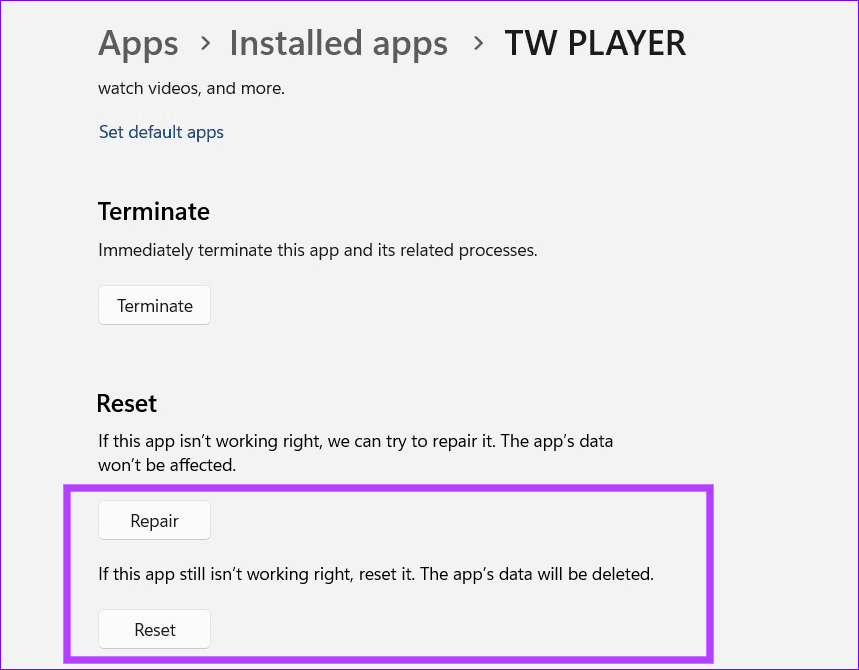
If you use the TW Play app on Windows to watch Twitch live streams but can’t chat, an underlying app glitch might be the culprit. Try repairing or resetting the TW Play app to fix it.
Step 1: Search the TW Player app in the Windows search menu and right-click it to open its App settings.

Step 2: Scroll down and click Repair. If the issue persists, select Reset to restore the app to its factory defaults.
Fix 5: Clear Twitch App Cache and Data (Android)
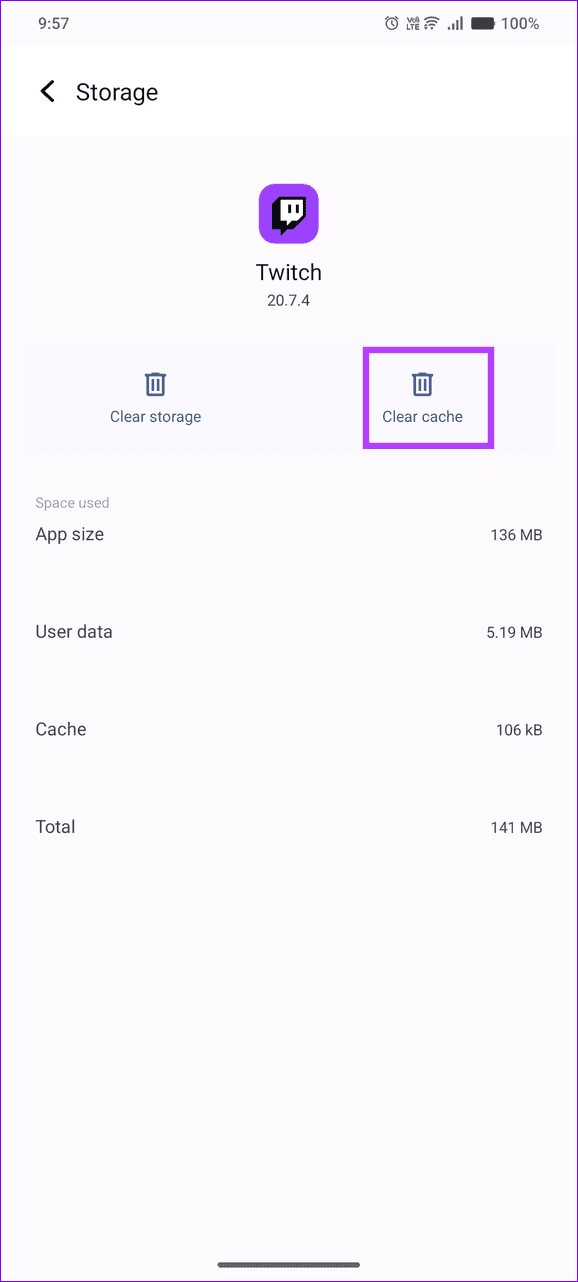
If you’re watching a Twitch live stream from its Android app but can’t see chats, clearing its cache files should bring it back.
Step 1: Long-tap the Twitch app icon and select App info.
Step 2: Select Storage and cache and tap Clear cache.


Fix 6: Offload the Twitch App (iOS)
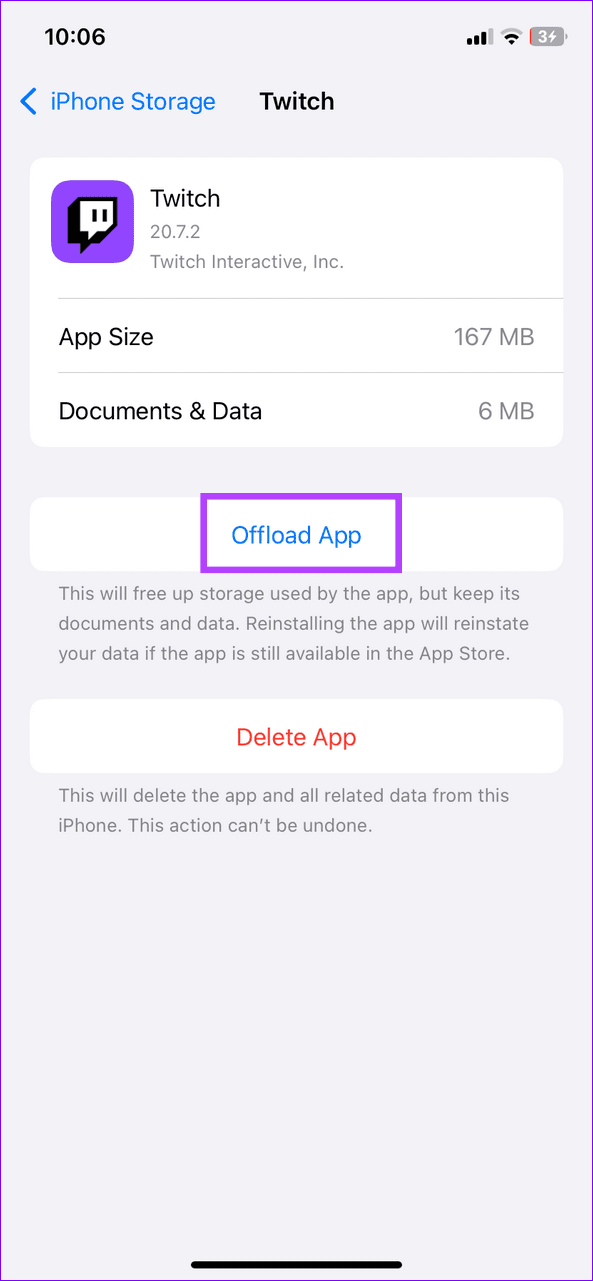
Unlike Android, iOS doesn’t allow clearing the Twitch app cache files. Instead, you can offload and reinstall the app to fix the Twitch chats not loading issue.
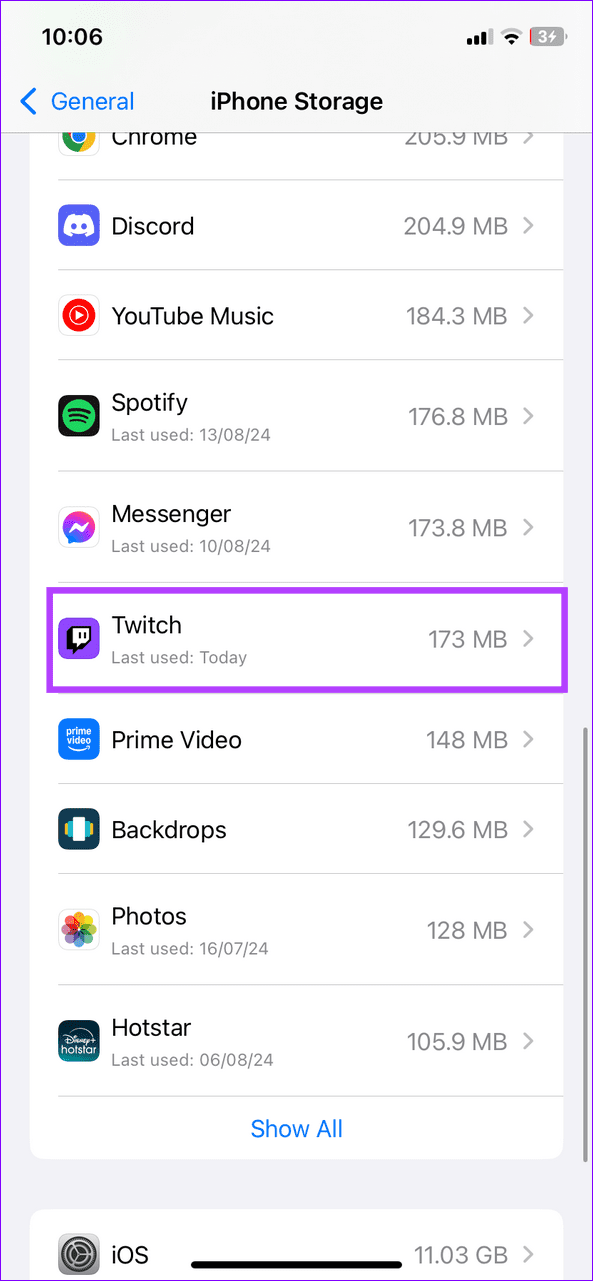
Step 1: Open the Settings app, select General, and tap iPhone Storage.


Step 2: Select Twitch from the list, tap Offload App, and reinstall it from the Apple App Store.
Was this helpful?
Last updated on 16 August, 2024
1 Comment
Leave a Reply
Read Next
 2 Easy Ways to Fix Twitch Not Working on iPhone and Android
Basic Fixes Check network connectivity: Ensure there's no problem with Wi-Fi or cellular data on your smartphone.
2 Easy Ways to Fix Twitch Not Working on iPhone and Android
Basic Fixes Check network connectivity: Ensure there's no problem with Wi-Fi or cellular data on your smartphone.
 5 Ways to Hide WhatsApp Chats
Method 1: Hide WhatsApp Chat of One Person WhatsApp has a native feature known as Chat Lock that lets you hide individual chats by locking them using a fingerprint, Face
5 Ways to Hide WhatsApp Chats
Method 1: Hide WhatsApp Chat of One Person WhatsApp has a native feature known as Chat Lock that lets you hide individual chats by locking them using a fingerprint, Face
 How to Lock Individual and Group Chats in WhatsApp on iPhone
Things to Remember Before proceeding with the steps, we want to highlight some important aspects.
How to Lock Individual and Group Chats in WhatsApp on iPhone
Things to Remember Before proceeding with the steps, we want to highlight some important aspects.
 How to Enable or Disable End-to-End Encryption for Instagram Chats
What Is End-to-End Encryption on Instagram With End-to-End encryption, Instagram will secure chats with under an extra layer of protection.
How to Enable or Disable End-to-End Encryption for Instagram Chats
What Is End-to-End Encryption on Instagram With End-to-End encryption, Instagram will secure chats with under an extra layer of protection.
 How to Delete Multiple or All Chats in WhatsApp
We have covered the following things here: How to delete multiple chats on WhatsApp.
How to Delete Multiple or All Chats in WhatsApp
We have covered the following things here: How to delete multiple chats on WhatsApp.
 How to Hide and Unhide Viber Chats on Mobile
How to Hide Viber Chats You can hide individual chats or group conversations on Viber to protect your privacy.
How to Hide and Unhide Viber Chats on Mobile
How to Hide Viber Chats You can hide individual chats or group conversations on Viber to protect your privacy.
 How to View Old Chats on ChatGPT Without Sharing Data
Accessing ChatGPT Chat History Wasn’t Available With Data Sharing Turned Off OpenAI used to provide the option to disable data sharing, which meant losing access to your chat history altogether.
How to View Old Chats on ChatGPT Without Sharing Data
Accessing ChatGPT Chat History Wasn’t Available With Data Sharing Turned Off OpenAI used to provide the option to disable data sharing, which meant losing access to your chat history altogether.
 How to Play Music on Twitch Without Infringing Copyright
How to Play Music While Streaming on Twitch There are multiple ways to play music on Twitch, such as playing it on another device in the background while you are
How to Play Music on Twitch Without Infringing Copyright
How to Play Music While Streaming on Twitch There are multiple ways to play music on Twitch, such as playing it on another device in the background while you are
The article above may contain affiliate links which help support Guiding Tech. The content remains unbiased and authentic and will never affect our editorial integrity.
flush dns cache worked, thanks.