

Fix 1: Enable Touchpad Gestures
The first thing you need to do is review the touchpad settings on your PC and ensure that gesture controls are enabled. Here’s how to do it.
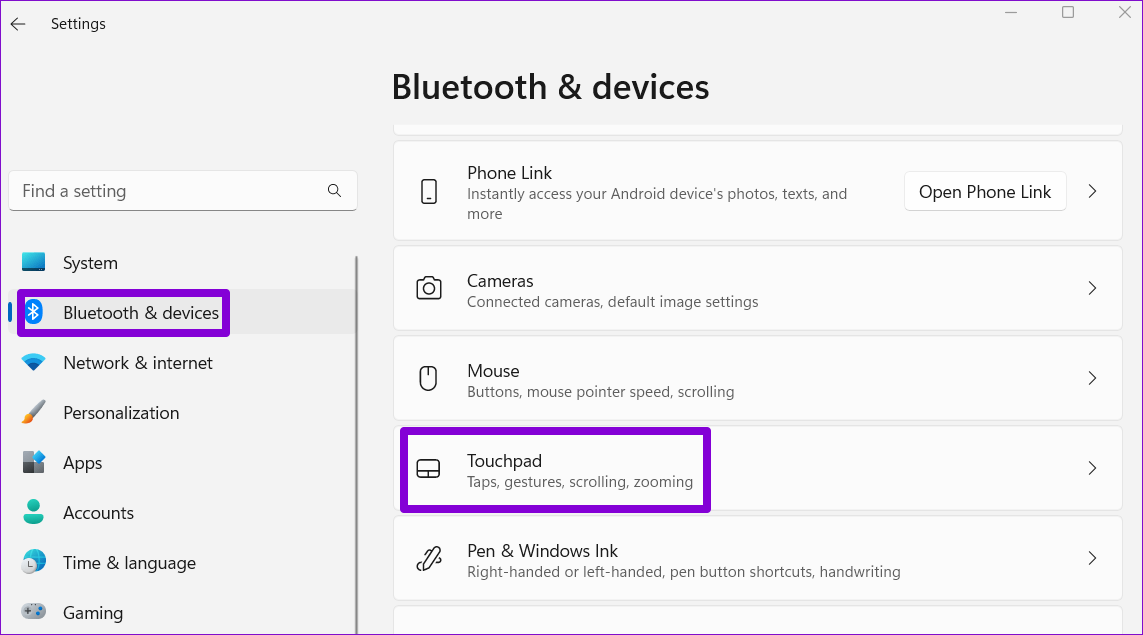
Step 1: Press the Windows key + I to open the Settings app and head to Bluetooth & devices > Touchpad.
Step 2: Enable the switch next to Touchpad if it isn’t already.
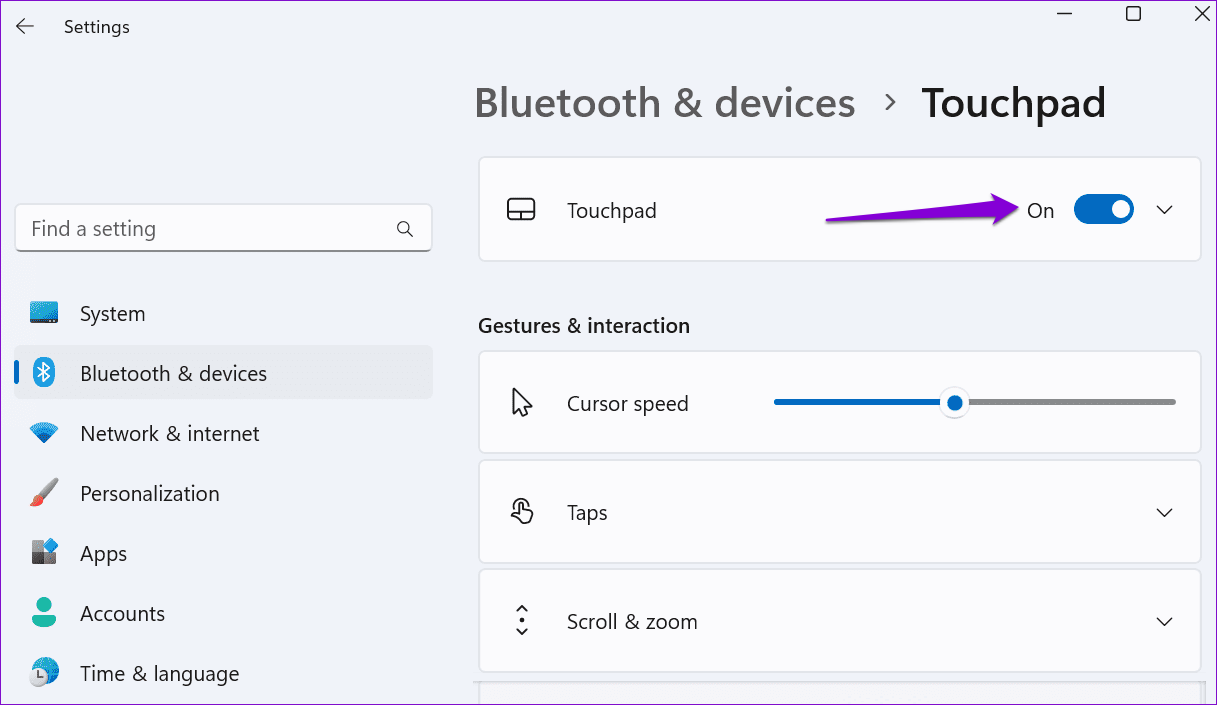
Step 3: Under the Gestures & interaction section, use the checkboxes to enable all the gestures.

Fix 2: Reset Touchpad Settings
If touchpad gestures don’t work after you enable them, try resetting all the touchpad settings. This should help fix any issues caused by misconfigured settings.
Step 1: Press the Windows key + I to open the Settings app and head to Bluetooth & devices > Touchpad.
Step 2: Click the Reset button under Touchpad.

Fix 3: Run Hardware and Devices Troubleshooter
The Hardware and Devices troubleshooter on Windows can automatically detect and resolve any common hardware-related issues. This tool comes in handy when Windows can’t detect a new piece of hardware or when devices, such as the touchpad, stop responding.
Step 1: Press the Windows key + R to open the Run dialog box. Type msdt.exe -id DeviceDiagnostic in the box and press Enter.
Step 2: In the Hardware and Devices window, click Next and Windows will scan your system for any issues.

If the tool finds any problems, follow the on-screen instructions to apply the recommended fixes. After that, restart your PC and check if the issue is still there.
Fix 4: Update the Touchpad Driver
The touchpad driver on your PC allows Windows to communicate with your touchpad. If that driver is outdated or broken, the touchpad will not function properly. In that case, you should consider updating your PC’s touchpad driver using the Device Manager.
Step 1: Right-click on the Start icon and select Device Manager from the list.

Step 2: Double-click on Mice and other pointing devices to expand it.
Step 3: Right-click on the touchpad driver and select Update driver from the menu that appears.

Follow the on-screen prompts to finish updating the driver and then see if the issue is still there.
If updating the driver does not help, the touchpad driver may be corrupt. In that case, uninstall the driver using the Device Manager and restart your PC. Windows will automatically install the missing driver during boot.
Fix 5: Check BIOS Settings
BIOS (or Basic Input Output System) is software that lets you configure your PC’s hardware functions. So, if Windows 11 is still not responding to touchpad gestures, you can enable the advanced touchpad option from BIOS. Here’s how:
Step 1: Press the Windows key + S to open the search menu. Type recovery options in the box and press Enter.

Step 2: Click the Restart now button next to Advanced startup. Select Restart now to confirm.

Step 3: Wait for the PC to reboot and then head to Troubleshoot > Advanced options > UEFI Firmware Settings.

Step 4: Once you’re in BIOS, go to the Main tab. Then, use the arrow keys to navigate to the Touchpad option, press Enter, and select the Advanced option.

Step 5: Finally, press F10 to save changes and exit BIOS.
Restart your PC after this, and the touchpad gestures should work in Windows 11.
Was this helpful?
Last updated on 14 May, 2024
Read Next
 Top 9 Ways to Fix Touchpad Gestures Not Working in Windows 10
Windows 10 supports various touchpad (trackpad) gestures.
Top 9 Ways to Fix Touchpad Gestures Not Working in Windows 10
Windows 10 supports various touchpad (trackpad) gestures.
 4 Ways to Fix Touchpad Not Working on Windows 11
Fix 1: Run the Hardware and Devices Troubleshooter Windows offers several troubleshooters for diagnosing and fixing common issues with your system.
4 Ways to Fix Touchpad Not Working on Windows 11
Fix 1: Run the Hardware and Devices Troubleshooter Windows offers several troubleshooters for diagnosing and fixing common issues with your system.
 4 Ways to Disable Touchpad on Windows 11 Laptops
Method 1: Disable Touchpad From Settings The Windows 11 Settings app offers nifty features for modifying touchpad gestures, sensitivity, cursor, and more.
4 Ways to Disable Touchpad on Windows 11 Laptops
Method 1: Disable Touchpad From Settings The Windows 11 Settings app offers nifty features for modifying touchpad gestures, sensitivity, cursor, and more.
 3 Ways to Increase or Decrease Touchpad Sensitivity on Windows 11 Laptops
Method 1: Increase or Decrease Touchpad Sensitivity via the Settings App The Settings app in Windows makes it simple to adjust touchpad-related settings on your laptop.
3 Ways to Increase or Decrease Touchpad Sensitivity on Windows 11 Laptops
Method 1: Increase or Decrease Touchpad Sensitivity via the Settings App The Settings app in Windows makes it simple to adjust touchpad-related settings on your laptop.
 How to Fix Synaptics TouchPad Settings Missing in Windows
If you use a Windows-based laptop, there’s a good chance your laptop uses Synaptics TouchPad — the reason you are here too.
How to Fix Synaptics TouchPad Settings Missing in Windows
If you use a Windows-based laptop, there’s a good chance your laptop uses Synaptics TouchPad — the reason you are here too.
 4 Ways to Fix Gestures Not Working on Android
Try Basic Fixes Remove the screen protector and case: Using a low-quality screen protector from an unknown brand may affect the touchscreen's functionality.
4 Ways to Fix Gestures Not Working on Android
Try Basic Fixes Remove the screen protector and case: Using a low-quality screen protector from an unknown brand may affect the touchscreen's functionality.
 3 Ways to Fix Trackpad Gestures Not Working on Mac
Basic Fixes Disconnect External Mouse: This is to ensure there aren't any hardware conflicts Update to the Latest Version: Updating your machine to the latest macOS version can also fix
3 Ways to Fix Trackpad Gestures Not Working on Mac
Basic Fixes Disconnect External Mouse: This is to ensure there aren't any hardware conflicts Update to the Latest Version: Updating your machine to the latest macOS version can also fix
 4 Ways to Fix FaceTime Reactions (Gestures) Not Working
Basic Fixes Update iOS: Ensure your device is running on iOS 17 and above.
4 Ways to Fix FaceTime Reactions (Gestures) Not Working
Basic Fixes Update iOS: Ensure your device is running on iOS 17 and above.
The article above may contain affiliate links which help support Guiding Tech. The content remains unbiased and authentic and will never affect our editorial integrity.

