

Basic Fixes
- Restart Windows Explorer: Temporary issues with Windows Explorer can cause such problems. In most cases, you can fix the issue by restarting the Windows Explorer process.
- Run the SFC scan: Corrupted or damaged system files can also cause such anomalies. Running the SFC (System File Checker) scan can help you find and repair any problematic system files causing the issue.
Fix 1: Ensure Thumbnails Are Enabled
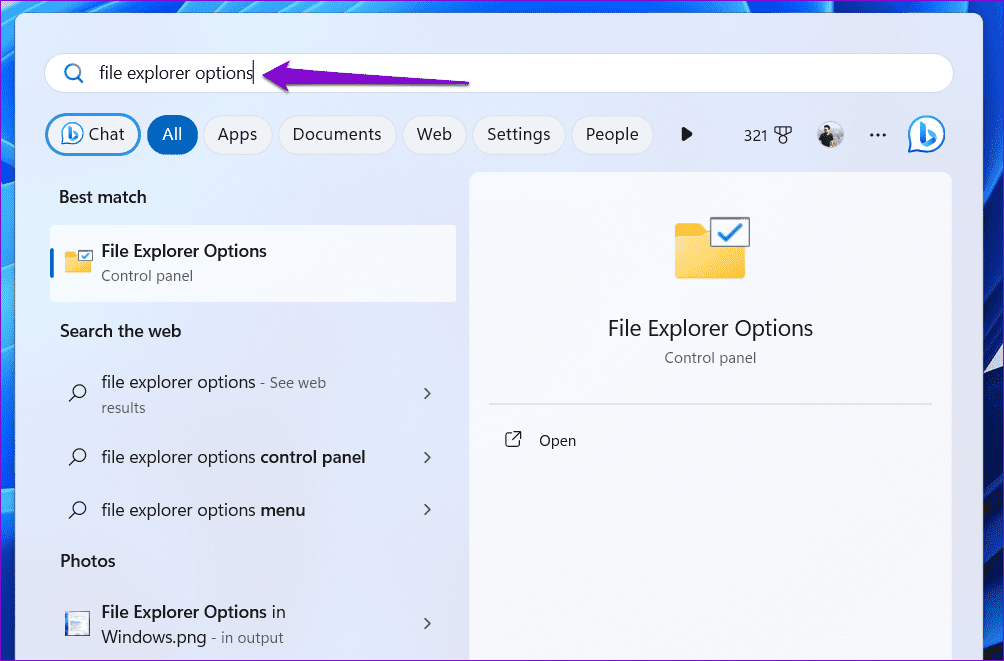
To start, review the File Explorer Options and ensure your PC is configured to show thumbnails instead of icons. Here’s how to check.
Step 1: Press the Windows key + S to open the search menu. Type file explorer options in the box and press Enter.
Step 2: Switch to the View tab and uncheck the Always show icons, never thumbnails box. Then, click Apply, followed by OK.

Fix 2: Clear Thumbnail Data
Another reason Windows may not display file and folder thumbnails is if the existing thumbnail database has become corrupt. In that case, you must delete it and force Windows to recreate it from scratch.
Step 1: Press the Windows key + I to open the Settings app and head to System > Storage.

Step 2: Click on Temporary files.

Step 3: Select Thumbnails and uncheck all the other boxes. Then, click the Remove files button at the top.

Fix 3: Uninstall and Reinstall Microsoft OneDrive
At times, Windows 11 may not display thumbnails for pictures, videos, and folders backed up to OneDrive. Several users on a Microsoft Community post reported fixing the issue almost instantly by uninstalling Microsoft OneDrive and installing it back. You can also give this a shot.
Step 1: Press the Windows key + R to open the Run dialog box. Type appwiz.cpl and press Enter.
Step 2: Select Microsoft OneDrive on the list and click Uninstall.
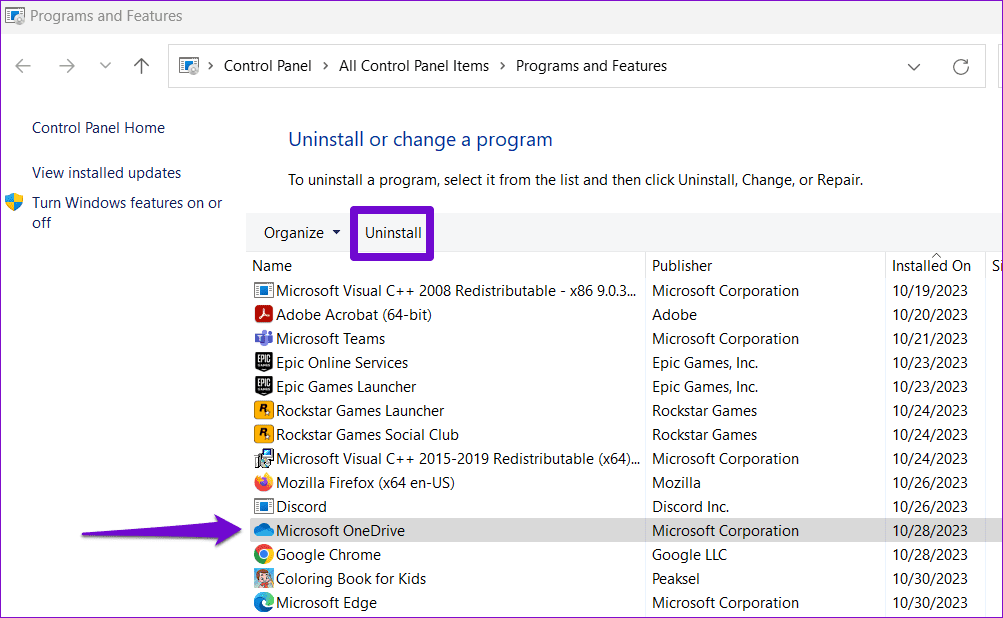
Follow the on-screen prompts to finish removing OneDrive from your PC. After that, use the following link to download and install Microsoft OneDrive again.
Fix 4: Change the Default App Type
If you can’t see thumbnails for a specific file type on Windows, it might be due to the default app set for that file type. Try changing the default app and see if that solves the issue.
Step 1: Right-click on the problematic file type, go to Open with, and select Choose another app.

Step 2: Select an appropriate app from the list and tick the Always use this app to open files checkbox. Then, click OK to save changes.

Fix 5: Modify Advanced System Settings
Did you recently tweak any performance options on Windows? If so, you might have disabled thumbnail previews from there. Here’s how to enable them.
Step 1: Press the Windows key + S to access the search menu. Type view advanced system settings in the box and press Enter.

Step 2: In the System Properties window, switch to the Advanced tab and click the Settings button under Performance.

Step 3: Select the Custom option and check the boxes for Save taskbar thumbnail previews and Show thumbnails instead of icons. Then, hit Apply.

Fix 6: Restore File Explorer Options
If Windows 11 still doesn’t show thumbnails, restore the File Explorer Options to default settings. Here are the steps.
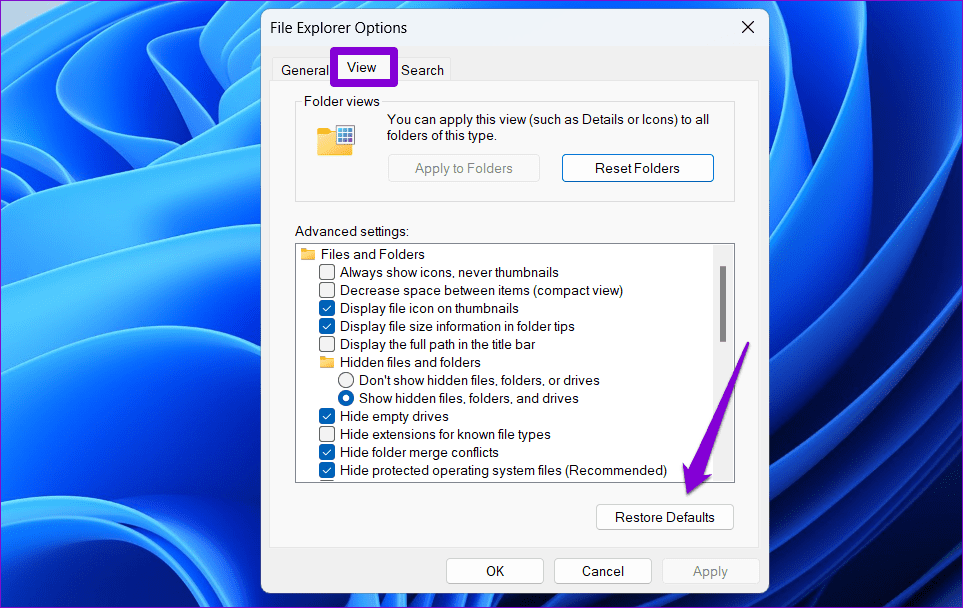
Step 1: Press the Windows key + S to open the search menu. Type file explorer options in the box and press Enter.
Step 2: Switch to the View tab and click the Restore Defaults button.
Was this helpful?
Last updated on 08 May, 2024
12 Comments
Leave a Reply
Read Next
 5 Ways to Fix YouTube Thumbnails Not Showing
Fix 1: Connect to a Stable Network Since YouTube streams videos from the internet, you need a stable internet connection to use YouTube seamlessly.
5 Ways to Fix YouTube Thumbnails Not Showing
Fix 1: Connect to a Stable Network Since YouTube streams videos from the internet, you need a stable internet connection to use YouTube seamlessly.
 Why Do You See Blank Thumbnails on Netflix?
1.
Why Do You See Blank Thumbnails on Netflix?
1.
 7 Best Ways to Fix App Icons Not Showing in Taskbar on Windows 10
Don't you just love loading up your Windows 10 PC with all the amazing apps?
7 Best Ways to Fix App Icons Not Showing in Taskbar on Windows 10
Don't you just love loading up your Windows 10 PC with all the amazing apps?
 4 Ways to Fix OneDrive Personal Vault Not Showing on Windows Error
Basic Fixes: Access From Another Device: OneDrive works on desktop, mobile, and the web.
4 Ways to Fix OneDrive Personal Vault Not Showing on Windows Error
Basic Fixes: Access From Another Device: OneDrive works on desktop, mobile, and the web.
 6 Ways to Fix WhatsApp Desktop App Not Showing Notifications on Windows 11
Fix 1: Verify In-App Notification Settings The first thing you should do is check WhatsApp’s in-app settings to ensure that notifications are not disabled.
6 Ways to Fix WhatsApp Desktop App Not Showing Notifications on Windows 11
Fix 1: Verify In-App Notification Settings The first thing you should do is check WhatsApp’s in-app settings to ensure that notifications are not disabled.
 6 Ways to Fix Windows 11 Showing Wrong Time
Fix 1: Sync Windows Clock Manually One of the easiest ways to fix an out-of-sync Windows clock is via the Settings app.
6 Ways to Fix Windows 11 Showing Wrong Time
Fix 1: Sync Windows Clock Manually One of the easiest ways to fix an out-of-sync Windows clock is via the Settings app.
 5 Ways to Fix Dual Boot Option Not Showing on Windows 11
Fix 1: Enable Dual Boot Option Using Command Prompt Sometimes, the dual boot option goes missing when upgrading the operating system.
5 Ways to Fix Dual Boot Option Not Showing on Windows 11
Fix 1: Enable Dual Boot Option Using Command Prompt Sometimes, the dual boot option goes missing when upgrading the operating system.
 Top 8 Ways to Fix External Drive Not Showing Up in Disk Management on Windows
Disk Management is a built-in utility on Windows to manage your hard drivers, SSDs, and other external drives.
Top 8 Ways to Fix External Drive Not Showing Up in Disk Management on Windows
Disk Management is a built-in utility on Windows to manage your hard drivers, SSDs, and other external drives.
The article above may contain affiliate links which help support Guiding Tech. The content remains unbiased and authentic and will never affect our editorial integrity.

If you move the taskbar to the top of your screen, the taskbar thumbnail previews show above the taskbar (off screen) and not below. Do you know if there’s a way to make the previews show below the taskbar?
I want to personally thank you for your tutorial on how to repair the thumbnails issue on Windows 11. This is the first guide I found that actually repaired the issue; most of them only suggest the File Explorer Options method to only view thumbnails. I only needed to complete step “3. Rebuild Thumbnail Cache” in this tutorial to resolve my issues. I strongly believe that there may be issues with the MS OneDrive that may also be a culprit in this scenario. I never had a system with OneDrive, and frankly I’m only living with it for 1 year. None of my older computers with previous Windows OS versions had this issue ever. Thanks again.
Thank you for mentioning OneDrive. I’ve tried everything on this article and another one like it, and they didn’t work. What did work? Uninstalling OneDrive. There is no reason uninstalling it should have done anything, but I guess that is the story of Microsoft products.
I have tried everything in this article, and have also uninstalled One Drive. I still do not have thumbnails. I just bought this desktop- it is brand new and I’m just getting everything set up, and no matter what I do I cannot get my thumbnails to appear. Anyone have any other suggestions? This is driving me crazy! I purchased this desktop specifically so my editing software would run faster, and now this. Help, please!
Any update on this? Same as other users, I have gone through all the troubleshooting steps listed above but the issue persists.
I found the solution. First, you need to uninstall OneDrive, then Rebuild Corrupt Icon Cache here is how to do it.
Open File Explorer > Folder Options > Views to show Hidden System Files.
Next, go to C:\Users\%username%\AppData\Local folder
Delete the hidden IconCache.db file. Reboot.
This action would purge and rebuild the icon cache.
After reboot, you should be able to see the thumbnails like normal. I am about to smash my laptop because of this issue. THank God I was able to resolve it. Credit to the author. https://www.thewindowsclub.com/rebuild-icon-clear-thumbnail-cache-windows-10
thank you – that is the only method that worked
OneDrive as an online signin and upload or download is a helpful resource, for me.
When they made it a “mandatory” it really soured me on them because of syncing issues. Now knowing all the time I have spent over the past year trying to resolve the problem and it too was OneDrive really (_(*)W(*E#.
Unstalling OneDrive fixed the problem. Thanks Dan
After trying 1,000 fixes, I followed all your steps to fix my photos, icons, thumbnails, etc. IT WORKED…Thank you so very much for your tutorial…!!
Thank you, it solved my problem.
Thank you! My photo thumbnails are back.
Fix 5 worked, after several attempts at other fixes that did not. Though I hadn’t knowingly done anything to change such settings. But with these newer, thoroughly encrapified systems, all it can take is a stray keystroke. Much thanks.
Next step is to set aside a day to upgrade back to Windows 10.