

Try Basic Fixes
- Update the Telegram app: Telegram may fail to show any notifications if you’re running an outdated version of the app. Hence, it’s a good idea to update the Telegram app from the Play Store.
- Disable battery saver mode: Enabling battery saver mode can affect Telegram’s ability to display notifications. To avoid this, make sure you disable battery saver mode on your Android.
Fix 1: Allow Telegram to Show Notifications
Telegram won’t show any notifications on your Android if it does not have the necessary permissions. Here’s how to ensure Telegram is allowed to show notifications on your phone.
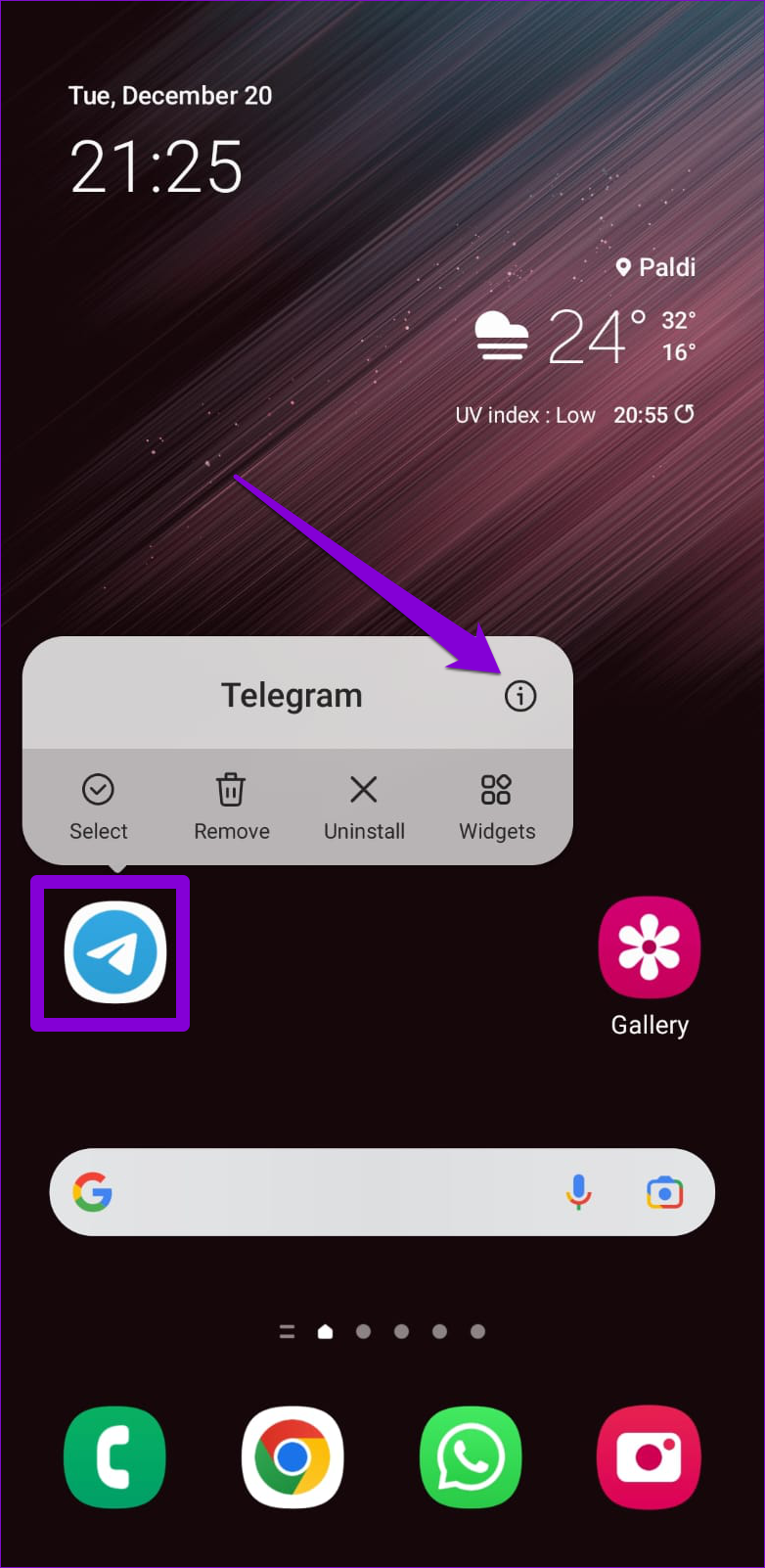
Step 1: Long press the Telegram app icon and tap the info icon from the menu that pops up.
Step 2: Go to Notifications and toggle on the switch next to Allow notifications.


Fix 2: Check Telegram’s In-App Notification Settings
Another thing you should do is go through Telegram’s in-app notification settings to ensure you haven’t disabled alerts for private chats, groups, and channels. Here’s how to check that.
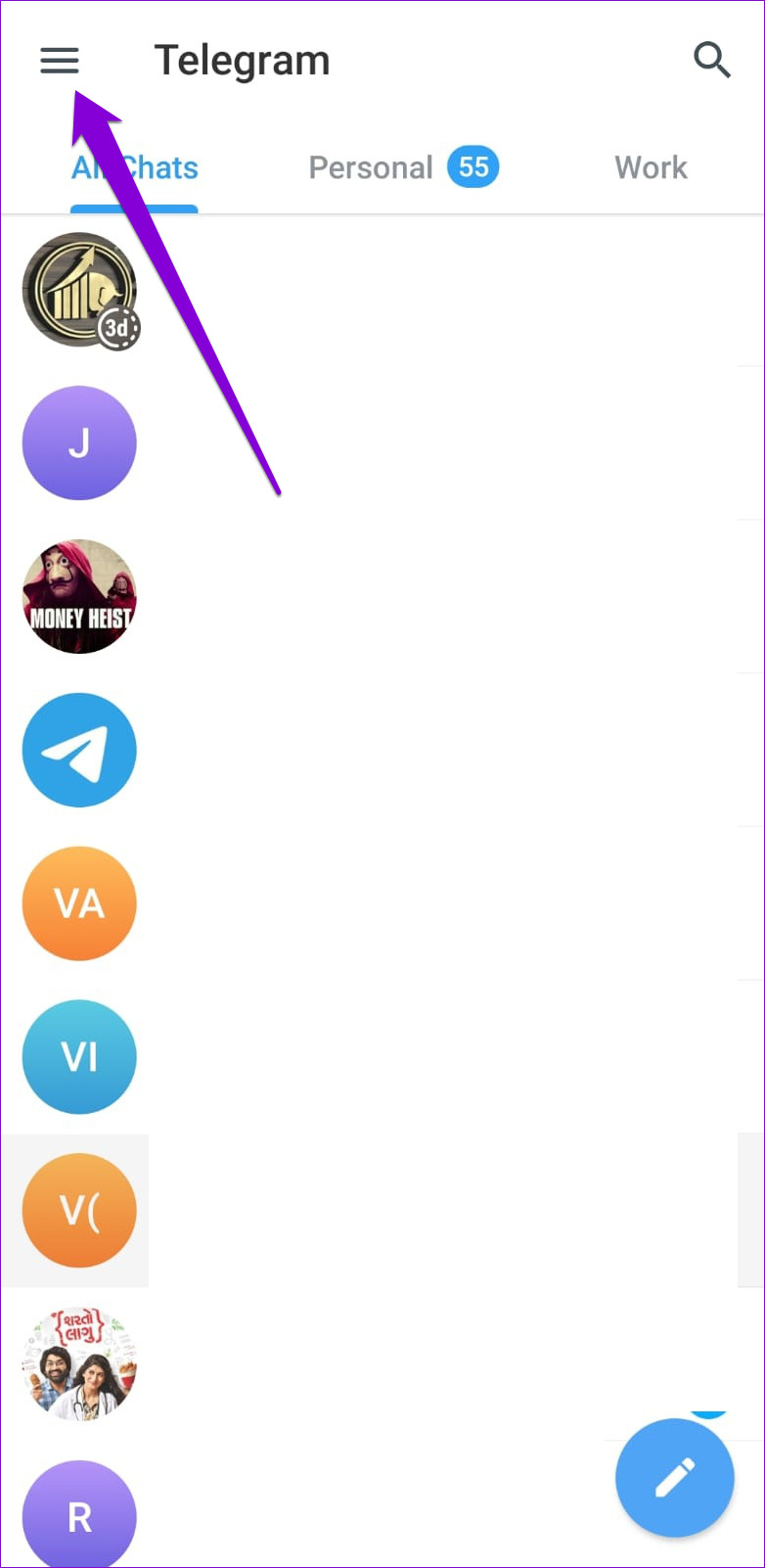
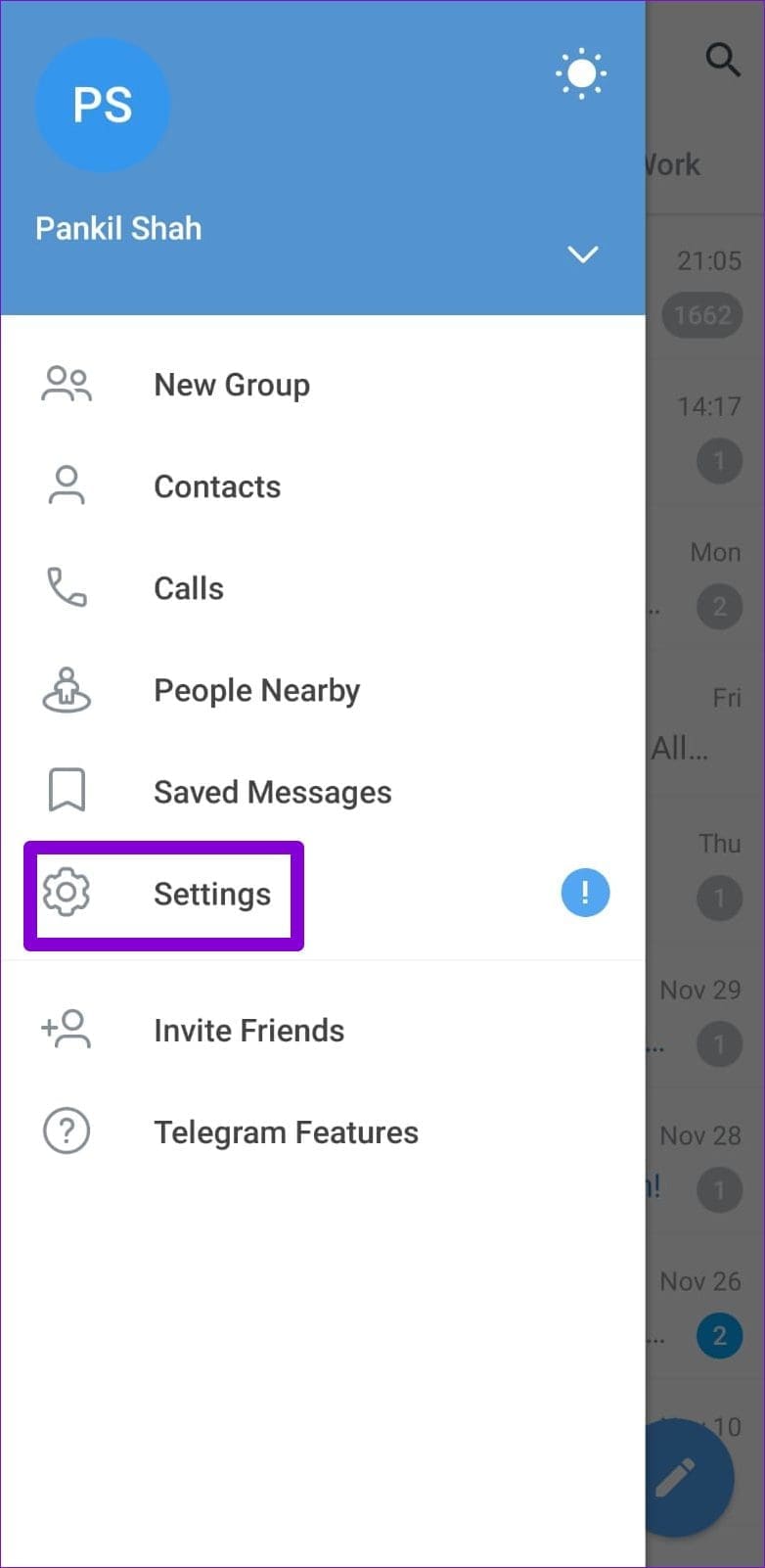
Step 1: Launch the Telegram app on your phone. Tap on the three horizontal lines in the top-left corner and select Settings.
Step 2: Scroll down to tap Notifications and Sounds.

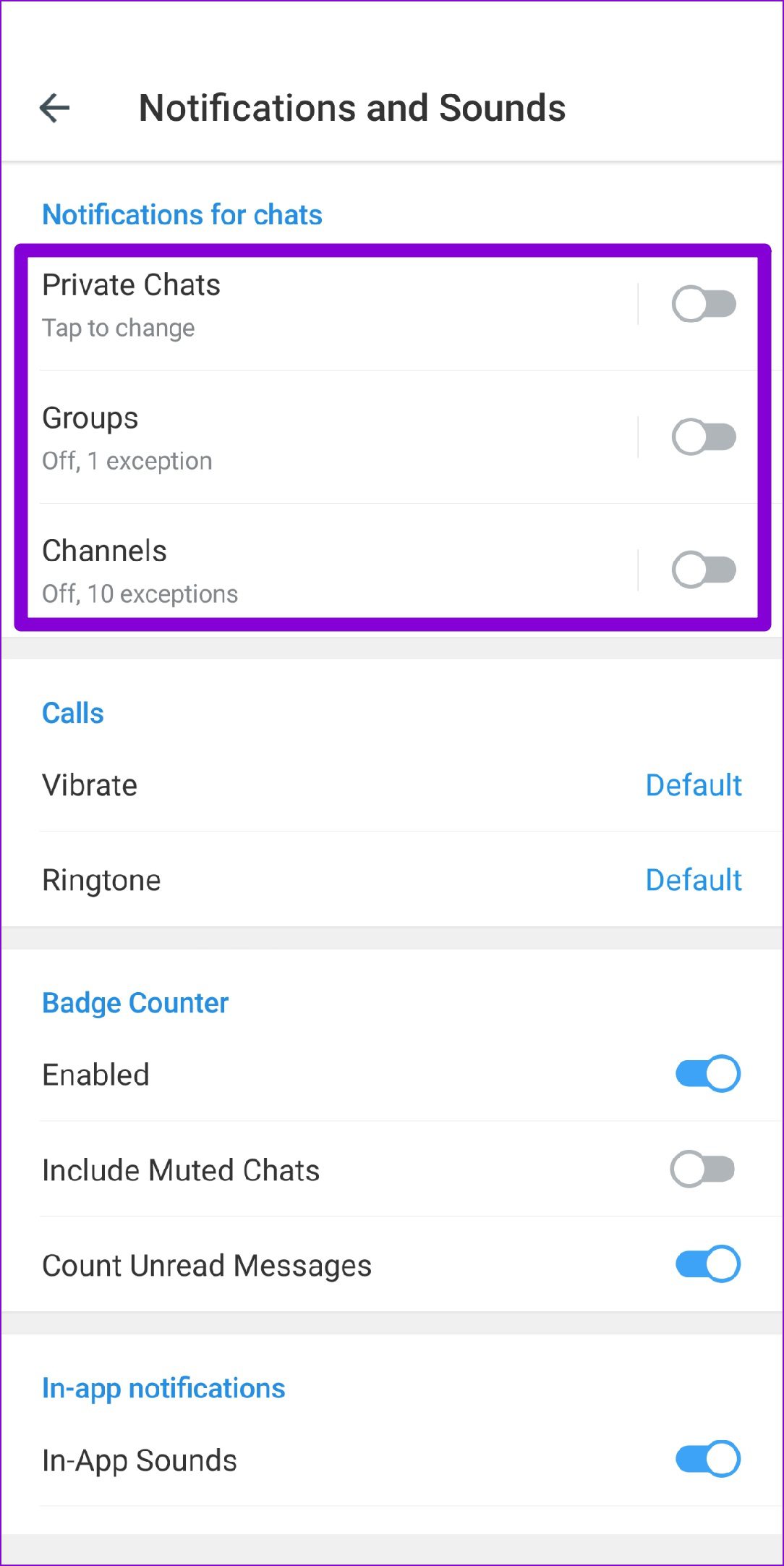
Step 3: Under Notifications for chats, enable the toggles next to Private Chats, Groups, and Channels.
Step 4: On the same page, scroll down to turn on the switches next to Keep-Alive Service and Background Connection.

Fix 3: Unmute Conversations
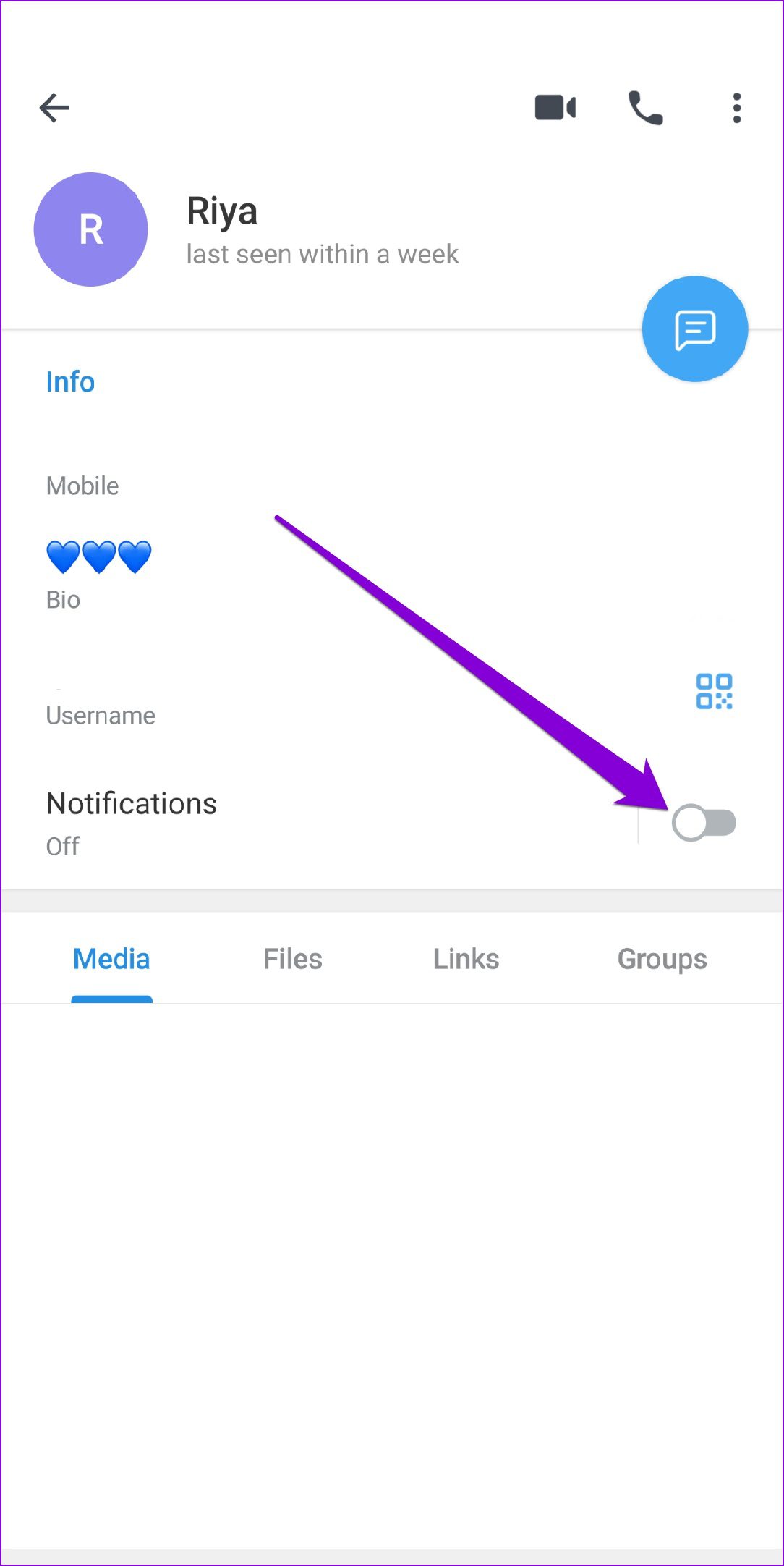
If the notifications are not working only for a specific Telegram chat, group, or channel, you may have muted it. Here’s how to unmute it.
Step 1: Launch the Telegram app and open the conversation for which notifications aren’t working.
Step 2: Tap on the contact name at the top and toggle on the switch next to Notifications.

Fix 4: Allow Telegram to Work in Background
Another reason Telegram may not send notifications on Android is if the app lacks the required permissions to operate in the background or if it’s restricted. Here’s how you can change that.
Step 1: Long-press on the Telegram app icon and tap the info icon from the menu that appears.
Step 2: Go to Mobile Data. Enable the toggles next to Allow background data usage and Allow data usage while Data saver is on.


Fix 5: Clear Telegram Cache
Outdated or corrupt cache data could affect Telegram’s functionality and prevent it from showing notifications. You can try clearing the Telegram app cache to see if that helps.
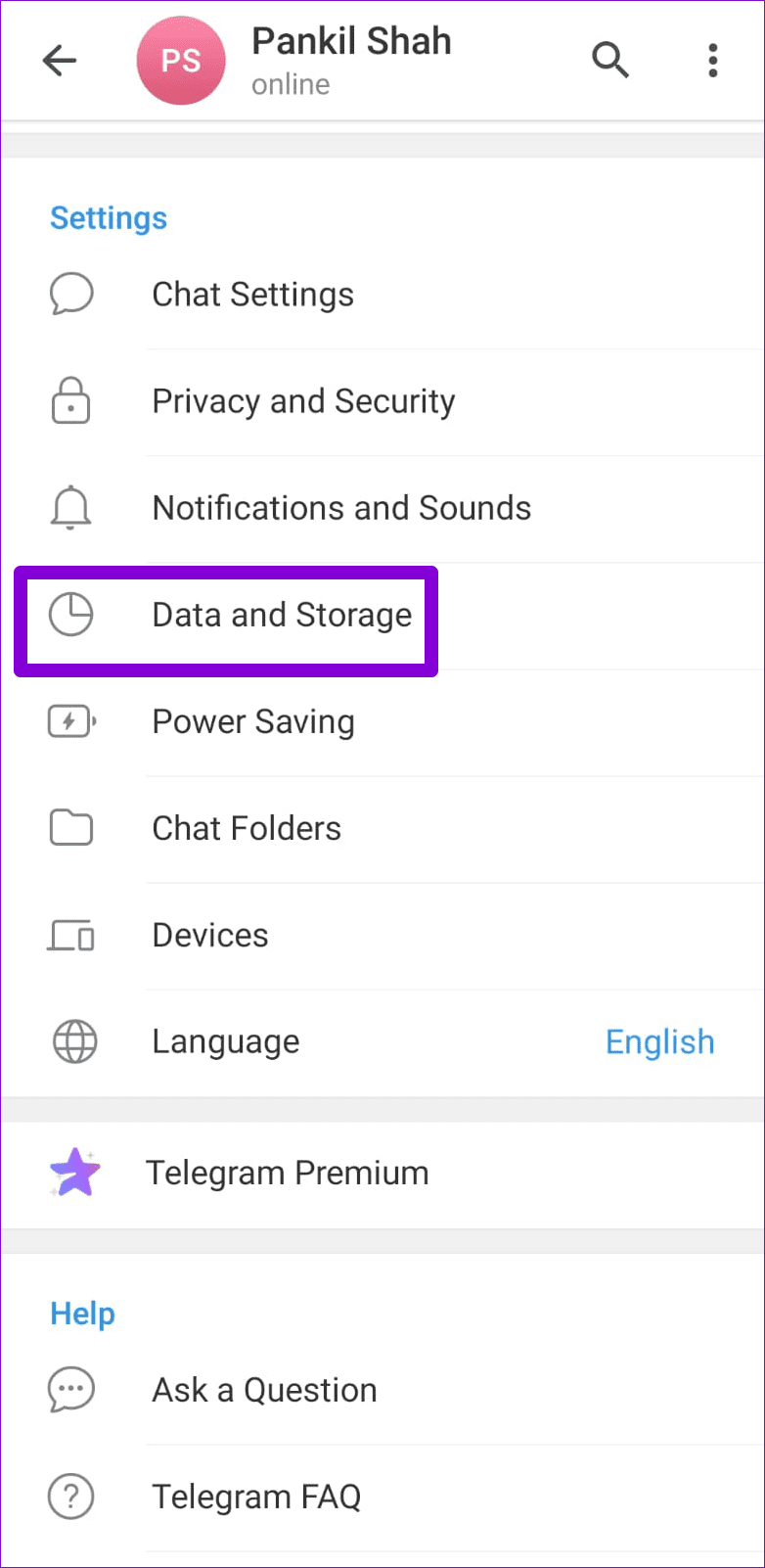
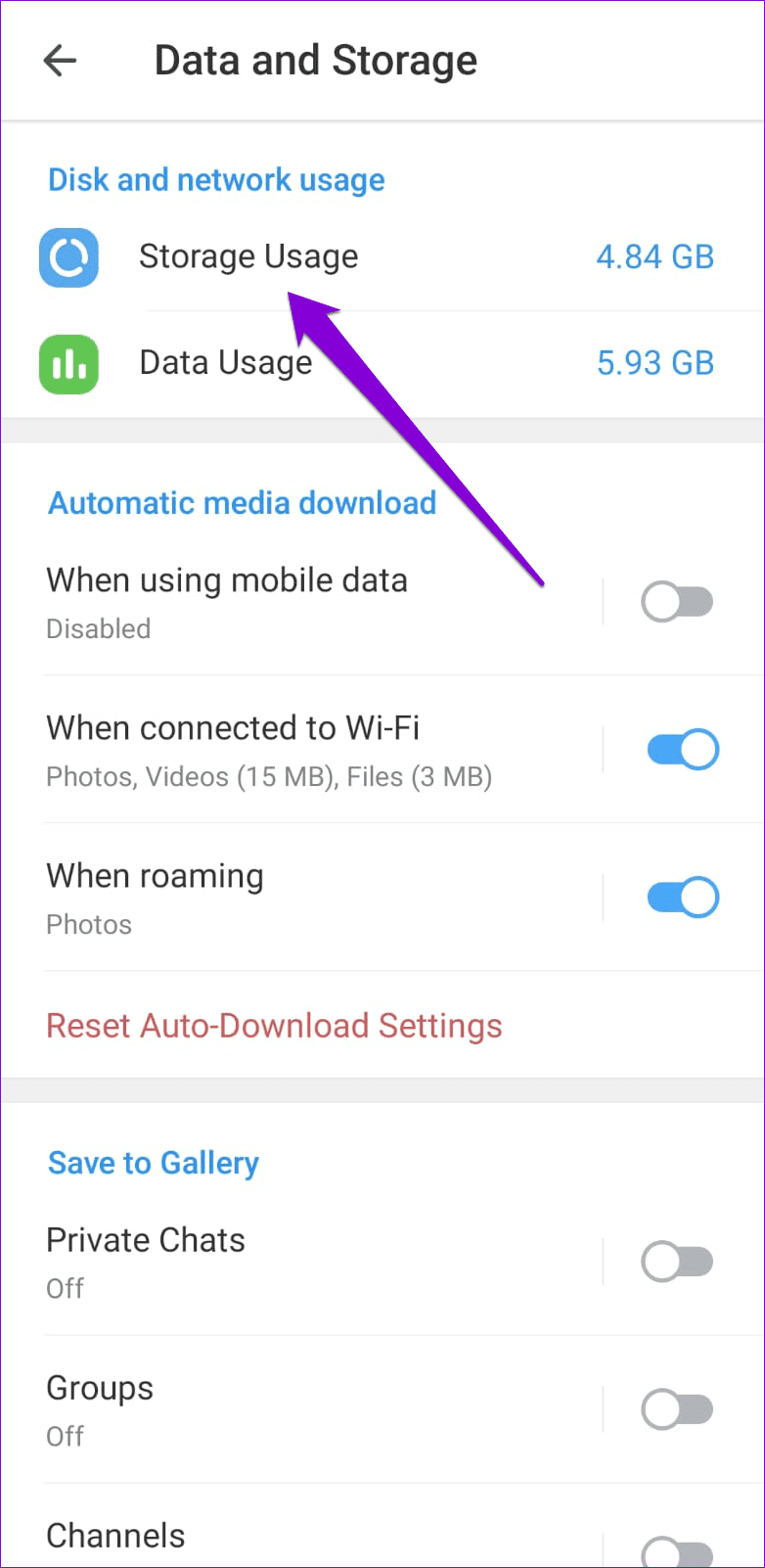
Step 1: In the Telegram app, head to Settings >Data and Storage > Storage Usage.
Step 2: Under Device Storage, tap Clear Telegram Cache. Tap Clear Cache to confirm.

Was this helpful?
Last updated on 16 May, 2024
1 Comment
Leave a Reply
Read Next
 4 Ways to Fix Telegram Notifications Not Working on Windows 10 and Windows 11
Try Basic Fixes Disable Do Not Disturb mode: The Telegram app may not be showing notifications due to the Do Not Disturb mode on your Windows PC.
4 Ways to Fix Telegram Notifications Not Working on Windows 10 and Windows 11
Try Basic Fixes Disable Do Not Disturb mode: The Telegram app may not be showing notifications due to the Do Not Disturb mode on your Windows PC.
 Top 6 Ways to Fix Telegram Web Notifications Not Working
Telegram is one of the most popular instant messaging apps for multiple reasons.
Top 6 Ways to Fix Telegram Web Notifications Not Working
Telegram is one of the most popular instant messaging apps for multiple reasons.
 5 Ways to Fix Telegram Not Showing Notifications on iPhone
Basic Yet Essential Methods to Try Check Telegram servers: It's possible that Telegram servers are down.
5 Ways to Fix Telegram Not Showing Notifications on iPhone
Basic Yet Essential Methods to Try Check Telegram servers: It's possible that Telegram servers are down.
 6 Ways to Fix Facebook Notifications Not Working on Android
Basic Fixes Update and reinstall Facebook: Outdated Facebook apps can cause notification issues.
6 Ways to Fix Facebook Notifications Not Working on Android
Basic Fixes Update and reinstall Facebook: Outdated Facebook apps can cause notification issues.
 4 Ways to Fix Microsoft Teams Notifications Not Working on Android
Basic Fixes Check the Microsoft Teams server: Open the Microsoft Service Health page and click on Teams in the left sidebar to check its service status.
4 Ways to Fix Microsoft Teams Notifications Not Working on Android
Basic Fixes Check the Microsoft Teams server: Open the Microsoft Service Health page and click on Teams in the left sidebar to check its service status.
 4 Ways to Fix Snapchat Notifications Not Working on Android
Try These Fixes First Restart your phone: The first thing to do is restart your phone.
4 Ways to Fix Snapchat Notifications Not Working on Android
Try These Fixes First Restart your phone: The first thing to do is restart your phone.
 3 Ways to Fix Delayed Telegram Message Notifications on iPhone
Try These Things First Disable Low Data Mode: The first thing to do is turn off Low Data Mode on your iPhone.
3 Ways to Fix Delayed Telegram Message Notifications on iPhone
Try These Things First Disable Low Data Mode: The first thing to do is turn off Low Data Mode on your iPhone.
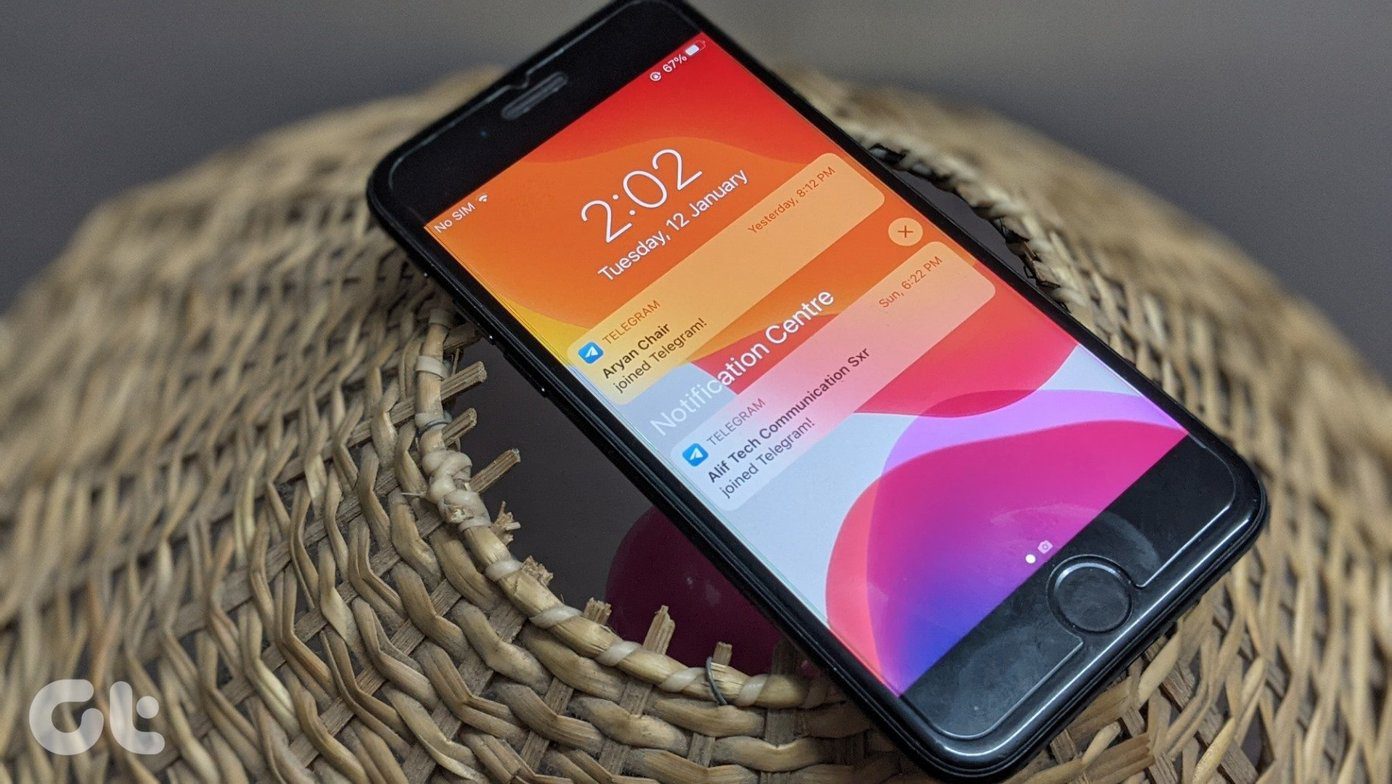 How to Turn off Contact Joined Notifications on Telegram
How to Disable Notifications for New Contacts on Telegram On iPhone Open the Telegram app and go to the Settings tab.
How to Turn off Contact Joined Notifications on Telegram
How to Disable Notifications for New Contacts on Telegram On iPhone Open the Telegram app and go to the Settings tab.
The article above may contain affiliate links which help support Guiding Tech. The content remains unbiased and authentic and will never affect our editorial integrity.

I recently added telegram. None of your images match what I see when I follow your instructions. There is no “Mute Conversation” for example. Nothing is the same so this site is useless in fixing my problem.