

Basic Fixes
- Update Google Maps app: Keeping your apps updated helps them run smoothly and rules out incompatibility issues. Hence, it’s a good idea to update Google Maps on your Android or iPhone before trying other things.
- Disable battery and data saver mode: If you’ve been using your phone in power saver mode to increase its battery life, it can prevent apps like Google Maps from running smoothly. Similarly, data saver also interferes with Google Maps’ ability to fetch data quickly. Hence, it’s best to turn off these options.
Fix 1: Enable High Location Accuracy
Enabling high location accuracy allows Google Maps to calculate your location as accurately as possible. If you’ve disabled this feature to save battery or data, you may notice that the Google Maps app operates a bit slower than usual.
On Android
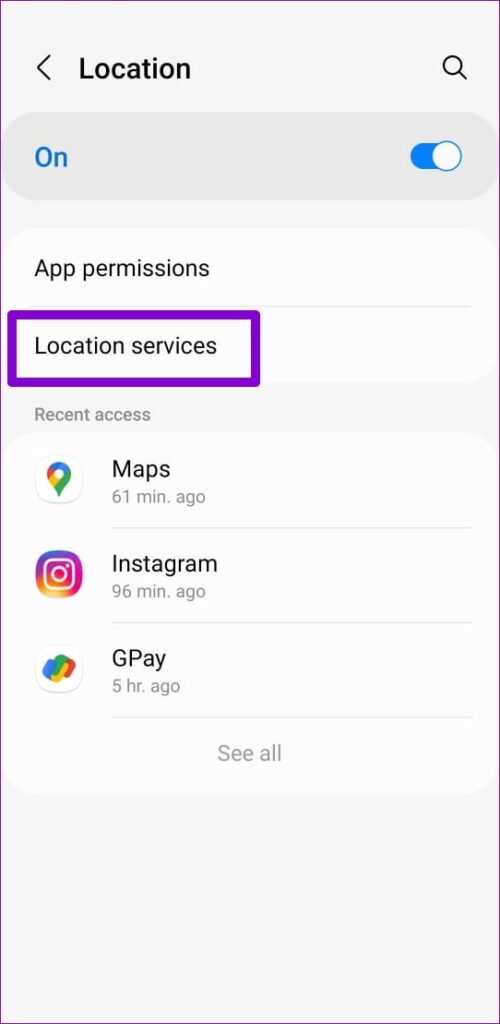
Step 1: Open the Settings app on your phone and go to Location > Location services.

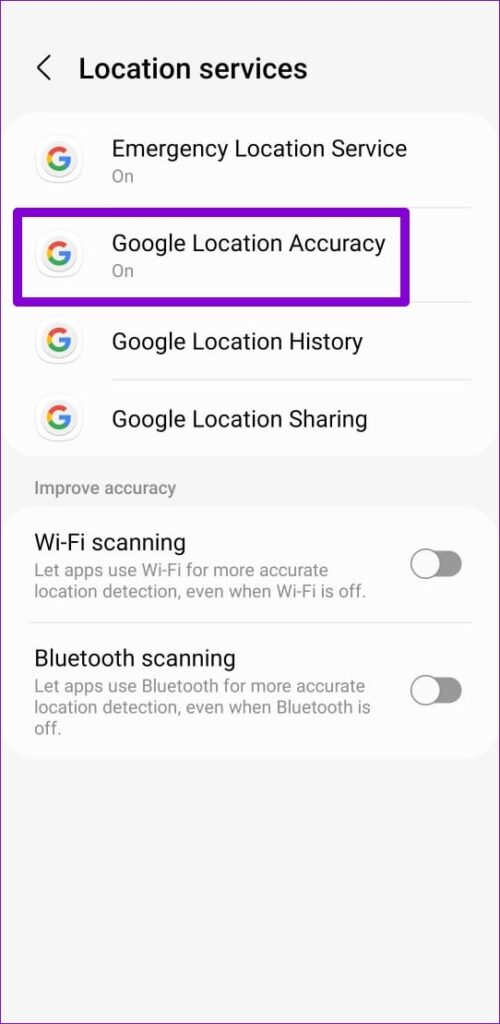
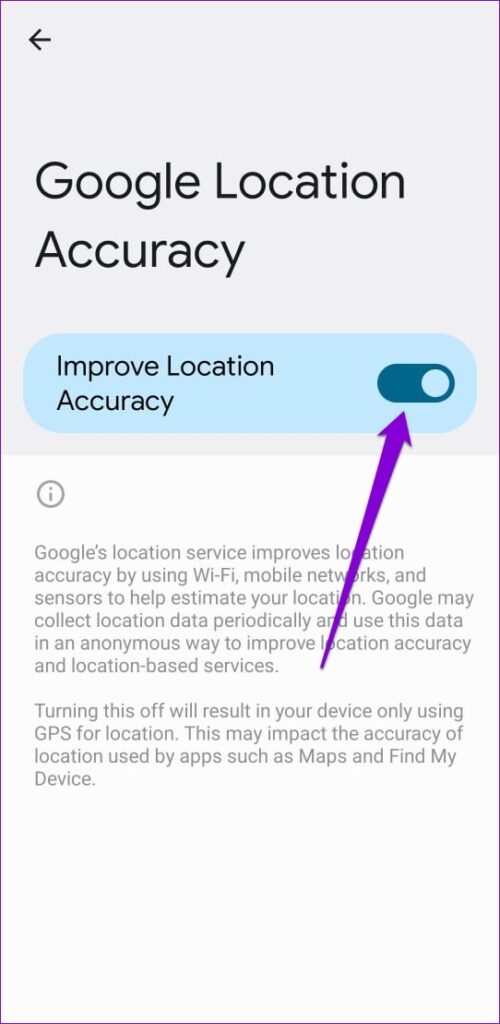
Step 2: Tap on Google Location Accuracy and toggle on Improve Location Accuracy.
On iPhone
Step 1: Open the Settings app and scroll down to tap on Google Maps.
Step 2: Tap on Location and enable the Precise Location toggle.


Fix 2: Turn off Satellite View
The satellite view on Google Maps is known to be one of the most demanding features in terms of data and processing power. So, unless you’re using a high-end flagship device that can handle it well, it’s best to use the default view for smoother performance.
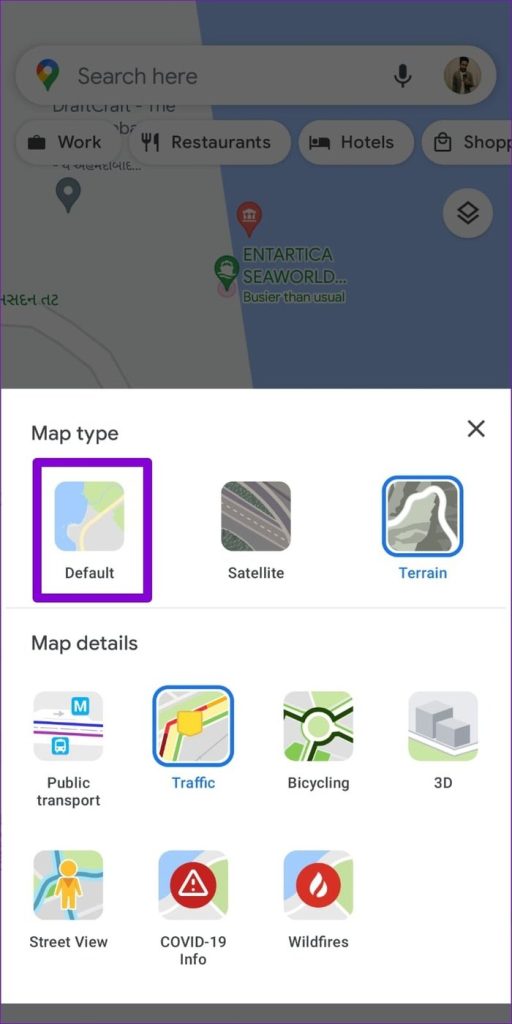
Step 1: Open Google Maps and tap the squared icon on your right.
Step 2: Switch the view type to Default and see if that speeds up Google Maps.

Fix 3: Clear Google Maps Cache
Overwhelming or outdated cache data can also interfere with Google Maps’ performance on your phone, causing it to run slowly at times. In most cases, you can fix such issues by clearing the existing Google Maps cache.
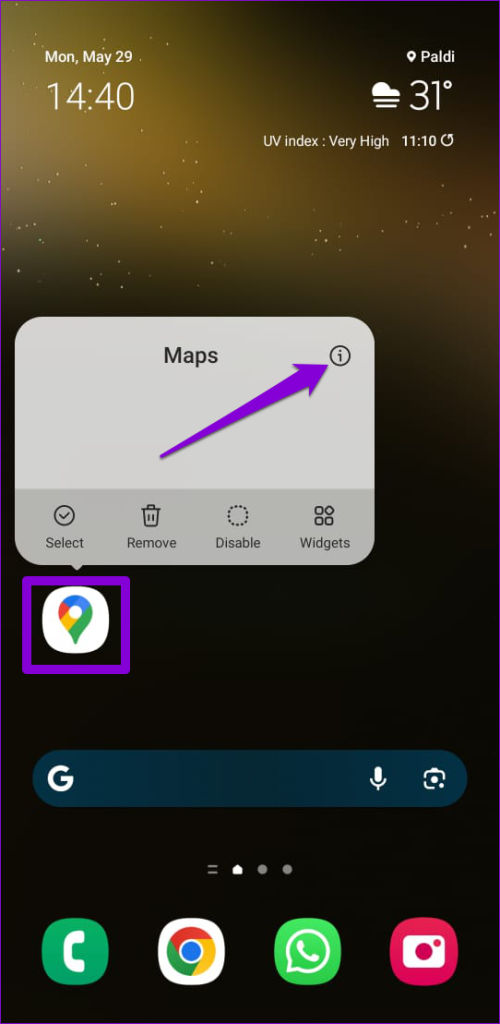
Step 1: Long-press the Google Maps app icon and tap the info icon from the resulting menu.
Step 2: Go to Storage and tap on Clear cache.


Fix 4: Use Offline Maps or Switch to Google Maps Go
If you only intend to use Google Maps in a particular city area, consider downloading maps for offline usage. This will enable you to use Google Maps without an active internet connection.
Google Maps is known to be resource-intensive, demanding significant RAM and processing power for optimal performance. If you’re using an older Android device, consider switching to Google Maps Go, a lighter version of the app that offers essential features while consuming fewer resources.
Was this helpful?
Last updated on 08 May, 2024
1 Comment
Leave a Reply
Read Next
 3 Ways to Fix Slow Facebook on Android and iPhone
Fix 1: Disable Data Saver in the Facebook App Enabling the data saver option in Facebook can restrict the app’s ability to use data freely, resulting in loading issues.
3 Ways to Fix Slow Facebook on Android and iPhone
Fix 1: Disable Data Saver in the Facebook App Enabling the data saver option in Facebook can restrict the app’s ability to use data freely, resulting in loading issues.
 Google Maps vs Maps Go Comparison: Explaining the Difference
Last year, Google announced the optimized version of Android Oreo operating system, Android Go.
Google Maps vs Maps Go Comparison: Explaining the Difference
Last year, Google announced the optimized version of Android Oreo operating system, Android Go.
 How to Switch Between KM and Miles in Google Maps and Apple Maps
How to Change Kilometers to Miles in Apple Maps To change KM to Miles (or vice versa) on iPhone, iPad, and Mac, all you need to do is change your
How to Switch Between KM and Miles in Google Maps and Apple Maps
How to Change Kilometers to Miles in Apple Maps To change KM to Miles (or vice versa) on iPhone, iPad, and Mac, all you need to do is change your
 6 Fixes for Slow Upload and Download Speeds on Google Drive
Preliminary Fixes Check your internet speed: Since Google Drive relies on your internet connection, a change in your internet speed will directly impact the upload and download speeds.
6 Fixes for Slow Upload and Download Speeds on Google Drive
Preliminary Fixes Check your internet speed: Since Google Drive relies on your internet connection, a change in your internet speed will directly impact the upload and download speeds.
 3 Ways to Fix Google Maps Showing Wrong Location on Android and iPhone
Try Basic Fixes Turn off battery saver mode: When you enable battery-saving mode, your phone turns off power-hungry features such as GPS tracking and background app data to improve battery
3 Ways to Fix Google Maps Showing Wrong Location on Android and iPhone
Try Basic Fixes Turn off battery saver mode: When you enable battery-saving mode, your phone turns off power-hungry features such as GPS tracking and background app data to improve battery
 4 Ways to Fix Google Maps Draining Battery on Android and iPhone
https://youtu.be/HEEhE2uFRfw Try Basic Fixes Remove the Google Maps widget from home screen: If you use Google Maps' live traffic widget to get traffic information on your home screen, the app’s
4 Ways to Fix Google Maps Draining Battery on Android and iPhone
https://youtu.be/HEEhE2uFRfw Try Basic Fixes Remove the Google Maps widget from home screen: If you use Google Maps' live traffic widget to get traffic information on your home screen, the app’s
 5 Ways to Fix Slow Download Speeds on Windows 11
Basic Fixes Connect to a 5GHz network: When you work with a dual-band Wi-Fi router, it's a good idea to choose a faster 5GHz Wi-Fi frequency band for better internet
5 Ways to Fix Slow Download Speeds on Windows 11
Basic Fixes Connect to a 5GHz network: When you work with a dual-band Wi-Fi router, it's a good idea to choose a faster 5GHz Wi-Fi frequency band for better internet
 4 Ways to Fix Slow Download Speed in Epic Games Launcher on Windows 11
https://youtu.be/w8E4d-rCMUQ Basic Fixes: Check the Epic Server Status: Epic Games Launcher also relies on multiple servers to operate, and It’s possible that a server might be out of order or
4 Ways to Fix Slow Download Speed in Epic Games Launcher on Windows 11
https://youtu.be/w8E4d-rCMUQ Basic Fixes: Check the Epic Server Status: Epic Games Launcher also relies on multiple servers to operate, and It’s possible that a server might be out of order or
The article above may contain affiliate links which help support Guiding Tech. The content remains unbiased and authentic and will never affect our editorial integrity.

wow! I did a factory reset trying to fix this problem but all I had to do was to read this article first. LOL. My problem was that my iPhone was using Low Data Mode for Mobile Data.
Thank you!