


Basic Fixes:
- Ensure Smart Switch is installed on both devices: The Samsung Smart Switch app must be installed on both devices to ensure a smooth transition. If unsure, set up your Samsung device first and double-check if the Samsung Smart Switch app is available.
- Connect to the same Wi-Fi network: If you’re transferring data using the Wireless transfer option, ensure your new and old devices are connected to the same Wi-Fi network.
- Check if the data is transferrable: There are restrictions when using the Samsung Smart Switch app to transfer data. Sign-in details for apps, calendar events, messaging app data, private storage data, locked notes, etc. cannot be transferred and will have to be moved manually.
- Ensure there’s storage space available: You can transfer data to a new or old device as long as it’s a Samsung device. So, ensure there’s enough space available on the target device to store all the data. Otherwise, the transfer might not work.
- Try transferring to an SD card: You can save all the data to an SD card on your old phone using the Samsung Smart Switch app. Insert the SD card into the new phone and use the Samsung Smart Switch app to restore the data.
Fix 1: Transfer Data via Cable
While transferring data via Wi-Fi is convenient, sometimes it doesn’t work. When this happens, you can choose the Cable option and transfer the data via a cable using the Samsung Smart Switch app. Connect both devices via a USB C to USB C cable or a USB C to Micro USB cable before proceeding.
Fix 2: Update Smart Switch App on Your New Phone
There are chances of your new phone not having the latest version of the Samsung Smart Switch app available upon setup. So, set up your Samsung device without transferring the data. Then, use the Play Store to update the Samsung Smart Switch app. Once done, try transferring the data again.
Fix 3: Ensure All Permissions Are Enabled
To transfer contacts, messages, media, etc. the Samsung Smart Switch app needs access permission enabled. So, if you denied any permission when initially setting up the Samsung Smart Switch app, it might not work properly. In this case, use the below steps to enable all app permissions on both phones.
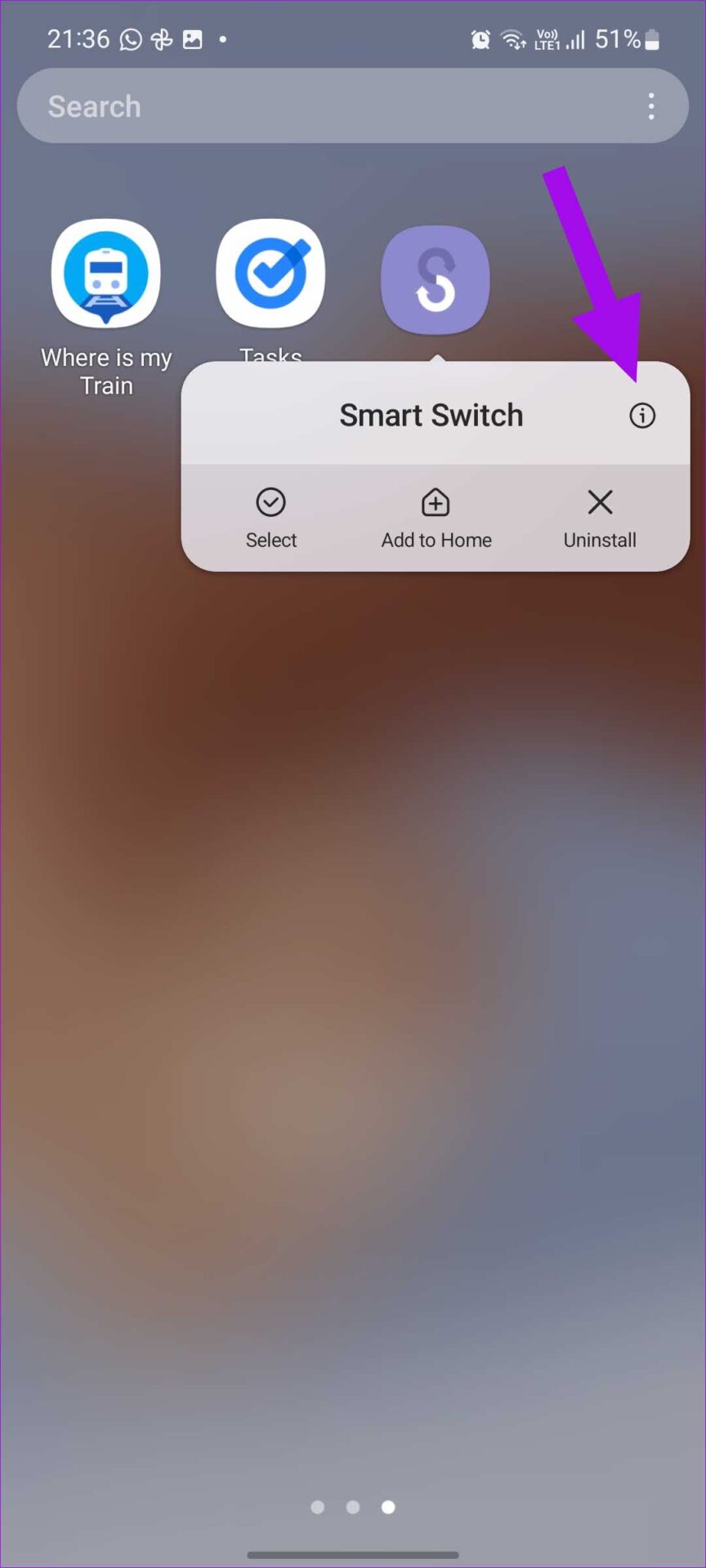
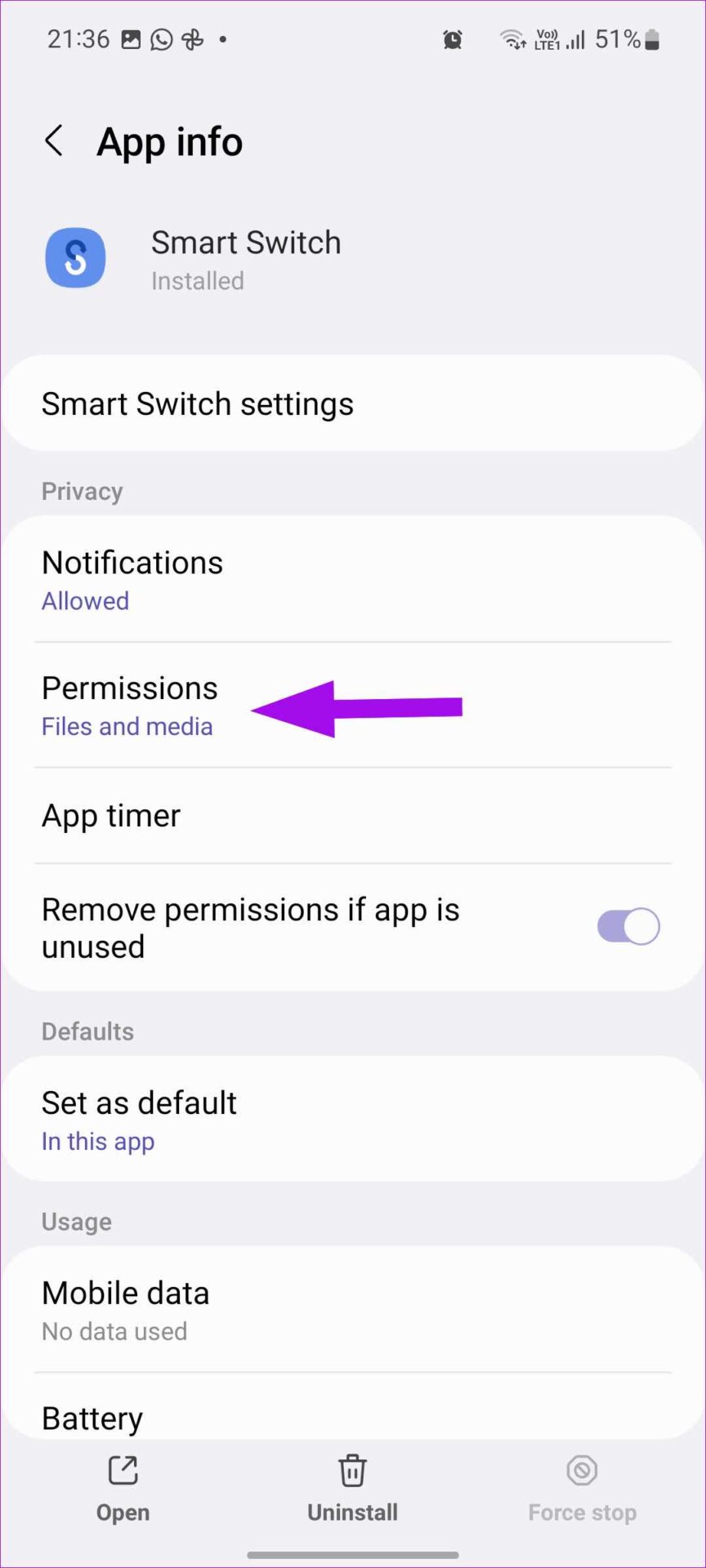
Step 1: Long-press the Smart Switch app icon and tap the i icon. Select Permissions.
Step 2: Tap on all permissions and select Allow. Ensure this is done on both devices.

Fix 4: Keep Smart Switch in the Foreground
When transferring data, you can usually use the app switcher to continue with other tasks on both phones. However, if the transfer continuously fails, try keeping the Samsung Smart Switch app open on both devices until the transfer is complete. You won’t be able to use either device during this time.
Was this helpful?
Last updated on 20 July, 2024
1 Comment
Leave a Reply
Read Next
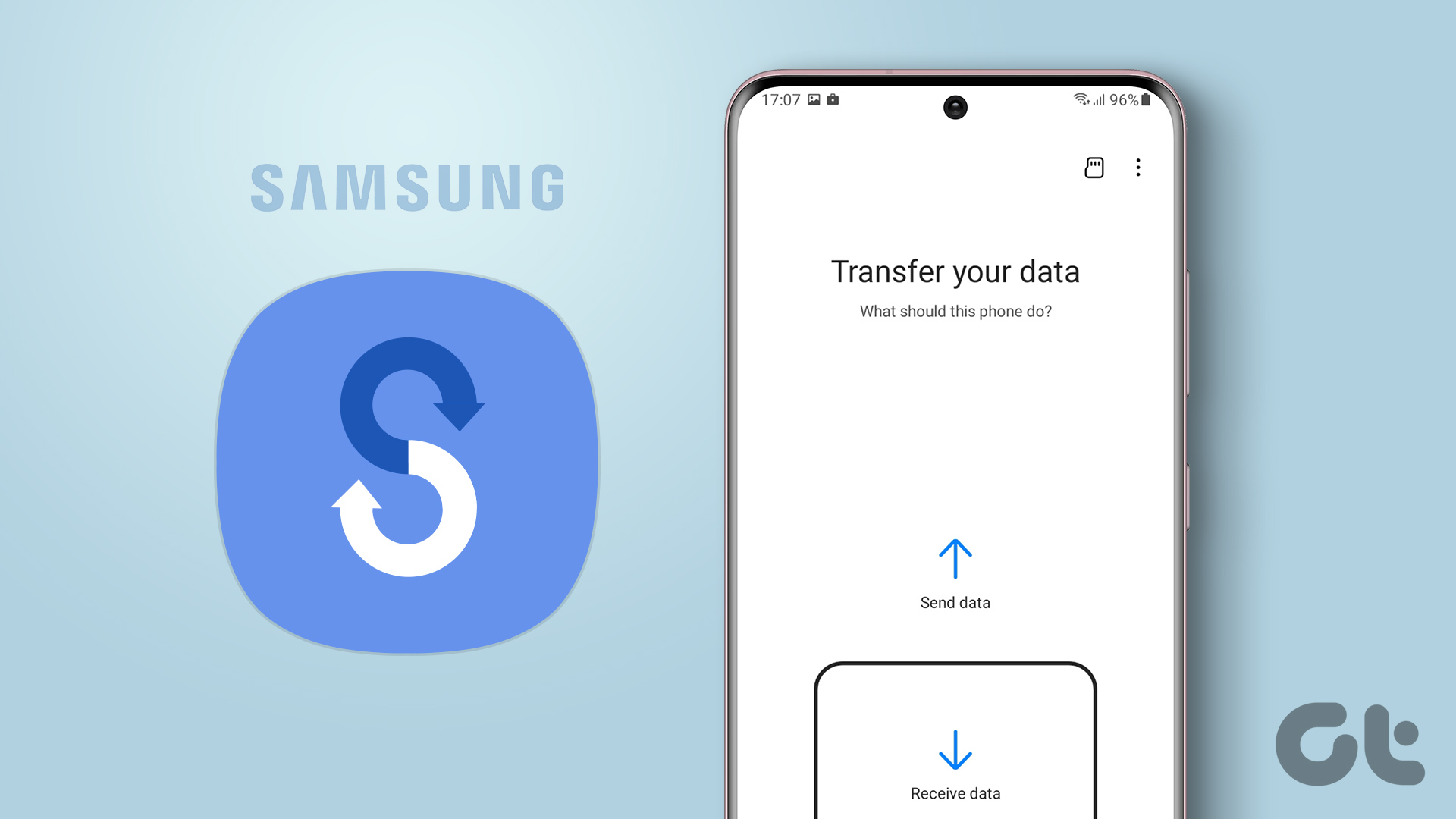 How to Use Samsung Smart Switch to Back Up and Transfer Data on Galaxy Phones
Buying a new phone and transferring data always seem to go hand in hand.
How to Use Samsung Smart Switch to Back Up and Transfer Data on Galaxy Phones
Buying a new phone and transferring data always seem to go hand in hand.
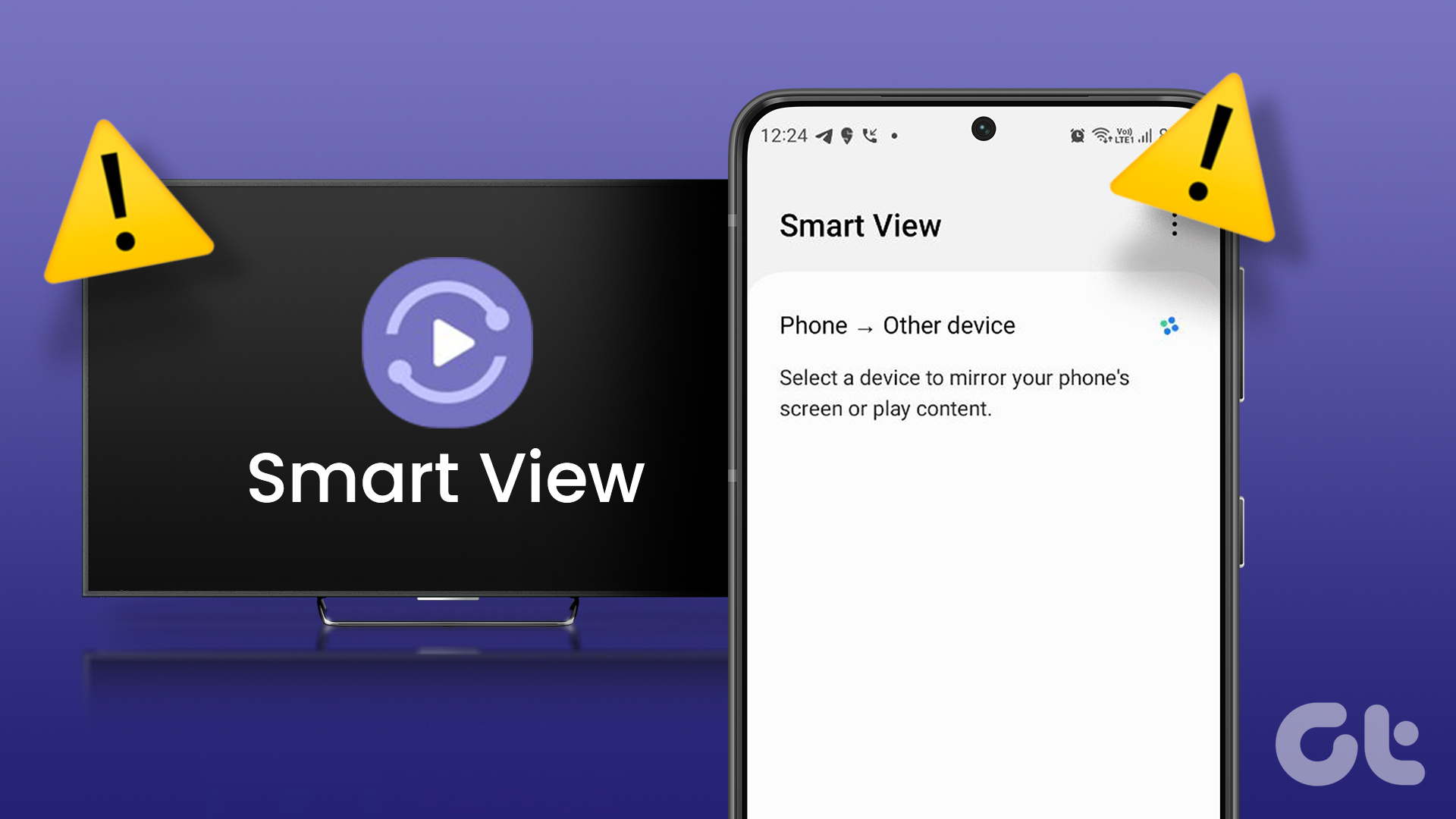 4 Best Ways to Fix Smart View Not Working on Samsung Galaxy Phones
Basic Fixes: Restart devices: If the Smart View feature isn’t working on your Samsung Galaxy phone, the first thing you must do is restart it.
4 Best Ways to Fix Smart View Not Working on Samsung Galaxy Phones
Basic Fixes: Restart devices: If the Smart View feature isn’t working on your Samsung Galaxy phone, the first thing you must do is restart it.
 5 Best Smart Relay Switches to Make Your Existing Sockets Smart
Smart relay switches connect to the internet and can control the socket they are attached to -- be it a wall outlet, a light bulb, or your air conditioner.
5 Best Smart Relay Switches to Make Your Existing Sockets Smart
Smart relay switches connect to the internet and can control the socket they are attached to -- be it a wall outlet, a light bulb, or your air conditioner.
 How to Fix Silent Switch Not Working on iPhone
Fixes for Silent Button Not Working on iPhone Clean the area around the button: If there is dust and lint accumulation inside the region of the silent switch, it will
How to Fix Silent Switch Not Working on iPhone
Fixes for Silent Button Not Working on iPhone Clean the area around the button: If there is dust and lint accumulation inside the region of the silent switch, it will
 4 Ways to Switch Back to Google Assistant From Gemini
Method 1: Using Google App Step 1: Open the Google app on your Android phone.
4 Ways to Switch Back to Google Assistant From Gemini
Method 1: Using Google App Step 1: Open the Google app on your Android phone.
 What Is Smart View on Samsung and How to Use It
What Is Smart View on Samsung Phones and How Does It Work Smart View is a feature in Samsung Galaxy phones that lets you mirror your phone to a bigger
What Is Smart View on Samsung and How to Use It
What Is Smart View on Samsung Phones and How Does It Work Smart View is a feature in Samsung Galaxy phones that lets you mirror your phone to a bigger
 How to Control Samsung Smart TV With Android or iPhone
Control Samsung TV With Android Samsung Galaxy phones and tablets come with SmartThings app built-in.
How to Control Samsung Smart TV With Android or iPhone
Control Samsung TV With Android Samsung Galaxy phones and tablets come with SmartThings app built-in.
 5 Ways to Delete and Reinstall Apps on Samsung Smart TV
Is your Samsung TVs storage full or do you want to troubleshoot an app?
5 Ways to Delete and Reinstall Apps on Samsung Smart TV
Is your Samsung TVs storage full or do you want to troubleshoot an app?
The article above may contain affiliate links which help support Guiding Tech. The content remains unbiased and authentic and will never affect our editorial integrity.
I installed Smart Switch on the new phone and started it from there, and then on the old phone and everything worked as it should. I have wiped the new phone about five times, cleared cache OF SMART SWITCH on the old phone several times and that did not work. The way that was not working was, the new phone would start and prompt the process and connect up with the old phone without any real intervention. It just did not work that way. It only transferred the contacts and some apps, but no pictures or texts etc. Very scary.