Try Basic Fixes
- Force stop the Messages app: When an app on your phone fails to work properly or stops for no apparent reason, force stop the app and open it again. That usually fixes any temporary glitches with the app.
- Free up storage space: A lack of storage space can also cause apps on your phone to misbehave. You can remove unnecessary apps and large files from your phone to free up some storage. Alternatively, move some of your data to cloud storage options like Google Drive, OneDrive, and others.
- Update the app: If you haven’t updated the Samsung Messages app in a while, you may be using an older app version. This can lead to compatibility issues and cause the app to behave strangely. Update the Samsung Messages app on your phone and see if that helps.
Fix 1: Allow Necessary App Permissions
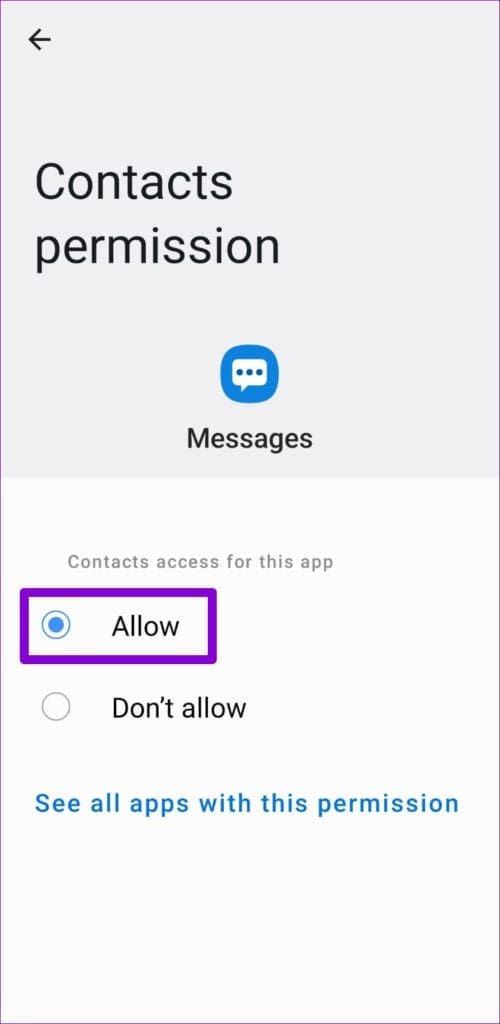
Samsung Messages requires a few permissions to function properly. If denied, certain features may not work or cause the app to crash abruptly at times.
Here’s how to allow app permissions for the Samsung Messages app.
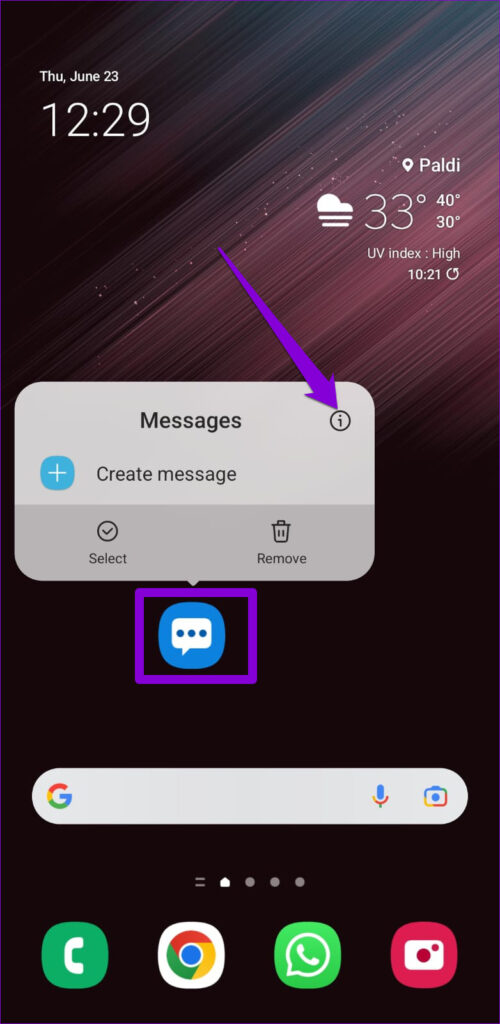
Step 1: Long-press on the Samsung Messages app icon and tap the info icon from the resulting menu. Then, go to Permissions.
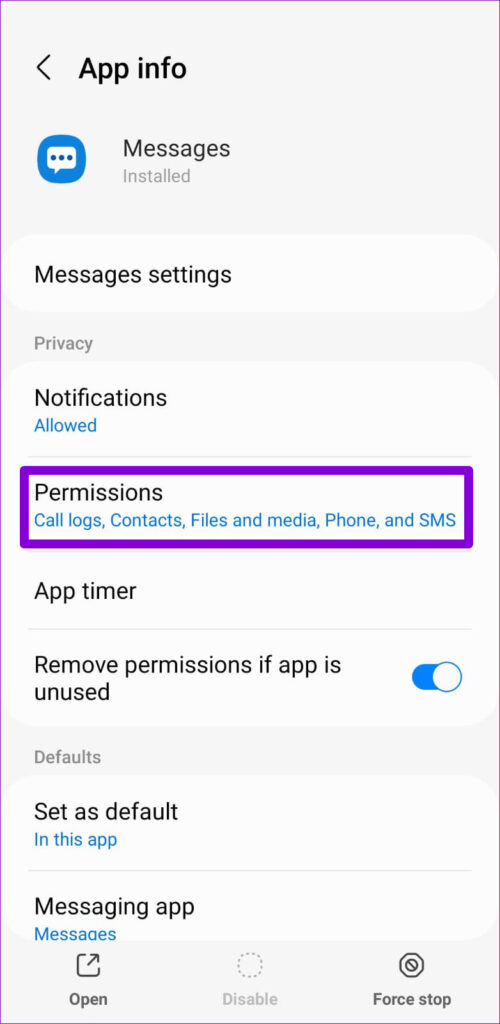
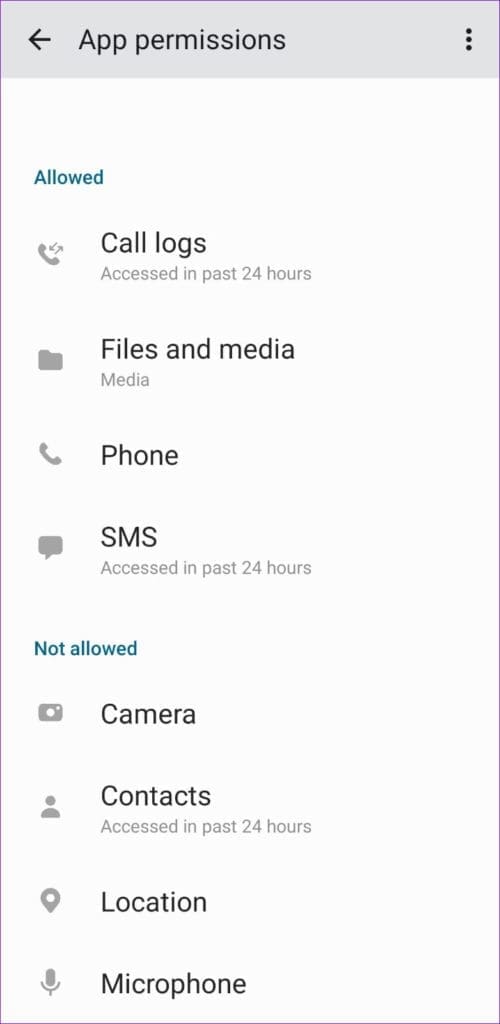
Step 2: Allow all the required permissions one by one.
Fix 2: Set Samsung Messages as the Default Messaging App
If you haven’t set the Samsung Messages app as the default SMS app on your phone, some of the app features may not work. This can also cause the app to crash. To avoid this, set Samsung Messages as the default messaging app on your phone.
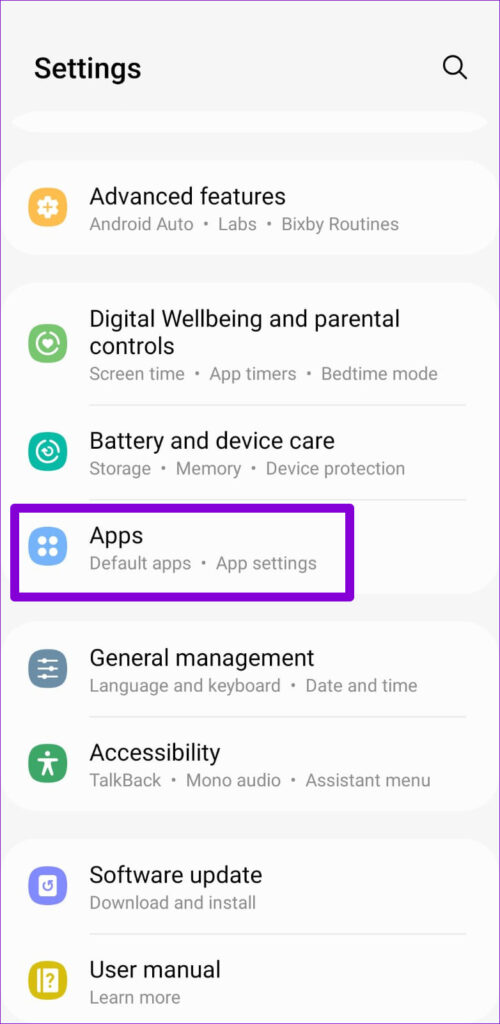
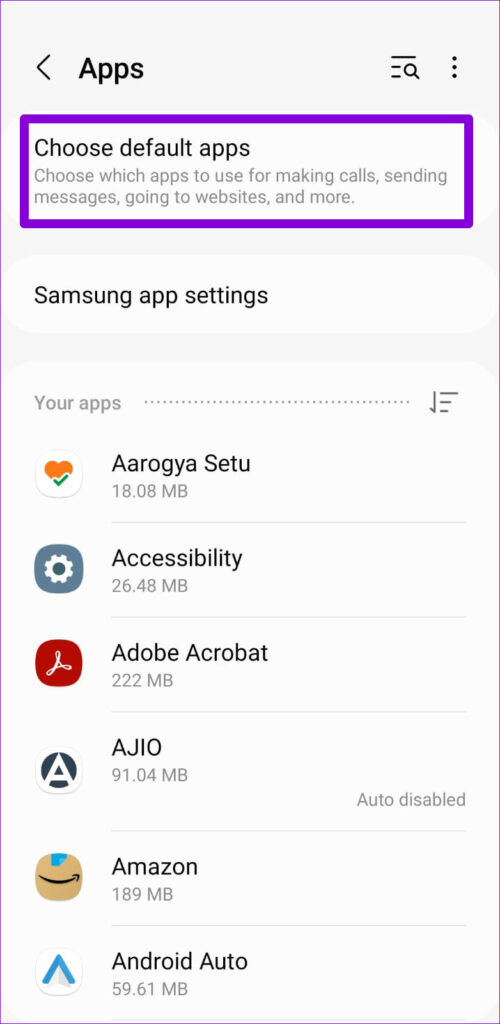
Step 1: Open Settings on your phone and go to Apps > Choose default apps.
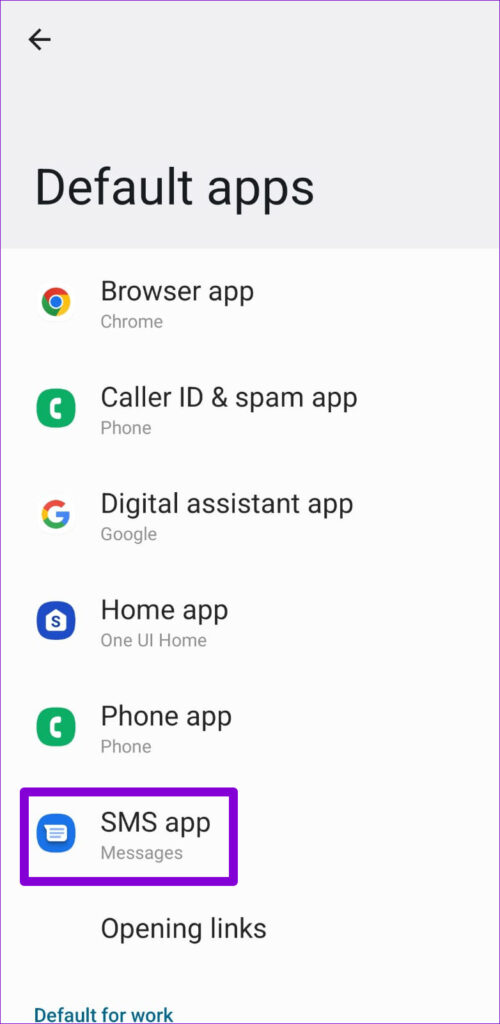
Step 2: Tap SMS app and select Messages by Samsung as the default app.

Fix 3: Clear App Cache and Data
Temporary data (also known as cache data) collected by the Samsung Messages app may also interfere with app performance, especially if it is old. You can clear that cache data for the Samsung Messages app to see if that improves the situation.
Step 1: Long-press on the Samsung Messages app icon and tap the info icon from the resulting menu.
Step 2: Go to Storage and tap the Clear cache option at the bottom right.
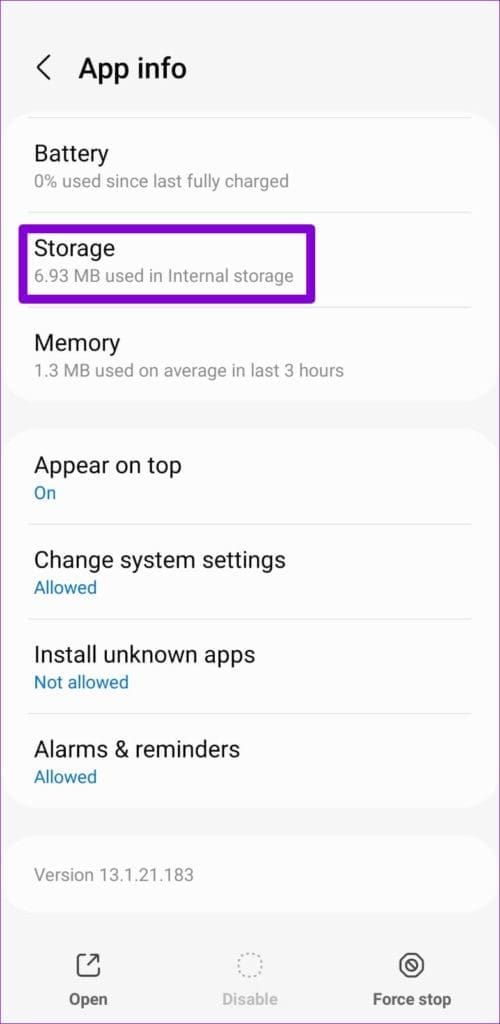

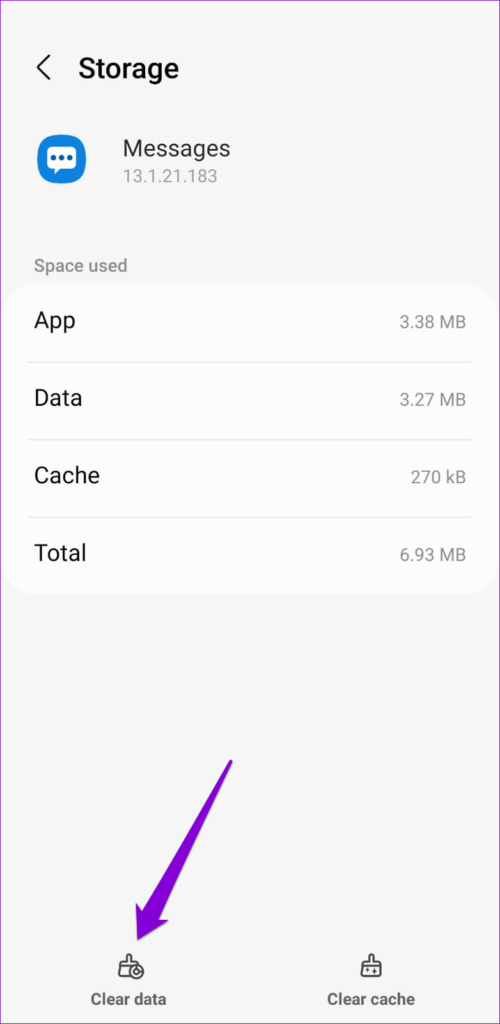
If the issue remains, try clearing the app data instead. This will effectively reset the app to its default settings and fix any issues.
Fix 4: Use Safe Mode
Safe Mode is a useful tool on Android to troubleshoot various issues with your phone. If your issues with the Samsung Messages app are caused by a third-party app, booting your phone in Safe Mode will help verify that.
Step 1: Press and hold the Power button on your phone until you see the power menu.
Step 2: Long-press on the Power off icon and tap the green checkmark to boot in Safe Mode.

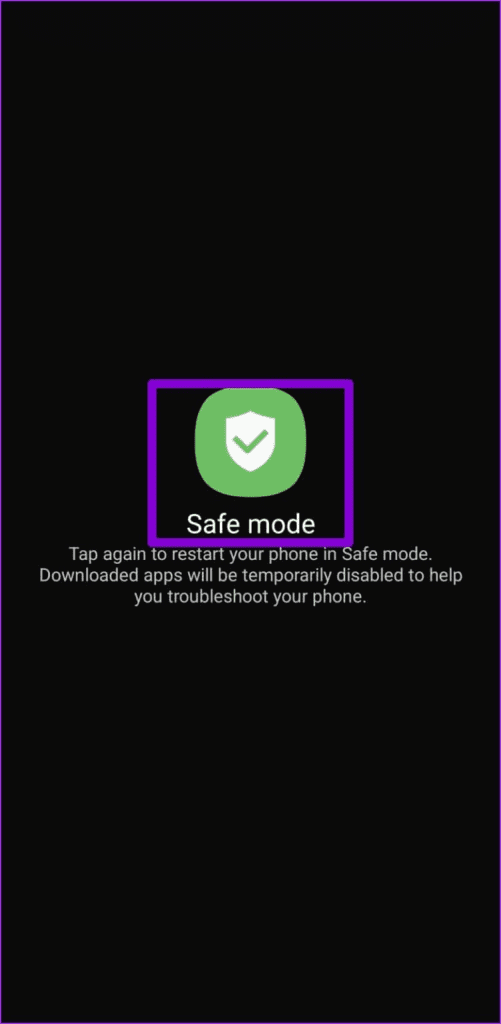
Once you’re in Safe Mode, try using the Samsung Messages app for a few minutes.
If the app works fine, one of the third-party apps running on your phone could be the source of the problem. Apps you’ve installed fairly recently are most likely to have caused the issue. You can try removing those apps one by one to resolve the issue.
Was this helpful?
Last updated on 02 September, 2024
Read Next
 Top 7 Ways to Fix Samsung One UI Home Keeps Stopping Issue
What can be more annoying than the random errors popping up on your Android phone?
Top 7 Ways to Fix Samsung One UI Home Keeps Stopping Issue
What can be more annoying than the random errors popping up on your Android phone?
 5 Ways to Fix Samsung Internet Browser Keeps Stopping on Android
Fix 1: Check Permissions and Force Stop Samsung Internet App Samsung Internet browser requires a few permissions to run on your Android.
5 Ways to Fix Samsung Internet Browser Keeps Stopping on Android
Fix 1: Check Permissions and Force Stop Samsung Internet App Samsung Internet browser requires a few permissions to run on your Android.
 How to Fix if File Manager Keeps Stopping on Android
Basic Fixes: Restart Android phone: Long-press the power button and tap on Restart.
How to Fix if File Manager Keeps Stopping on Android
Basic Fixes: Restart Android phone: Long-press the power button and tap on Restart.
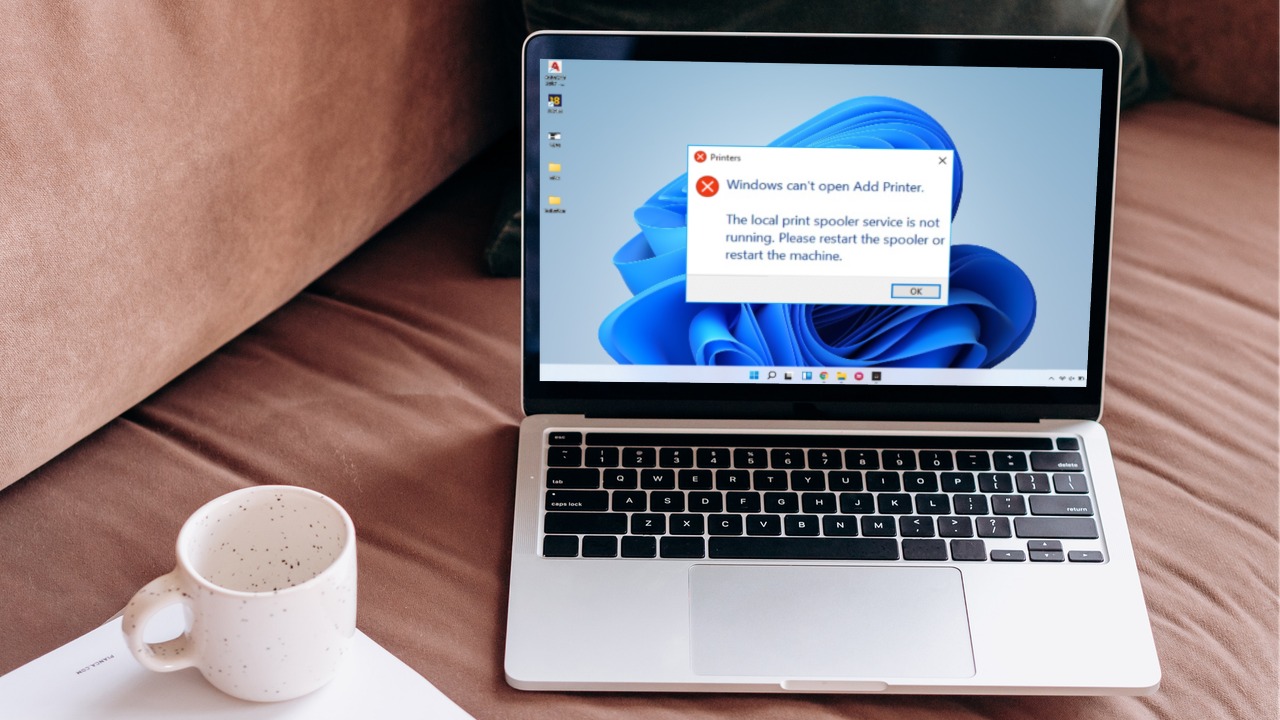 6 Ways to Fix Print Spooler Keeps Stopping on Windows 10 and Windows 11
Fix 1: Run Printer Troubleshooter Windows comes with a dedicated printer troubleshooter that can automatically diagnose and fix any printing issues on your PC.
6 Ways to Fix Print Spooler Keeps Stopping on Windows 10 and Windows 11
Fix 1: Run Printer Troubleshooter Windows comes with a dedicated printer troubleshooter that can automatically diagnose and fix any printing issues on your PC.
 Fix: Background Intelligent Transfer Service (BITS) Keeps Stopping
Fix 1: Set Background Intelligent Transfer Service to Automatic (Delayed Start) If the Background Intelligent Transfer Service or its related services are misconfigured, you must reset them to their default
Fix: Background Intelligent Transfer Service (BITS) Keeps Stopping
Fix 1: Set Background Intelligent Transfer Service to Automatic (Delayed Start) If the Background Intelligent Transfer Service or its related services are misconfigured, you must reset them to their default
 3 Ways to Fix Messages App Keeps Crashing or Freezing on iPhone
Basic Fixes: Check the Messages app server status: If there is an issue with Apple's servers, it can affect the functioning of the Messages app.
3 Ways to Fix Messages App Keeps Crashing or Freezing on iPhone
Basic Fixes: Check the Messages app server status: If there is an issue with Apple's servers, it can affect the functioning of the Messages app.
 5 Ways to Fix Android Messages Keeps Crashing Issue
Basic Fixes: Restart Phone: Start the troubleshooting process by restarting your phone.
5 Ways to Fix Android Messages Keeps Crashing Issue
Basic Fixes: Restart Phone: Start the troubleshooting process by restarting your phone.
 How to Transfer Samsung Messages to Google Messages
How to Switch From Samsung Messages to Google Messages on the Same Phone If you want to switch to the Messages by Google app on your Samsung phone, you only
How to Transfer Samsung Messages to Google Messages
How to Switch From Samsung Messages to Google Messages on the Same Phone If you want to switch to the Messages by Google app on your Samsung phone, you only
The article above may contain affiliate links which help support Guiding Tech. The content remains unbiased and authentic and will never affect our editorial integrity.