

Try Basic Fixes
- End Outlook processes using Task Manager: At times, Microsoft Outlook may fail to load its interface due to temporary glitches. To fix this, press Ctrl + Shift + Esc to open Task Manager. In the Processes tab, select Microsoft Outlook > click End task. Then, reopen Microsoft Outlook and see if that works.
- Scan for malware: Malware infection is another possible cause for such issues with the Outlook app. To rule out this possibility, try scanning your system with Windows Defender or a third-party antivirus program. If the scan reveals anything suspicious, take the recommended steps to remove the threat.
Fix 1: Run the Office Repair Tool
If ending Outlook’s app processes doesn’t help, turn to Microsoft’s Office repair tool for help. It can scan and find issues with all your Office apps, including Outlook. Here’s how to run it.
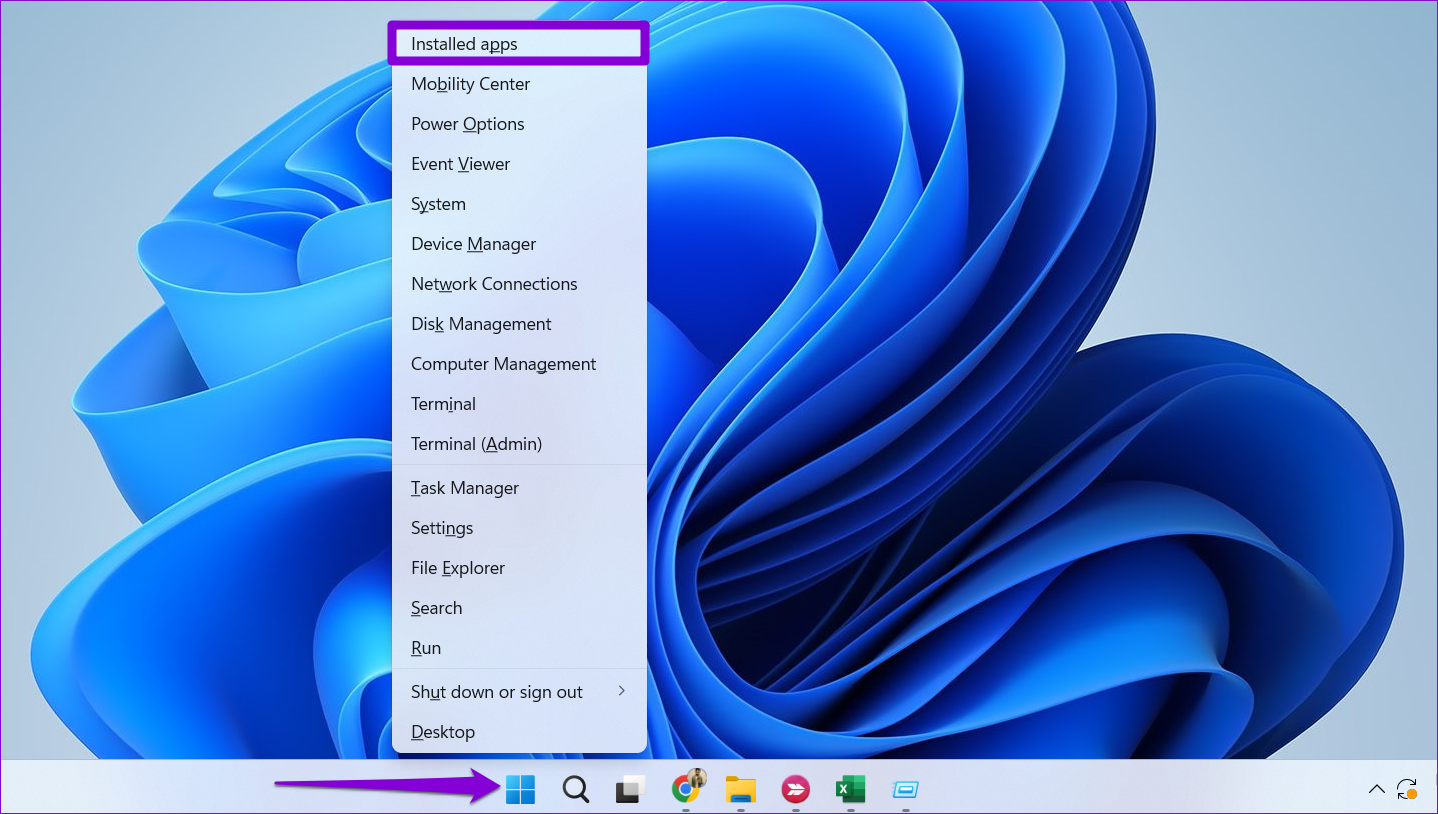
Step 1: Right-click on the Start icon > select Installed apps from the list.
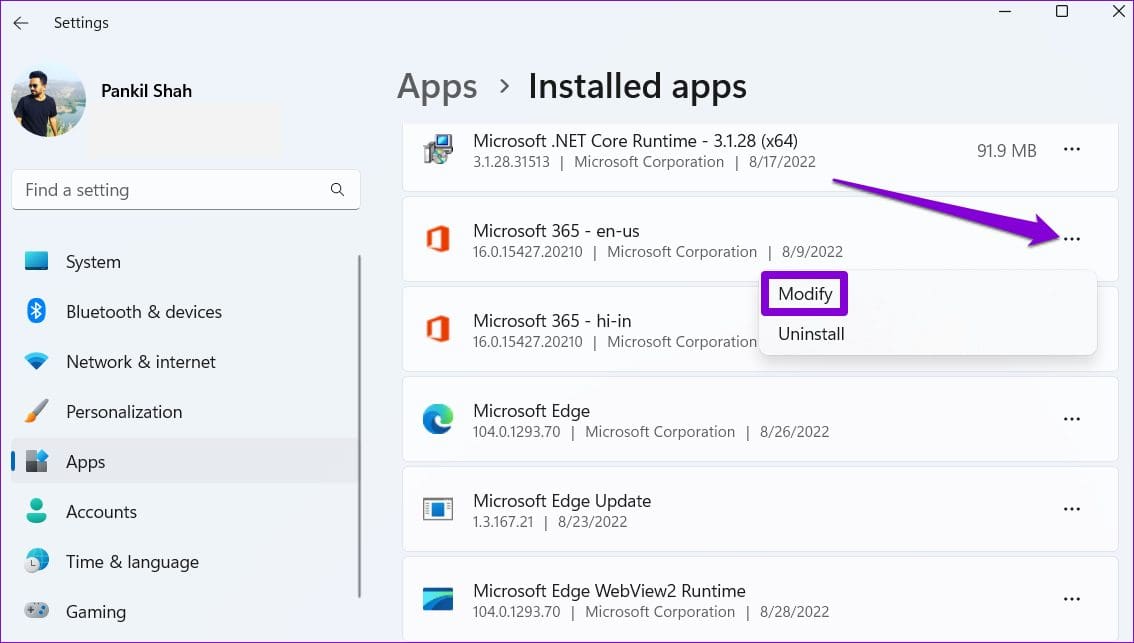
Step 2: Scroll down to locate the Microsoft Office suite on the list. Click the three-dot menu icon next to it and select Modify.
Step 3: Select Online Repair > Repair.

Fix 2: Reset the Navigation Pane
Sometimes, issues with the navigation pane can prevent the Outlook app from opening on your Windows PC. If so, resetting the navigation pane should help. For that, press the Windows key + R to open the Run dialog box. Type the following command and press Enter.
outlook.exe /resetnavpane
Fix 3: Open Outlook in Safe Mode
Opening Outlook in Safe Mode can help you identify if one of your add-ins is causing the problem. To do this, press and hold the Ctrl key on your keyboard and double-click the Outlook shortcut. Click Yes when the confirmation prompt appears.
If Outlook opens and works fine in safe mode, disable all the add-ins and re-enable them one at a time. Doing so should help you identify the troublesome add-in.
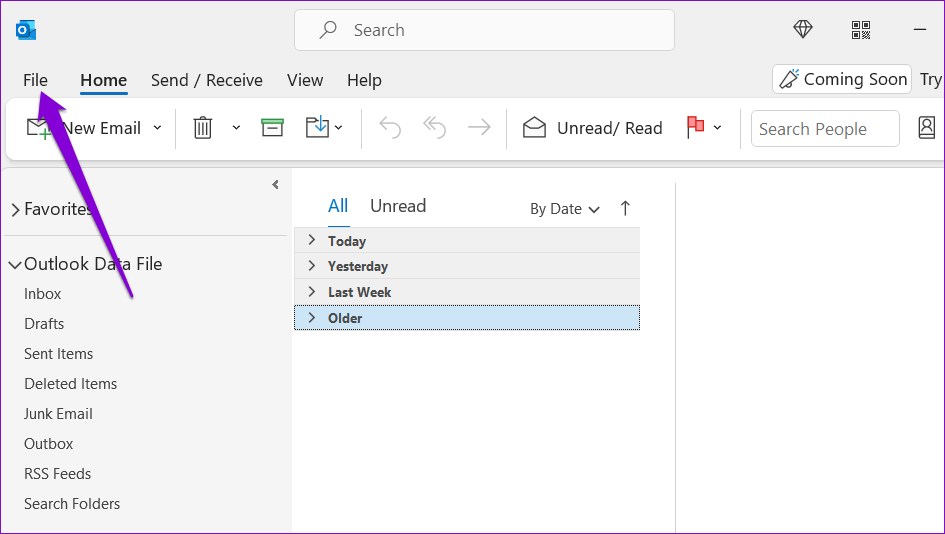
Step 1: In the Outlook app, click on the File menu at the top.
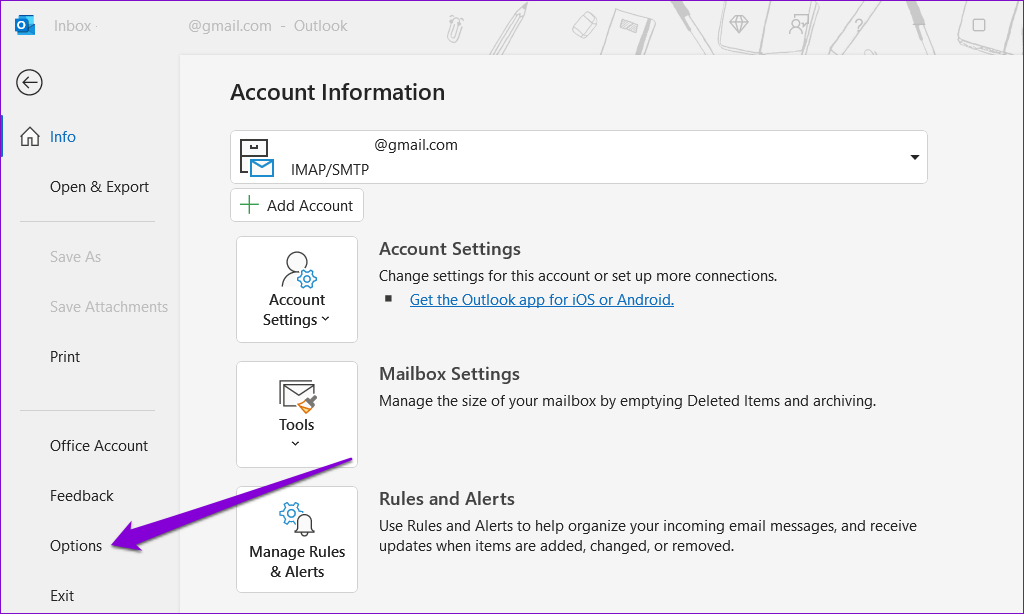
Step 2: Use the left pane to navigate to Options.
Step 3: In the Outlook Options window, switch to the Add-ins tab. Use the drop-down menu next to Manage > select COM Add-ins > click the Go button next to it.
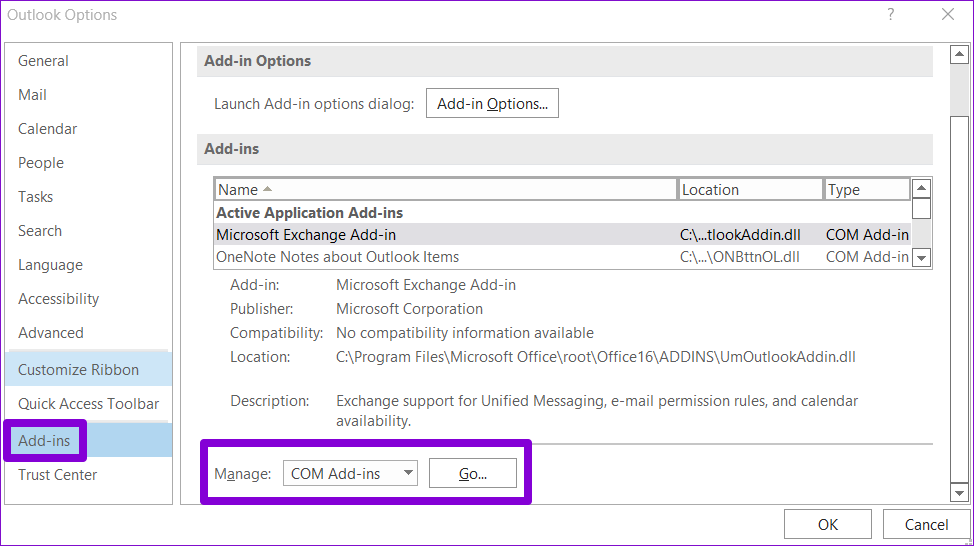
Step 4: Uncheck the boxes to disable add-ins and click OK.
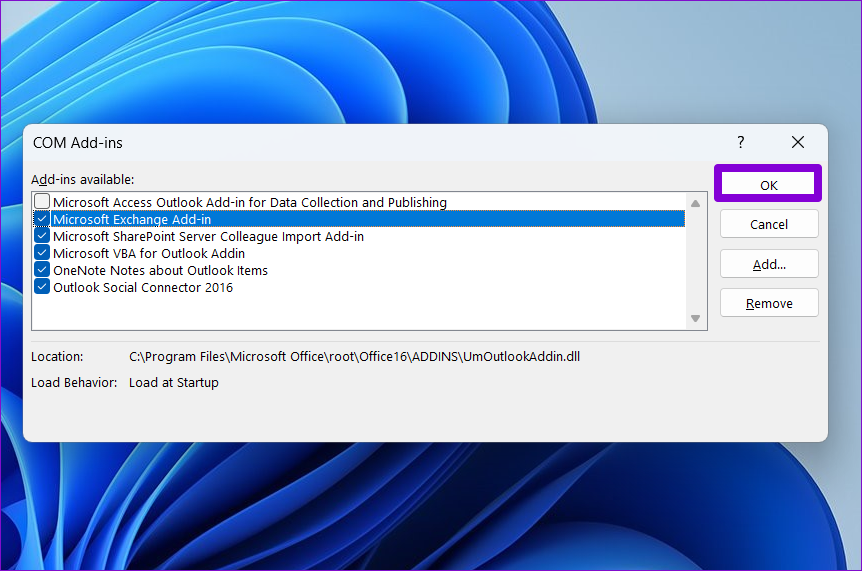
Restart the Outlook app after this and enable your add-ins one by one until the problem occurs again. Once you find the problematic add-in, remove it to avoid any issues in the future.
Fix 4: Create a New Outlook Profile
The Outlook profile on your PC contains your Outlook settings. If Windows is having trouble accessing this profile, Outlook will not open. If that’s the case, create a new Outlook profile by following the steps below.
Step 1: Click the search icon on the taskbar, type control panel, and press Enter.
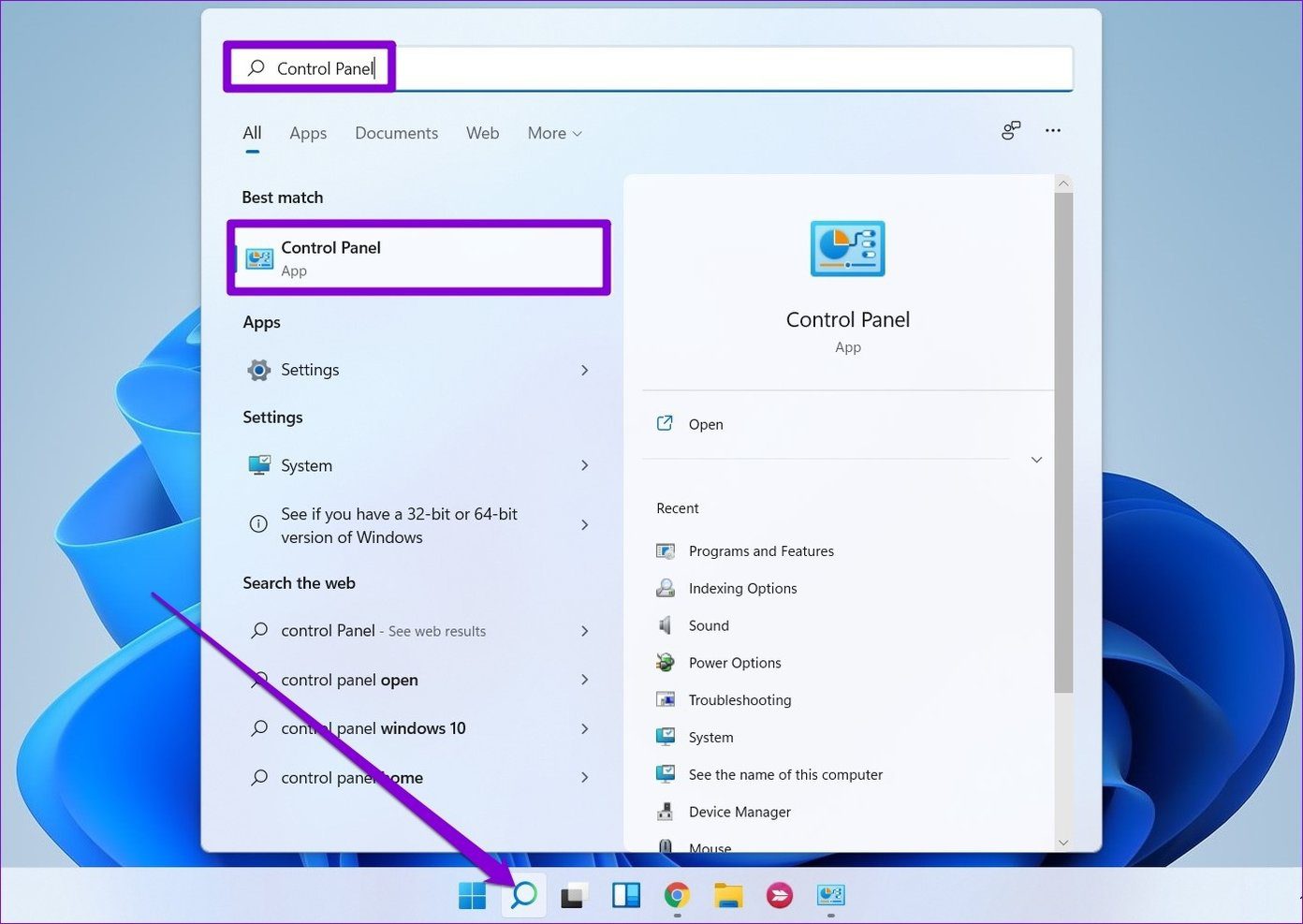
Step 2: Change the view type to Large icons and click on Mail (Microsoft Outlook).

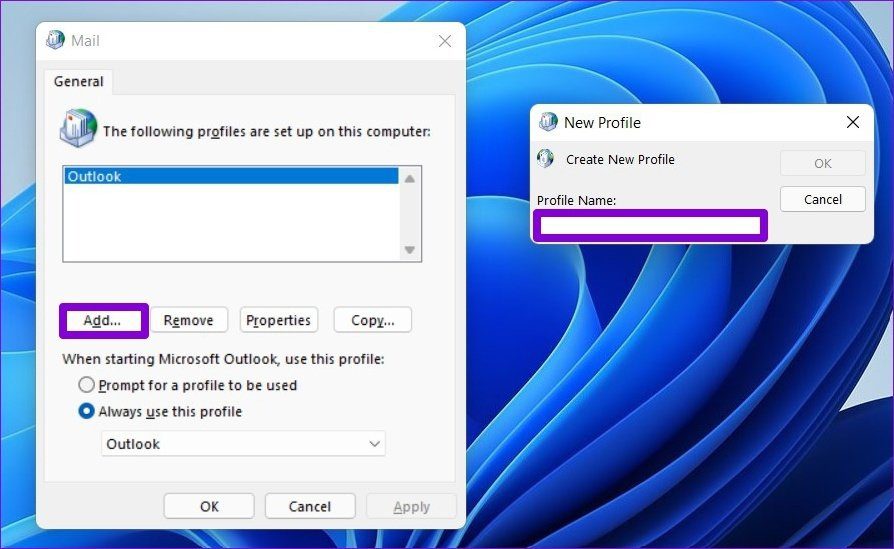
Step 3: Click Show Profiles.

Step 4: Click on Add > enter the name for the new profile > click OK.
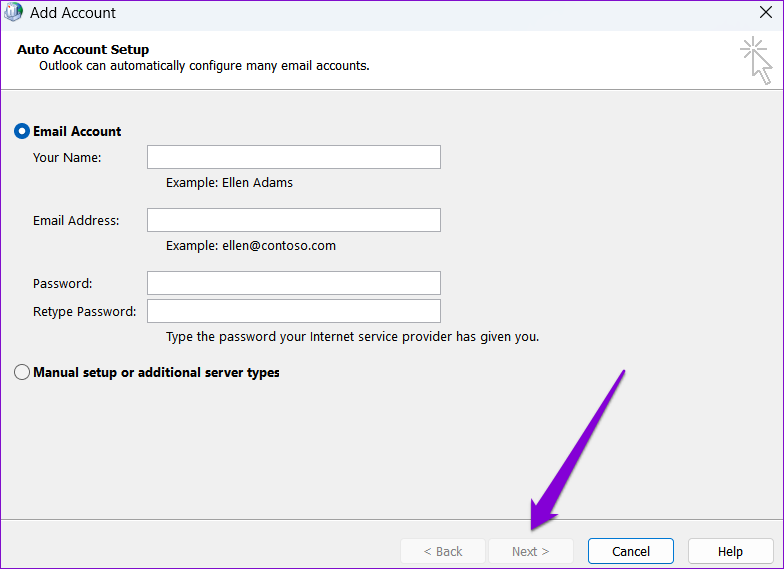
Step 5: In the Add Account window, enter your account details > hit Next.
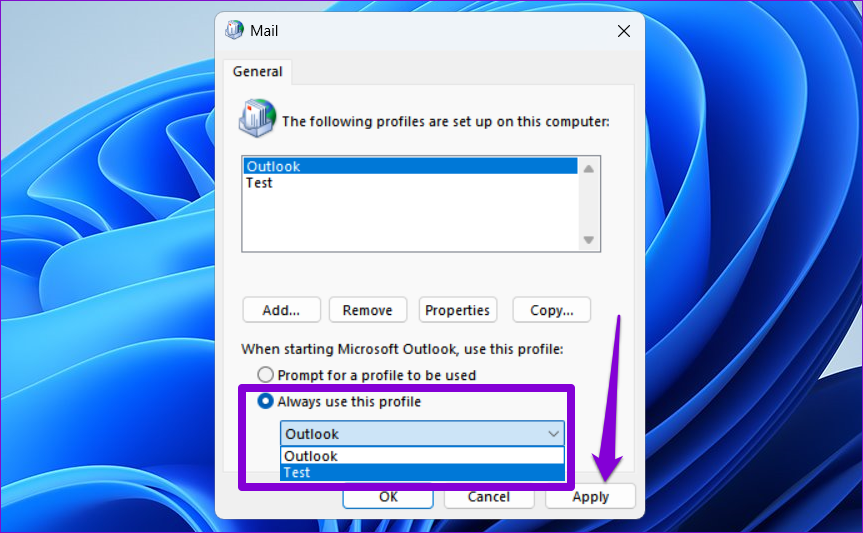
Step 6: Once the profile is created, select your new profile under When starting Microsoft Outlook and hit Apply.
Fix 5: Delete the Outlook App Data Folder
If nothing else works, it’s likely that some of the Outlook app data on your PC is corrupt. To resolve that, remove Outlook’s app data folder from your PC and open Outlook again. Here’s how.
Step 1: Press the Windows key + R to launch the Run dialog box, type the following path in the text box, and press Enter.
%localappdata%\Microsoft\Outlook
Step 2: Press Ctrl + A to select all the files and folders within the Outlook folder and click the trash icon at the top to delete them.

Was this helpful?
Last updated on 01 August, 2024
8 Comments
Leave a Reply
Read Next
 Top 4 Ways to Fix Images Not Opening in Outlook
https://youtu.be/9W1Jzqo2QBY Fix 1: Outlook Windows App There are two ways to open images in the Outlook Windows app.
Top 4 Ways to Fix Images Not Opening in Outlook
https://youtu.be/9W1Jzqo2QBY Fix 1: Outlook Windows App There are two ways to open images in the Outlook Windows app.
 Top 4 Ways to Change New Outlook Back to Old (Classic View) Outlook on Windows and Mac
The new Outlook app for desktop boasts a modern and simplified design, aligning it more closely with the web version of Microsoft Outlook.
Top 4 Ways to Change New Outlook Back to Old (Classic View) Outlook on Windows and Mac
The new Outlook app for desktop boasts a modern and simplified design, aligning it more closely with the web version of Microsoft Outlook.
 2 Ways to Fix Discord Not Opening on Windows 10 and Windows 11
Try Basic Fixes End Discord processes: Press Ctrl + Shift + Esc to launch the Task Manager.
2 Ways to Fix Discord Not Opening on Windows 10 and Windows 11
Try Basic Fixes End Discord processes: Press Ctrl + Shift + Esc to launch the Task Manager.
 6 Ways to Fix Windows Security Not Opening or Working on Windows 11
Try Basic Fixes Uninstall any third-party antivirus program: Third-party antivirus programs can sometimes interfere with the Windows Security app and prevent it from opening on your Windows 11 PC.
6 Ways to Fix Windows Security Not Opening or Working on Windows 11
Try Basic Fixes Uninstall any third-party antivirus program: Third-party antivirus programs can sometimes interfere with the Windows Security app and prevent it from opening on your Windows 11 PC.
 4 Ways to Fix Firefox Not Opening on Windows 10 and Windows 11
Fix 1: Force Close Firefox Processes Sometimes, Firefox processes may become unresponsive on your PC, resulting in such issues.
4 Ways to Fix Firefox Not Opening on Windows 10 and Windows 11
Fix 1: Force Close Firefox Processes Sometimes, Firefox processes may become unresponsive on your PC, resulting in such issues.
 4 Ways to Fix Windows Terminal Not Opening on Windows 11
Fix 1: Ensure Windows Terminal Is Not Disabled If you cannot launch Windows Terminal via the Start menu or Run dialog box, ensure the app is not disabled on your
4 Ways to Fix Windows Terminal Not Opening on Windows 11
Fix 1: Ensure Windows Terminal Is Not Disabled If you cannot launch Windows Terminal via the Start menu or Run dialog box, ensure the app is not disabled on your
 9 Ways to Fix Settings App Not Opening or Working on Windows 11
Fix 1: Reset the Settings App Step 1: Right-click the Start icon and select Terminal (Admin) from the list.
9 Ways to Fix Settings App Not Opening or Working on Windows 11
Fix 1: Reset the Settings App Step 1: Right-click the Start icon and select Terminal (Admin) from the list.
 4 Ways to Fix OneDrive Not Opening on Startup in Windows 11
Fix 1: Enable OneDrive as a Startup App Windows 11 provides several options for running apps at startup.
4 Ways to Fix OneDrive Not Opening on Startup in Windows 11
Fix 1: Enable OneDrive as a Startup App Windows 11 provides several options for running apps at startup.
The article above may contain affiliate links which help support Guiding Tech. The content remains unbiased and authentic and will never affect our editorial integrity.


My new laptop and Window 11 is giving me a lot of problems. especially Outlook. I couldn’t open my Outlook this morning and Google lead me to your website. Your instruction is clear and concise, and the photos really help. I know Win 11 has new bells and whistles, but I am struggling with just performing the minimum essential tasks. There are still data didn’t transferred from my old laptop, or I failed to locate them. Basically I am just “making do” for now, I intend to explore your website further and hope to learn a few things as time goes on.
By the way, I am 75 years old, so my learning curve is a bit different than the 20 years old.
I’m so grateful for the information you provided – I could not open in safe mode (option #1), so I proceeded to Optoin #2 and used Microsoft repair which took care of it – thank you, thank you, thank you!
I found your site in a Google search. My Outlook 2016 just wasn’t opening. Thank God you authored this page with all the various options. Lucky for me so far I needed #2 Option: Repair. Completed your easy directions and ta-da! Back to work I go. I have this page bookmarked just in case. Thank you! If only Microsoft was so customer centered that they would have provided these solutions, but hey, they’re Microsoft- silly me thinking they’d be so resourceful. Thank you again!
After two days of not being able to open the Outlook app on my laptop and multiple phone calls to my online support – I came across your article and worked through all the fixes. I was starting to lose hope but the last fix worked! Phew and thank you 🙂
It works on the 2nd method, thanks! It saves my day! Appreciate it very much!
Same for me. Couldn’t open Outlook in Safe Mode, but 2. REPAIR MICROSOFT OFFICE worked.
Thanks
So grateful for this link! After running Step #4 – Reset the Navigation Pane – is when it started working again.
I basically tried all your fixes – nothing worked. In desperation I tried solution 8 – now I am getting new error messages :
“Outlook cannot long on. Verify you are connected to the network and are using the proper server and mailbox name. THe microsoft exchange information service in your profile is missing required information. Modify your profile to ensure you are using the correct Microsoft Exchange information service.”
followed by :
“System resources are critically low. Close some windows.” (which is nonsense – I have very few windows open – just the same as, or less than, previously when I was trying to open outlook and did not get any such message (and Task Manager shows I am using very little)).
followed by :
“THe file C:\Users………..\Outlook\Internet calendar Subscriptions.pst cannot be found.” and a window then opens asking me to point out where that pst file is (I’m guessing it is gone because you instructed to delete the files as per solution 8).
Somehow, I get the feeling things are now worse than they were before …
Please advise.
Kingsley