

Fix 1: Verify Auto Update Settings in the Microsoft Store
The first thing you should do is verify the auto-update settings in the Microsoft Store app. Here’s how to check.
Step 1: Open the Microsoft Store, click the profile icon in the top right corner, and select App settings.
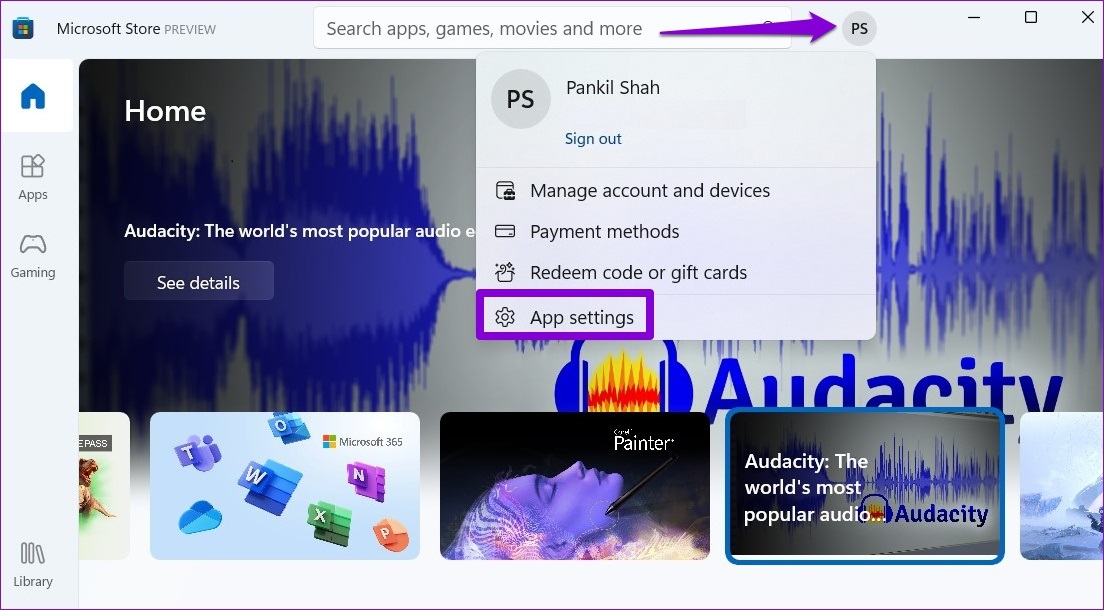
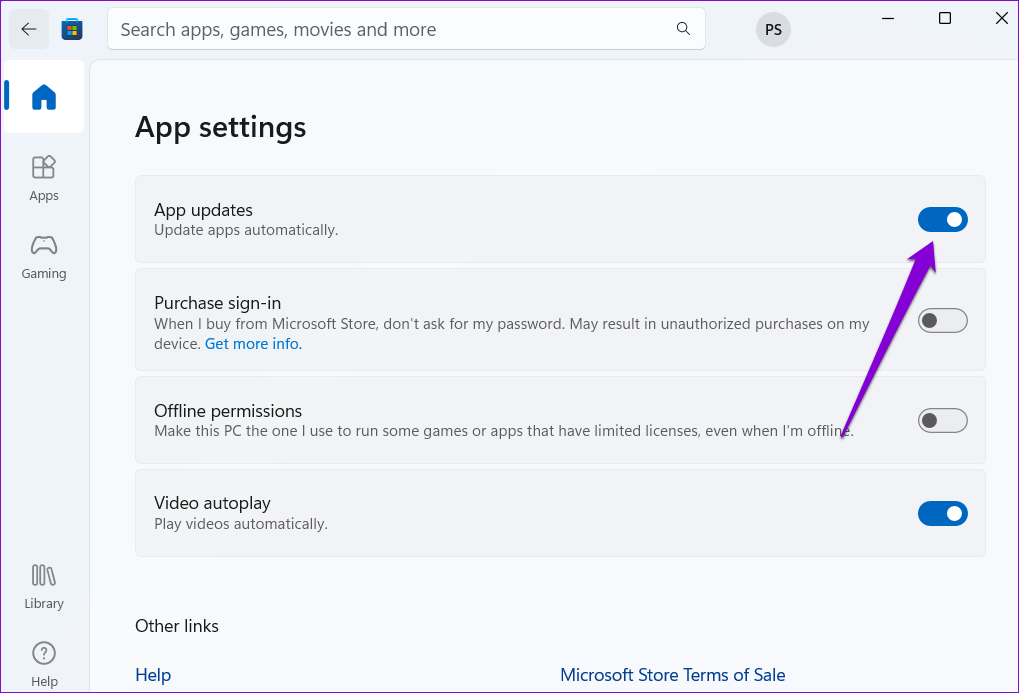
Step 2: Enable the App updates option if it isn’t already.
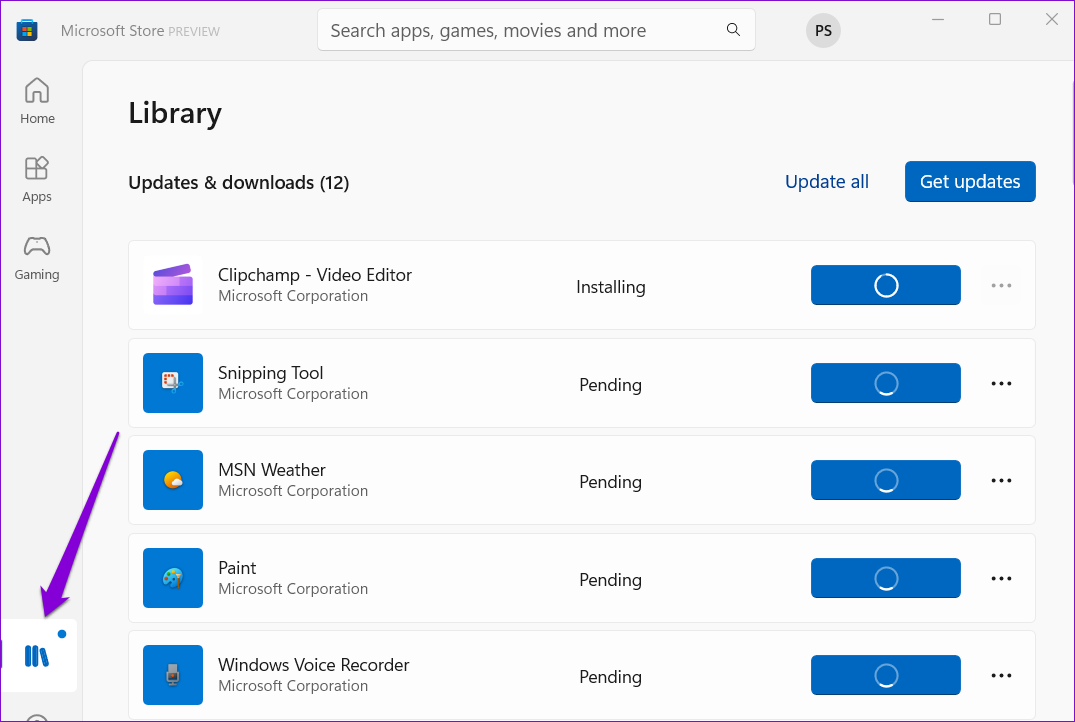
Step 3: Click the Library tab in the bottom-left corner to see if the automatic updates have started.
Fix 2: Disable Metered Connection
Setting your network as a metered connection can prevent Windows from downloading the system and app updates in the background. To avoid this, you must disable the metered connection option for your Wi-Fi network.
Step 1: Press the Windows key + I to launch the Settings app and navigate to Network & internet > Wi-Fi.
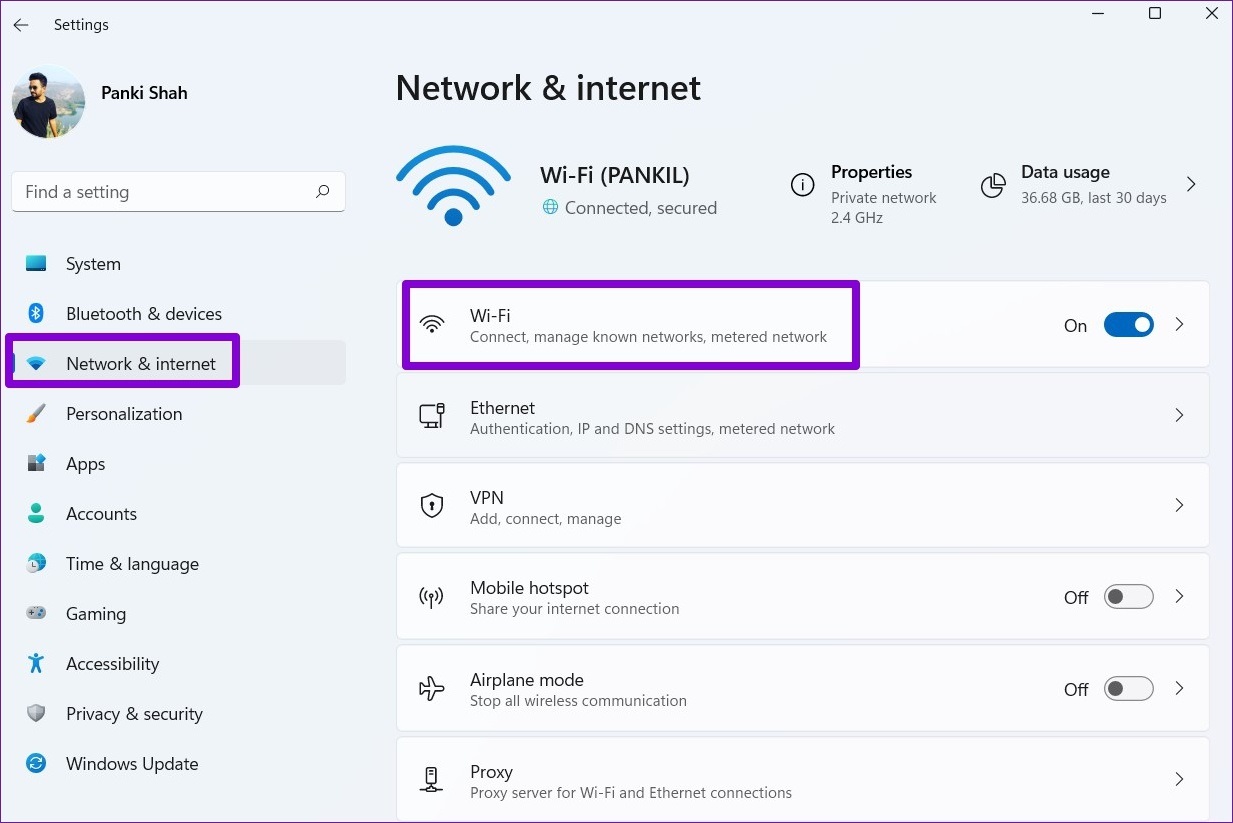
Step 2: Click on your Wi-Fi network to open its properties.

Step 3: Turn off the toggle for Metered connection option.

Fix 3: Allow Microsoft Store to Run in the Background
Another reason why the Microsoft Store may fail to update apps automatically is if the app doesn’t have the required permission to run in the background. Here’s how you can change that.
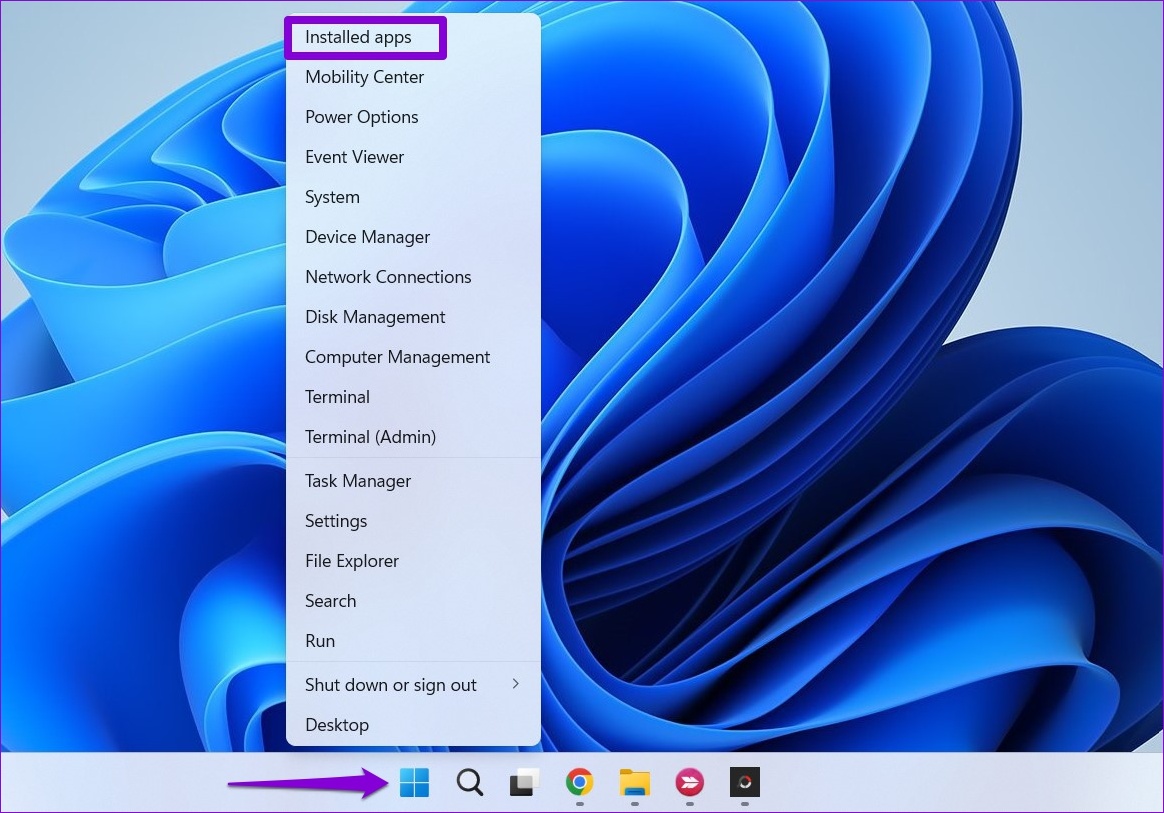
Step 1: Right-click on the Start icon and select Installed apps from the menu that pops open.
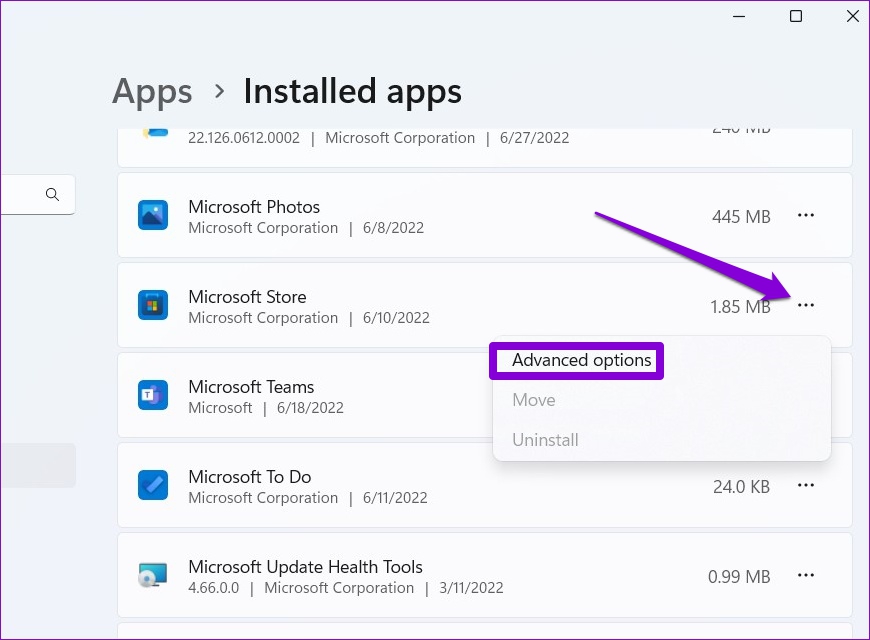
Step 2: Locate Microsoft Store on the list. Click the three-dot menu icon next to it and select Advanced options.
Step 3: Use the drop-down menu under Background app permissions to select Always.

Fix 4: Configure Windows Update and Microsoft Store Install Service to Start Automatically
Microsoft Store won’t update apps if certain system services, such as Windows Update and Microsoft Store Install Service, aren’t configured to start automatically on boot. Here’s how to fix that.
Step 1: Press the Windows key + R to launch the Run command, type in services.msc, and press Enter.
Step 2: In the Services window, locate and double-click on the Windows Update service to open its properties.
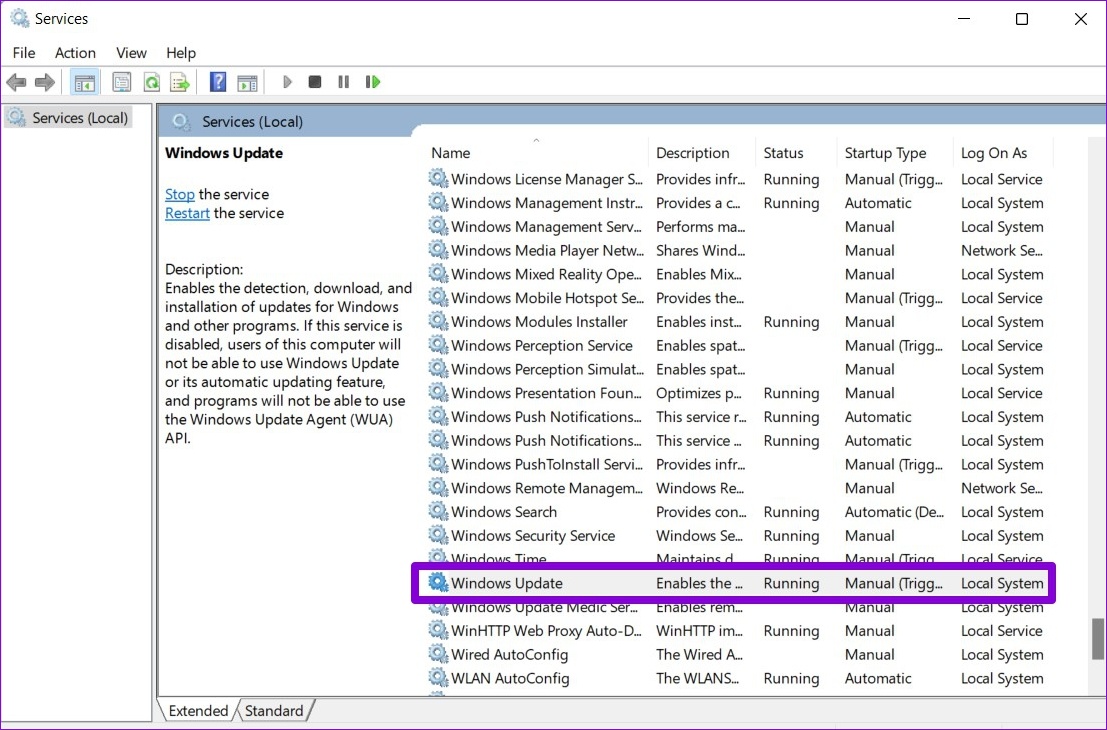
Step 3: Change its startup type to Automatic and click Apply.

Step 4: Similarly, configure the Microsoft Store Install Service to start automatically.

Reboot your PC after this and see if the Microsoft Store updates apps automatically.
Fix 5: Repair or Reset the Microsoft Store
If the fixes listed so far do not work, your last option is to repair the Microsoft Store on your PC. Here’s how to do it.
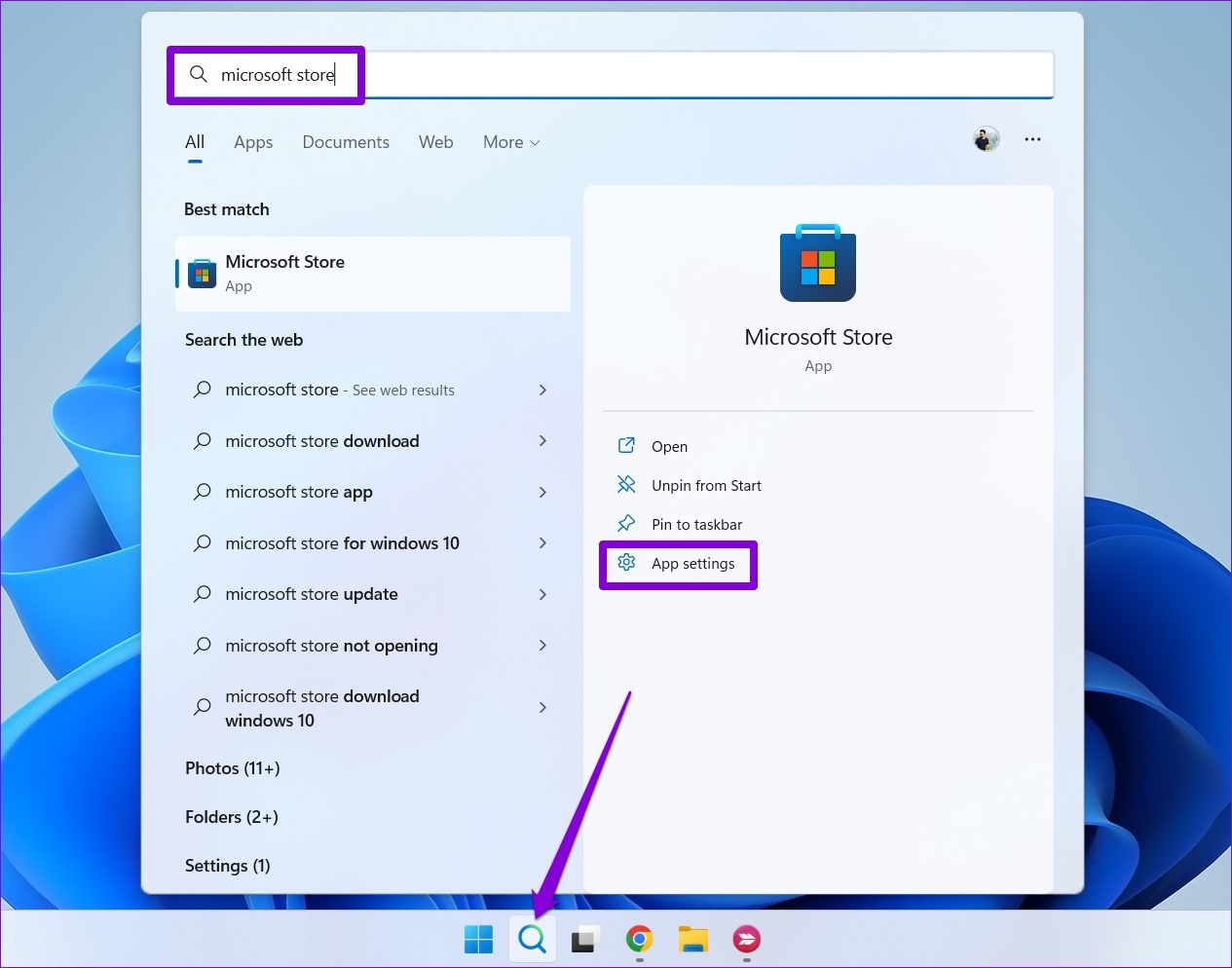
Step 1: Open the search menu, type in microsoft store, and select App settings.
Step 2: Scroll down to the Reset section and click Repair.

Windows should start repairing the app. Once repaired, check to see if it updates apps automatically. You can try resetting the app from the same menu if the problem persists. Doing so will remove all the existing app data and restore app settings to their default values.
Was this helpful?
Last updated on 04 July, 2024
1 Comment
Leave a Reply
Read Next
 4 Ways to Fix Apps Not Updating Automatically on iPhone
Basic Fixes Try basic troubleshooting options first if your apps fail to automatically update within a reasonable time frame.
4 Ways to Fix Apps Not Updating Automatically on iPhone
Basic Fixes Try basic troubleshooting options first if your apps fail to automatically update within a reasonable time frame.
 4 Ways to Fix Microsoft Edge Not Updating on Windows 11
Fix 1: Restart Microsoft Edge Processes A common reason why Microsoft Edge may fail to install newer updates is if one of the browser processes is experiencing issues.
4 Ways to Fix Microsoft Edge Not Updating on Windows 11
Fix 1: Restart Microsoft Edge Processes A common reason why Microsoft Edge may fail to install newer updates is if one of the browser processes is experiencing issues.
 4 Ways to Fix Microsoft Outlook Stuck on Updating Inbox on Windows
Fix 1: Disable Cached Exchange Mode Cached Exchange Mode (CEM) is a feature available in Microsoft Outlook that allows you to keep a copy of your Exchange mailbox on your
4 Ways to Fix Microsoft Outlook Stuck on Updating Inbox on Windows
Fix 1: Disable Cached Exchange Mode Cached Exchange Mode (CEM) is a feature available in Microsoft Outlook that allows you to keep a copy of your Exchange mailbox on your
 7 Ways to Fix Microsoft Store Not Downloading Apps or Games
Fix 1: Restart Microsoft Store Shutting down the app can kill any bugs, and it is unlikely to appear once you open the Microsoft Store again.
7 Ways to Fix Microsoft Store Not Downloading Apps or Games
Fix 1: Restart Microsoft Store Shutting down the app can kill any bugs, and it is unlikely to appear once you open the Microsoft Store again.
 5 Ways to Fix Apps Not Updating on Android
Basic Fixes Check network connection: Ensure there's no problem with the network connectivity on your Android device.
5 Ways to Fix Apps Not Updating on Android
Basic Fixes Check network connection: Ensure there's no problem with the network connectivity on your Android device.
 4 Ways to Fix Apps Not Updating on Android TV
Basic Fixes Check internal storage: App updates need sufficient storage on your Android TV in the long run.
4 Ways to Fix Apps Not Updating on Android TV
Basic Fixes Check internal storage: App updates need sufficient storage on your Android TV in the long run.
 4 Ways to Fix “Account Not in This Store” Error in App Store for iPhone
Try Basic Fixes Disable VPN: The 'Account Not In This Store' error may be appearing due to a VPN connection.
4 Ways to Fix “Account Not in This Store” Error in App Store for iPhone
Try Basic Fixes Disable VPN: The 'Account Not In This Store' error may be appearing due to a VPN connection.
 Top 3 Ways to Stop Microsoft Teams From Starting Automatically on Windows 10
Microsoft Teams app is great for team management and communication.
Top 3 Ways to Stop Microsoft Teams From Starting Automatically on Windows 10
Microsoft Teams app is great for team management and communication.
The article above may contain affiliate links which help support Guiding Tech. The content remains unbiased and authentic and will never affect our editorial integrity.

How do I do #1 from a batch file or PowerShell cmdlet?