

Basic Fixes
- Toggle airplane mode: Toggling Airplane Mode essentially resets the radios on your phone. Whether it’s an issue with mobile data not working or hotspot disconnecting, this is a quick fix.
- Enable the Bluetooth toggle only when prompted: Turn off Bluetooth on your iPhone and turn it on only when your iPhone asks you to after enabling the hotspot.
- Refresh the list of available networks: Pull down on the page listing all available Wi-Fi networks to refresh it and search for new devices.
Fix 1: Enable the Maximize Compatibility Toggle
Enabling the personal hotspot feature on the iPhone brings up another toggle in the same menu. As the name suggests, this toggle enables maximum compatibility for other devices to connect to your iPhone’s hotspot.
Step 1: Open the Settings app on your iPhone and navigate to the Personal Hotspot section.
Step 2: Enable the toggle next to Allow Others to Join. Once the hotspot is enabled, turn on the toggle next to Maximize Compatibility.


Fix 2: Use Bluetooth Tethering
You may not be aware that you can share the internet connection from an iPhone via Bluetooth. So, if the Wi-Fi hotspot does not show up on Android, you can always use Bluetooth tethering. Here’s what you have to do.
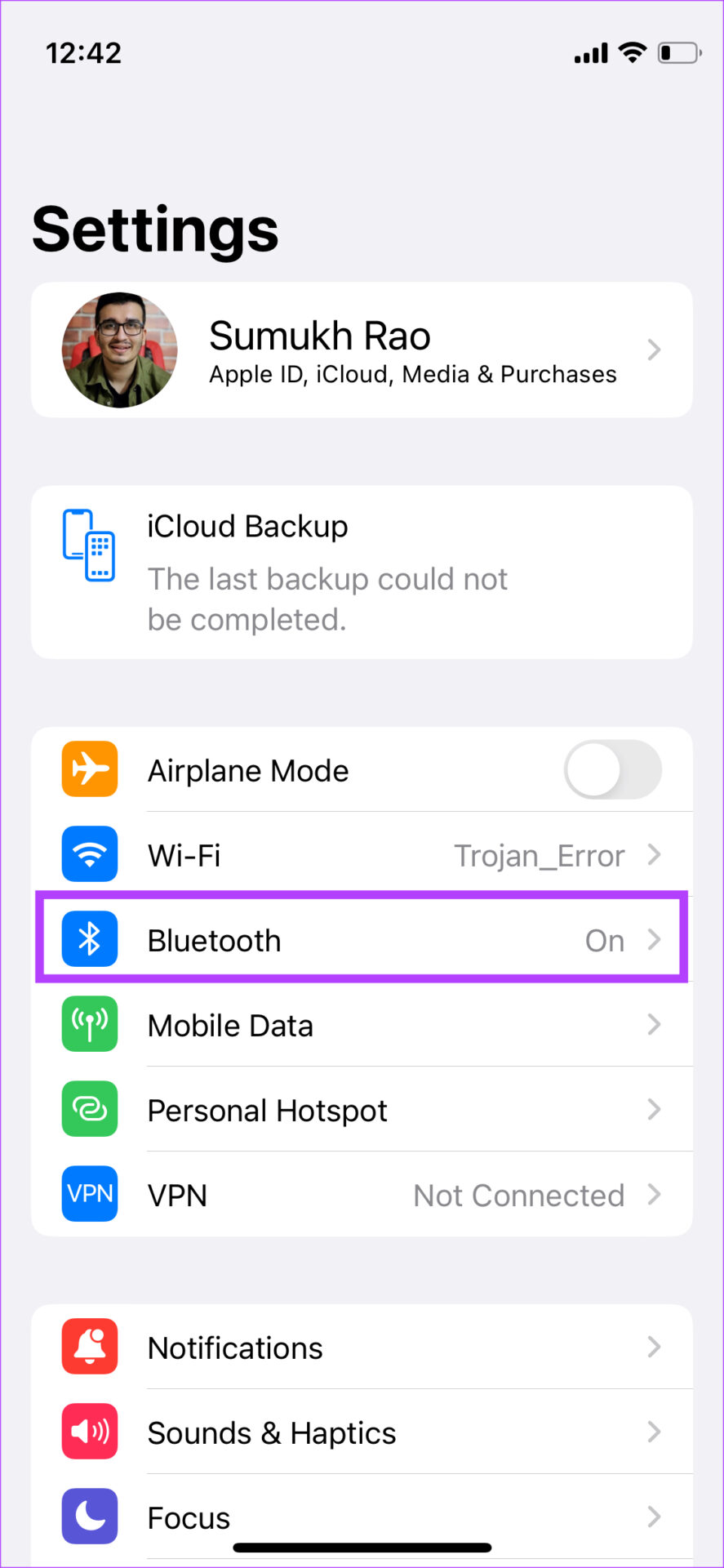
Step 1: Open the Settings app on the iPhone and navigate to the Bluetooth section. Enable Bluetooth and let the iPhone look for nearby devices.

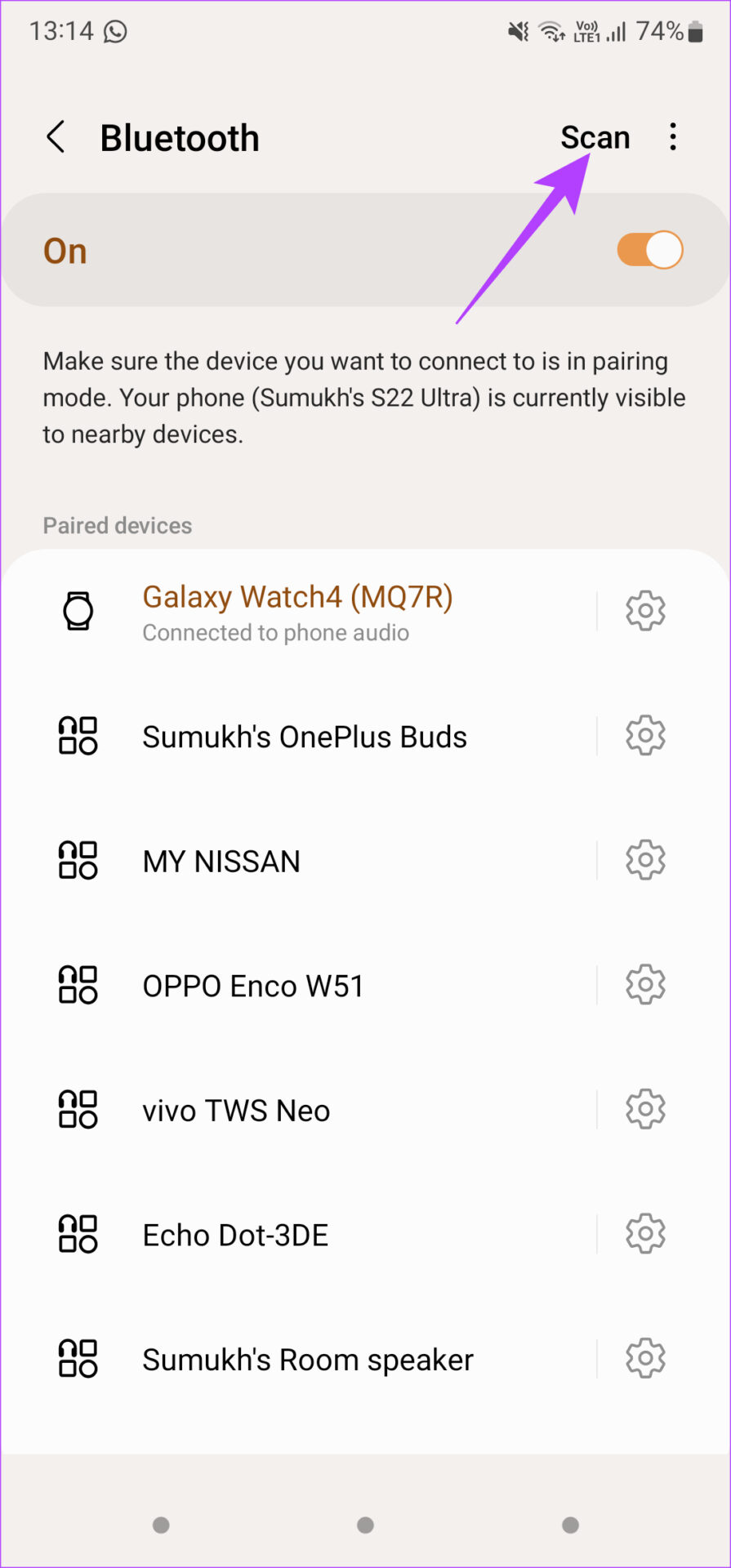
Step 2: On the Android phone, go to the Settings app and then to the Bluetooth section. Enable the toggle and hit the Scan button.
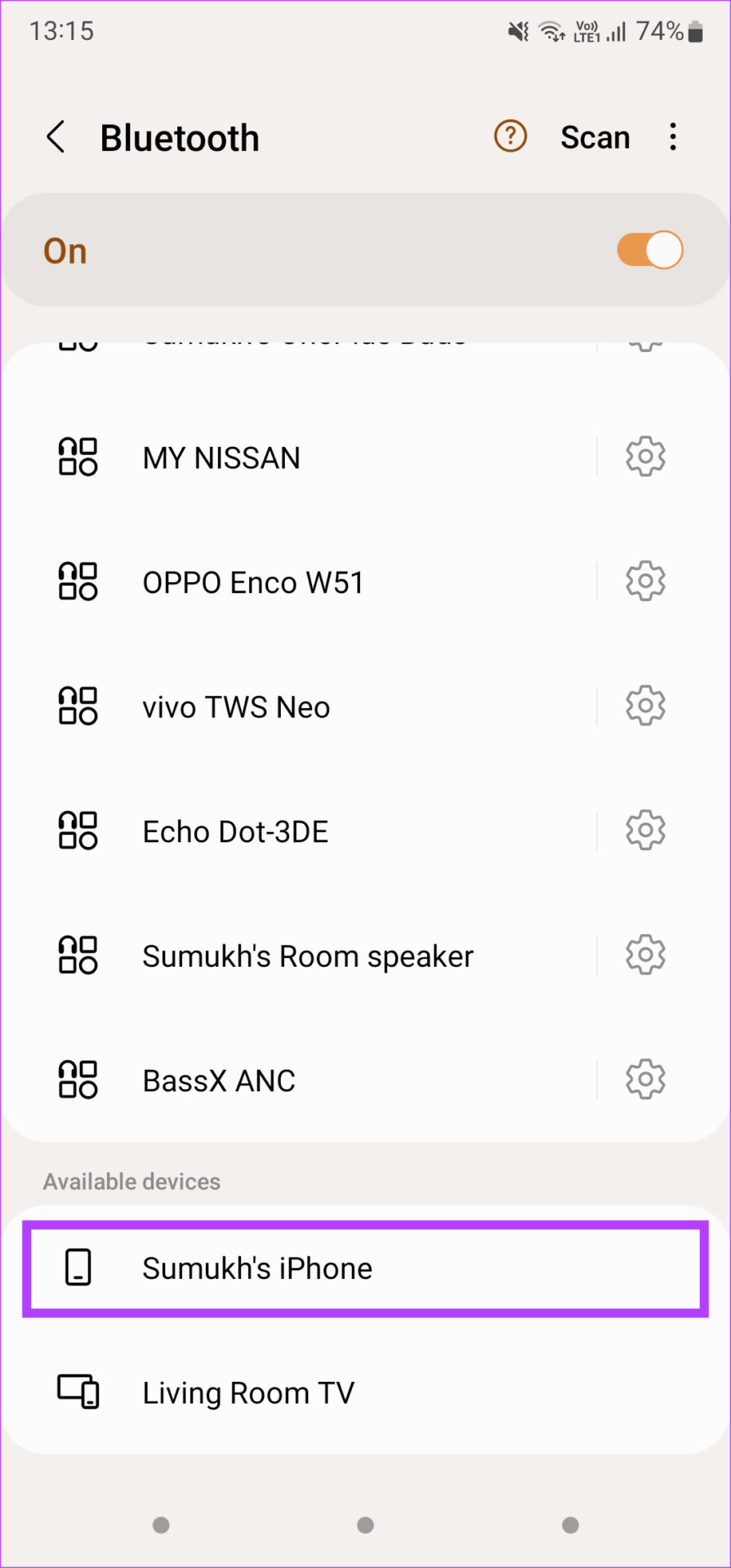
Step 3: Wait for the iPhone to appear as a Bluetooth device on your Android phone. Once it does, tap on it to pair. Select Pair on the iPhone too when prompted.
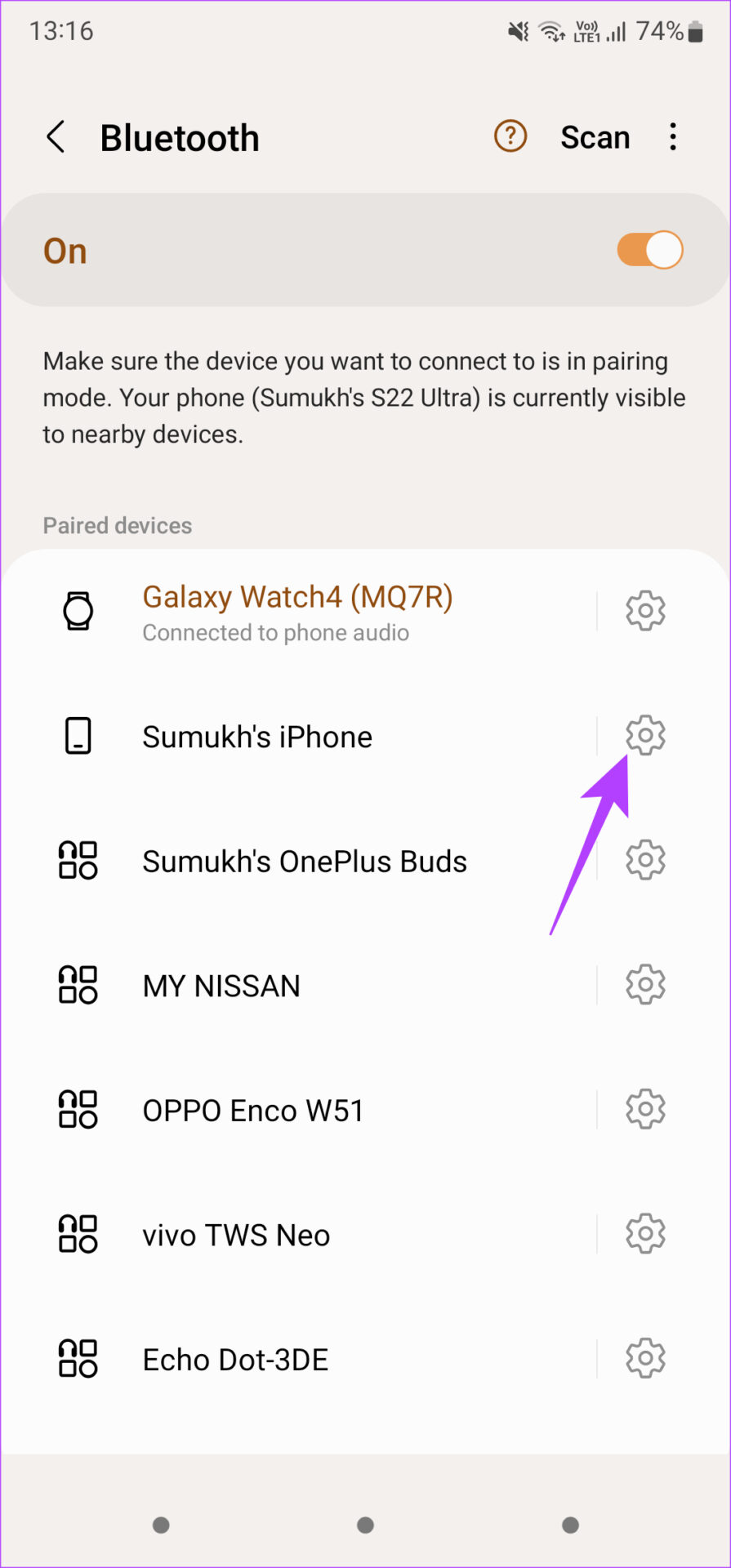
Step 4: Tap on the Settings icon next to the paired iPhone in the Bluetooth menu. Enable the toggle next to Internet access.

Was this helpful?
Last updated on 29 August, 2024
5 Comments
Leave a Reply
Read Next
 4 Fixes for iPhone’s Hotspot Not Showing on Windows 11
Basic Fixes Enable and disable Airplane mode: You may begin your troubleshooting regime by enabling and disabling Airplane mode from the Action Center on your Windows 11 PC.
4 Fixes for iPhone’s Hotspot Not Showing on Windows 11
Basic Fixes Enable and disable Airplane mode: You may begin your troubleshooting regime by enabling and disabling Airplane mode from the Action Center on your Windows 11 PC.
 4 Ways to Fix iPhone Hotspot Not Working With Mac
Basic Fixes Turn on hotspot and mobile data manually: You can check and manually enable the Hotspot and Mobile Data on your iPhone and Mac, which go hand-in-hand.
4 Ways to Fix iPhone Hotspot Not Working With Mac
Basic Fixes Turn on hotspot and mobile data manually: You can check and manually enable the Hotspot and Mobile Data on your iPhone and Mac, which go hand-in-hand.
 5 Ways to Restore the Missing Personal Hotspot on iPhone
Try Basic Fixes Check with your carrier: It's important to note that not all cellphone carriers or cellular plans support the Personal Hotspot feature on the iPhone.
5 Ways to Restore the Missing Personal Hotspot on iPhone
Try Basic Fixes Check with your carrier: It's important to note that not all cellphone carriers or cellular plans support the Personal Hotspot feature on the iPhone.
 How to Fix iPhone Hotspot Keeps Disconnecting on Windows and Mac
Why Does My iPhone Hotspot Keeps Disconnecting Before we show you step-by-step instructions to fix the hotspot issue on your iPhone, let's quickly go over some of the possible reasons
How to Fix iPhone Hotspot Keeps Disconnecting on Windows and Mac
Why Does My iPhone Hotspot Keeps Disconnecting Before we show you step-by-step instructions to fix the hotspot issue on your iPhone, let's quickly go over some of the possible reasons
 3 Ways to Fix Android Hotspot Keeps Turning Off
Basic Fixes Disable Wi-Fi: The personal hotspot on your Android device will not work when Wi-Fi is enabled.
3 Ways to Fix Android Hotspot Keeps Turning Off
Basic Fixes Disable Wi-Fi: The personal hotspot on your Android device will not work when Wi-Fi is enabled.
 Top 7 Ways to Fix Android Mobile Hotspot Not Working
We are relying on mobile hotspot more than ever in the work from home situation.
Top 7 Ways to Fix Android Mobile Hotspot Not Working
We are relying on mobile hotspot more than ever in the work from home situation.
 4 Ways to Fix Windows Laptop Not Connecting to Mobile Hotspot on Android
Try Basic Fixes Switch to Airplane Mode or Restart Devices: It will ensure the removal of temporary blocks that show up if the device is turned on for a long
4 Ways to Fix Windows Laptop Not Connecting to Mobile Hotspot on Android
Try Basic Fixes Switch to Airplane Mode or Restart Devices: It will ensure the removal of temporary blocks that show up if the device is turned on for a long
 How to Stop iPhone Personal Hotspot From Turning On Automatically
https://youtu.be/RIBOWbQOnMU Fix 1.
How to Stop iPhone Personal Hotspot From Turning On Automatically
https://youtu.be/RIBOWbQOnMU Fix 1.
The article above may contain affiliate links which help support Guiding Tech. The content remains unbiased and authentic and will never affect our editorial integrity.
I have iPhone SE, past one year I am keep trying to use iPhone hotspot connect to Mi4, Mi6pro android phone it shows network and shows iPhone hotspot network as saved but doesn’t connect, and in iPhone SE doesn’t have option Maximise Compatibility, even I visited iPhone authorized service they are escaping by saying old android versions are not secure and hence iPhone doesn’t serve hotspot to old android devices and hotspot from all older android devices serve flawlessly to iPhone…please provide solution.
The first worked perfectly
Thank you
Thankyou it was helpful
Wasn’t able to connect since few days this article with every detailed specification was a win win. Thanks alot:)
No.1 worked for me. Thank you!
Thank you it worked God ???? bless you