

Fix 1: Force Close Firefox Processes
Sometimes, Firefox processes may become unresponsive on your PC, resulting in such issues. You can use the Task Manager on Windows to close all the Firefox processes and give them a fresh start.
Step 1: Press Ctrl + Shift + Esc on your keyboard to open the Task Manager.
Step 2: In the Processes tab, select Firefox and click the End task button at the top.

Fix 2: Repair the Firefox App
Windows 11 includes an app repair feature that can help you fix issues with Firefox. Note that you’ll only get this option if you’ve downloaded Firefox from the Microsoft Store.
Step 1: Press the Windows key + I to launch the Settings app and head to Apps > Installed apps.
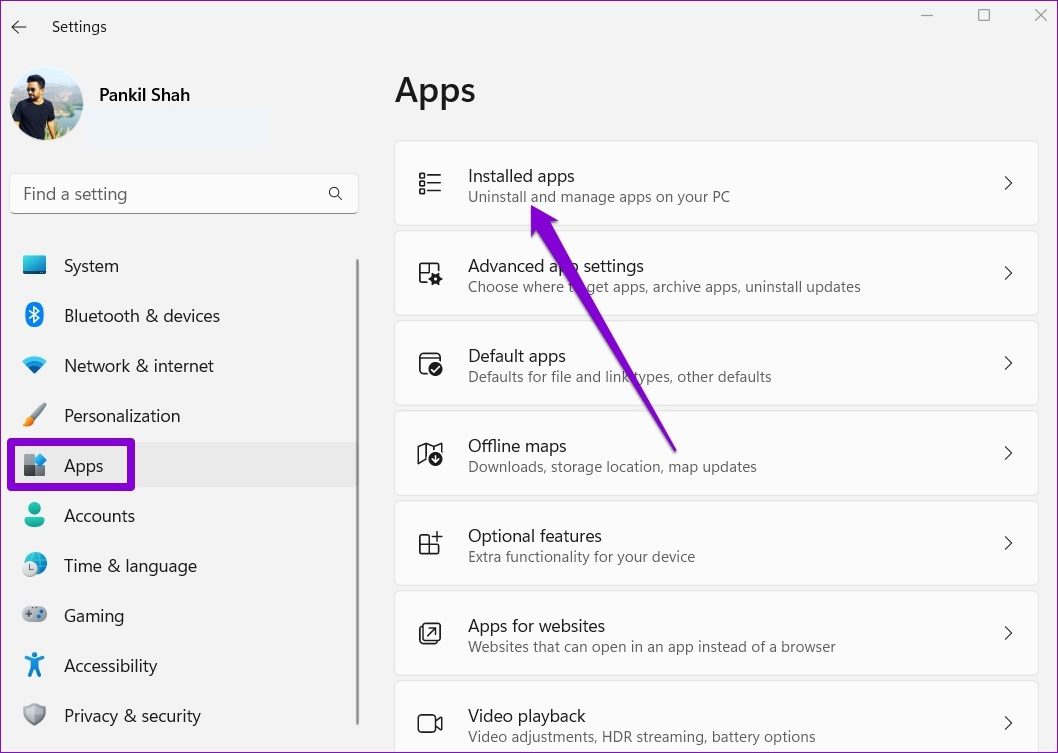
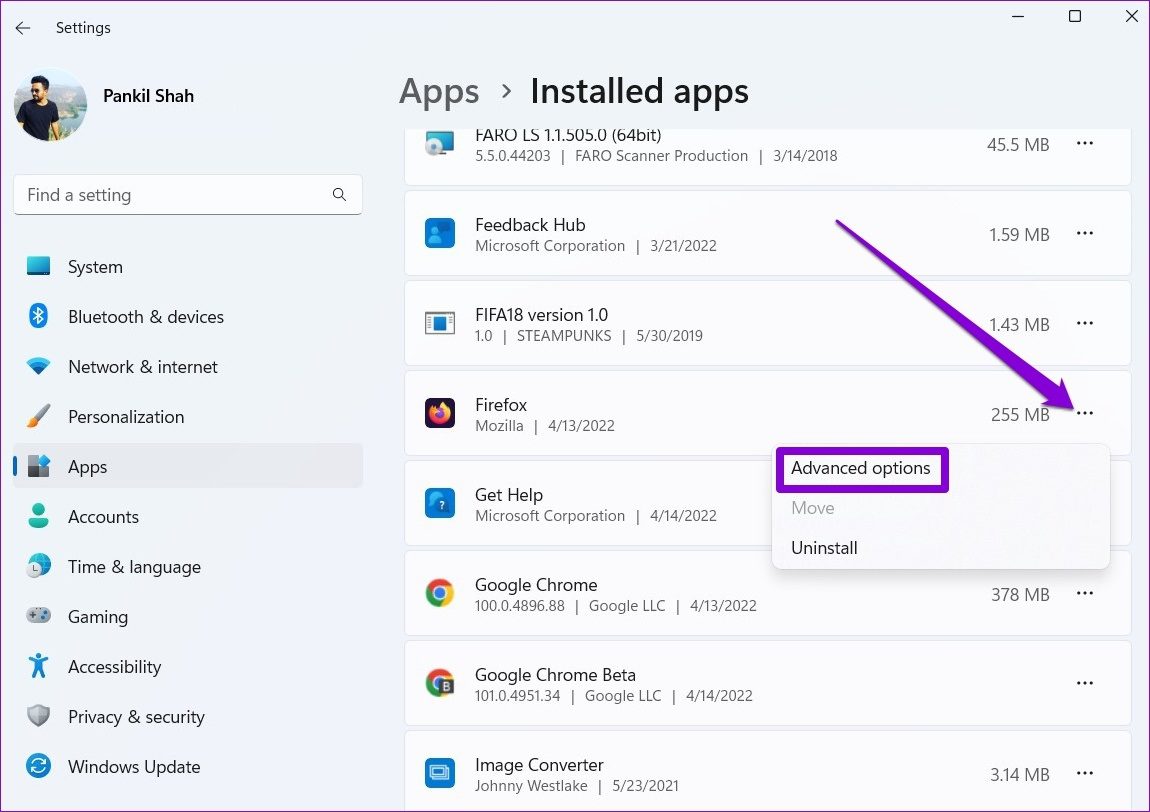
Step 2: Locate Firefox on the list. Click the three-dot menu icon next to the app and select Advanced options.
Step 3: Scroll down to the Reset section and click the Repair button.

Fix 3: Launch Firefox in Troubleshoot Mode
If you’ve been using any add-ons in Firefox to enhance its functionality, one of them may be causing the issue. You can confirm this by opening Firefox in Troubleshoot Mode, which will launch without any of your add-ons or themes.
To launch Firefox in Troubleshoot Mode, hold down the Shift key and double-click the Firefox app shortcut. Then, click Open.
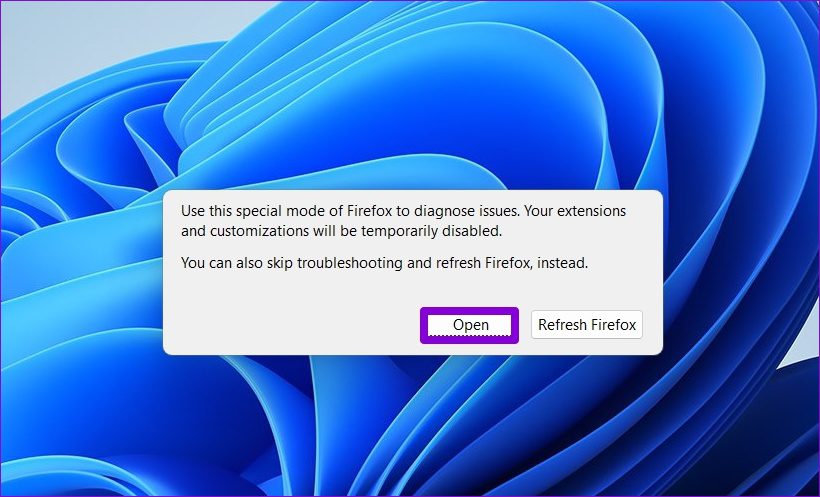
If Firefox opens and works fine in Troubleshoot Mode, an add-on is likely causing the issue. To identify the problematic add-on, you’ll need to disable all of them first. Here’s how to do it:
Step 1: Open Firefox in Troubleshoot Mode. Click the menu icon (three horizontal lines) in the top-right corner and select Add-ons and themes from the list.

Step 2: Use the switches next to the add-ons to turn them off.
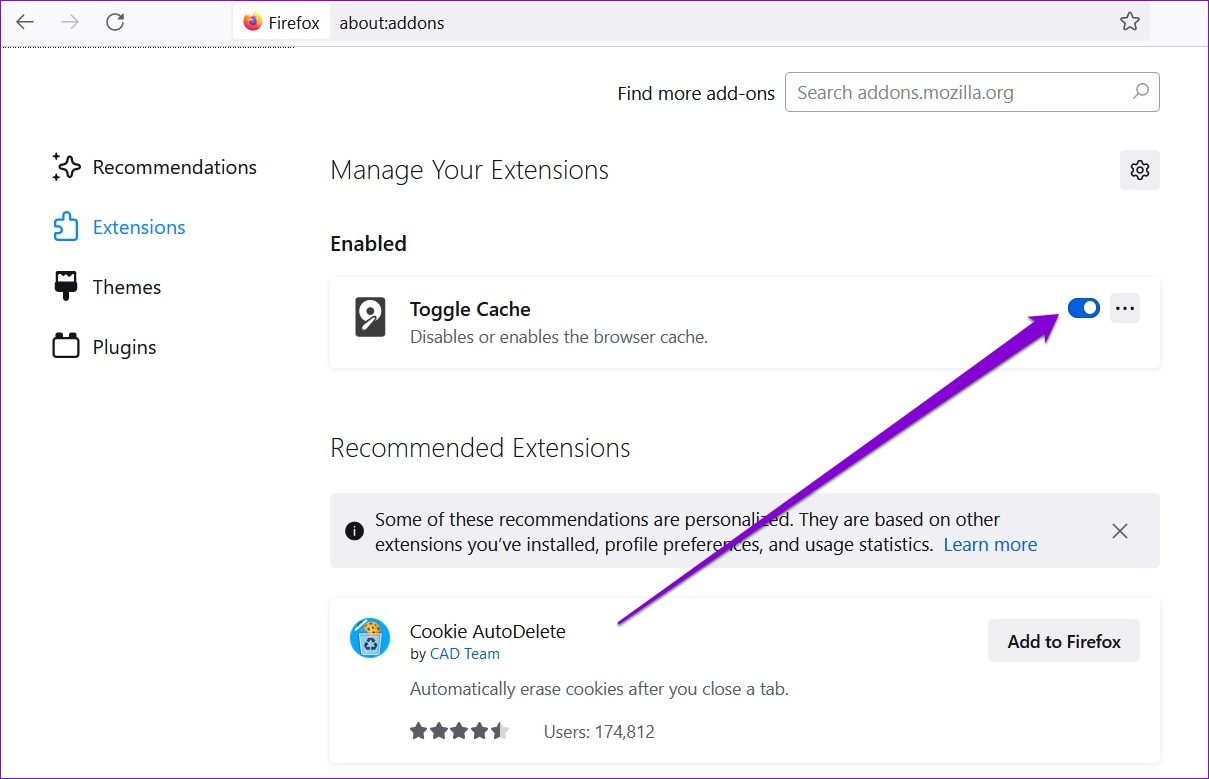
Once disabled, close Firefox and try opening it again. After that, enable each add-on one by one to find the one causing the issue.
Fix 4: Refresh Firefox
At times, custom settings in Firefox can cause issues. Refreshing Firefox can help fix these problems. This process creates a new profile and imports all essential information from your old profile, so your bookmarks, saved passwords, and cookies won’t be affected. However, it will remove your add-ons and themes.
Step 1: Hold down the Shift key and double-click on the Firefox app shortcut to open it in Troubleshoot Mode.
Step 2: Click the Refresh Firefox button.

Step 3: Select Refresh Firefox to confirm your action.
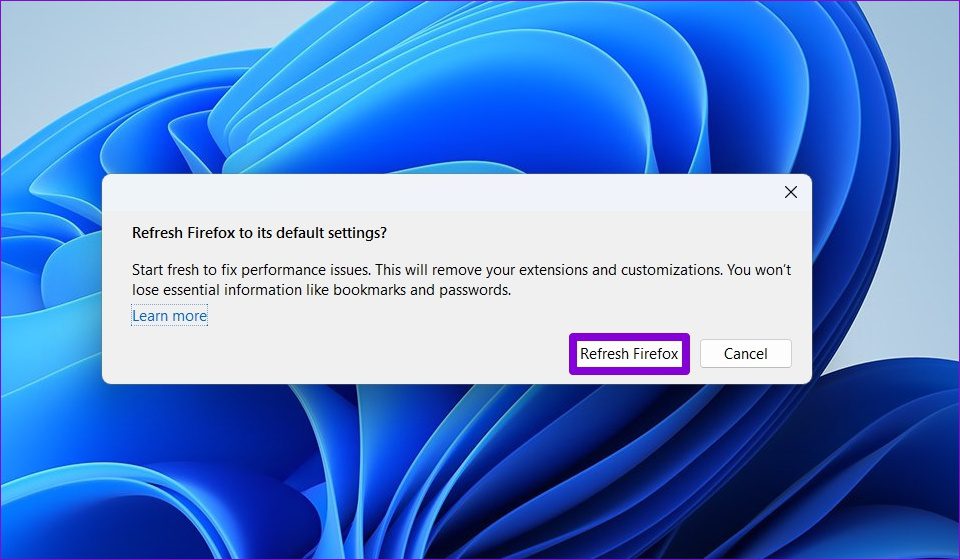
Wait for the process to complete. After the refresh completes, Firefox should open automatically.
Was this helpful?
Last updated on 04 July, 2024
1 Comment
Leave a Reply
Read Next
 Firefox vs Firefox Focus: Should You Switch
Firefox Focus is a strange name for a browser, and the fact that it’s developed by none other Mozilla is even weirder.
Firefox vs Firefox Focus: Should You Switch
Firefox Focus is a strange name for a browser, and the fact that it’s developed by none other Mozilla is even weirder.
 2 Ways to Fix Discord Not Opening on Windows 10 and Windows 11
Try Basic Fixes End Discord processes: Press Ctrl + Shift + Esc to launch the Task Manager.
2 Ways to Fix Discord Not Opening on Windows 10 and Windows 11
Try Basic Fixes End Discord processes: Press Ctrl + Shift + Esc to launch the Task Manager.
 6 Ways to Fix Windows Security Not Opening or Working on Windows 11
Try Basic Fixes Uninstall any third-party antivirus program: Third-party antivirus programs can sometimes interfere with the Windows Security app and prevent it from opening on your Windows 11 PC.
6 Ways to Fix Windows Security Not Opening or Working on Windows 11
Try Basic Fixes Uninstall any third-party antivirus program: Third-party antivirus programs can sometimes interfere with the Windows Security app and prevent it from opening on your Windows 11 PC.
 4 Ways to Fix Windows Terminal Not Opening on Windows 11
Fix 1: Ensure Windows Terminal Is Not Disabled If you cannot launch Windows Terminal via the Start menu or Run dialog box, ensure the app is not disabled on your
4 Ways to Fix Windows Terminal Not Opening on Windows 11
Fix 1: Ensure Windows Terminal Is Not Disabled If you cannot launch Windows Terminal via the Start menu or Run dialog box, ensure the app is not disabled on your
 9 Ways to Fix Settings App Not Opening or Working on Windows 11
Fix 1: Reset the Settings App Step 1: Right-click the Start icon and select Terminal (Admin) from the list.
9 Ways to Fix Settings App Not Opening or Working on Windows 11
Fix 1: Reset the Settings App Step 1: Right-click the Start icon and select Terminal (Admin) from the list.
 5 Ways to Fix Outlook Not Opening on Windows 11
Try Basic Fixes End Outlook processes using Task Manager: At times, Microsoft Outlook may fail to load its interface due to temporary glitches.
5 Ways to Fix Outlook Not Opening on Windows 11
Try Basic Fixes End Outlook processes using Task Manager: At times, Microsoft Outlook may fail to load its interface due to temporary glitches.
 6 Ways to Fix Xbox App Not Opening in Windows 11
Fix 1.
6 Ways to Fix Xbox App Not Opening in Windows 11
Fix 1.
 4 Ways to Fix Notepad Not Opening on Windows 11
Basic Fixes Restart PC: Press the Windows + X shortcut to open the Power User Menu.
4 Ways to Fix Notepad Not Opening on Windows 11
Basic Fixes Restart PC: Press the Windows + X shortcut to open the Power User Menu.
The article above may contain affiliate links which help support Guiding Tech. The content remains unbiased and authentic and will never affect our editorial integrity.
It just stopped opening. Nothing seems to wake it up. I have refreshed, uninstalled and reinstalled, tried opening in troubleshoot mode.