

Try Basic Fixes
- Free up storage space: Insufficient storage space is a common reason why apps on your Android may not respond or close unexpectedly. You need to check your phone’s storage status to ensure there’s enough free space.
- Install app and Android updates: If you’ve disabled automatic app updates on your Android, your apps may become outdated over time. This can result in various issues, including abrupt app crashes. Keeping your Android updated to its most recent version is equally important, as these updates bring various bug fixes and performance improvements.
- Uninstall and reinstall problematic apps: If you are experiencing issues only with a select few apps on your Android, you can consider reinstalling them. This should help fix issues caused by corrupt data or improper installation. Uninstall all the problematic apps one by one, and then install them again from the Play Store.
- Avoid using third-party launchers: If you are using a third-party launcher app like Nova, it’s worth noting that issues with that launcher app could cause apps to stop working on your Android. To avoid this, it’s best to switch to the default launcher app on your Android and check if that solves the problem.
Fix 1: Clear App Cache and Data
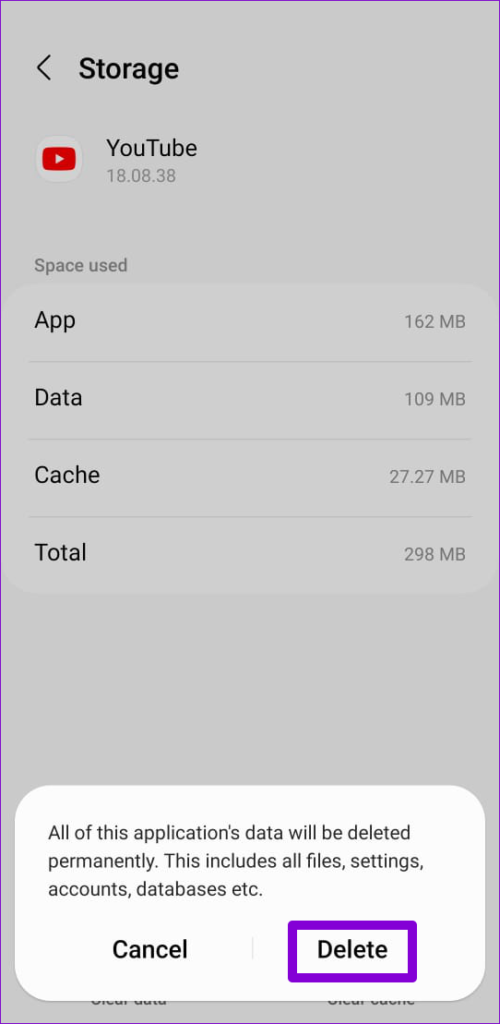
Apps on your phone tend to collect cache data to reduce loading times and improve your overall experience. However, if this cache data becomes old or corrupt, the app may not open or work on your Android. In that case, you will need to get rid of the existing cache data to fix the problem.
Step 1: Long-press on the troublesome app’s icon and tap the info icon from the resulting menu.
Step 2: Go to Storage and tap the Clear cache option.
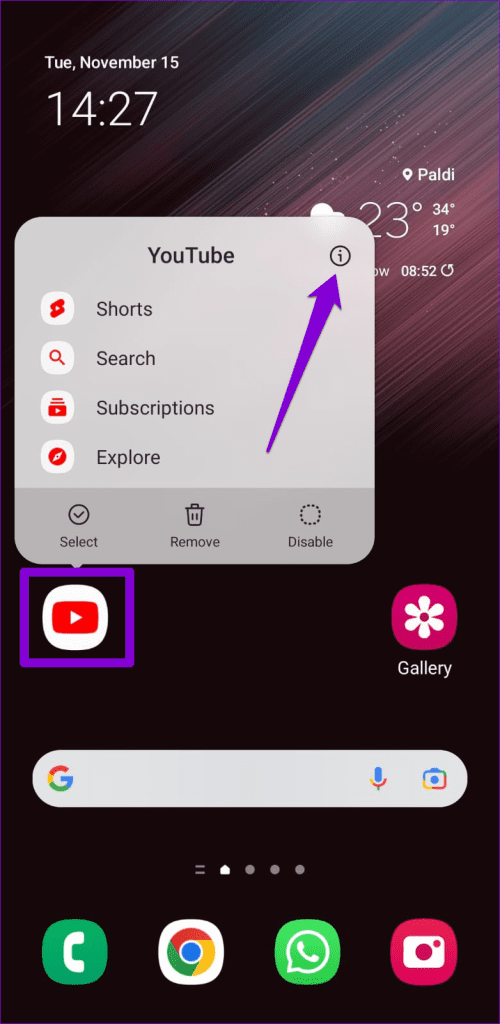
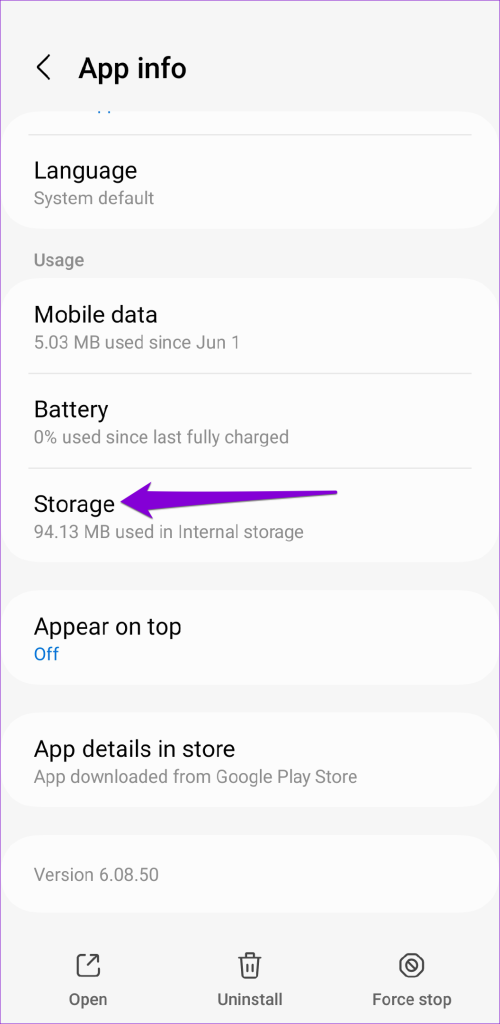
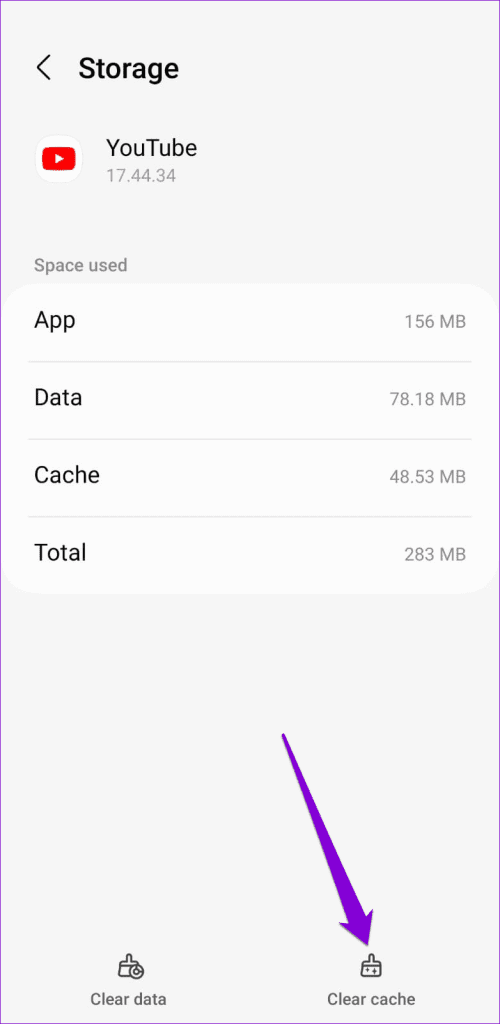
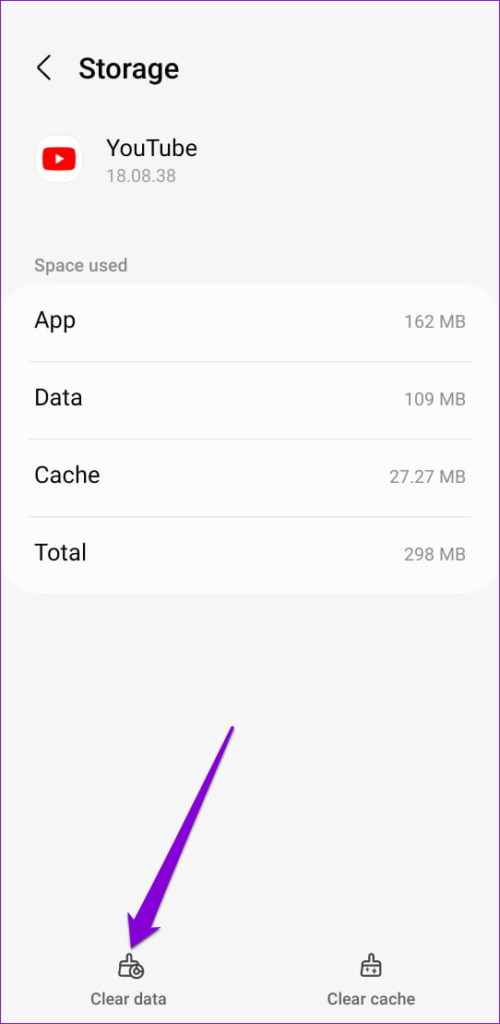
If the problem persists, you can consider clearing all the app data from the same menu. Note that this will delete all the app files, remove your accounts, and reset app settings.
Fix 2: Reinstall Android System WebView Updates
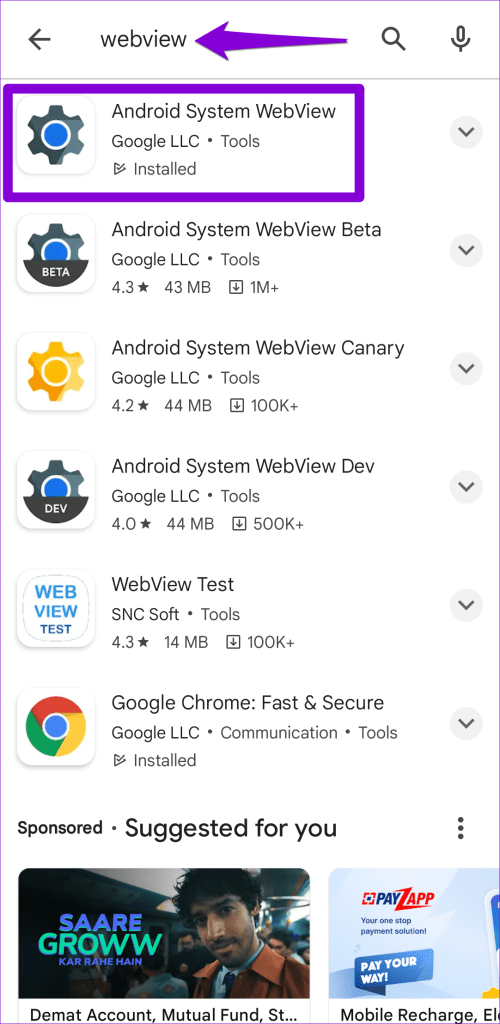
Android System WebView is a crucial system component that helps apps on your phone display web content. If there’s an issue with WebView, apps that rely on it (such as Chrome, Gmail, and others) might crash or fail to open. To fix this, you will need to uninstall Android System WebView updates and reinstall them.
Step 1: Launch the Google Play Store, search for Android System Webview, and select the first result that appears. Tap Uninstall and select Uninstall again to remove WebView updates.
Step 2: Tap the Update button to install Android WebView updates and try using your apps again.


Fix 3: Try Safe Mode
When you boot your Android into Safe Mode, it runs without third-party apps and services. This can help you determine if the issue is caused by one of those apps or services running in the background.
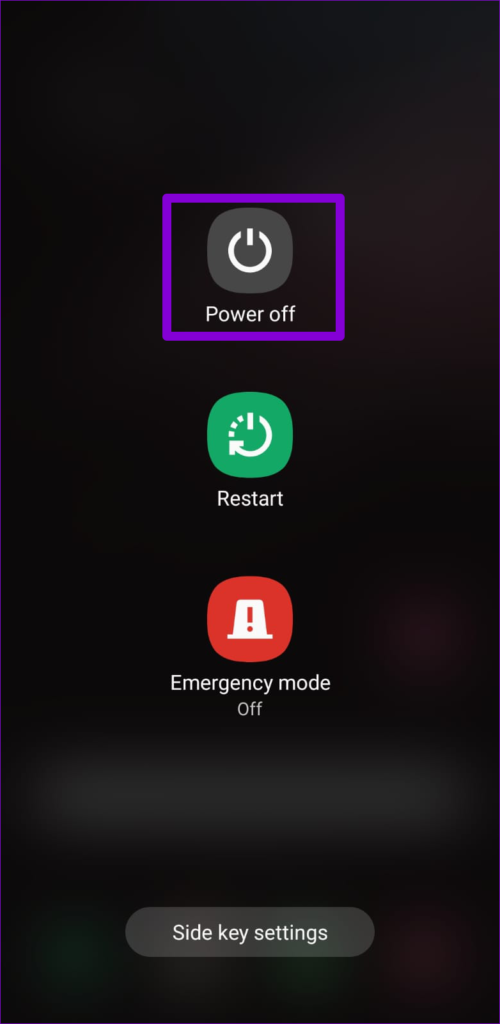
To boot your Android in Safe Mode, follow the steps below.
Step 1: Press and hold the physical power button on your phone.
Step 2: Long press the Power off option and tap the green checkmark that appears.
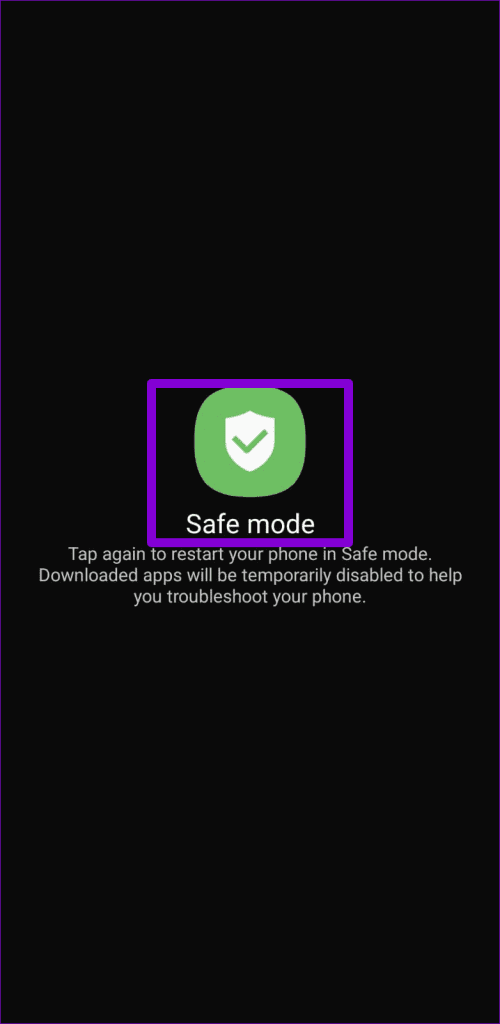
Once your phone boots into Safe Mode, try opening a few apps. If you don’t experience any problems, one of the third-party apps installed on Android might be causing the issue. Apps that you’ve recently installed are most likely to be the culprits. You will need to remove any suspicious apps one by one until the issue is resolved.
Fix 4: Reset All Settings
If all else fails, you can consider resetting your Android. Doing so will revert all the settings on your phone to their defaults. Don’t worry; your personal data won’t be affected by this.
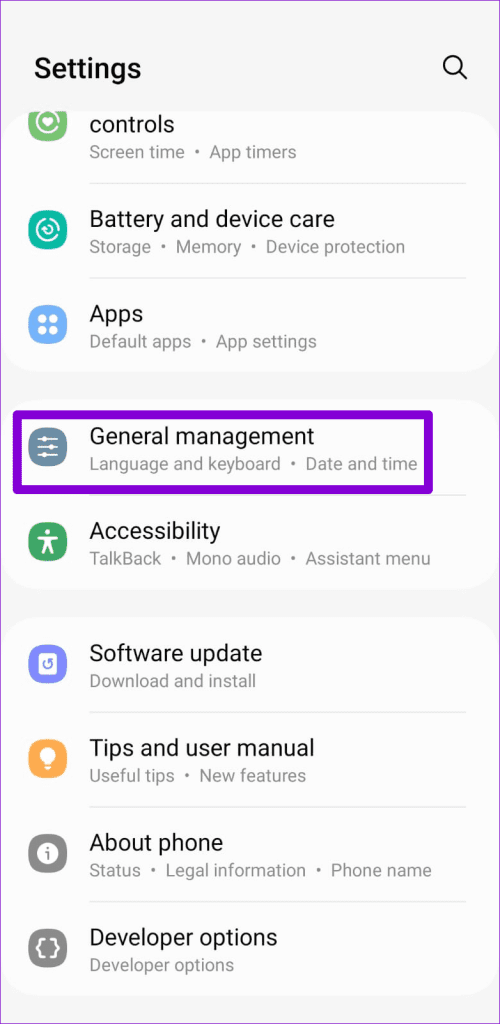
Step 1: Open the Settings app and head to General management > Reset.
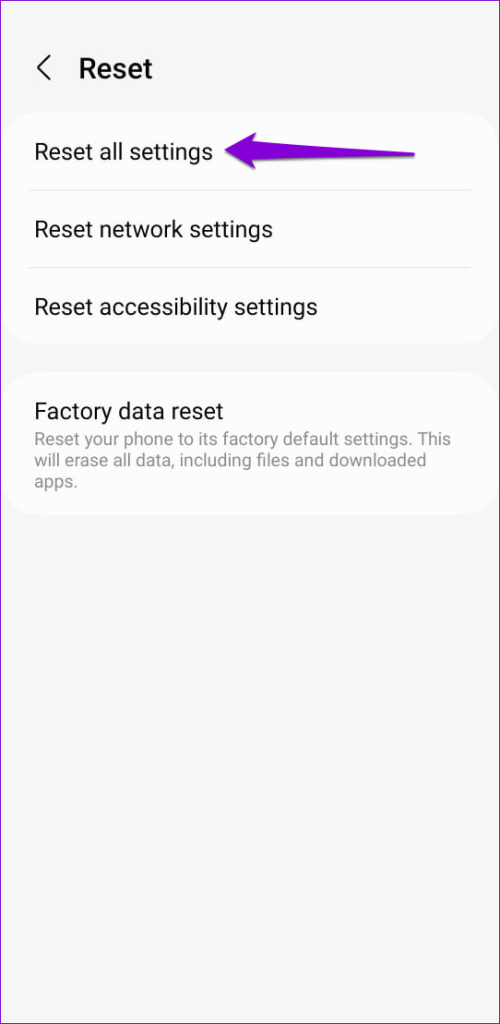
Step 2: Tap Reset all settings and select the Reset settings button to confirm.

Was this helpful?
Last updated on 08 July, 2024
4 Comments
Leave a Reply
Read Next
 5 Ways to Fix “No App Found to Open URL” Error on Android
Basic Fixes: Install Android updates: Bugs and glitches within Android on your phone can trigger such errors.
5 Ways to Fix “No App Found to Open URL” Error on Android
Basic Fixes: Install Android updates: Bugs and glitches within Android on your phone can trigger such errors.
 5 Ways to Fix Apps Duplicating on Android
Before you begin, restart your Android device and update it to the latest available version of Android.
5 Ways to Fix Apps Duplicating on Android
Before you begin, restart your Android device and update it to the latest available version of Android.
 5 Ways to Fix Apps Not Updating on Android
Basic Fixes Check network connection: Ensure there's no problem with the network connectivity on your Android device.
5 Ways to Fix Apps Not Updating on Android
Basic Fixes Check network connection: Ensure there's no problem with the network connectivity on your Android device.
 4 Ways to Fix Apps Not Installing on Android
Basic Fixes Restart device: Restart your Android device to fix temporary bugs and glitches.
4 Ways to Fix Apps Not Installing on Android
Basic Fixes Restart device: Restart your Android device to fix temporary bugs and glitches.
 3 Ways to Close All Open Apps at Once on Windows 11
Method 1.
3 Ways to Close All Open Apps at Once on Windows 11
Method 1.
 4 Ways To Keep Screen On for Android Apps
Method 1: Keep Screen On Using the Android System The most basic method involves adjusting your phone's screen timeout settings.
4 Ways To Keep Screen On for Android Apps
Method 1: Keep Screen On Using the Android System The most basic method involves adjusting your phone's screen timeout settings.
 2 Ways to Block Apps From Accessing Internet on Android
Method 1: Use In-Built Settings to Block Internet Access Some custom skins on Android have an in-built option to disable internet access for apps.
2 Ways to Block Apps From Accessing Internet on Android
Method 1: Use In-Built Settings to Block Internet Access Some custom skins on Android have an in-built option to disable internet access for apps.
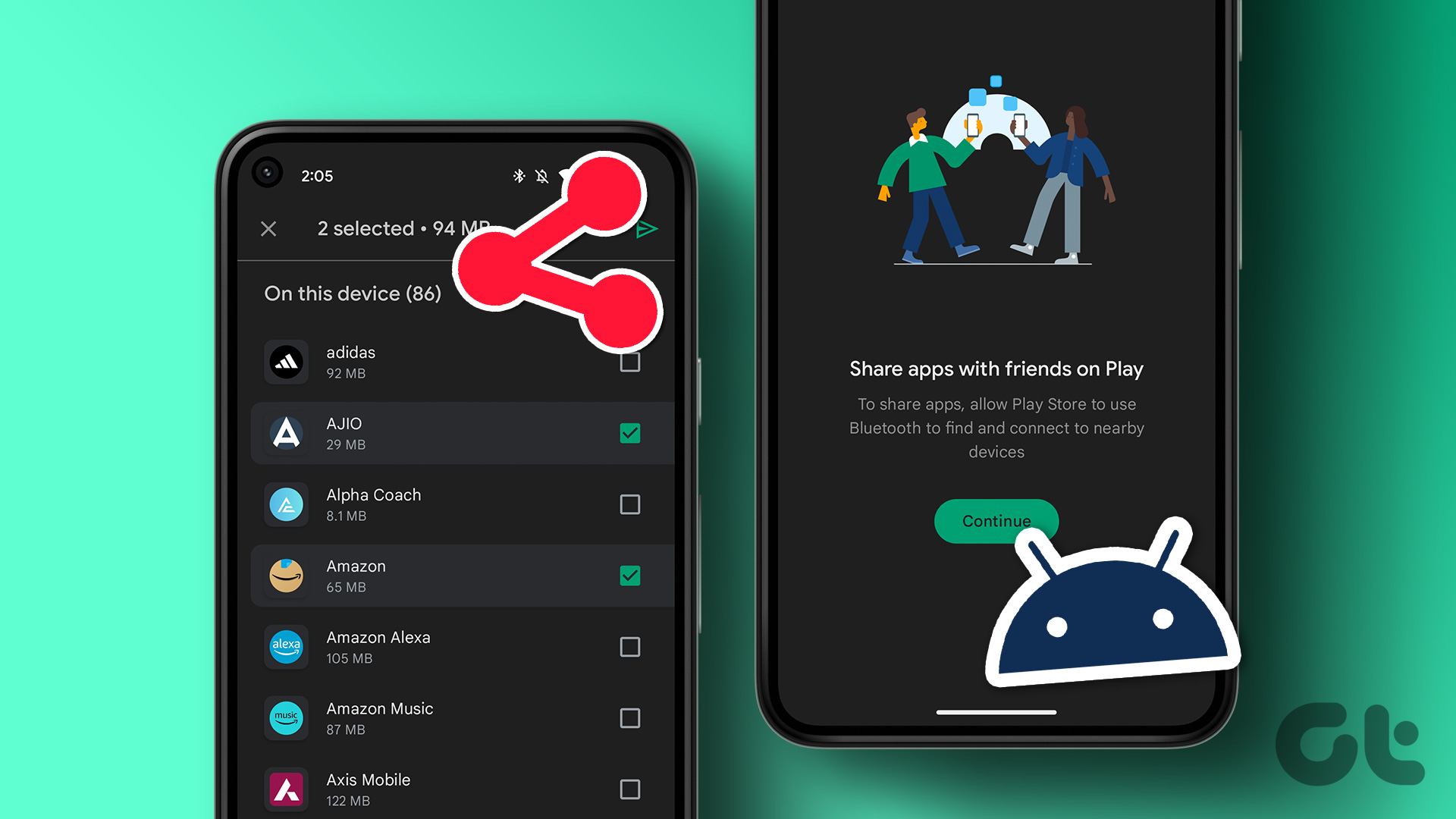 2 Ways to Share Apps Between Android Devices
Method 1: Share Apps Between Android Devices Using the Play Store The easiest and quickest way to share apps between Android devices is via the Play Store.
2 Ways to Share Apps Between Android Devices
Method 1: Share Apps Between Android Devices Using the Play Store The easiest and quickest way to share apps between Android devices is via the Play Store.
The article above may contain affiliate links which help support Guiding Tech. The content remains unbiased and authentic and will never affect our editorial integrity.

I have to get my app playing anyways but thanks for helping me get it THANK YOU SO SO MUCH ❤️❤️❤️❤️❤️
if i restart it, it will remove all my videos, photos and app?
Thank you for helping
I’ve been struggling to open my app but now my app is opened. I give you 5 stars
I stupidly accepted #Notepad update and not it won’t open beyond the first screen and when select Continue it flashes (showing my notes) and then closes. I have tried the options shown, that won’t delete my data, but can’t seem to get it open. Have sooooo many notes in here that I will be devastated if I can’t get back into it. Don’t know what to do now.