

Basic Fixes
- Update the Android Auto app: Sometimes, the Android Auto interface may not support an old or outdated version of the app. It could also be possible that a certain version of the app is causing issues on some devices. So, it’s best to keep it up-to-date.
- Update Google Play Services: Most of Google’s default apps and services on your Android phone are linked to Google Play Services. We recommend updating Google Play Services on your Android device and connecting it to Android Auto in your car again.
Fix 1: Turn off Battery Saver Mode on Your Phone
Since Android Auto consumes battery when it’s in use, you might think of enabling the battery-saver mode on your smartphone. However, the battery saver can shut down apps in the background and limit your phone’s functionalities to improve endurance.
This may prevent Android Auto from working as intended.
Fix 2: Clear the Cache of Android Auto
Clearing the cache of an app that isn’t functioning as intended often solves the issue. You can try doing this if Android Auto isn’t working. Here’s how to clear the cache of Android Auto.
Step 1: Open the Settings app on your smartphone and navigate to the Apps section. Find Android Auto and tap on it.
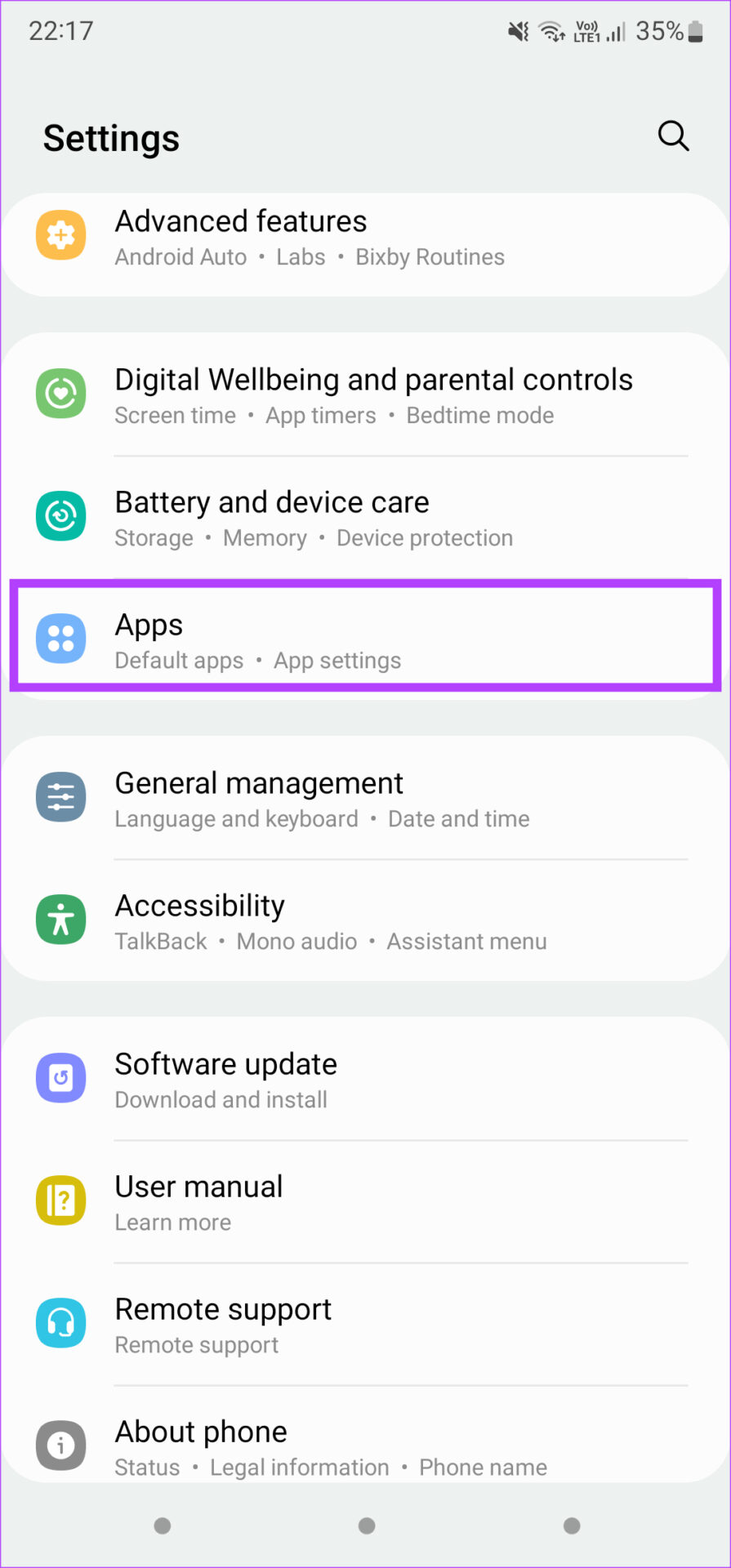
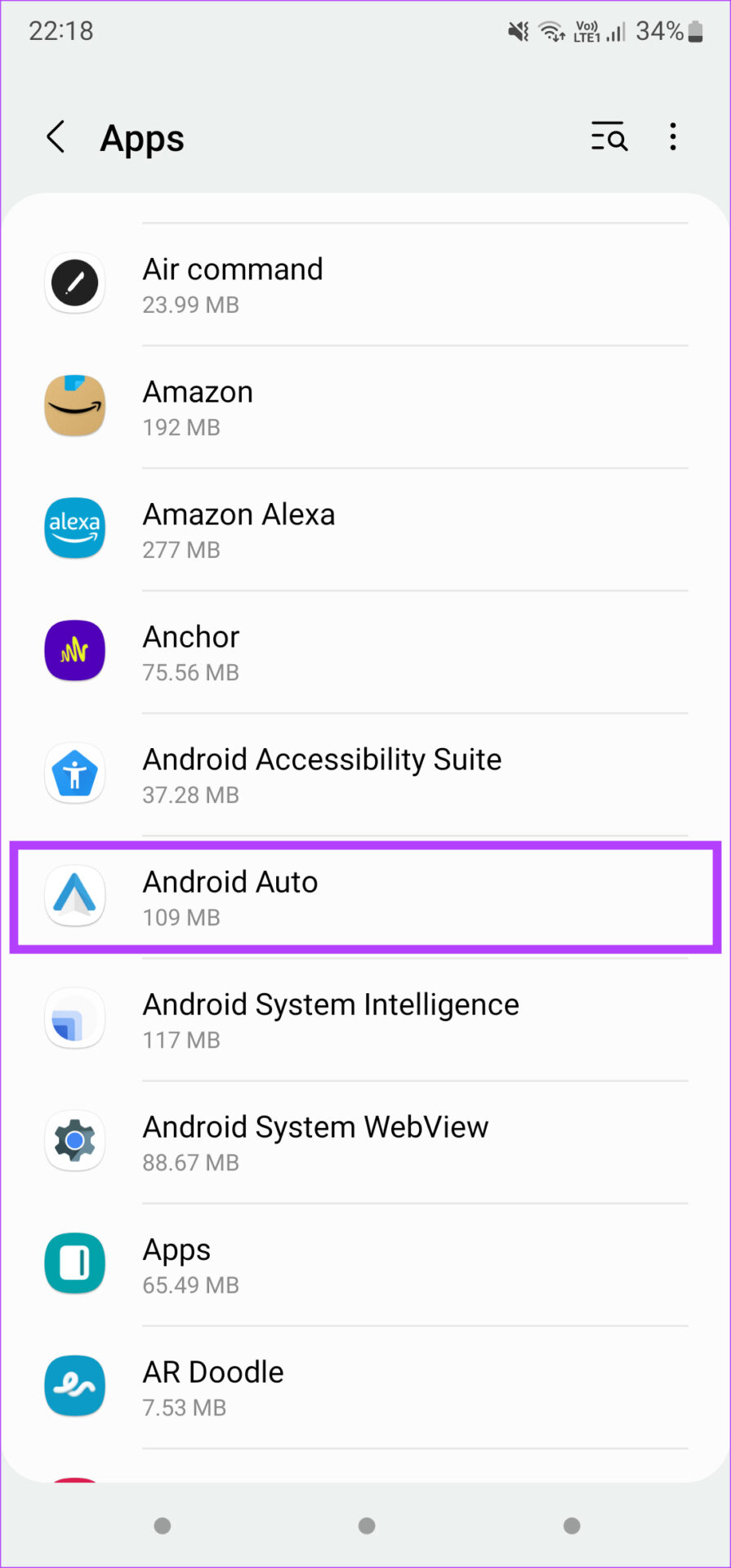
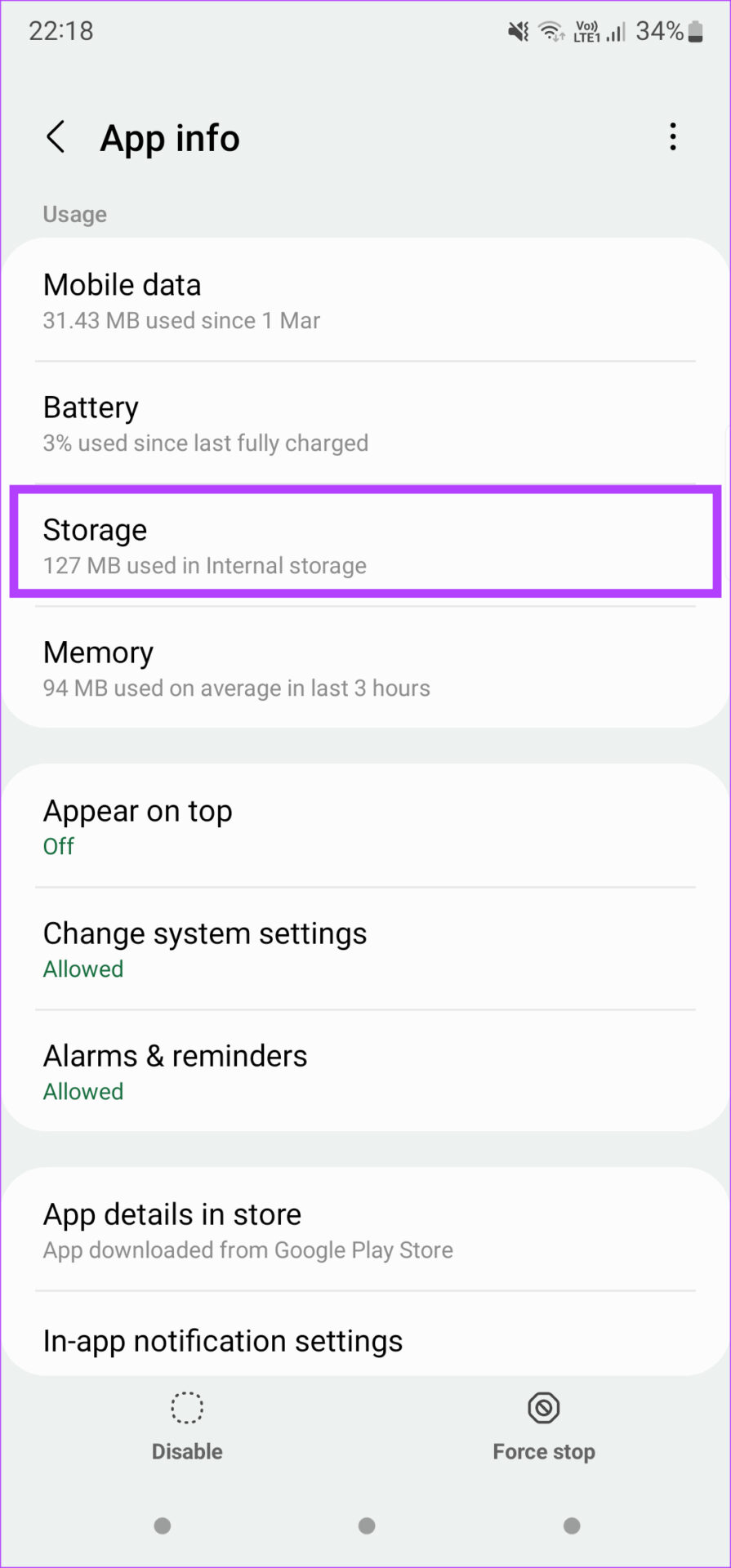
Step 2: Select the Storage option. Now, tap on Clear cache.

Also Read: How to fix if Apple CarPlay keeps disconnecting
Fix 3: Disable Battery Optimization for Android Auto
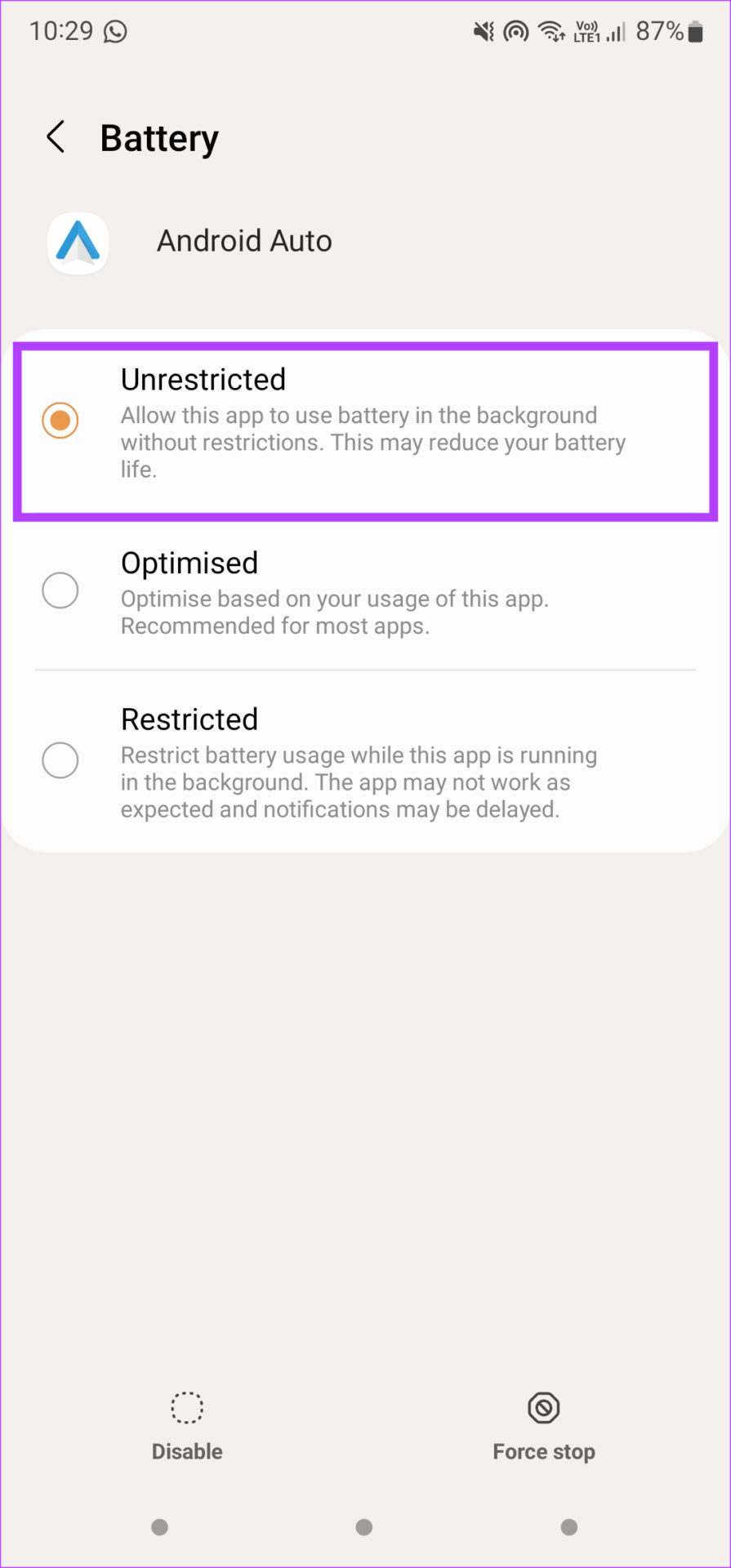
Enabling battery optimization for an app allows the Android system to kill the app in the background or prevent it from staying open for a long time if it’s consuming power. This may lead to Android Auto disconnecting repeatedly. Here’s how to disable battery optimization for the app to prevent this from happening.
Step 1: Open the Settings app and navigate to the Apps section. Find Android Auto and tap on it.
Step 2: Select Battery > change the setting to Unrestricted.

Fix 4: Forget Connected Cars and Add Them Again
The Android Auto app on your smartphone allows you to forget connected cars and disconnect from them. You can do this and pair the phone again with your car’s head unit. Here’s how it’s done.
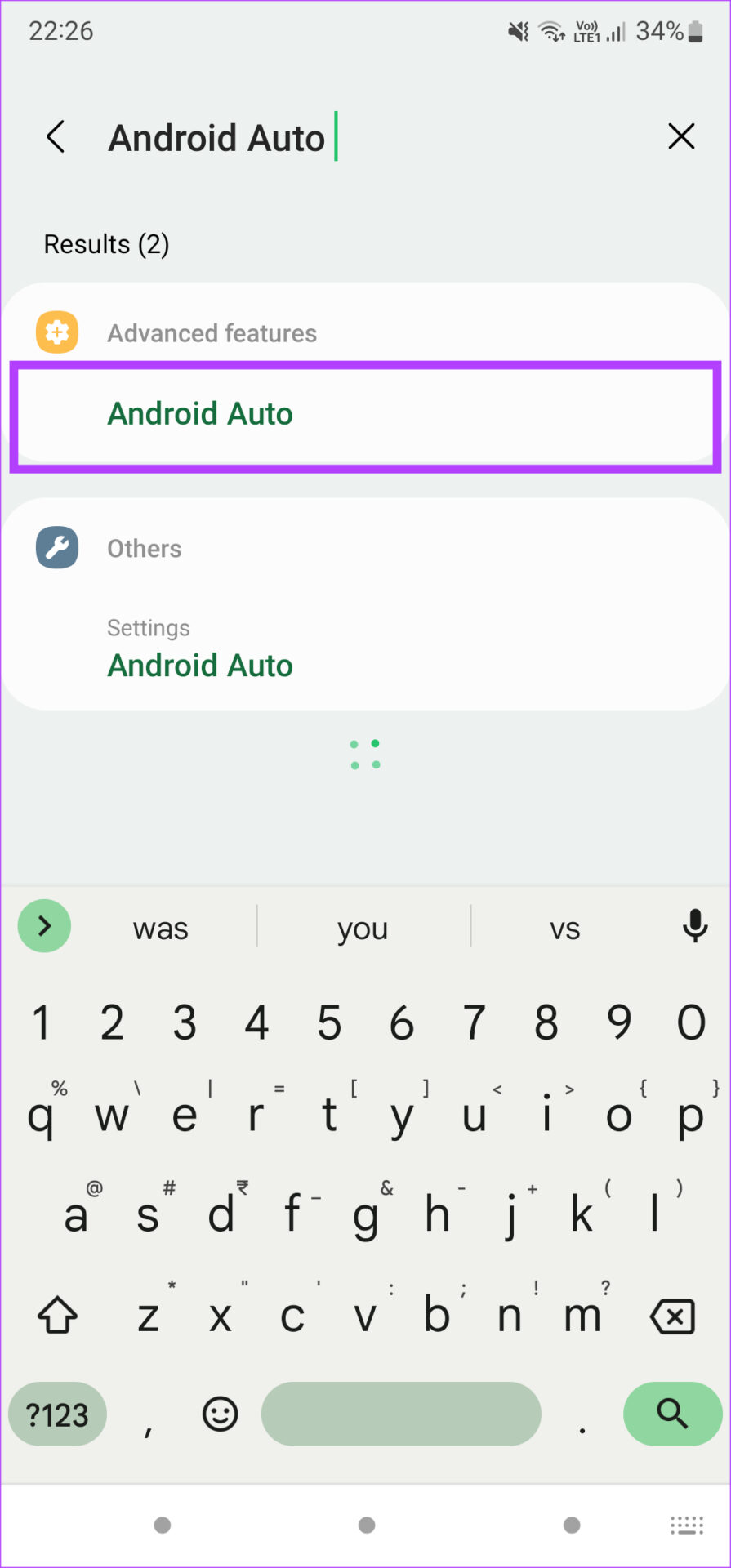
Step 1: Open the Settings app and tap on the search bar. Look for Android Auto and select the result.
Step 2: In the Android Auto settings, tap on Previously connected cars.

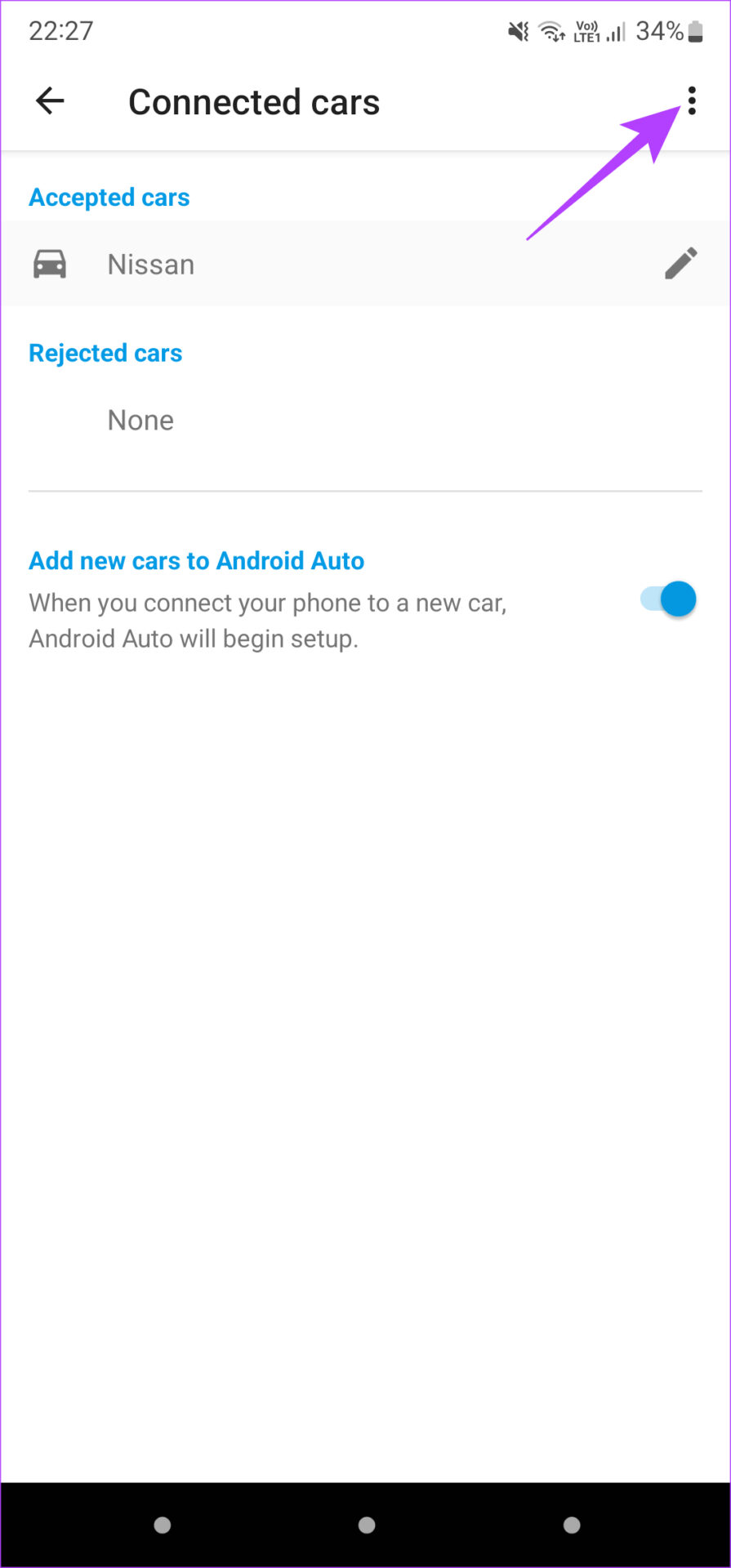
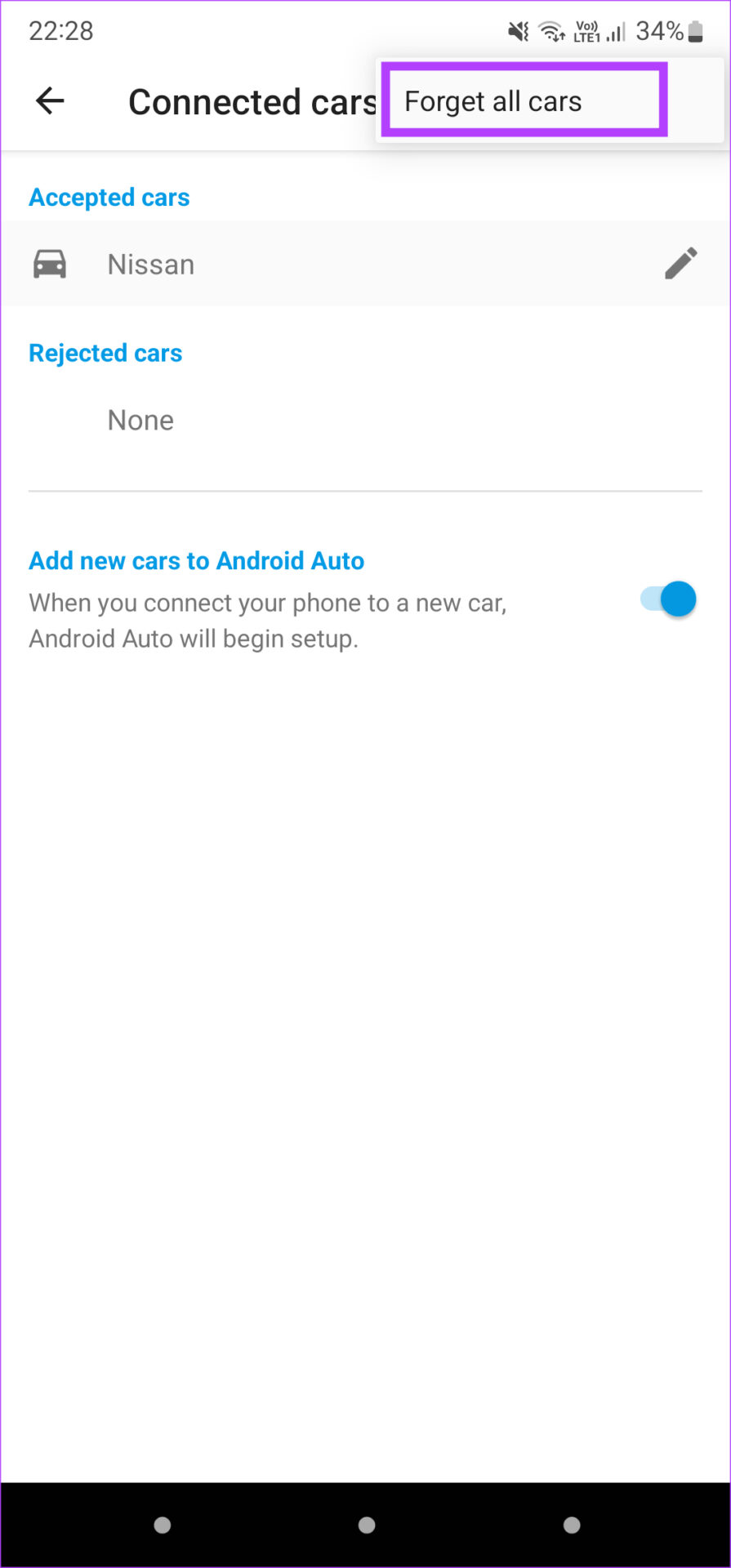
Step 3: Select the three-dot menu at the top-right corner of the screen. Tap on Forget all cars.
Step 4: Return to the previous menu and select Connect a car. Follow the on-screen instructions to connect your phone to a car’s head unit.
Was this helpful?
Last updated on 10 May, 2024
2 Comments
Leave a Reply
Read Next
 2 Ways to Fix Android Phone Keeps Disconnecting From Wi-Fi
Try Basic Fixes Disable interfering apps: VPNs and Wi-Fi prioritizing apps can sometimes interfere with your phone's network.
2 Ways to Fix Android Phone Keeps Disconnecting From Wi-Fi
Try Basic Fixes Disable interfering apps: VPNs and Wi-Fi prioritizing apps can sometimes interfere with your phone's network.
 4 Ways to Fix Bluetooth Keeps Disconnecting on Android
Basic Fixes Use 5GHz Wi-Fi: Bluetooth uses a 2.4GHz frequency band, which can cause the signals to overlap and can cause problems by disconnecting the device.
4 Ways to Fix Bluetooth Keeps Disconnecting on Android
Basic Fixes Use 5GHz Wi-Fi: Bluetooth uses a 2.4GHz frequency band, which can cause the signals to overlap and can cause problems by disconnecting the device.
 7 Best Ways to Fix Wear OS Smartwatch Keeps Disconnecting From Phone
A smartwatch is a great supplement to a smartphone.
7 Best Ways to Fix Wear OS Smartwatch Keeps Disconnecting From Phone
A smartwatch is a great supplement to a smartphone.
 6 Ways to Fix Mac Wi-Fi Keeps Disconnecting
Fix 1: Run macOS Wireless Diagnostics macOS has a built-in diagnostic tool to diagnose and fix connectivity problems on your Mac.
6 Ways to Fix Mac Wi-Fi Keeps Disconnecting
Fix 1: Run macOS Wireless Diagnostics macOS has a built-in diagnostic tool to diagnose and fix connectivity problems on your Mac.
 8 Best Ways to Fix Windows 10 Ethernet Keeps Disconnecting
On Windows 10 computers, both wired and wireless connections come with their respective problems.
8 Best Ways to Fix Windows 10 Ethernet Keeps Disconnecting
On Windows 10 computers, both wired and wireless connections come with their respective problems.
 Top 14 Ways to Fix Apple CarPlay Keeps Disconnecting
Apple CarPlay is quite helpful while driving.
Top 14 Ways to Fix Apple CarPlay Keeps Disconnecting
Apple CarPlay is quite helpful while driving.
 How to Fix iPhone Hotspot Keeps Disconnecting on Windows and Mac
Why Does My iPhone Hotspot Keeps Disconnecting Before we show you step-by-step instructions to fix the hotspot issue on your iPhone, let's quickly go over some of the possible reasons
How to Fix iPhone Hotspot Keeps Disconnecting on Windows and Mac
Why Does My iPhone Hotspot Keeps Disconnecting Before we show you step-by-step instructions to fix the hotspot issue on your iPhone, let's quickly go over some of the possible reasons
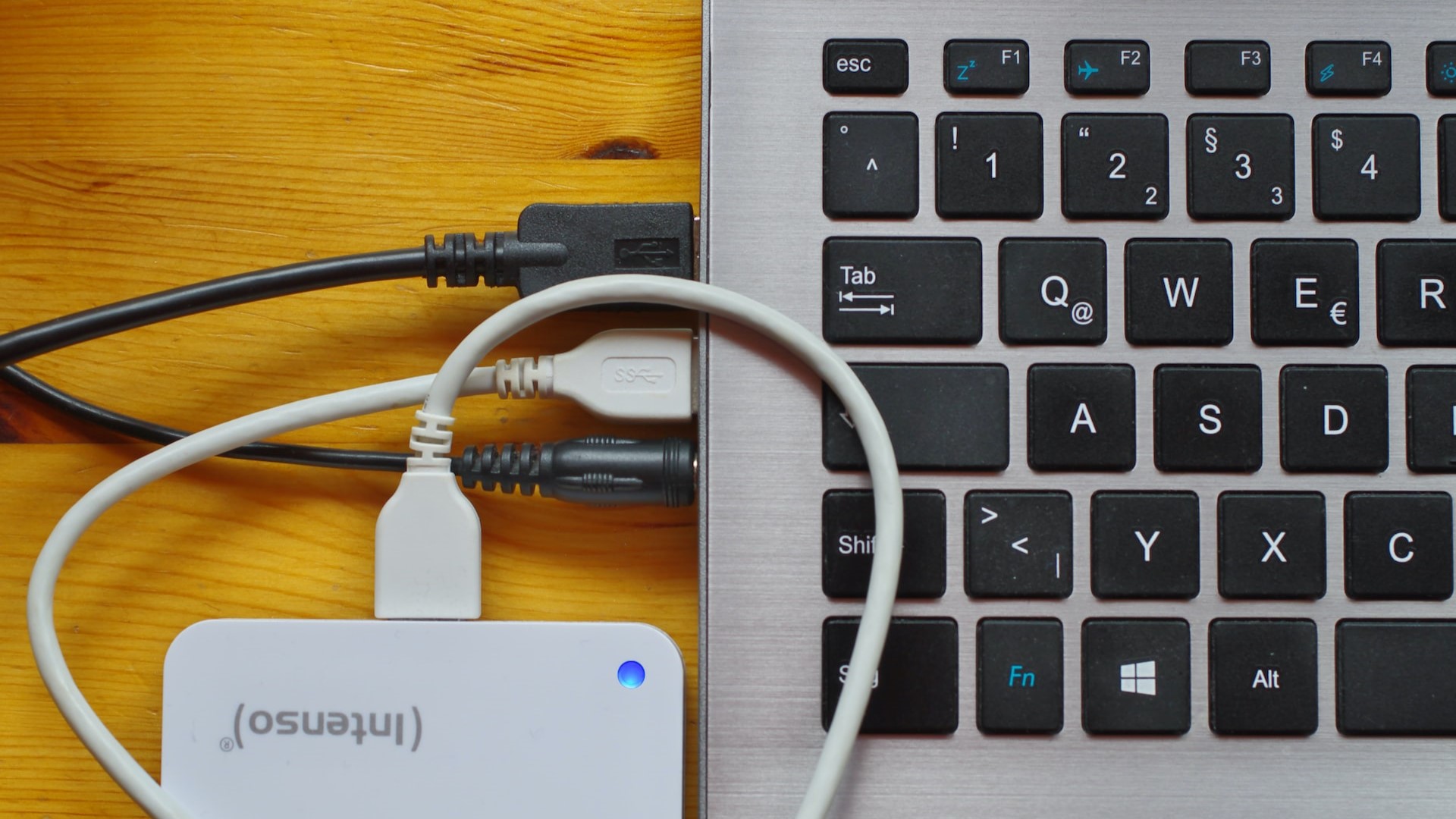 4 Ways to Fix USB Devices Keep Disconnecting and Reconnecting in Windows 11
https://youtu.be/tUV-xdBsm5o Try Basic Fixes Reconnect the device: Unplugging your USB device and plugging it back in should help fix any issues caused by a loose connection.
4 Ways to Fix USB Devices Keep Disconnecting and Reconnecting in Windows 11
https://youtu.be/tUV-xdBsm5o Try Basic Fixes Reconnect the device: Unplugging your USB device and plugging it back in should help fix any issues caused by a loose connection.
The article above may contain affiliate links which help support Guiding Tech. The content remains unbiased and authentic and will never affect our editorial integrity.
Thank you! I worked through the list but it was #9 that made the difference. I was about to give up. Now it’s working as expected.
My wife and I both have Samsung S9’s. I have been through the list with both phones and they still keep dropping the connection.
I tried an older iPhone and it does not drop the connection. Very frustrating!